• Some users have recently had their accounts hijacked. It seems that the now defunct EVGA forums might have compromised your password there and seems many are using the same PW here. We would suggest you UPDATE YOUR PASSWORD and TURN ON 2FA for your account here to further secure it. None of the compromised accounts had 2FA turned on.
    Once you have enabled 2FA, your account will be updated soon to show a badge, letting other members know that you use 2FA to protect your account. This should be beneficial for everyone that uses FSFT.

LG 48CX

Windows HDR is detected as BT.2020 fine for me.

Some people were claiming something about washed out colors unless BT.2020 was forced in the HDMI signaling override. Question is, what if those "washed out colors" was actually the accurate image while forcing BT.2020 was just giving major oversaturation that was more pleasing to the eye?
 
I've also noticed that text looks fairly crappy on my Cx as well, even after playing with clear type or trying to just turn it off. My issue is letters, especially lighter colored letters, have a lot of ghosting and halo around them.
Do we have any thread/info discussion settings for optimal text clarity?
I could live with one setting for my daily office use and one that I apply for the free/fun time
 
Last edited:
Some people were claiming something about washed out colors unless BT.2020 was forced in the HDMI signaling override. Question is, what if those "washed out colors" was actually the accurate image while forcing BT.2020 was just giving major oversaturation that was more pleasing to the eye?
No it was clearly handling the color space wrong and that caused washed out colors. It was fixed in a firmware update and now just works. If I remember correctly it did not even do this all the time, just occasionally.

At this point on the latest firmware you don't need to access that menu.
 
Do we have any thread/info discussion settings for optimal text clarity?
I could live with one setting for my daily office use and one that I apply for the free/fun time
Honestly at this point it gets hard for me to say what is optimal. On MacOS it's easy, just turn off font smoothing and everything looks great. On Windows it's trickier.

I have been running with the grayscale font smoothing setting for a good while but for testing I just turned RGB back on and adjusted the contrast to 1600 in Better Cleartype Tuner and might actually prefer how that looks. I don't know if LG has changed something in the processing on the TV because I before felt RGB was worse.

I suggest playing around with the Better Cleartype Tuner settings and settling for whatever looks good to you. Turning Cleartype off is not an option IMO as it looks very jagged.

The higher scaling level you use the better it will handle things. I run mine at 125% in WIndows, 120% on MacOS.

You need to have PC mode on (Home dashboard, set icon of input to PC, name can be anything) and make sure the display is running at 8 or 10 bit RGB. Anything else will run with chroma subsampling.
 
Last edited:
Honestly at this point it gets hard for me to say what is optimal. On MacOS it's easy, just turn off font smoothing and everything looks great. On Windows it's trickier.

I have been running with the grayscale font smoothing setting for a good while but for testing I just turned RGB back on and adjusted the contrast to 1600 in Better Cleartype Tuner and might actually prefer how that looks. I don't know if LG has changed something in the processing on the TV because I before felt RGB was worse.

I suggest playing around with the Better Cleartype Tuner settings and settling for whatever looks good to you. Turning Cleartype off is not an option IMO as it looks very jagged.

You need to have PC mode on (Home dashboard, set icon of input to PC, name can be anything) and make sure the display is running at 8 or 10 bit RGB. Anything else will run with chroma subsampling.

Wow I didn't even know of this app, with your settings text looks really nice. My only complaint is with the CX ( I have a feeling all OLED's) I still get quite a bit of ghosting.
 
Wow I didn't even know of this app, with your settings text looks really nice. My only complaint is with the CX ( I have a feeling all OLED's) I still get quite a bit of ghosting.
What do you mean by ghosting? What kind of settings are you running on the TV? Are you using DPI scaling in Windows? What apps are you using to compare text quality? Are you comparing with another monitor?

Chrome loves to ignore text rendering settings for example while Firefox doesn't, there's also a difference in more legacy GDI apps vs more modern stuff.
 
  • Like
Reactions: elvn
like this
Just a reminder since the text quality question often comes up. With a screen this size your text quality can be greatly impacted by your view distance.
That pic he took is from very close to the screen though too. How far away is he sitting? Sitting too close in relation to ppi = a lower PPD so will always look bad. (Using text sizes too small in relation to the ppi will also look bad).


...27" 3840x2160 at 2.0' away is 73.5 ppd (and 53 deg horizontal viewing angle)
...48" 3840x2160 at at 42.5" away is 73.5 ppd

...27" 3840x2160 is 57.9 ppd at 18" (1.5') away
...48" 3840x2160 is 57.9 ppd at 32" away


Same goes for sitting too near at a desk for 1440p on 31.5" 1440p diagonal screen like the VA I upgraded from, and it's why VR resolutions are still an issue currently (even though they use lenses to change the focal point).
 
What do you mean by ghosting? What kind of settings are you running on the TV? Are you using DPI scaling in Windows? What apps are you using to compare text quality? Are you comparing with another monitor?

Chrome loves to ignore text rendering settings for example while Firefox doesn't, there's also a difference in more legacy GDI apps vs more modern stuff.

White text seems to be slightly doubled and there is a very slight black halo around the text, I don't think I'm describing it well at all though, it's almost like the letters are out of focus, but they aren't and letters themselves are very sharp. This is in varying degrees depending on how light the text is, with white being the worst. I've played around with everything, OLED backlight, contrast, brightness, etc. I am using DPI scaling, currently at 200%, but I've played with different levels. Main apps I'm using are browsers, mainly MS Edge (chromium) but after your comment I did try in Firefox and didn't see any different. Nvidia settings 4k/120hz, 10bit RGB/full. HDR is on as I'm too lazy to turn it on/off every single time I play a game. Game response is on, as is HDMI ultra. I mainly use Vivid for desktop but if I switch to Game it still looks the same.

The text looks really good though, no jaggies, especially after putting it on 1600 RGB contrast. This is in comparison to my old LG LED, as well as the Q80T I had for a few days, that's why I was assuming it was something inherent to OLED. I do sit pretty close to it, but even if I am back a couple of feet I still see this. I double checked with a few friends/family to make sure it wasn't my eyes.
 
imo 38" to 41" minimum for this panel which is over 3' to 3.5', not 2'... or you are going to be making some compromises.
... THX sweet spot of 50deg wide viewing angle for movie viewing starts at 44.4" away for the 48 inch diagonal screen.

THX 's standard has optimal viewing angle for movies as 45 to 50 degree width. On a 48" 16:9, 50deg starts at ~ 44.4" screen to eyeballs. This results in ~ 76 PPD.

e.g. 54 degree viewing angle and the same ~71 to 72 PPD at 4k on all of them at those distances would be:

48" 16:9 display = 41" view distance ( ~ 3.5 ' )
42" 16:9 display = 35.9" view distance ( ~ 3' )
31.5" 16:9 display = 27" view distance ( ~ 2.4')
27" 16:9 display = 23" view distance ( ~ 2')
I'll also add.. don't sit too close to it. I had a 32" 1440p and the text and anything else would show edges if I tried to sit 1' to 1.5' away. When I sat at a more appropriate distance for it's ppi .. it's PPD and default font sizes looked great. Also in the same vein, don't try to make the fonts smaller than the ppi's limitations just because you are sitting too close as that will be worse too.

THX 's standard has optimal viewing angle for movies as 45 to 50 degree width. On a 48" 16:9, 50deg starts at ~ 44.4" screen to eyeballs. This results in ~ 76 PPD.

421005_w7zaY99.png

That's for movies though, to see the whole scene. It's a good baseline but I sit closer for some games at 38" to 41" away. I wouldn't bother sitting closer than that (and then complain about the ppi and font edges).

The PPD at that THX 50 degree is the same as what the ppi would look like at all of these monitor sizes at these distances below. For general usage and gaming I would sit closer (putting a little more of the scren's extents into the periphery) but this gives some idea of the distance ratio between all of these screen sizes PPD wise at ~ 76 PPD.

421006_CQMiyPX.png
421007_XdwQKAB.png


You can adjust that tool to compare nearer.
e.g. 54 degree viewing angle and the same ~71 to 72 PPD at 4k on all of them at those distances would be:

48" 16:9 display = 41" view distance ( ~ 3.5 ' )
42" 16:9 display = 35.9" view distance ( ~ 3' )
31.5" 16:9 display = 27" view distance ( ~ 2.4')
27" 16:9 display = 23" view distance ( ~ 2')
 
What do you mean by ghosting?
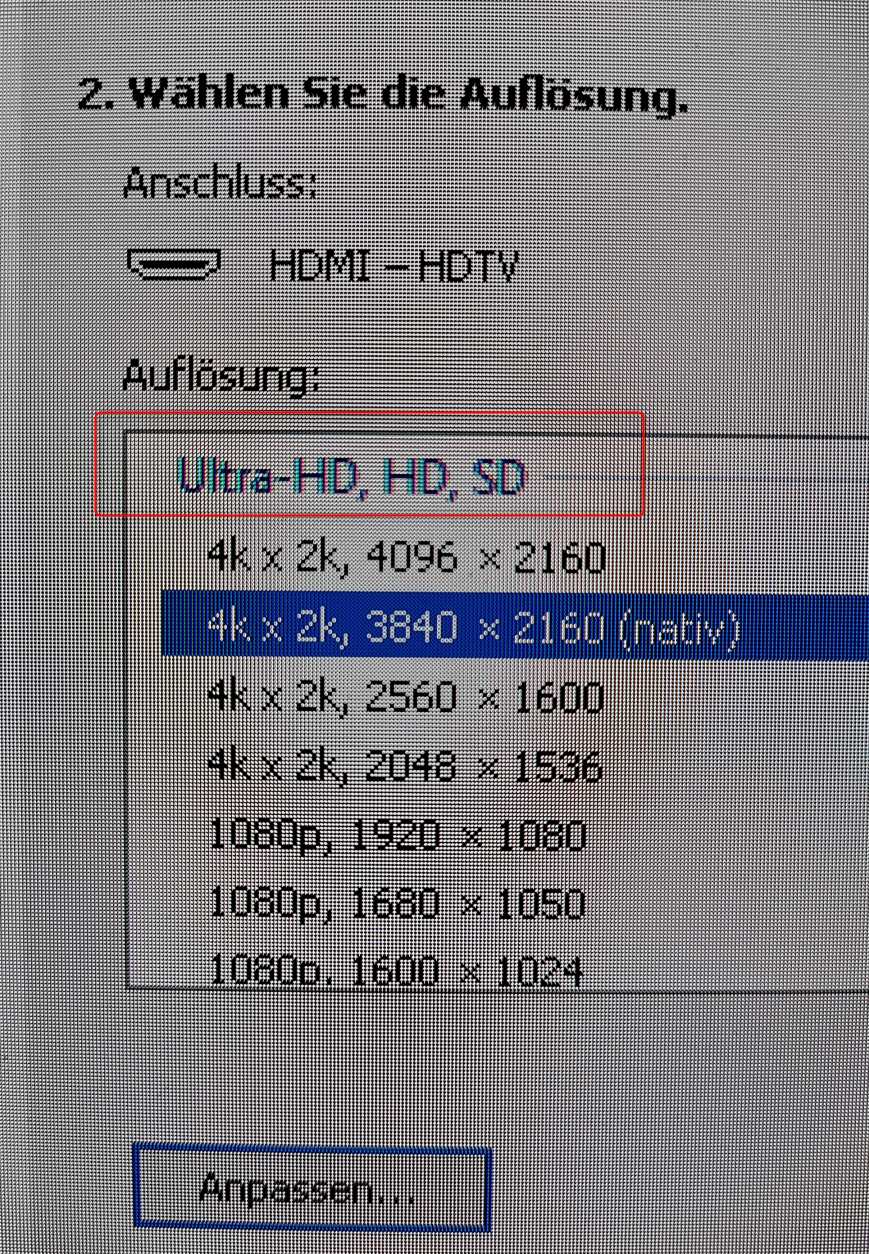
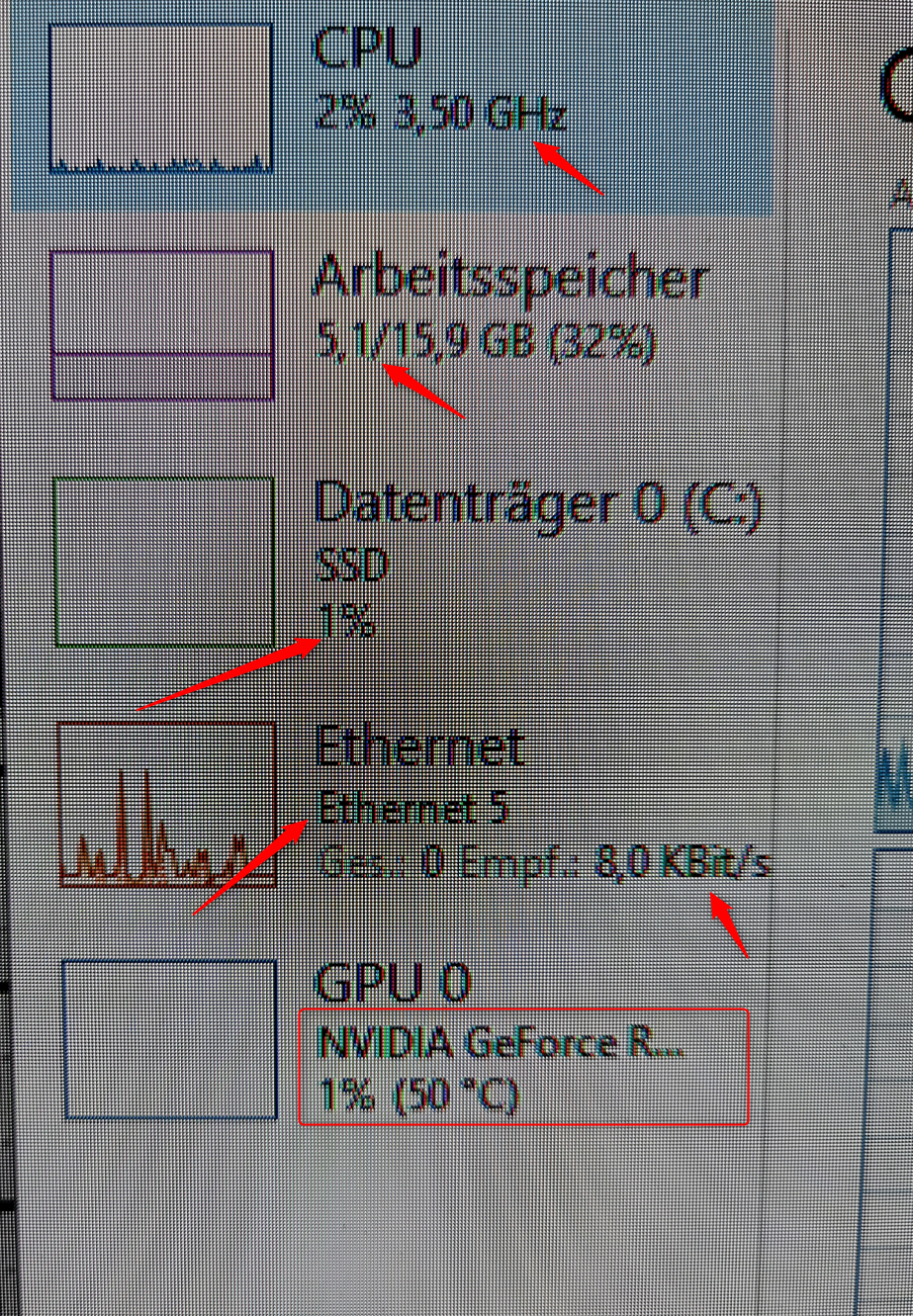
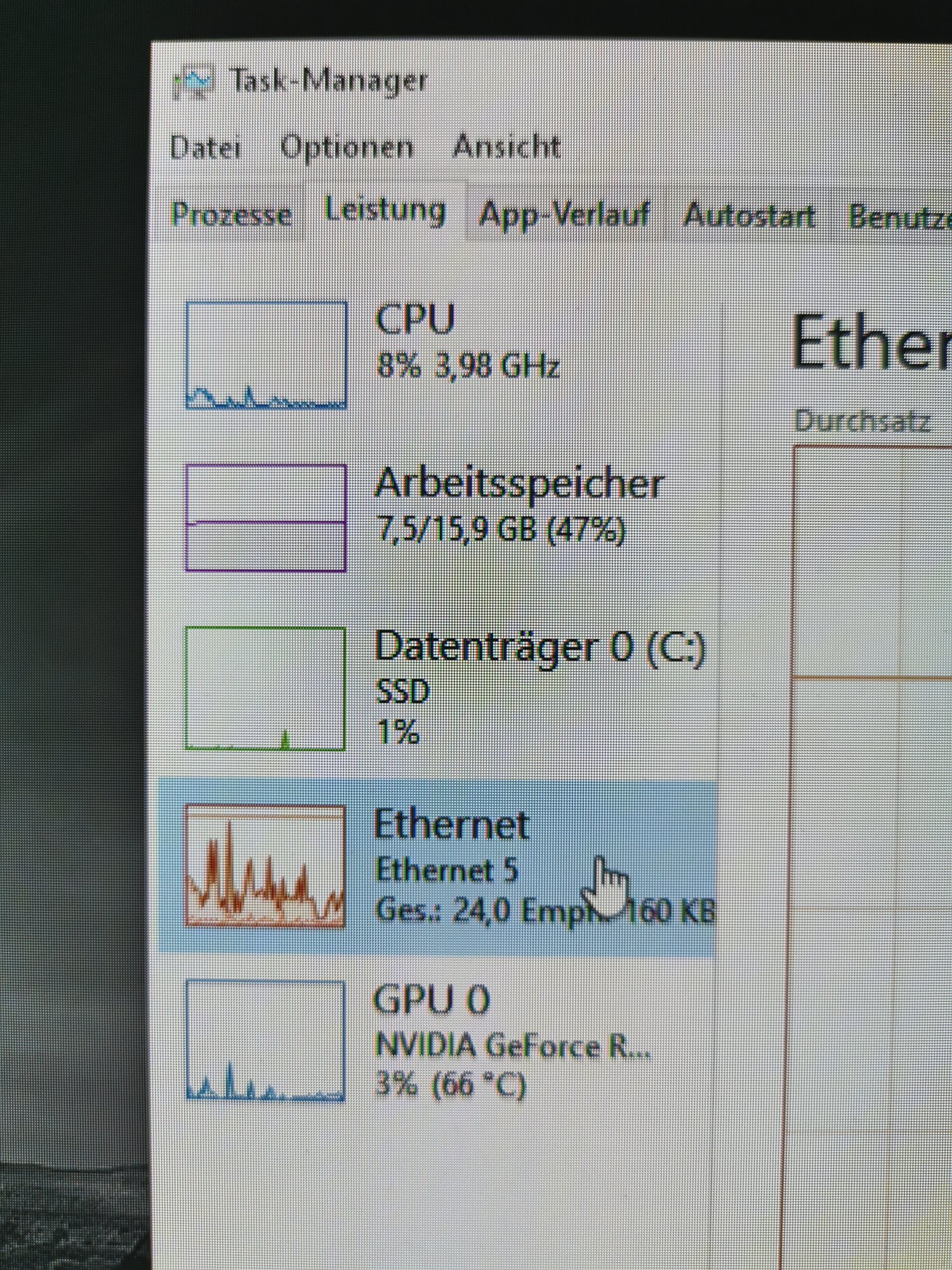
I'll give some examples using tools we all have access to: Nvidia control panel, task manager and and windows explorer:

* I am using 100% scaling at the moment

* Ghosting for my screen is like a horizontally shifted echo of the text, shifted to the left (in my case). It looks like the echos/halos you seen when they test IPS/VA panels with moving objects to measure pixel lag / refresh times

* On small text elements that leads to echoes overlapping with the next letters and that makes it hard to pick up visually

* Have a special look at the photo of the Nvidia control panel: The blue header called "Ultra-HD, HD, SD" has a strong echo, whereas the fonts for the resolution are crystal clear. So physically IT IS POSSIBLE to have perfect font sharpness, but the rendering in many places seems to generate fonts that are displayed with echoes.

I tried changing to no avail:

* 120HZ -> 60Hz
* Gsync on/off
* RGB/YCbCr444
* 10/8 bit

* Sharpness to "0" on TV and all other options tried with on/off setting
 

Attachments

  • 2021-01-31_19h15_06.png
    2021-01-31_19h15_06.png
    3.1 MB · Views: 0
  • 2021-01-31_19h18_35.png
    2021-01-31_19h18_35.png
    2.6 MB · Views: 0
  • 2021-01-31_19h16_54.png
    2021-01-31_19h16_54.png
    3.7 MB · Views: 0
imo 38" to 48" for this panel which is over 3' to 4'.
assuming it was something inherent to OLED.
OLED does have an extra clear subpixel that shows white through it... WRGB = WhiteRGB. This boosts effective brightness (to conserve OLED lifespan and vs burn-in) but sacrifices accuracy as you get father away from SDR range.

Personally I'd sit father away in the first place to a more comparable PPD to a traditional desktop monitor as I listed above. See how that looks to you. Other than that I would use dark themes wherever possible. Windows themes and browser themes, color changer addon for firefox and chrome (can change text and/or background color and intensity on the fly and it remembers it per site), turn off the lights for firefox and chrome (brightness slider per page), dark themes for all apps where possible. However in my opinion the best usage scenario is using a side monitor and keeping the OLED as a media stage for games and movies, videos, streams, etc.

247983.png

I set turn of the lights to "automatically dim the background on the following sites" so it affects all sites to my default dimming level that I set in the general settings. I then build a whitelist for sites like hardforum that are fine without it.

ion-turn-off-the-lights-browser-extension-1024x510.png

I also:
...Always show the dimness level bar when the lights go out (under Advanced -> dimness level bar). You can click to toggle the dimness bar on a page to "minimize" it to a square.
...set turn out the lights to "Enable clicking hyperlinks when the screen is darkened" in Advanced -> mouse settings. Then you can operate on the page while it is dimmed w/o breaking out of the dimness overlay.
 
Last edited:
I suggest playing around with the Better Cleartype Tuner settings and settling for whatever looks good to you. Turning Cleartype off is not an option IMO as it looks very jagged.

Wow, that was an awesome suggestion! Font quality has noticably improved. I chose Greyscale and the font "Georgia"
 
Wow, that was an awesome suggestion! Font quality has noticably improved. I chose Greyscale and the font "Georgia"
The font choice has no effect in anything but the preview though. It's best to look at real apps how they look. Some will work just toggling the Better Cleartype Tuner options, others need to be restarted for them to take effect. Some might require logging out and back in.
 
Best thing for fonts is to set scaling to 150% minimum. 100% just looks bad no matter what in my opinion. Cleartype really needs the extra pixels to work its magic.
 
Best thing for fonts is to set scaling to 150% minimum. 100% just looks bad no matter what in my opinion. Cleartype really needs the extra pixels to work its magic.
For 150% I would want quite a bit more viewing distance. I feel 120-125% is about ideal for 1m viewing distance. I feel that is enough to improve the font rendering too.
 
I'll give some examples using tools we all have access to: Nvidia control panel, task manager and and windows explorer:

* I am using 100% scaling at the moment

* Ghosting for my screen is like a horizontally shifted echo of the text, shifted to the left (in my case). It looks like the echos/halos you seen when they test IPS/VA panels with moving objects to measure pixel lag / refresh times

* On small text elements that leads to echoes overlapping with the next letters and that makes it hard to pick up visually

* Have a special look at the photo of the Nvidia control panel: The blue header called "Ultra-HD, HD, SD" has a strong echo, whereas the fonts for the resolution are crystal clear. So physically IT IS POSSIBLE to have perfect font sharpness, but the rendering in many places seems to generate fonts that are displayed with echoes.

I tried changing to no avail:

* 120HZ -> 60Hz
* Gsync on/off
* RGB/YCbCr444
* 10/8 bit

* Sharpness to "0" on TV and all other options tried with on/off setting
Try increasing viewing distance. I tried looking at the same apps and really had to stick my face in the screen to see a slight red tint on the text. For me it does not look anywhere near as bad so try resetting cleartype settings from the Windows built in Cleartype tuner.
 
I'll give some examples using tools we all have access to: Nvidia control panel, task manager and and windows explorer:

* I am using 100% scaling at the moment

* Ghosting for my screen is like a horizontally shifted echo of the text, shifted to the left (in my case). It looks like the echos/halos you seen when they test IPS/VA panels with moving objects to measure pixel lag / refresh times

* On small text elements that leads to echoes overlapping with the next letters and that makes it hard to pick up visually

* Have a special look at the photo of the Nvidia control panel: The blue header called "Ultra-HD, HD, SD" has a strong echo, whereas the fonts for the resolution are crystal clear. So physically IT IS POSSIBLE to have perfect font sharpness, but the rendering in many places seems to generate fonts that are displayed with echoes.

I tried changing to no avail:

* 120HZ -> 60Hz
* Gsync on/off
* RGB/YCbCr444
* 10/8 bit

* Sharpness to "0" on TV and all other options tried with on/off setting
Sharpness set to 0 on this TV is soft. 20 is the neutral setting, if I remember correctly. This is also showing the issue with the fourth white subpixel we have been talking about. You can address the text issue by using ClearType.
 
Sharpness set to 0 on this TV is soft. 20 is the neutral setting, if I remember correctly. This is also showing the issue with the fourth white subpixel we have been talking about. You can address the text issue by using ClearType.
Is there a source for this? I haven't seen it anywhere else.
 
I have seen Vincent Teoh and others saying 0 is neutral. To my eyes, in game mode + PC mode there is no difference between 0 and 10 anyway. It's like the sharpness setting is bypassed. Haven't tried much higher values, though.
 
I know it's that way on some VA tv's like my samung nu6900 which has neutral sharpness at 10 rather than zero.

I have seen Vincent Teoh and others saying 0 is neutral. To my eyes, in game mode + PC mode there is no difference between 0 and 10 anyway. It's like the sharpness setting is bypassed. Haven't tried much higher values, though.

One of the comments below says pretty much what you are saying and with some examples.


According to this page, the default sharpness on some LG OLEDs is set to 10, and filmmaker mode on the CX is 10 sharpness - but bypassing processing with no edge enhancement = zero. For video watching as a more proper TV.

it might come down to a matter of preference for some people though.

https://www.avsforum.com/threads/20...nd-user-settings-no-price-talk.3113174/page-3

FILMMAKERMODE should disable all processing which changes the picture, like edge enhancement.

No edge enhancement is sharpness 0 for LG TVs. 10 is the standard value for most modes but this is not the bypass setting without processing.

https://www.reddit.com/r/OLED/comments/hhnrga/so_is_proper_sharpness_10_or_0/
level 1
JDSP_

7 months ago

There isn't a diff between 0 and 10
My post on this the other day:
There is no diff between sharpening at 0 or 10, you can make some pixel perfect images and as long as you have a macro lens you can test it
There isn't a single diff in the pixel output from 0 to 14, at 15 a single pixel line on a black background the panel will start to turn the surrounding red and green subpixels on to increase the brightness of that pixel thus making more contrast and for it to appear sharper (however as it's a simple filter it just highlights exactly what it's doing)
(open images in a new tab and change between them so easily see the diff, or in this case no diff)


level 1
exodus_cl

7 months ago

You're the best judge for that, but if you want an opinion: Pc should be 0, everything else 10


EyeWasAbducted

7 months ago

0 for 4K content, 10 for HD. I leave mine at 0 for everything.
 
150% scaling is the only real solution for text sharpness. It's the best compromise.
I have seen Vincent Teoh and others saying 0 is neutral. To my eyes, in game mode + PC mode there is no difference between 0 and 10 anyway. It's like the sharpness setting is bypassed. Haven't tried much higher values, though.
At native resolution (3840x2160), Sharpness 10 seems to do nothing while higher values do sharpen the image. At 1080p, it pretty clear Sharpness 10 performs anti-aliasing and Sharpness 0 is neutral. This video demonstrates it conclusively.
 
Ah yes thanks for reminding of that - the sharpness setting at 10 does do something at 1080p specifically. Won't matter to most people here I imagine, but good to keep in mind nonetheless.
 
It always amazes me that we always see the flaws or should I say look for them rather than just enjoying this monitor for what it is, an absolute beast of a display. For anyone on the fence just buy it you will not be disappointed. If this monitor does not work for you or you are not completely blown away then maybe your negativety is something you should look at. Enjoy it for what it is, not for what it is not. You can always return it. 🙂
 
yeah that bottom reddit quote if you expanded it said as much too but that video verifies it.

EyeWasAbducted

7 months ago

0 for 4K content, 10 for HD. I leave mine at 0 for everything.

From TFTCentral review:

Within the chosen preset mode you're using for PC connection (e.g. if using the 'Expert (dark room)' mode as recommended in our calibration section below, change the sharpness control to 0 - you don't need the screen to artificially sharpen the image here as the PC provides the relevant resolution input at 3840 x 2160. If you want to sharpen movies etc you are probably better doing that with the software player on the PC than using the screen's built in sharpening system
 
Last edited:
It always amazes me that we always see the flaws or should I say look for them rather than just enjoying this monitor for what it is, an absolute beast of a display. For anyone on the fence just buy it you will not be disappointed. If this monitor does not work for you or you are not completely blown away then maybe your negativety is something you should look at. Enjoy it for what it is, not for what it is not. You can always return it. 🙂

Some convos were complaining, especially before the firmware fixes which fixed a number of big issues. However a lot of the conversations are about figuring out how to get the most out of what the display can do - via settings and configurations. Tuning it up and hearing other people's usage scenarios and layouts in a help group is part of what it's all about for me. Also learning more about how the technologies work, including their limitations in any given model or generation.

I'm extremely happy with this TV. It's my first large OLED. My others are a phone and a 8.5" tablet. It's also my first real HDR display and it's stunning in HDR combined with the "infinite" black depth per pixel.

That's even without a 3000 series gpu yet unfortunately but I don't regret my purchase even if I have to wait until the next gen of TVs is out to get a gpu. At this rate it wouldn't surprise me if it is just an ongoing thing and I am still without a gpu when they are feeding 3080Tis to scalpers.

I actually had a 3090 not just in my cart but fully processed order on newegg with an order number and a "congratulations" message informing me that there might be a 2 - 3 day delay due to covid issues etc. Then later that night I got a notification in my email that the order was canceled due to insufficient stock. So there is a serious issue or scam going on with ordering gpus I think with the amount of money that scalpers can get.
 
Last edited:
I’m thinking about getting a 48CX for my office, but don’t have the option of going on a stand behind the desk. Would 36” be too close? What’s the optimal viewing distance for a 48” screen?

Also, what’s a good price for those? I see Costco.com has these for $1450, but the 55” in store is 1400. Is this something I can find for around 12-1300 if I shop around for a week or 2?
 
I’m thinking about getting a 48CX for my office, but don’t have the option of going on a stand behind the desk. Would 36” be too close? What’s the optimal viewing distance for a 48” screen?
It's workable but a bit close. A bit more distance would be my recommendation. Also notice that the stock display stand pokes out a lot from the back so you can't put it very close to a wall.
 
It's workable but a bit close. A bit more distance would be my recommendation. Also notice that the stock display stand pokes out a lot from the back so you can't put it very close to a wall.
Yeah, I think i'd be going with a wall mount, the 36' is to the front my current display which is about 4' off the wall. Thanks!
 
I’m thinking about getting a 48CX for my office, but don’t have the option of going on a stand behind the desk. Would 36” be too close? What’s the optimal viewing distance for a 48” screen?

Also, what’s a good price for those? I see Costco.com has these for $1450, but the 55” in store is 1400. Is this something I can find for around 12-1300 if I shop around for a week or 2?

I don't think the 48" discounts much at all, other than gift cards and things - supply is much less than the 55". But it will probably come down in price closer to the C1 release.

36" is probably the min distance that it works at. I have an aftermarket stand that lets me push it towards the end of my desk and I get about 36" from where I sit, and it's great, I can play FPS on it fullscreen without an issue. Wall mount would be even better but I have a standing desk so that's a nogo.
 
Yeah, I think i'd be going with a wall mount, the 36' is to the front my current display which is about 4' off the wall. Thanks!

The 48” CX screen sits 8” from the wall when butted up against it. I sit ~36” to 39” from the screen (depending on posture) and it’s great. I could sit a bit closer or further away and it would still work fine. You can follow THX/SMPTE viewing distance guidelines if you want, I calculated those for the hell of it, but ultimately I just used my eyes to determine the best position and ~36” or so is where I settled.
 
I’m thinking about getting a 48CX for my office, but don’t have the option of going on a stand behind the desk. Would 36” be too close? What’s the optimal viewing distance for a 48” screen?

Also, what’s a good price for those? I see Costco.com has these for $1450, but the 55” in store is 1400. Is this something I can find for around 12-1300 if I shop around for a week or 2?
I'll chime in and say that 36" is probably the perfect sitting distance for gaming on a 48" TV.

I would wait until the 2021 models are released. At that point you'll be able to find good deals on the 2020 models. The new TVs usually release around March-May.
 
It's workable but a bit close. A bit more distance would be my recommendation. Also notice that the stock display stand pokes out a lot from the back so you can't put it very close to a wall.

85-90 cm for me, that's 33-35 inch

Took those, mounted them reverse and cut off at the back, so i can position my CX48 closest possible to my wall but still on the desk. Minimal visible feet at the front and also positioned lower that the original stand
https://www.amazon.de/gp/product/B073WVF5NG/ref=ppx_yo_dt_b_asin_title_o07_s00?ie=UTF8&psc=1

I need to keep it on the desk to preserve electrical height adjustment!
 

Attachments

  • IMG_20210203_161425.jpg
    IMG_20210203_161425.jpg
    193.2 KB · Views: 0
  • IMG_20210203_161351.jpg
    IMG_20210203_161351.jpg
    324.5 KB · Views: 0
  • 2021-02-03_16h21_53.png
    2021-02-03_16h21_53.png
    2.5 MB · Views: 0
Last edited:
As an Amazon Associate, HardForum may earn from qualifying purchases.
I am using BetterClearTypeTuner now with the following settings and windows scaling at 100%
Greyscale, Arial

Here you see the difference between default and BetterClearTypeTuner, try it!
a) default
b) BCTT
 

Attachments

  • nvcp_a.png
    nvcp_a.png
    3.1 MB · Views: 0
  • nvcp_b.jpg
    nvcp_b.jpg
    1.5 MB · Views: 0
  • taskmgr_a.png
    taskmgr_a.png
    3.7 MB · Views: 0
  • taskmgr_b.jpg
    taskmgr_b.jpg
    1.1 MB · Views: 0
Last edited:
Also i now tested a USB 3.0 -> Gigabit Adapter from CableMatters, works like a charm

The USB-Adapter identifies the TV as 'LGwebOSTV' on my switch, the integrated NIC identifies the TV as 'LG--webOS-TV-OLED48CX8LC'

Perceived subjecticive performance advantage on buffering is around 40-50 better with the USB adapter

Searching for a objective performance measure. Can we copy files to the TV so I can measure speed/bandwidth? I found no SMB/SSH or FTP-Server active on the TV
 
I've posted how feel about the viewing distances several time in the thread, most recently here:
imo 38" to 41" minimum for this panel which is over 3' to 3.5', not 2'... or you are going to be making some compromises.
... THX sweet spot of 50deg wide viewing angle for movie viewing starts at 44.4" away for the 48 inch diagonal screen.

Whether you agree or not about the distances I quoted for your own use, you can still use this below as a reference point +/- for what the same PPD would be across all of these monitor sizes. I think watching movies/streams and even different types of games (racing, flying, rts, uw rez, etc) could benefit from different view distances so a setup that allowed for varying view distances (if possible) would probably work out the best.

Example reference points I made using a nvidia viewing angle calculator
---------------------------------------------------------------------------------------------------------
A 54 degree viewing angle (closer than the THX standard's movie viewing sweet spot of 45 - 50 deg) resulting in the same ~71 to 72 PPD at 4k on all of these monitor sizes at their respective distances :

48" 16:9 display = 41" view distance ( ~ 3.5 ' )
42" 16:9 display = 35.9" view distance ( ~ 3' )
31.5" 16:9 display = 27" view distance ( ~ 2.4')
27" 16:9 display = 23" view distance ( ~ 2')

----------------------------------------

A 58 degree viewing angle resulting in the same 66.6 PPD at 4k on all of these monitor sizes at their respective distances:

48" 16:9 display = 38" view distance ( ~ 3 ' + 2")
42" 16:9 display = 33.3" view distance ( ~ 2' + 9")
31.5" 16:9 display = 25" view distance ( ~ 2' + 1")
27" 16:9 display = 21.4" view distance ( ~ 1' + 9")
 
Also i now tested a USB 3.0 -> Gigabit Adapter from CableMatters, works like a charm

The USB-Adapter identifies the TV as 'LGwebOSTV' on my switch, the integrated NIC identifies the TV as 'LG--webOS-TV-OLED48CX8LC'

Perceived subjecticive performance advantage on buffering is around 40-50 better with the USB adapter

Searching for a objective performance measure. Can we copy files to the TV so I can measure speed/bandwidth? I found no SMB/SSH or FTP-Server active on the TV

I'm not sure what the bottleneck is but I tested using the web browser and a few speed test web pages. That is using the web browser that comes with the TV in the OSD when you hit the home button (it looks like a globe).

I keep my wifi turned off on the tv ever since I set it up. I just now swapped a usb3 to ethernet adapter I keep in my backpack to the usb3 port on the tv. Both the "Wired Connection (Ethernet)" and the "WiFi connection" in the TV OSD show as "not connected now". I just launched plex in WebOS and it loaded a video file so it seems to be working. I haven't done any bandwidth testing though.

Using this:
https://www.amazon.com/Plugable-Ethernet-Gigabit-10-100-1000-Compatible/dp/B00AQM8586

Some of the reviews say it reduces the speed on macs but overall the reviews from linux and PC are positive so I'll have to see how it goes on the TV.

On speedtest by okla I got
22 Mbps down, 240 Mps up on a single test.
That's using the webos web browser. The web page seemd a little clunky though and it's the first time I used the web browser on the tv.

On speakeasy using the same WebOS internet browser I got
36 Mbps down, 246 Mbps up.
4.5 MB/s down, 30.7 MB/s up.

edit:
I tested again on a different server and got
48.2 Mbps down ~> 6 MB/s


On my pc I get 10x faster or more down on fios gigabit, which is around equal to the higher upload speed results I posted above.
On steam and some other services I can usually get higher.

The point here is the same server test on the TV using my usb3.0 ethernet adapter is 10x slower down for some reason but the uploads seem fine.
I haven't run any LAN speed tests and I didn't test the built in ethernet port before I switched to compare. On paper if the built in ethernet port is 100mbit it would have a theoretical max of 12.5 MB/sec (maybe less real world).. ...

So these download speeds are very poor (6 MB/sec) on my usb3 adapter but the upload speeds are 31 MB/s compared to the theoretical max of 100mbit being 12.5mb/sec.


edit: on the TV's wifi on (5Ghz right next to the router) I got
47 Mbps down, 219 Mbps up which is about the same download speed as the best I got on the usb3.0 ethernet adapter so maybe there is some bottleneck with the TV

I might have to look into getting a 2019 shield with it's gigabit ethernet adapter eventually.
 
As an Amazon Associate, HardForum may earn from qualifying purchases.
I'm not sure what the bottleneck is but I tested using the web browser and a few speed test web pages. That is using the web browser that comes with the TV in the OSD when you hit the home button (it looks like a globe).

Perfect, that was the benchmark I looked for!

My internet connection is a nominal 250/100 MBit Download/Upload fiber connection connected at ↓ 283,2 Mbit/s ↑ 113,3 Mbit/s

My results are:

PC Gigabit Ethernet
270,1 down - 107,1 up - 6ms ping

LG TV wired ethernet connection
100,5 down - 99,5 up - 8ms ping

LG TV wireless ac 5GHz AP far away
42,5 down - 69,5 up - 12ms ping

LG TV wireless ac 5GHz AP closeby
125 down - 105 up - 12ms ping

LG TV wired usb30-ethernet connection
135,5 down - 107,5 up - 8ms ping

It seems as if the usb30 adapter on the tv's usb 2.0 port is capped at 135,5 Mbit/s
 
  • Like
Reactions: MrTX
like this
Perfect, that was the benchmark I looked for!

My internet connection is a nominal 250/100 MBit Download/Upload fiber connection connected at ↓ 283,2 Mbit/s ↑ 113,3 Mbit/s

My results are:

PC Gigabit Ethernet
270,1 down - 107,1 up - 6ms ping

LG TV wired ethernet connection
100,5 down - 99,5 up - 8ms ping

LG TV wireless ac 5GHz AP far away
42,5 down - 69,5 up - 12ms ping

LG TV wireless ac 5GHz AP closeby
125 down - 105 up - 12ms ping

LG TV wired usb30-ethernet connection
135,5 down - 107,5 up - 8ms ping

It seems as if the usb30 adapter on the tv's usb 2.0 port is capped at 135,5 Mbit/s
The bottleneck could be the builtin browser's javascript engine only being able to run the bandwidth test so fast too. USB2.0 is theoretically 480Mbps.
 
I am using BetterClearTypeTuner now with the following settings and windows scaling at 100%
Greyscale, Arial

Here you see the difference between default and BetterClearTypeTuner, try it!
a) default
b) BCTT
Great that you were able to solve your issues. BCTT settings look better for sure.

I'll state again that the BCTT font setting does not affect anything. It's simply there so you can compare how different fonts look like in the preview window.
 
Back
Top