• Some users have recently had their accounts hijacked. It seems that the now defunct EVGA forums might have compromised your password there and seems many are using the same PW here. We would suggest you UPDATE YOUR PASSWORD and TURN ON 2FA for your account here to further secure it. None of the compromised accounts had 2FA turned on.
    Once you have enabled 2FA, your account will be updated soon to show a badge, letting other members know that you use 2FA to protect your account. This should be beneficial for everyone that uses FSFT.

LG 48CX

I use a RTSS global cap at 117 because it's dead on accurate and perfectly reliable unlike nvidia's which completelely fails for half the games I play (and I make custom profiles for games I want to play at 60 fps or whatever).

If I use an in game limiter I cap it at 115 because they often let the framerate flucluate around the target, so it's just extra safety - AND it also means that I don't need to turn off RTSS, which I leave in the background 24/7 (RTSS will not do ANYTHING below 117fps so there is no conflict and I can still get the benefit of the slightly lower lag from the ingame limiter).
 
I found a game to test my RTX 3080 at 4K120 10-bit RGB w/ GSYNC (capped framerate at 115 FPS).

Forza Horizon 4.

All settings maxed, MSAA 4x (to keep framerate higher than 8x), motion blur off.


All I have to say is SWEET JESUS!!! Rock solid 100-115 FPS, no stuttering, and not a frame tear in sight. Unbelievably colorful, smooth motion, incredibly responsive... I don't say this lightly, but the RTX 3080 + CX is gaming perfection on the Forza Horizon 4. Same experience on Doom Eternal as well.

Unbelievable. Just unbelievable. LG... you done good. Not much else I can ask for in a gaming display.

First game I played on the CX was Doom Eternal in HDR... it was glorious! I've been playing Control lately, with everything on maxed out settings, ray tracing at high, DLSS on. Even though it's around 60FPS, it feels smooth and is just amazing. The CX rocks!
 
Does the Game video mode do anything special for playing games? I rather prefer the Cinema Home mode but wasn't sure if I was sacrificing anything by not using the Game video mode. I do have Ultra HDMI and Game response enabled. Also where do you all set your in game HDR brightness to? I've seen some mention 5% window, but on Rtings they only have 2/10/25/50/100% windows.
Game mode has lower input lag than any other mode. You can mostly match cinema home simply by copying the settings from that preset to game mode. I would recommend copying the ones from the expert modes though.

For HDR, just leave brightness on the TV at 100 and in games it's a case by case thing depending on how the game handles HDR configuration. HDTVTest recommends that instead of setting for the "where some logo is almost invisible" in games, you set for one step up from there where it is invisible so you are not limiting the brightness/black level ranges.

Some additional input from the avs forum LG CX gaming thread here that helped to clear some things up for me:
https://www.avsforum.com/threads/2020-lg-cx–gx-dedicated-gaming-thread-consoles-and-pc.3138274/page-67

macmane said:

I thought whatever device thats hooked up to the TV has to support instant game response ie xbox one x. I know the instant game response banner pops up on x1x but not the ps4 since it doesn't support it.
Duc Vu said:

Yes. Basically instant game response is just a toggle; once it is enabled, the tv will go into a state where every picture mode has low input lag. If it is disabled, all picture modes will go back to having high input lag again except game mode.
Duc Vu said:

Yes the toggle will only work when the device supports auto low latency mode (ALLM). Even when you enable instant game response in the tv menu, if your device does not support ALLM like ps4 for example, the tv won't go into low input lag state.
One thing to note is only game mode has hgig under dynamic tone mapping option. So if you want to use hgig (which is still a vague standard that is not widely adopted yet), you still have to switch to game mode. Otherwise, use whatever other picture modes you want and enjoy that low input lag.
..

macmane​

BraveHeart88 said:
So what you're saying is that when I connect my PS4 pro to my CX only the Game mode gives me low input lag, but if I switch to any other picture modes I won't have low input lag even though the Instant game response is enabled. But when I connect the X1X to the CX with Instant game response enabled, I can use any picture modes & still have low input lag that the regular game mode will give me because the X1X supports ALLM. Am I correct?
Yes
 
Don't know if it's related but...

I replaced my Sound Blaster Z card with the external Sound BlasterX G6. I removed the SB drivers with DDU and uninstalled the SB Control Center. Hooked up the G6 via USB and did not install the driver or software.

Not only did it fix my audio issues (My BeyerDyne DT 770 Pro 250 ohm headphones sound amazing) but I had no video driver failure. Maybe it's a fluke but so far so good.
 
I use a RTSS global cap at 117 because it's dead on accurate and perfectly reliable unlike nvidia's which completelely fails for half the games I play (and I make custom profiles for games I want to play at 60 fps or whatever).

If I use an in game limiter I cap it at 115 because they often let the framerate flucluate around the target, so it's just extra safety - AND it also means that I don't need to turn off RTSS, which I leave in the background 24/7 (RTSS will not do ANYTHING below 117fps so there is no conflict and I can still get the benefit of the slightly lower lag from the ingame limiter).

i haven’t had any issues using NVCP, at least that I’ve noticed. I cap it globally at 115 FPS.
 
I'm using RTSS for jedi fallen order at 57fps since my current gpu only does 60hz. When I get a 3090 I'll cap at 117 using RTSS. From what I read on blurbusters.com the lowest input lag methods were in-game caps or RTSS. The nvidia one introduced a little input lag. Maybe that's changed since but RTSS is just as easy to do (and has some other optional features besides) so I wouldn't bother switching to nvidia's method.
 
i haven’t had any issues using NVCP, at least that I’ve noticed
I read about RTSS vs NVCP vs in-game capping for the first time and the preferred order seems:
1) in-game for near-zero latency
2) RTSS for 0-1 fps latency addition
3) NVCP for 2-6 fps latency addition
 
Last edited:
I'm using RTSS for jedi fallen order at 57fps since my current gpu only does 60hz. When I get a 3090 I'll cap at 117 using RTSS. From what I read on blurbusters.com the lowest input lag methods were in-game caps or RTSS. The nvidia one introduced a little input lag. Maybe that's changed since but RTSS is just as easy to do (and has some other optional features besides) so I wouldn't bother switching to nvidia's method.

I read about RTSS vs NVCP vs in-game caping for the first time and the preferred order seems:
1) in-game for near-zero latency
2) RTSS for 0-1 fps latency addition
3) NVCP for 2-6 fps latency addition

Thanks guys, I would not have guessed a framerate cap would introduce input lag. I run RTSS anyway so I might as well set it there.
 
Dated article (2017) but unless it's changed for nvidia's limiter this was how it used to work:

https://blurbusters.com/gsync/gsync101-input-lag-tests-and-settings/12//

RTSS is a CPU-level FPS limiter, and introduces up to 1 frame of delay, whereas Nvidia Inspector uses a driver-level FPS limiter, which introduces 2 or more frames of delay. See G-SYNC 101: In-game vs. External FPS Limiters for complete details, along with input latency tests comparing the two external solutions against an in-game limiter.


EDIT: it has indeed changed apparently (pretty recently starting in a driver released a year ago 1-6-2020).... so it's a matter of preference as long as you set it up properly. I'm used to using RTSS and it has some other neat features besides so I'll probably not bother switching to the nvidia method. An ingame limiter is usually the lowest input lag but that's not always made available in every game.

*As of Nvidia driver version 441.87, Nvidia has made an official framerate limiting method available in the NVCP; labeled “Max Frame Rate,” it is a CPU-level FPS limiter, and as such, is comparable to the RTSS framerate limiter in both frametime performance and added delay. The Nvidia framerate limiting solutions tested below are legacy, and their results do not apply to the “Max Frame Rate” limiter.

from the comments at the bottom of the page: https://blurbusters.com/gsync/gsync101-input-lag-tests-and-settings/12/
It does not. The limiter tested on that page is legacy.

The new limiter has been tested by other sources such as Battle(non)sense, and has been found to be comparable to RTSS in both added latency and frametime performance.

I don’t know when you last checked this page, but I recently added a disclaimer to this effect:
https://blurbusters.com/gsync/gsync101-input-lag-tests-and-settings/11/
when an in-game framerate limiter isn’t available, should I use RTSS or this new setting?
I included it as an “OR” option quite a while back on this page:
https://blurbusters.com/gsync/gsync101-input-lag-tests-and-settings/14/

Seeing as it’s comparable to RTSS, it’s basically up to preference; try both.

NVIDIA Control Panel: <1 Frame Delay​

As of Nvidia driver version 441.87, Nvidia has made an official framerate limiting method available in the NVIDIA Control panel labeled “Max Frame Rate.”

To set a framerate limit, navigate to the “Manage 3D settings” section in the NVCP, locate the “Max Frame Rate,” entry, select “On,” set the desired limit, select “OK,” and finally select the “Apply” button after it appears in the lower right corner of the NVCP window.

nc-101-nvidia-control-panel-max-frame-rate-limiter.png
 
Last edited:
I'm pretty sure RTSS and nvidia frame rate limiter use the identical method. Both seem to work as reliably for me, and both fail in the same games for me. So I just use NVCP now.
 
I don’t understand why every one is playing 4k movies in windows. I always use the Plex app built into the TV. It does HDR and Dobly Vision. Granted I have a 42tb local server and 700tb in the cloud. I have no issues using the app local or streaming from the cloud. The new Plex server even does tone mapping for 4k hdr to 1080p sdr. It works well use it when streaming to older TVs.

Though I'd rather run everything via my pc the idea that in order to get full features I'd have to use a set-top or smart TV kioskware device is not new to me. When netflix first got 1080p it wouldn't do 1080p on pc intially, later it wouldn't do 4k while it would from consoles, smarttvs, set top boxes etc.

So I finally broke down and looked up all the apps on the LG ecosystem. The plex app seems to work great so far and it's interface is fast where the LG webos Emby app is very laggy and slow. that could just be because it's populating itself the first time though but I doubt it. I had been using plex and emby as dlna servers which the LG did pick up but the plackback seemed iffy that way with some titles unplayable and others stopping during playback.

I've added the LG OS apps for:
... my HDHomerun OTA antenna (for HD local news mostly and national event breaking reports, etc)
...weather nation (not sure if it's any good but I added it)

....Plex
...Emby (will see how that goes interface lag wise and if it works with HDR later)
...Netflix
...Prime Video
...Twitch
...Youtube

That's all I need more or less. I did notice that there is no Tidal app which I would use, and I do prefer to use a 3rd party app for twitch but I can just use the PC on the tv for that stuff. The important thing is I can get a fast non-laggy local library index and a few online streaming apps that can play 4k HDR titles with a proper curve and without hiccups.
 
Last edited:
EDIT: it has indeed changed apparently (pretty recently starting in a driver released a year ago 1-6-2020).... so it's a matter of preference as long as you set it up properly. I'm used to using RTSS and it has some other neat features besides so I'll probably not bother switching to the nvidia method. An ingame limiter is usually the lowest input lag but that's not always made available in every game.
Thanks for the update. I also had the older article. So use of NVCP is equivalent to RTSS frame rate limiting
 
Is capping below the max gsync rate recommended? Saw another post capping at 117?

Yes, you want a small buffer below the cap because once you exceed the range of gsync it defaults to vsync on or off (depending on your settings). So you either get tearing, stuttering or extra input lag as if you weren't using GSYNC. This is the case when using any gsync monitor
 
I'm pretty sure RTSS and nvidia frame rate limiter use the identical method. Both seem to work as reliably for me, and both fail in the same games for me. So I just use NVCP now.
RTSS has an "application detection level" setting. I put that on the most aggressive, high and then it works in 100% of games (I own hundreds) and apps (warning: it can also work for video players and browsers and such, so you might want to make exclusion profiles!). In theory it could trip off anti-cheat systems in online games but I've yet to experience that. I believe the application is popular enough to not have to worry about it. And of course you can always make exclusions :)

Nvidia's new limiter offers the same smoothness and performance, but for example does not work in Control (DX12) and many other titles that I've tried it with. I don't even think it's API related because it also fails in really random old content like UT 2004...
 
Last edited:
Some additional input from the avs forum LG CX gaming thread here that helped to clear some things up for me:
https://www.avsforum.com/threads/2020-lg-cx–gx-dedicated-gaming-thread-consoles-and-pc.3138274/page-67


..

Interesting. So if ALLM is supported then any video mode gives the low input lag (if game response is also enabled), but if ALLM is not supported, like the PS5, then only the game mode will give low input lag. I asked on there, but I'll ask here as well, does the 3070 for PC gaming support ALLM?
 
Interesting. So if ALLM is supported then any video mode gives the low input lag (if game response is also enabled), but if ALLM is not supported, like the PS5, then only the game mode will give low input lag. I asked on there, but I'll ask here as well, does the 3070 for PC gaming support ALLM?
I haven't tried it in several firmware versions, but this wasn't true with PC usage previously. You could enable instant game response and g-sync (ALLM as far as the TV is concerned) and every mode but game still had noticeable input lag on the mouse cursor.
 
  • Like
Reactions: SD777
like this
Yes, you want a small buffer below the cap because once you exceed the range of gsync it defaults to vsync on or off (depending on your settings). So you either get tearing, stuttering or extra input lag as if you weren't using GSYNC. This is the case when using any gsync monitor
If you turn V-Sync on with G-SYNC it's always on regardless of the framerate. The input lag just isn't as bad below the refresh rate cap because of how the back buffers are handled. G-SYNC still needs to wait for the scanout of the display to finish before pushing forward another image, or otherwise you would still get tearing and judder. V-Sync off means G-SYNC isn't waiting for the scanout anymore. It's why V-Sync on in the NVCP is recommended to used with G-SYNC.
 
I have a issue with my 55cx in the nvidia control panel the monitor is not refered as a gsync certified monitor... In the last nvidia firmware it was not saying that. Do you see that ?
 
I have a issue with my 55cx in the nvidia control panel the monitor is not refered as a gsync certified monitor... In the last nvidia firmware it was not saying that. Do you see that ?
There’s a post on Reddit right now discussing some issues with the latest nvidia driver, g-sync recognition being one of them. I honestly didn’t read the post very carefully because I’m not on the latest driver. Google it, I’m sure something will come up.
 
Interesting. So if ALLM is supported then any video mode gives the low input lag (if game response is also enabled), but if ALLM is not supported, like the PS5, then only the game mode will give low input lag. I asked on there, but I'll ask here as well, does the 3070 for PC gaming support ALLM?
I haven't tried it in several firmware versions, but this wasn't true with PC usage previously. You could enable instant game response and g-sync (ALLM as far as the TV is concerned) and every mode but game still had noticeable input lag on the mouse cursor.

From what I've read you have to turn on instant game response in the TV OSD in order for "G-sync" to show up in the nvidia drivers in windows. So I think LG instant game response = hdmi 2.1 ALLM + PC hdmi 2.1VRR / G-sync . So it should work with your 3070 with "g-sync" enabled.

From 4months ago when VRR rasied blacks was still an issue:
https://www.avsforum.com/threads/2020-lg-cx–gx-dedicated-gaming-thread-consoles-and-pc.3138274/post-60104161

Duc Vu​


Corect me if I'm wrong but I think the near black gamma shift issue is there regardless of whether the game supports vrr or not. Once you enable instant game response, it will be there, because instant game response is simply allm and vrr bundled together. What this means is allm and vrr always go hand in hand on these tvs.

According to this below, besides that nvidia has both a low latency mode that can be set for everything in the drivers as well as better one called reflex which is only supported on certain games.

https://www.nvidia.com/en-us/geforce/guides/system-latency-optimization-guide/

nvidia-reflex-control-panel-low-latency-ultra-mode.png

NVIDIA Reflex is more effective at reducing latency and operates independently of NVIDIA Ultra low latency mode. If both NVIDIA Reflex and the Ultra Low Latency mode are enabled, NVIDIA Reflex will override Ultra Low Latency functionality.
ull-destiny-2-fortnite-valorant-latency-comparison.png
Turn on Exclusive Fullscreen - If possible, always be in Exclusive Fullscreen mode. This will bypass the windows compositor that adds latency.

In recent Windows updates, the latency of borderless windowed (windowed fullscreen) mode has slightly improved, but based on our tests we still recommend the fullscreen setting.
llscreen-vs-windowed-fullscreen-latency-comparison.png

https://www.pocket-lint.com/apps/news/nvidia/153634-what-is-nvidia-reflex-and-how-does-it-work
 
Last edited:
It's a discussion that might be considered a little off topic but the input lag of the LG CX as compared to some other traditional gaming monitors is often brought up as well as questions about the input lag in different modes and with different features enabled on the TV. While I'd like very low input lag overall, I think the effect of the tiniest of the differences might be greatly exaggerated - especially in relation to online games.

Command Execution Time = Current Server Time – (Packet Latency + Client View Interpolation)
Put into English this means that once you pull the trigger and this information package gets sent to the server, it then goes back from the current server time (the time the pulling the trigger package was received) by your ping plus your interpolation time. Only then is it determined if the client hit the shot or not.

Regarding input lag in relation to online games... The timing of the whole human + hardware + software chain would actually be even worse than my quote below. I was just listing some of the factor's amounts here and trying to plug some of them in:

you can't react to what you can't see yet:
If you were playing on a LAN against other players on the same LAN, on a server on the same LAN, you'd get latency of 3ms to 7ms from the server. Marketing for monitors acts like you are being served at 144fpsHz, 240fpsHz, or 360fpsHz of game world states in online game competitions. That's just false advertising... (and with lower frame rate ranges and thus longer ms per frame for most people than their peak Hz on most games besides - especially at 4k resolution).
...
Valorant: 128tick
Specific paid matchmaking services like ESEA: 128tick
CSGO ("normal" servers): 64tick
Overwatch: 63
Fortnite: 60 (I think, used to be 20 or 30)
COD Modern Warfare mp lobbies: 22tick
COD Modern Warfare custom lobbies: 12tick

..128tick at interp_2 = 15ms + (25 - 40ms) ping = 40ms to 55ms ~~~~~~~~~> 5 to 7 frames behind that have to be accounted for (at 117fps solid)

..64 tick at interp_2 = 31.2ms + (25 - 40ms) ping = 56ms to 71ms ~~~~~~~~> 7 to 8 frames

..22 tick at interp_2 = 90ms + (20 - 40ms) ping = 110ms to 130ms ~~~~~~~~> 13 to 15 frames

..12 tick at interp_2 = 166ms + (20 - 40ms)ping = 186ms to 206ms ~~~~~~~> 22 to 24 frames
...
At best if you ignore for a moment your added 25 to 40ms of ping time net code rollback rubberbanding guesswork (which you can't really ignore as a three to four 100fps 10ms frame's worth of smudge factor time) .. you are being served game states on the best tick servers closer to 55Hz tick wise which is over 15ms per frame, then your reaction time of 150ms at best if being extremely generous (to 250ms) + say 4ms to 13ms of monitor input lag depending on your screen.

So say 16ms tick + 180ms reaction + monitor input lag (4ms or 13ms) = 200ms (4ms monitor) vs 209ms (13ms monitor) with another 25-40ms of net code rollback guesswork muddying the result. So according to that, you are waiting for the next action state change frame + able to see that next frame and then react to it in 1/5th of a second vs 1/5th of a second + .009 second muddied/smeared by ping time rollbacks and proprietary net code decisions, limitations, and failings. That pretty much washes out such tiny differences especially with imperfect netcode and interpolating/rolling back multiple allies and enemy player's ping times.

--------------------------------------

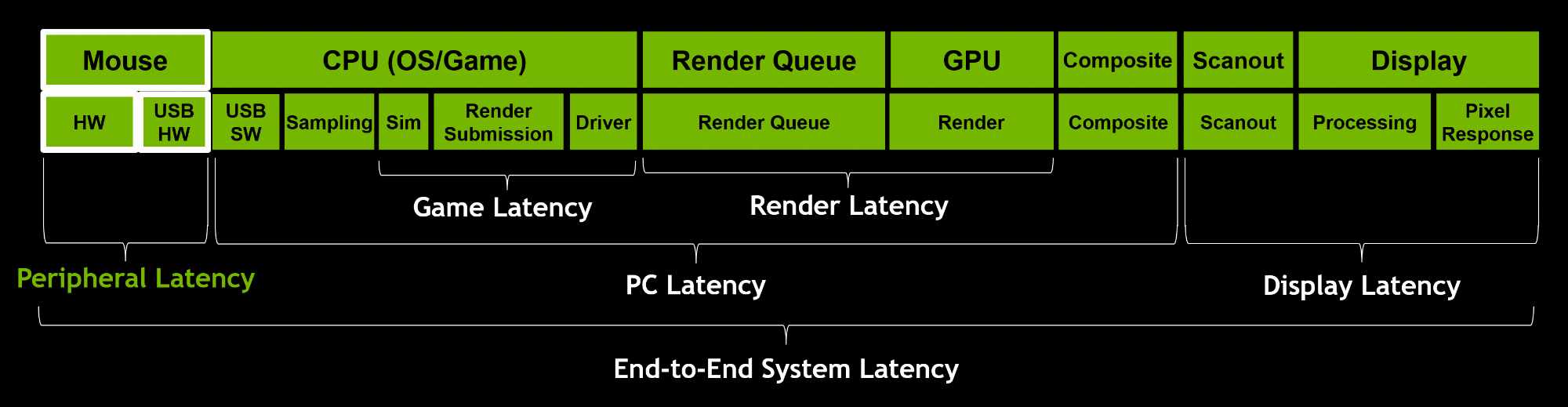
That's not including some of the other factors in the system latency end of the chain...
idia-latency-optimization-guide-peripheral-latency.png

Some of the latency reducing methods like running fullscreen exclusive and using reflex can reduce some of the extra hardware latency that exists in the bar graph above some of which are above and beyond the factors I listed in the online gaming quote. Reductions could be something like minus 7ms from running fullscreen exclusive mode (guessing based on the chart) , and on reflex supported games minus 6 to 18ms depending on the game. I don't know if those reductions are cumulative or not.

I'm trying to get a clearer picture of how it all plays out. That's at least a grouping of a lot of the factors.
 
Last edited:
There’s a post on Reddit right now discussing some issues with the latest nvidia driver, g-sync recognition being one of them. I honestly didn’t read the post very carefully because I’m not on the latest driver. Google it, I’m sure something will come up.

Latest driver was buggy for me (g-sync not really working, 120hz not working), but swapping back and forth between scaling modes ended up fixing it anyway. Now it's all working perfectly like before.
 
Yeah for me Nvidia driver quality has jumped off the cliff starting from 457 version. I am not even willing to install the latest ones at this point and stick to an older one that works for me. On anything 457+ DSC just breaks completely with my Club3D adapter.
 
It's a discussion that might be considered a little off topic but the input lag of the LG CX as compared to some other traditional gaming monitors is often brought up as well as questions about the input lag in different modes and with different features enabled on the TV. While I'd like very low input lag overall, I think the effect of the tiniest of the differences might be greatly exaggerated - especially in relation to online games.

I don't think the argument holds with rollback netcode. With rollback, which favors the client, you are playing locally for all intents and purposes. The game engine renders a head, your ability to headshot it is directly based on your local input lag only - not your online ping - 99% of the time. The only effect tic rate and ping has is that "99%" figure will adjust due to rollback having to kick in. At some point of high enough tic rate and low enough ping, you hit diminish returns where 99.99% of the time your client action is always successful. So for comp gaming, once you have good enough ping (for most games, that is less than 100ms with good rollback implementations), local input delay is the thing to improve.

However local input delay has diminishing returns... I think I'm pretty sensitive to input delay, and I have 0 issues w/ the delay on the CX. But I don't play CSGO either :).
 
Last edited:
I've read some interesting info here:
https://www.reddit.com/r/Overwatch/comments/3u5kfg/everything_you_need_to_know_about_tick_rate/

Without lag compensation (or with poor lag compensation), you would have to lead your target in order to hit them, since your client computer is seeing a delayed version of the game world. Essentially what lag compensation is doing, is interpreting the actions it receives from the client, such as firing a shot, as if the action had occurred in the past.

The difference between the server game state and the client game state or "Client Delay" as we will call it can be summarized as: ClientDelay = (1/2*Latency)+InterpolationDelay
..
An example of lag compensation in action:

  • Player A sees player B approaching a corner.
  • Player A fires a shot, the client sends the action to the server.
  • Server receives the action Xms layer, where X is half of Player A's latency.
  • The server then looks into the past (into a memory buffer), of where player B was at the time player A took the shot. In a basic example, the server would go back (Xms+Player A's interpolation delay) to match what Player A was seeing at the time, but other values are possible depending on how the programmer wants the lag compensation to behave.
  • The server decides whether the shot was a hit. For a shot to be considered a hit, it must align with a hitbox on the player model. In this example, the server considers it a hit. Even though on Player B's screen, it might look like hes already behind the wall, but the time difference between what player B see's and the time at which the server considers the shot to have taken place is equal to: (1/2PlayerALatency + 1/2PlayerBLatency + TimeSinceLastTick)
  • In the next "Tick" the server updates both clients as to the outcome. Player A sees the hit indicator (X) on their crosshair, Player B sees their life decrease, or they die.
Note: In an example where two players shoot eachother, and both shots are hits, the game may behave differently. In some games. e.g. CSGO, if the first shot arriving at the server kills the target, any subsequent shots by that player that arrive to the server later will be ignored. In this case, there cannot be any "mutual kills", where both players shoot within 1 tick and both die. In Overwatch, mutual kills are possible. There is a tradeoff here.
...
So there is tuning going on...
  • If you use the CSGO model, people with better latency have a significant advantage, and it may seem like "Oh I shot that guy before I died, but he didn't die!" in some cases. You may even hear your gun go "bang" before you die, and still not do any damage.
  • If you use the current Overwatch model, tiny differences in reaction time matter less. I.e. if the server tick rate is 64 for example, if Player A shoots 15ms faster than player B, but they both do so within the same 15.6ms tick, they will both die.
  • If lag compensation is overtuned, it will result in "I shot behind the target and still hit him"
  • If it is undertuned, it results in "I need to lead the target to hit them".


So if I'm reading it right you'd have to see
....your frame you'd be reacting to delivered at your local frame rate first (though that's being altered/resolved throughout by the true server state modifying your local one based on the server latency compensation code tied to it's tick rate)
....then add your reaction time e.g. 150, more like 180ms - 250ms with some variance (this is a huge number frames-wise, your reaction spans ~ 23 frames at 117fps! ~ .180 seconds)
....then add your mouse, keyboard, and main pc case hardware component's input lag. According to the nvidia charts posted earlier system lag can be 33ms to 77ms of system lag across the three games it listed. That's another 4 to 8 frames later at 117fps (.033 to .077 seconds).
.. and then add your 4ms (a gaming monitor, .004 seconds) or 13ms (LG CX, .013 seconds) input lag on your display? This is a .009 second difference.

So is this quasi-accurate?
--------------------------------------
... 8ms local frame rate (if at 117 SOLID) but throughout "overwritten" by things resolving on the server after being compared to rolled back/compensated latencies(pings) and a 15ms tick rate interpolation and the return trip time.. that result showing you a registered server game state update and it hits your eyeballs so you decide to react to it...
... + 180ms human reaction time (if being generous, but varies throughout game) + 27 to 51ms system latency with nvidia reflex supported games + 4ms or 13ms from a gaming monitor or LG CX display.
...

I don't think the online game cares when you are seeing the result on your screen in resolving the actions as it relates specifically to screen input lag but in the overall flow - again you usually can't react well to what you haven't seen yet (e.g. is your crosshair visibly on the target yet to your eyes).... though some might compensate for even high input lag screens with best guess on the fly in their heads and get by.

It seems to me that your system latency (~ 30 - 77ms), the very large by comparison and variable reaction times(~180ms+/-), and 20 - 40 ms variable ping + tick rate(15ms, 33ms or worse) and the resulting compensation formula being shuffled into your frame state stream would dwarf the difference between 4ms (.004seconds) and 13ms (an additional .009 seconds by comparison) input lag screens.

Tick rate .015 on the best servers, most games are multiples worse (.031sec on 22 tick , .090sec on 64 tick)
Ping times .020 seconds to .040 seconds typically.
Latency as related to action delivery: After it's delivery time relative to tick it is 1/2 compensated for to resolve when it registered on the server (rewind time). The other 1/2 of the latency = return trip time (.010 sec to .020 sec at 20ms to 40ms ping). So everything on the server is really happening in the past.
Human reaction time .180 seconds +/-
4ms gaming monitor vs 13ms OLED = .009 seconds added difference


Generally, a higher tick-rate server will yield a smoother, more accurate interaction between players, but it is important to consider other factors here. If we compare a tick rate of 64 (CSGO matchmaking), with a tick rate of 20 (alleged tick rate of Overwatch Beta servers), the largest delay due to the difference in tick rate that you could possibly perceive is 35ms. The average would be 17.5ms. For most people this isn't perceivable, but experienced gamers who have played on servers of different tick rates, can usually tell the difference between a 10 or 20 tick server and a 64 tick one.

Keep in mind that a higher tickrate server will not change how lag compensation behaves, so you will still experience times where you ran around the corner and died. 64 Tick servers will not fix that.
...
 
Last edited:
I'm using RTSS for jedi fallen order at 57fps since my current gpu only does 60hz. When I get a 3090 I'll cap at 117 using RTSS. From what I read on blurbusters.com the lowest input lag methods were in-game caps or RTSS. The nvidia one introduced a little input lag. Maybe that's changed since but RTSS is just as easy to do (and has some other optional features besides) so I wouldn't bother switching to nvidia's method.
EDIT: it has indeed changed apparently (pretty recently starting in a driver released a year ago 1-6-2020).... so it's a matter of preference as long as you set it up properly. I'm used to using RTSS and it has some other neat features besides so I'll probably not bother switching to the nvidia method. An ingame limiter is usually the lowest input lag but that's not always made available in every game.
I wanted to ask you about this. I used RTSS a long time ago, but haven't had it installed in quite some time. A couple of days ago, I upgraded to the newest version of MSI Afterburner and ticked the box to install RTSS. You mention some other neat/optional features in there. Besides the frame limiter, is there anything else that I should be using/enabling/changing in RTSS to maximize optimal enjoyment of my GPU/panel?

Thanks in advance.
 
I wanted to ask you about this. I used RTSS a long time ago, but haven't had it installed in quite some time. A couple of days ago, I upgraded to the newest version of MSI Afterburner and ticked the box to install RTSS. You mention some other neat/optional features in there. Besides the frame limiter, is there anything else that I should be using/enabling/changing in RTSS to maximize optimal enjoyment of my GPU/panel?

Thanks in advance.

I mostly use it as a frame rate limiter but it has good text based readout overlays. On an OLED I'd normally only use them with a toggle hotkey to peek at them for a bit and toggle them back hidden for obvious reasons but with multiple monitors there are ways to place RTSS readouts and graphs on 2ndary screens yet showing data from the primary screen. These overlays could potentially trigger some online games anti cheat code though so I'd only use them for single player games unless I was sure it would work with or was otherwise whitelisted on a particular game's anti cheat .

https://forums.guru3d.com/threads/multi-monitor-support-for-osd.432963/

47065db04503a9341bdc22acb8b2d92fed6a324d.jpg


There are plenty of other programs (aida64, hwinfo64..) that can monitor hardware too, and rainmeter skins and things like that that plug into them.


It has some other capabilities but there are other apps and suites that duplicate most of them:
-overclock gpu
-set up custom fan speeds
-screenshots/capture game recordings
-hardware monitoring (already mentioned this, real-time but can bench/graph)
 
Last edited:
That overwatch post is over complicating things I think...

Rollback netcode was invented by John Carmack in QuakeWorld. If you remember the pushlatency command, this basically set your how far in the past your client was compared to the server state. E.g. /pushlatency -200 meant you were playing the game 200ms in the past.

Games like Overwatch hardcode this value, I think it's 100 for Overwatch.

That means every client is playing 100ms in the past with respect to the authoritative server game state. The server takes care of handling conflicts between clients, and sending the authoritative state to everyone. If there is an inconsistency, the client performs a rollback. The vast majority of the time there is never a rollback - human reaction time and physics engines pretty much dictate this (if you are moving in Overwatch, it takes more than 100ms to stop your momentum generally). So the client is basically always playing with 0 latency, as long as its physical latency is less than the "pushlatency" amount. I don't think I ever experienced a noticeable rollback in Overwatch, it's very rare.

Rollback netcode is one of the greatest things ever invented for gamers - all hail Carmack for blessing us mere mortals.

You are right that 8ms in the grand scheme of things is going to be very hard to notice. I am skeptical of arguments about human reaction time though. Because what people don't take into consideration is muscle memory. Our minds, once you practice enough, are very good at essentially hitting timing windows by doing things by rote. Think of a high level piano player, they aren't hitting notes with 200ms delay. They are starting their movements in anticipation of hitting a note ahead of when that note is supposed to come out. Same with competitive gamers, both CSGO and fighting games, you can basically hit frame perfect timings (16ms windows) with enough practice. The problem here with input delay on the screen is it can throw off your muscle memory substantially. If suddenly your screen adds 30ms of delay all your muscle memory is messed up. I think you can get used to it, but this is usually what people mean when they can "feel delay" on their screens. So in that respect, if you can simply minimize your input delay so it's not noticeable then you can use many different screens with similar results - not throwing away 5 years of CSGO experience because your input delay on the screen sucks.
 
I mostly use it as a frame rate limiter but it has good text based readout overlays. On an OLED I'd normally only use them with a toggle hotkey to peek at them for a bit and toggle them back hidden for obvious reasons but with multiple monitors there are ways to place RTSS readouts and graphs on 2ndary screens yet showing data from the primary screen. These overlays could potentially trigger some online games anti cheat code though so I'd only use them for single player games unless I was sure it would work with or was otherwise whitelisted on a particular game's anti cheat .

https://forums.guru3d.com/threads/multi-monitor-support-for-osd.432963/

View attachment 324200


There are plenty of other programs (aida64, hwinfo64..) that can monitor hardware too, and rainmeter skins and things like that that plug into them.


It has some other capabilities but there are other apps and suites that duplicate most of them:
-overclock gpu
-set up custom fan speeds
-screenshots/capture game recordings
-hardware monitoring (already mentioned this, real-time but can bench/graph)

Thanks! I just wanted to make sure I wasn't missing anything really noteworthy. I do normally use other apps for those things, but good to know regardless.
 
I'm not saying it's a bad system considering what we have to work with. I'm saying it's gapped and with some elasticisty and that by comparison to all of those numbers, +/- .009 seconds throughout all the solid rates and variables is not likely to count in your favor or against you.


"Yes, it's marketing. The mean for human reaction times is 250-270ms, the website you linked has a stats page where it shows their mean of all tests is 273ms. They also used to have a graph showing the distribution of results, it looked like this. You can see that 150ms is pretty much the top 1%. I don't think the "average gamers" reside in the top 1%. "


"The average reaction time for humans is 0.25 seconds to a visual stimulus, 0.17 for an audio stimulus, and 0.15 seconds for a touch stimulus.". So yes, the reaction time is indeed 150ms... for touch stimulus... "
--------------------------------------------------


https://humanbenchmark.com/tests/reactiontime

In addition to measuring your reaction time, this test is affected by the latency of your computer and monitor. Using a fast computer and low latency / high framerate monitor will improve your score.

Scores in this test are faster than the aim trainer test, because you can react instantly without moving the cursor.

This is discused in further detail on the the statistics page. While an average human reaction time may fall between 200-250ms, your computer could be adding 10-50ms on top. Some modern TVs add as much as 150ms!

If you want, you can keep track of your scores, and see your full history of reaction times.
Just perform at least 5 clicks and then save.

-------------------------------------------------


https://blurbusters.com/human-reflex-input-lag-and-the-limits-of-human-reaction-time/2/

To see a classic example of a simple visual reaction task, try your hand at the human benchmark reaction time test. One of the cool things about that site is that you can see some of the statistics. The all time average (median) is around 270 ms, but this includes input lag. In particular, it includes the delay between the moment the program instructs the display to change color (which is presumably when the timer starts), and the moment the pixels change color on your display. It also includes the delay between the moment you press the mouse button, and the moment the program receives the signal from your button press (which is when the timer stops).

If you look at the distribution, you can see that some people are performing at around 150 ms. These are probably younger folks who have excellent reflexes and are on good hardware (it’s also possible that some people are using clever methods to cheat), but 150 ms does seem to be in the ballpark of the limits of human reaction time to a visual stimulus (at least when it comes to pressing buttons with a finger), although there may be a few people who can push this limit lower.
We also respond faster to acoustic stimuli than visual stimuli. Here’s a great explanation from reddit. Basically, the idea is that converting photons to neural signals takes longer than it does to convert pressure waves to neural signals. Because of this, acoustic reaction times are around 30 ms faster.

In many of these experiments, the way the reaction is actually measured can have an impact on the final result. For example, in the humanbenchmark test, there is a slight delay between the moment your finger actually starts to move, and the moment the button actually “clicks”. And depending upon the USB polling rate of the mouse, there could be as much as a 8 ms delay between the moment the button clicks, and the moment the signal from the mouse is registered.

To get a more accurate picture of reaction times, many labs use specialized equipment to get a more precise idea of when the finger (or other body part) starts to actually move. For example, passive optical tracking systems (where retroreflective markers are placed on the target object, such as a finger) or tiny inertial sensors attached to the object are two ways to measure the position of an object across time. Some studies use surface electromyography (EMG) to measure the electrical activity in the muscles themselves.
Surface EMG is an accurate way to measure reflex, but it doesn’t take into account the time between the moment the muscles activate and the moment that force is actually produced across the joint in question (this time is called the electromechanical delay). So while measuring EMG reaction times is a great way to get rid of the “noise” involved in measuring things like button clicks, it doesn’t give us a true picture of how long it takes someone to produce a useful reaction—that is, a reaction that actually allows us to produce a physical response to the environment around us.

One of the posters on the Blur Busters forums (‘flood’, who is also responsible for designing this gem) has reported human benchmark scores of around 140 ms, and can regularly get scores below 160 ms. Here is a video of him sniping bots in CSGO.
 
Ho
Lee
Shit. Are you kidding me, LG? I have a lowly Nano81(I love it!) And I was looking in the settings and noticed next to Ethernet it said (100Mbps)
hm? Look in my router's settings, set the port to gig, LG still says 100mbit? Searching and come to find out that my $800 TV, purchased in the year two thousand and twenty, has a "fast ethernet" port on it. Are you fucking serious?
Search this thread and the $1,500, 48" LG CX48 also does not come with gig ethernet? WTF. Why even put the port on if you're that cheap. The first hit in duckduckgo was someone saying they can't actually stream lossless bluray via plex because it hits 125Mbps.
Just a baffling and appallingly cheap move by LG. But hey, we have baked in ads on our TV to "help make their products better" so I guess that makes up for it?

How much more expensive is a gig ethernet jack than a fast ethernet one? It wouldn't have surprised me to learn that 100mbit jacks are actually more expensive due them being out of production for the last ten years.

Also, if you're plugged in to ethernet and didn't disable the Wireless NIC in the TV it defaults to Wifi.(at least if your WAP supports 5g)
 
Slightly off-topic but since this appears to be the dedicated OLED thread:

Do we know if the 2019 C9 series are also getting all these recent major fixes? (VRR stutter bug, elevated black fix, etc.) Seems like all the news on fixes is just for the CX series. I haven't gotten my 3090 yet (freaking stock man...), and wondering if I'm going to be left out in the cold unless I get a CX or just wait for a C1. I would browse the AVS forums, but there's like 10,000 pages worth of replies....hard to find anything. My firmware version is 05.00.03 (North America - USA model). Sorry, LG doesn't seem to log a good firmware to firmware version history or anything. Thanks!
 
I wanted to ask you about this. I used RTSS a long time ago, but haven't had it installed in quite some time. A couple of days ago, I upgraded to the newest version of MSI Afterburner and ticked the box to install RTSS. You mention some other neat/optional features in there. Besides the frame limiter, is there anything else that I should be using/enabling/changing in RTSS to maximize optimal enjoyment of my GPU/panel?

Thanks in advance.

Scanline-sync is an option that is pretty crucial if you're trying to use BFI.
 
From what I've read you have to turn on instant game response in the TV OSD in order for "G-sync" to show up in the nvidia drivers in windows. So I think LG instant game response = hdmi 2.1 ALLM + PC hdmi 2.1VRR / G-sync . So it should work with your 3070 with "g-sync" enabled.
Thanks. So you are saying that with game response enabled, G-sync enabled then I should be able to use any of the video modes (for example Cinema) with the lowest input lag? Or would I still have to use the "game" video mode?

Also oddly enough in Nvidia control panel with their newest driver it's now saying my LG isn't validated as G-sync compatible, where on the previous driver I didn't have a message like that. It still allows you to check off to use the display as G-sync though, which I did check on.
 
Thanks. So you are saying that with game response enabled, G-sync enabled then I should be able to use any of the video modes (for example Cinema) with the lowest input lag? Or would I still have to use the "game" video mode?

Also oddly enough in Nvidia control panel with their newest driver it's now saying my LG isn't validated as G-sync compatible, where on the previous driver I didn't have a message like that. It still allows you to check off to use the display as G-sync though, which I did check on.
Just try it. It should be extremely apparent moving the mouse on the desktop if there's increased input latency or not.
 
Ho
Lee
Shit. Are you kidding me, LG? I have a lowly Nano81(I love it!) And I was looking in the settings and noticed next to Ethernet it said (100Mbps)
hm? Look in my router's settings, set the port to gig, LG still says 100mbit? Searching and come to find out that my $800 TV, purchased in the year two thousand and twenty, has a "fast ethernet" port on it. Are you fucking serious?
Search this thread and the $1,500, 48" LG CX48 also does not come with gig ethernet? WTF. Why even put the port on if you're that cheap. The first hit in duckduckgo was someone saying they can't actually stream lossless bluray via plex because it hits 125Mbps.
Just a baffling and appallingly cheap move by LG. But hey, we have baked in ads on our TV to "help make their products better" so I guess that makes up for it?

How much more expensive is a gig ethernet jack than a fast ethernet one? It wouldn't have surprised me to learn that 100mbit jacks are actually more expensive due them being out of production for the last ten years.

Also, if you're plugged in to ethernet and didn't disable the Wireless NIC in the TV it defaults to Wifi.(at least if your WAP supports 5g)

I keep my wifi turned off on the tv ever since I set it up. I just now swapped a usb3 to ethernet adapter I keep in my backpack to the usb3 port on the tv. Both the "Wired Connection (Ethernet)" and the "WiFi connection" in the TV OSD show as "not connected now". I just launched plex in WebOS and it loaded a video file so it seems to be working. I haven't done any bandwidth testing though.

Using this:
https://www.amazon.com/Plugable-Ethernet-Gigabit-10-100-1000-Compatible/dp/B00AQM8586

Some of the reviews say it reduces the speed on macs but overall the reviews from linux and PC are positive so I'll have to see how it goes on the TV.

On speedtest by okla I got
22 Mbps down, 240 Mps up on a single test.
That's using the webos web browser. The web page seemd a little clunky though and it's the first time I used the web browser on the tv.

On speakeasy using the same WebOS internet browser I got
36 Mbps down, 246 Mbps up.
4.5 MB/s down, 30.7 MB/s up.

edit:
I tested again on a different server and got
48.2 Mbps down ~> 6 MB/s


On my pc I get 10x faster or more down on fios gigabit, which is around equal to the higher upload speed results I posted above.
On steam and some other services I can usually get higher.

The point here is the same server test on the TV using my usb3.0 ethernet adapter is 10x slower down for some reason but the uploads seem fine.
I haven't run any LAN speed tests and I didn't test the built in ethernet port before I switched to compare. On paper if the built in ethernet port is 100mbit it would have a theoretical max of 12.5 MB/sec (maybe less real world).. ...

So these download speeds are very poor (6 MB/sec) on my usb3 adapter but the upload speeds are 31 MB/s compared to the theoretical max of 100mbit being 12.5mb/sec.


edit: on the TV's wifi on (5Ghz right next to the router) I got
47 Mbps down, 219 Mbps up which is about the same download speed as the best I got on the usb3.0 ethernet adapter so maybe there is some bottleneck with the TV

I might have to look into getting a 2019 shield with it's gigabit ethernet adapter eventually.
 
Last edited:
As an Amazon Associate, HardForum may earn from qualifying purchases.
Thanks. So you are saying that with game response enabled, G-sync enabled then I should be able to use any of the video modes (for example Cinema) with the lowest input lag? Or would I still have to use the "game" video mode?

Also oddly enough in Nvidia control panel with their newest driver it's now saying my LG isn't validated as G-sync compatible, where on the previous driver I didn't have a message like that. It still allows you to check off to use the display as G-sync though, which I did check on.

Just try it. It should be extremely apparent moving the mouse on the desktop if there's increased input latency or not.

I'm still running 1080ti sc hybrids in sli until I get the 3090 I want so I'll leave that up to 3000 series owners on hdmi 2.1 to play with for now. :rolleyes:
 
Back
Top