LG 48CX

I'd caution against this, but to each his own.

Is there a way to check? Would be interesting to see what I'm at.
Check the powered on time? Or check for burnin? To check the powered on time, it's in Support->TV Information. To check for burnin I look at full screen color images, and use a colorimeter to measure peak brightness on a few 10% windows on the screen. It's still the same peak brightness as the first time I calibrated it.
 
Check the powered on time? Or check for burnin? To check the powered on time, it's in Support->TV Information. To check for burnin I look at full screen color images, and use a colorimeter to measure peak brightness on a few 10% windows on the screen. It's still the same peak brightness as the first time I calibrated it.
I don't got that, but my B6 is old.
 
There is no powered on time information on EU sets like mine, IDK why... But with a bit of math and knowing the big pixel refresh runs every 2k hours I know I'm getting close to 5k hours now (and yes it looks perfect, but 20 OLED light in a dark room).
 
There definitely is:
Just go to the Service Menu, there you can easily read the time.

Ok, you mean the secret menu for which you need a different remote or an Android phone with an app. Well I don't have any of that so I'm out of luck right now. Not a big deal anyway but thanks for the info.
 
Ok, you mean the secret menu for which you need a different remote or an Android phone with an app. Well I don't have any of that so I'm out of luck right now.
Just buy a LG remote at Amazon (Price about 7$).
 
Doing some back of the envelope math, my B6 is almost certainly north of 15,000 hours by now. It's averaging well north of 10 hours/day for the better part of 5 years now.

I actually have the LG service app (or did once upon a time); I'll take a look if I have some free time and see if anything is hidden there on my B6. [I used it way back when the Pixel Shifter couldn't be manually disabled]
 
The DP1.4 to HDMI 2.1a adapters have come a long way from where they were a year plus ago.

I recently picked up the alternative to Club3D (which I used and returned a year or more ago)
and my aging RTX2060S now perfectly outputs 4K RGB VESA at 10/12bit and 120Hz with 10bit Temporal Dithering enabled.

Could you link to the adapter? Plug-and-play, or did you have to mess with CRU settings to get a stable picture?
 
Past 2300 hours on my CX now. Still good.
You gotta pump those numbers up!!!

I just checked my CX 55, and I'm at 9100+ hours. No burn-in, even for work use.

Bear in mind, I'm keeping brightness VERY low.
 
You gotta pump those numbers up!!!

I just checked my CX 55, and I'm at 9100+ hours. No burn-in, even for work use.

Exactly. People quoting numbers less than 5000, I mean thats nice and all but I put about 4500 hrs on my primary display device per year. For a desktop replacement I want to hear about the numbers in the 10 to 15 to 20K range... when being used as a general display, not just a media consumption display....
 
I'm surprised that's all I'm at. I run that thing as my desktop about 8 hours a night when I'm home. Admittedly I've been away quite a few days lately, but on the whole I'm using the dang thing a LOT. I suppose it would be a lot more if all my daytime office system use was on it too and not just part of it.

But all in all, I'm certainly not babying it. Played a bunch of Rocket League last night, did a lot of forum reading, youtube videos, watched several episodes of Fett in HDR...

Very surprised there's not more hours than that on it yet. Oh well, guess it just means I might get a decade out of it after all. :)
 
Could you link to the adapter? Plug-and-play, or did you have to mess with CRU settings to get a stable picture?
It's the UpTab DP 1.4 to HDMI 2.1 active adapter... no messing with CRU needed (although I messed with it after the fact anyway just for s&g). And didn't even need the latest 1.5 firmware they recently posted on their website (which I also subsequently applied and still have good signal and resolution switching).

It doesn't do VRR yet (maybe ever), seems to have lost Gsync (its supposed to work but I cant get it enabled), yet HDR and Win11 AutoHDR work fine (although I turn both off and let mpcvr in MPC-BE do its thing). Good enough for me.

UPTab DisplayPort 1.4 to HDMI 2.1 Adapter https://www.amazon.com/dp/B01B6ZOMI...t_i_V0VCJ0EJMG81MYS8NJT4?_encoding=UTF8&psc=1
 
As an Amazon Associate, HardForum may earn from qualifying purchases.
Since we had some talk about product support, I'll now let everyone know my B6P just received a firmware update. No idea what's in it, but LG if nothing else continues to put out the occasional firmware drop.
 
Since we had some talk about product support, I'll now let everyone know my B6P just received a firmware update. No idea what's in it, but LG if nothing else continues to put out the occasional firmware drop.

Probably just security updates, these TV's are connected to the internet after all. Still wish LG would at least put out some specifics every time they release a firmware update rather than just "Some bug fixes".

 
Probably just security updates, these TV's are connected to the internet after all. Still wish LG would at least put out some specifics every time they release a firmware update rather than just "Some bug fixes".
Better security updates then no security updates. How many other manufactures would just not even bother with 6 year old TVs?
 
What's the fastest way to switch between inputs on the CX? When I have my laptop hooked up I'm always fumbling with the remote to go back and forth. Is the only other option voice commands?
 
What's the fastest way to switch between inputs on the CX? When I have my laptop hooked up I'm always fumbling with the remote to go back and forth. Is the only other option voice commands?
I don't know if it is fast per se, but since I have a 65 C9 and two 48 CX on my desk I use LG's app on my phone to power on and switch inputs. The app also monitors my refrigerator so that is a plus.
 
What's the fastest way to switch between inputs on the CX? When I have my laptop hooked up I'm always fumbling with the remote to go back and forth. Is the only other option voice commands?


You can dig in the settings so that the main menu doesn't pop up on home I think. You can also remove inputs you aren't using so that there are fewer to select from (you can always add them back).

You can use the home button and then mouse pointer over to the input square for the named input you want on the bottom of the screen (they are large cell squares you click) but it's easier to just hit the input button. When you hit the input button on the right side of the wheel on the remote (it looks like a plug on a wire) - all of the available inputs will be show on the bottom in big squares you can activate. Wand over or wheel-directional over to the input and click it with the wheel button. It helps if you named all of your in-use inputs and remove the ones without anything connected to them.


------------------------------------------------------

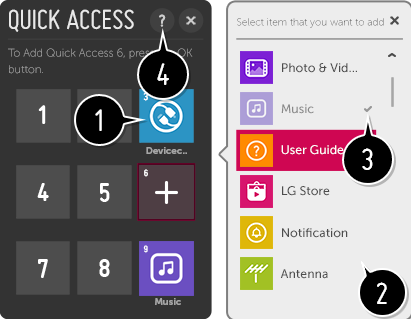
What you are probably looking for is that you can potentially set inputs to the quick access buttons. You might have to disable quick start+ if you have issues according to some posts but people have had it working with or without doing that. You hold down a quick access button and assign it an app, area/heading, or input. The problem is you have to remember which is which once you assigned the buttons.

You can see in this example that the "antenna" input is listed among the options so the HDMI inputs should also be available there. I did set up my hdmi inputs there before but I never use them via the quick access button so to be honest I forgot that I had done it lol (just checked) :

http://kr.eguide.lgappstv.com/manua...ga/w35__control__magicnumber_k_u_b__enga.html

magicnumber.png


---------------------------------------------------

You can also enable the voice control on the TV and just hold the mic button down and say the name of the input you want it to switch to. This also works for picture modes.

E.g. <holding mic down> "switch to shield" (the hdmi input with my nvidia shield on it named "shield").. <holding mic down> "cinema mode" (or "switch to cinema mode" if you want to use full sentences).

E.g. <holding mic down> "switch to PC" (switched to the hdmi with my pc connected to it, named PC and also icon changed to it when I set up the TV of course). <holding mic down> "game mode"

It should remember what mode you had it on last. I was just showing that as an example of how you could further swap modes on the fly via the remote.

It's a google assistant so you can also ask it things like the weather or have it turn smart devices like lights on and off ( I have a "movie night" routine for example on my living room C1 that turns off all of the regular lights and turns on a bias light on the back of the TV). That functionality is redundant if you already have a google assistant, echo/alexa in the room always listening for commands though.

I did try to set up the LG TV app to link to google assistant so that I could turn the TV on and off by voice via my stand alone google assistant unit but I could never get it to work unfortunately. Looking up the issue online it appears I'm not alone.

I chose to put a quality grey fairly stiff but soft foam-like disc bumper pad button on my mic button using a tiny dot of gel super glue so that it is very easy to access blindly. The LG remote can control my shield menu but I like the 2019 shield's remote too (it can control my receiver volume as well and it has it's own mic button for search functionality). So I usually keep both handy. I use the LG remote mostly for swapping inputs, changing modes, and most often doing the "turn off the lights" which is two clicks via the quick menu (not the quick access quick buttons unfortunately) or via the mic using the voice command "turn off the screen" when I'm away from the screen or paused and then back on with a click of the directional wheel.

....................

You can also use your phone as others pointed out.

.....................

Using the remote's menu is quick enough once you know the buttons though imo. Input button --> mouse over the bottom ribbon of input cell buttons ->> click. Name the inputs ahead of time and remove ones you aren't using so it will be easier to choose between inputs. I always have the remote handy so I can do the "Turn off the lights" trick and wake it back up instantly anyway.
 
Last edited:
What's the fastest way to switch between inputs on the CX? When I have my laptop hooked up I'm always fumbling with the remote to go back and forth. Is the only other option voice commands?
I just use the remote on my B6; can't imagine that has changed much.
 
Yeah there are several ways. The fastest is probably setting the quick access keypad buttons on the remote to hdmi inputs. Then you just press a number button on the keypad down to switch. You just have to remember which is which.

The voice control is probably the 2nd fastest way and is guaranteed to be the input you wanted since you are saying it by name (after you've named it). It also allows you to swap modes quickly without cycling through them. Since I bumper padded the mic button I can do any of that blind with zero fumbling.
 
As far as I know - unfortunately there is no windows app that you can hotkey, only the phone app and it's visual touchscreen interface.

It would be great if there was a way to integrate the mic button and a few other functions like inputs into a hotkey in windows or on a stream deck. If there were an LG app you could connect to via IP method on LAN like security cams are capable of or something..

Maybe windows 11's android app compatibility could do something with the LG phone app but I haven't messed with that at all yet. Even if it could run the LG app , that app wouldn't have hotkeys like I prefer and once you switched inputs that desktop app would be lost on the pc input unless you had a multi-monitor setup. Since I have a 3 screen setup at my desk I might experiment with the windows 11 android app functionality someday I guess.

There is no LG control app available directly for windows (esp. with hotkeys) that you can link directly to the tv afaik but that would be useful to me.


=====================================================


The amazon app store version that might work with windows 11's android functionality is linked here.
*Amazon appstore only and usa only currently unless you mess with sideloading I believe, for now.

https://www.amazon.com/LG-SmartThinQ-Complete-Smart-Appliance/dp/B079R91LN6/


https://www.howtogeek.com/764014/how-to-install-android-apps-on-windows-11/

https://www.windowscentral.com/how-get-started-android-apps-windows-11

So that theoretically will give you the LG ThinQ smartphone interface on your windows desktop and you could select inputs and options from there with your mouse pointer. If you want to swap inputs you'd need to place the app's window on a side screen using multiple screens rather than leaving it on the LG tv though for obvious reasons.

............

It can also work with google assistant and alexa stand alone voice assistants but it can be a pain to get them set up with your accounts to the point where they will sync.

(quotes I pulled from that amazon app link's reviews)
so, after a couple days of troubleshooting and tweaking, I finally got the TV to pair and operate with Alexa. everything from adjusting the volume, to selecting different apps on the TV, to shutting it off. after they make the feature for turning it on, I will give it 5 stars. what you need to do, is make sure that your TV is registered with the email address you have linked to your Amazon account. then, download basic AND complete LG SmartThinq apps/skills on your Alexa app.... follow the instructions on the TV, and have your Alexa discover your TV. it may take a few tries, but it will work. When you want to navigate within apps, you have to be specific. Say "Alexa, ask LG to launch NetFlix on TV." Or whichever function you want... I'll say, it's not very user-friendly, but works none the less. I have included video and a short tutorial on voice commands.

.. You can name the TV something other than "LG", like "LG OLED", or "48CX", etc. So you could say: HeyGoogle / Alexa / Echo "ask 48CX to switch to PS5 input". That would only save you from using the remote, as the mic button on the remote does the same thing with more direct phrasing: <hold mic button down> "switch to PS5 input".

I do understand that the account linking is a bit tedious but to be honest the amazon site or google interface does it all for you. All you basically have to do is make sure you link up everything with the same exact account and use the correct phrases when asking the certain device functions or actions. I've literally not had any issues with any commands or linking the TV up within the 10 minutes going through both setups step by step. So all i have to say is "Alexa, TV on." boom its on, or Alexa / Google TV off. Now the only thing alexa has over google is the ability to turn the TV on from a standby point but thats about it, they both have the same functionality and work just the same. Now if anyone has any issues and needs help setting thier devices up I will gladly assist you in doing so
 
Last edited:
As an Amazon Associate, HardForum may earn from qualifying purchases.
elvn just made an account to say thank you to your comment 2 years ago about VRR bypassing Dithering creating the awful near black to black gradient transition. I didn't know the technical name of it.

I've now successfully used Reshade in Elden Ring to use a Shader that supports Dithering, and it literally fixed that issue! How is LG not implementing this easy "post processing" fix already?
 
Last edited:
elvn just made an account to say thank you to your comment 2 years ago about VRR bypassing Dithering creating the awful near black to black gradient transition. I didn't know the technical name of it.

I've now successfully used Reshade in Elden Ring to use a Shader that supports Dithering, and it literally fixed that issue! How is LG not implementing this easy "post processing" fix already?


No problem. 👍 I just try to source info online but I try to do my homework as much as I can. Hope it helped.

Some people run 8bit + FRC/dithering instead of running 10bit in PC mode on the LG OLEDs because some of their content shows issues in 10bit (when in RGB ~ 4:4:4 in PC mode). So you might want to experiment with that and see if you get any better results.
 
Last edited:
No problem. 👍 I just try to source info online but I try to do my homework as much as I can. Hope it helped.

Some people run 8bit + FRC/dithering instead of running 10bit in PC mode on the LG OLEDs because some of their content shows issues in 10bit (when in RGB ~ 4:4:4 in PC mode). So you might want to experiment with that and see if you get any better results.
Hmmm I tried putting 8 bit RGB while being HDR and VRR (instead of my 444 10 bit), and I do not see any improvements at all checking a static image showing the issue.
Tried also assigning PC mode for the HDMI port.

Am I missing something?
 
Hmmm I tried putting 8 bit RGB while being HDR and VRR (instead of my 444 10 bit), and I do not see any improvements at all checking a static image showing the issue.
Tried also assigning PC mode for the HDMI port.

Am I missing something?

Try ycbcr444 and 8 bit.
 
I use the EDID hack for 48Gb and 12 bit color and set the Nvidia CP to RGB, 12bit, 120hz, VRR on. I'm aware the screen can't actually do 12 bit, the issue is how it processes the input from a banding standpoint.
 
I use the EDID hack for 48Gb and 12 bit color and set the Nvidia CP to RGB, 12bit, 120hz, VRR on. I'm aware the screen can't actually do 12 bit, the issue is how it processes the input from a banding standpoint.
Are you saying it helps with Banding to do that?

Even though the dithering helped for near black gradient issue, I get severe banding in the sky in Elden Ring. Sometimes I am not sure if it is just the game that is like that.
 
Can't speak to Elden Ring I have not played it. I "think" it helps with banding in general. When I ran through the various options early on it seemed good to me. Nothing is quite as good on the banding issue as running 4:2:2 on very demanding demo videos that do a lot of red to black or white to black transitions but I don't get my attention grabbed by jarring distinct lines in the sky in games with these settings. And there is no way in heck I am ever going to use this set in 4:2:2. It's a computer monitor for me and it stays set at one all around use setting all the time for games/desktop/movies.

First thing to do is take a look at other games and see if they do this to you on large flat gradient transitions in the sky etc? If not, then it's the way the specific game is rendering the sky. Beyond that, does the game have some type of other compression enabled? Or any other post processing effects in the video settings you can play with? Or FSR or DLSS?
 
i have a 3080 ti coming next week and was looking forward to being able to run 4k 120hz 10 bit... but apparently 8 bit is still the better setting?!
 
No, really it's not. Not if you are using it hooked to your PC full time. Just put it on 10bit and see what you think. A lot of this back and forth is based on edge use cases, specific problems with specific programs, or just other settings issues causing the problem. After that it's splitting hairs because we are tweakers at heart.

Just set it like you said, 4k, 120hz, 10bit, RGB, Gsync. You'll probably not care about the rest of this one bit. You can try additional tweaks if you actually feel the need.

I played through Shadow of the Tomb Raider right after I got the screen in HDR with those settings (10bit) and it was truly glorioius. I don't remember any banding issues in the sky let's put it that way.

Just remember to use the utility to adjust ClearType to greyscale mode. It makes text look fantastic.
 
Last edited:
Yeah sometimes it can come down to nit picking but there might be some obvious things in some content or configs. There are a lot of settings you can mess with in games, the OS, and on the TV so you'd have to make sure everything is the same.

Some recommended settings here:

https://www.reddit.com/r/OLED_Gaming/comments/mbpiwy/lg_oled_gamingpc_monitor_recommended_settings/

-------------------------------------------------------

Also sit appropriate distance away or the pixel structure will be aggressively blocky, aliased even with AA and text subsampling.. and the viewing angle to the extents will be poor:

60 PPD on a 42" 4k screen = 29.3"
60 PPD on a 48" 4k screen = 33.5" 64 deg viewing angle at 4k


80 PPD on a 42" 4k screen = 41.1"
80 PPD on a 48" 4k screen = 47" 48 deg viewing angle at 4k


These aren't sized suitably for use as up against the wall like a bookshelf / player~upright piano style desk setups. This kind of size demands more of a command center setup.

---------------------------

Are you saying it helps with Banding to do that?

Even though the dithering helped for near black gradient issue, I get severe banding in the sky in Elden Ring. Sometimes I am not sure if it is just the game that is like that.

Are you playing Elden ring in HDR? If you are (and imo you should be, it looks great) - make sure you go into the extended HDR settings in the game and set the peak white to 700 to 800 nit. Or you could set it to 1000nit and let the TV tone map it from there to within the TV's limits. Then adjust the main HDR brightness in the game's HDR settings to taste.

Also make sure you have the TV settings optimal.

If your TV is doing dynamic HDR it will compress the HDR scale more at the top end.
If the Elden Ring game's HDR settings are not mapped to the range of the TV it could also compress the color range and blow out hightlights.

----------------------------------------------------

- Changing the named input to be named PC puts it in 4:4:4/RGB. If it hadn't been on that setting before it should be been pretty obvious in text. It appears tattered when not in RGB mode so I would triple check that. Pulling the hdmi cable out and plugging it back in should drop PC/RGB named setting and make it tattered looking. It also happens in graphics, not just text, but text is more obvious. Setting the name of the hdmi input on the TV to "PC" again will put it back to RGB and remove the tattered look.

https://www.rtings.com/tv/learn/chroma-subsampling

I'll also add a few other things to mess with:

..your resolution in the display settings (there can also be a different TV version of some resolutions in addition to the same PC version of that resolution if you scroll down far enough, also make sure it 's on 3840x2160 4k and not 4096x)
..any scaling options that changed the display scaling from 1:1 should be turned off
..your windows desktop/text scaling settings (e.g. if you set text too small or the default is too small for your ppi it will look bad).

..make sure the new gpu doesn't have sharpness settings enabled by default (I think amd kept a sharpness slider where nvidia dropped it at some point, and their "zero" sharpness might be 10, would have to look it up)
..make sure your tv settings don't have any processing enabled in the details settings (incl sharpness), color settings, etc accidentally somehow. Use HGiG/game mode with no processing.

..That and your viewing distance being too close vs the ppi (getting a bad PPD) will show a more aggravated pixel structure that makes text look worse with more aggressive text fringing/aliasing but I assume you are at the same distance you were at with the nvidia GPU previously.

A good reference for settings here that I linked in this thread previously:

(Reddit) LG OLED gaming/PC monitor recommended settings guide

Some recommended PC gaming HDR settings from that link:

LG TV
=========

PC mode: On
HDMI Ultra Deep Color: On

Reduce Blue Light/Eye Comfort Mode: off
Aspect Ratio: original
Just Scan: On
Energy Saving Step: Off
AMD Freesync Premium: Off (or AMD/XSX = on)
[CX] Instant Game Response (ALLM+VRR) = on
[C1/C2] VRR & G-SYNC = on
[C1/C2] Game Optimizer (ALLM): on
[C1/C2] Game Genre: Standard
Fine Tune Dark Areas: 0 or (-3 to -5)

---------------------------------------

Picture Mode (while already on PC ICON/named PC hdmi Input):
HDR 10 = HDR Game Optimizer (dark room) , HDR Filmmaker (bright room). Dolby Vision Game Optimizer (dark room) , Dolby Vision Cinema Home (bright room)

OLED Pixel Brightness/Light: 100

Peak Brightness: High

Contrast: 50

Black Level/Screen Brigntness: 50

Video Range/Black Level:
HDR 10 = Auto, Dolby Vision = Auto or Limited/Low

Gamma (Adjust Brightness): 2.2 (ST.2084)

Auto Dynamic Contrast:
HDR 10 (dark room) = Off,
HDR 10 (bright room) = Off or Low/Med/High
Dolby Vision (dark room) = Off, Dolby Vision (bright room) = Off or Low/Med/High

HDR/Dynamic Tone Mapping:
HDR 10 (dark room) = HGiG or Off
, HDR 10 (bright room) = on (* brighter but inaccurate and compressed so personally I wouldn't)

Motion Eye Care: Off

Color Depth:
HDR 10 (dark room) = [C1] 55, [CX] 50, HDR 10 (bright room) = 50
Dolby Vision (dark room) = [C1] 55, [CX] 50, Dolby Vision (bright room) = 50

Tint = 0

Color Gamut:
HDR 10 = auto detect
Dolby Vision = Native/Wide (DCP-P3)

Color Temperature: W50/Warm2 or [cool] W25/0/50

C1/C2 Color Adjustment Upgrade: off

Adjust Sharpness: 0

Super Resolution: Off

Noise Reduction: Off

MPEG Noise Reduction: Off

Smooth Gradation: Off

Cinema Screen/Real Cinema: Off

Truemotion/OLED Motion Pro (BFI):
HDR10 =Off
Dolby Vision Dark room = off, Dolby Vision Bright room = Off or Cinematic Movement

Auto Genre Selection = Off

AI Picture Pro = Off

AI Brightness Settings/Control:
HDR 10 (dark room) = Off
, HDR 10 (bright room) = On
Dolby Vision (dark room) = Off, Dolby Vision Bright room = On (DV IQ)

Nvidia GPU settings
=================

Resolution PC: 3840x2160
Resotluion: Customize
-Enable resolution not exposed by display: On
-Create Custom Resolutions: 3840x1620 120hz

Refresh Rate: 120 Hz [48 Gbps FRL]

NVIDIA Image scaling = on or off
scaling aspect ratio = no scaling
perform scaling on: display
override the scaling mode set by games: on
Output color depth : 12 bpc

(optional) GeForce Experience GFE Freestyle (Alt+F3) -> styles -> Add Filter: Deband

* apparently there is a similar shader in reshade but be careful of online bans in some games when using shader apps

Output color format: RGB
Output dynamic range: Full


Enable G-SYNC Compatible for: Full screen mode

(Optional) NPI - GSYNC Application Mode: Fullscreen and Windowed

Low Latency Mode: Ultra
Max Frame Rate: 118fps

Monitor Technology: G-SYNC Compatible
Power Management Mode: Prefer maximum performance
Preferred refresh rate: Highest available
Triple buffering: Off
Vertical sync: On
 
Last edited:
does anyone have a breakdown of what the input type differences actually do? (i.e. 'pc' 'game console' etc)

also does enabling the freesync premium setting do anything at all if the tv is only connected to an nvidia card? i assumed it doesn't make a difference..
 
Back
Top