• Some users have recently had their accounts hijacked. It seems that the now defunct EVGA forums might have compromised your password there and seems many are using the same PW here. We would suggest you UPDATE YOUR PASSWORD and TURN ON 2FA for your account here to further secure it. None of the compromised accounts had 2FA turned on.
    Once you have enabled 2FA, your account will be updated soon to show a badge, letting other members know that you use 2FA to protect your account. This should be beneficial for everyone that uses FSFT.

LG 48CX

like you I am probably going to prioritize HDR now because after doing those AutoHDR tweaks on my CX and having played around with it for over 2 weeks now, games just look absolutely FANTASTIC now with AutoHDR. So given the choice between BFI and AutoHDR, it's going to be AutoHDR. I've been having a blast playing Fallout 4 with some fan made DLC mods and AutoHDR. Sure maybe the DTM ON + Low Black Level tweak isn't the most "accurate" way of doing it compared to CRU or Special K, but when we are literally taking a game that never had any HDR to begin with and are now shoehorning HDR into it through AutoHDR, should we REALLY be debating "accuracy" here? I say just use whatever looks the best to you and for me these tweaks give me a good enough picture 90% of the way there that I don't feel the need to go messing with CRU/Special K to get that extra 10%.

(y)(y)(y)(y) ......

Sounds good to me. The "problem" is not always just that the accuracy is alittle "off" from what should be shown but that changing the color volume scale and saturation on the fly can cause the top and bottom ends to be cut off prematurely clipping or crushing and otherwise losing detail. Still like you said way better and more pleasing than SDR.

Hopefully auto hdr will eventually get some more simple slider tools to adjust things like nvidia freestyle or reshade (or specialK) have.
 
Hi there,

can you confirm or not confirm the following: I changed from a Nvidia 3060ti to a Amd 6600XT. For me text sharpness seems WAY better than with the nvidia card. I am using 4k@120Hz.

Thanks
Marco
 
Hi there,

can you confirm or not confirm the following: I changed from a Nvidia 3060ti to a Amd 6600XT. For me text sharpness seems WAY better than with the nvidia card. I am using 4k@120Hz.

Thanks
Marco

Text sharpness is going to be affected by 3 things:

1. RGB 444 Chroma. Make sure you have the AMD card to output that format in the Radeon software, it might be outputting YCbCr 422 or 420.
2. PC Mode on the HDMI input you are using. Changing GPUs means that it was reset from PC mode back to Generic HDMI input so you will have to go back and relabel it as PC input.
3. Cleartype settings.
 
Text sharpness is going to be affected by 3 things:

1. RGB 444 Chroma. Make sure you have the AMD card to output that format in the Radeon software, it might be outputting YCbCr 422 or 420.
2. PC Mode on the HDMI input you are using. Changing GPUs means that it was reset from PC mode back to Generic HDMI input so you will have to go back and relabel it as PC input.
3. Cleartype settings.

Display info (green button) says ycbcr444 10b 4L10
Changed from HDMI 1 to PC, no noteable change
Cleartype: Also menu elements not affected by cleartype seem way sharper

Will change back to 3060tio tomorrow to have the AB BA effect
 
Display info (green button) says ycbcr444 10b 4L10
Changed from HDMI 1 to PC, no noteable change
Cleartype: Also menu elements not affected by cleartype seem way sharper

Will change back to 3060tio tomorrow to have the AB BA effect

Like they suggested - Changing the named input to be named PC puts it in 4:4:4/RGB. If it hadn't been on that setting before it should be been pretty obvious in text. It appears tattered when not in RGB mode so I would triple check that. Pulling the hdmi cable out and plugging it back in should drop PC/RGB named setting and make it tattered looking. It also happens in graphics, not just text, but text is more obvious. Setting the name of the hdmi input on the TV to "PC" again will but it back to RGB and remove the tattered look.

https://www.rtings.com/tv/learn/chroma-subsampling

I'll also add a few other things to mess with:

..your resolution in the display settings (there can also be a different TV version of some resolutions in addition to the same PC version of that resolution if you scroll down far enough, also make sure it 's on 3840x2160 4k and not 4096x)
..any scaling options that changed the display scaling from 1:1 should be turned off
..your windows desktop/text scaling settings (e.g. if you set text too small or the default is too small for your ppi it will look bad).

..make sure the new gpu doesn't have sharpness settings enabled by default (I think amd kept a sharpness slider where nvidia dropped it at some point, and their "zero" sharpness might be 10, would have to look it up)
..make sure your tv settings don't have any processing enabled in the details settings (incl sharpness), color settings, etc accidentally somehow. Use HGiG/game mode with no processing.

..That and your viewing distance being too close vs the ppi (getting a bad PPD) will show a more aggravated pixel structure that makes text look worse with more aggressive text fringing/aliasing but I assume you are at the same distance you were at with the nvidia GPU previously.

A good reference for settings here that I linked in this thread previously:

(Reddit) LG OLED gaming/PC monitor recommended settings guide
 
Last edited:
I don't know if this helps your scenario or not but I use the "turn off the screen" feature which turns the oled emitters off. You can set that turn off the screen command icon to the quick menu so it's only 2 clicks to activate with the remote (I set mine to the bottom-most icon on the quick menu), or you can enable voice commands and then hold the mic button and say "turn off the screen". I wish there was a way to set it to one of the colored buttons so you could just hit one button but otherwise it works well enough. Clicking any button on the remote wakes up the emitters instantly. I usually hit the right side of the navigation wheel personally.

https://www.reddit.com/r/OLED/comments/j0mia1/quick_tip_for_a_fast_way_to_turn_off_the_screen/

While the emitters are off everything is still running, including sound. This works great to pause games or movies and go afk/out of the room for awhile for example. I sometimes cast tidalHD to my nvidia shield in my living room from my tablet utilizing the "turn off the screen" (emitters) feature. That allows me to control the playlists, find other material, pause, skip etc from my tablet with the TV emitters off when I'm not watching tv. You can do the same with youtube material that is more about people talking than viewing anything. I do that sometimes when cooking in my kitchen that is adjacent to my living room tv. You can probably cast or airplay to the tv webOS itself similarly. Some receivers also do airplay/tidal etc directly to the receiver.
I mean the opposite...to keep the screen on, like a mad man, so it shows the album art and text of song playing. The screensaver turns on before one song finishes. I haven't used the service remote since it smells like someone dropped it in a vat of perfume, somehow. I am guessing the only solution is to void the warranty and disable the power/screen saving stuff?
 
I mean the opposite...to keep the screen on, like a mad man, so it shows the album art and text of song playing. The screensaver turns on before one song finishes. I haven't used the service remote since it smells like someone dropped it in a vat of perfume, somehow. I am guessing the only solution is to void the warranty and disable the power/screen saving stuff?

I don't recommend doing that. This is not the type of screen technology for use as a static billboard (e.g. using in a bar or terminal somewhere as a static marquee). You could do it of course but you'll be burning through your top 25% reserved brightness buffer for the wear-evening routine faster, diminishing the lifetime of your screen before permanent burn in starts to happen.

For individual 2.5 - 3min songs that cycle to a different screen/background it prob wouldn't be so bad, especially if you set a named setting with dimmer settings on it for that usage scenario.. but stuck on a single static album art for an entire album or playlist, interface would probably not be great as a daily thing lifespan wise.

I use my tablet to cast TidalHD flac to the tv/receiver with the "turn off the screen" trick (just the emitters off). I can see the album art and all of the controls, playlist, whatever on my tablet. You can get a cheap android tablet for ~ $130, more if you want a better one but for simple things that would probably do.

At my pc I have other 4k VA screens flanking the OLED media/gaming "stage" so I can leave them on though I usually have them sorted into thirds in portrait widow layout wise or 2/3 + 1/3 windows.

If I wanted to do a billboard type display I'd probably do an over/under setup with another screen above or below my oled in my pc room using a floor to ceiling pole mount with two vesa mounts on it. I'm prob going to do that someday in the long run but not for awhile yet.
 
~ 37" width on a 42" diagonal screen
~ 42" width on a 48" diagonal screen so the 42" screen is 2.5" shorter on each end.
~ 20.5" height on a 42" diagonal screen
~ 23.5" height on a 48" diagonal screen.

That 42" screen should be a little more manageable for some people but it's not that huge of a difference viewing distance wise vs PPD at the nearer 60 PPD end. It's still an appreciable difference of 6" at 80PPD where you are more or less sitting the same distance away as the screen's diagonal measurement.

60 PPD on a 42" 4k screen = 29.3"
60 PPD on a 48" 4k screen = 33.5"

80 PPD on a 42" 4k screen = 41.1"
80 PPD on a 48" 4k screen = 47"


Being a marginal reduction in view distances I still don't see it as a size that is going to allow people to do the up against the wall like a bookshelf / upright~player piano style desk setup if they are going to view it properly. I don't prefer that kind of setup though personally as long as I have the room and resources to do a longer view command center style setup. Still, saving (4" or) 6" can make a difference in your room layout and could allow for deep desk mounting or more varied screen mounting options in general, as well being different in how it can relate to other screens if you do a multi-monitor setup.


===================================

View Distances
----------------------

Below 60PPD
= below 20/20 vision; most everyone can see individual pixels obviously. You likely need strong anti-aliasing to hide artifacts (at a performance hit).
= requires aggressive text subsampling tweaking, experimenting with alternate forms of subsampling, etc but it will never look as good.
= jumbo pixels to your eyes, aliased graphics, bad text fringing
= bad viewing angle like sitting near to a wall

60 PPD+ is above the 20/20 vision threshold.
..Requires moderate anti aliasing (at a performance hit) and tweaking text sub-sampling.
..The minimum view distance you can use without having a more aggresive pixel structure with jumbo pixels that result in pixelated and fringed graphics that AA struggles to compensate for and text subsampling can't compensate for enough.
..Still displays some more visible pixelization on desktop (or tv viewing) lacking AA or softening - though subsampling helps text look good enough so overall not bad looking even outside of game's AA.
..Not the best viewing angle to the extents of the screen for HUDs. It's pretty narrow.
..64 deg viewing angle at 4k.

80 PPD+
..moderate, slightly above the average visual acuity; few can see individual pixels obviously.
..Anti-aliasing is only necessary in medium- and high-contrast areas
..you still see some fringing where the contrasted areas mesh but can probably get away with more modest and less demanding AA levels or no AA depending on the game and how you feel about it
..approaching the same view distance as the screen's diagonal measurement this results in a much better viewing angle to the extents of the screen and HUD elements (more or less an equilateral triangle/pyramid viewing angle cone)
..48 degree viewing angle at 4k.

120PPD+
..better than 20/10 vision; no one can "see" individual pixels as an obvious/aggressive structure. Anti-aliasing is only necessary in very high-contrast cases if at all.
..pretty extreme and practically unusable distance for a pc on 4k screens (that will change with 8k screens someday, where all these PPD distances will be halved).
..more useful for living room/home theater room environment viewing distances where you watch media without AA and text subsampling
..32 degree viewing angle at 4k.

Viewing Angle regardless of PPD:
..in my opinion, the best case is 45deg - 50 deg viewing angle so you can actually see the extents of the screen and the HUD elements, pointers, notifications, chat, etc without turning away from center in a more extreme amount to see them.
..as a rule of thumb you get what's more or less an equilateral triangle or pyramid viewing angle cone when your view distances is nearing the diagonal screen measurement.
=================================
 
Last edited:
I bought an RX 6900XT because I was getting sick of nvidia driver issues on Linux. Only to discover the HDMI 2.1 spec doesn't allow open source drivers (amd on linux) to implement it. So imagine my surprise when I can only get 4:2:0 at 120hz. So, so dumb. Why is this a thing. :mad:
 
With the 48" C1 going for $1100 I think it's highly possible that the 42" C2 will get discounted to under $1000 by the end of next year. Guess I'll be replacing my CX with that.
 
That 42" OLED will be the default gaming monitor. Hard to beat it with anything but insane refresh rate and hardware g-sync.
 
considering what I wrote above it's not really worth it for me to ante up again just to go from sitting (33.5" 60PPD) .. 38" - 48" away ~ 80PPD down to ~ 41" .
PPD wise it's 4" to 6" difference resulting in 29.3" view distance at 60PPD, 41.1" view distance at 80PPD on a 42" 4k screen.

This might be of interest to someone though going in the other direction for a living room:

https://slickdeals.net/f/15439591-2...smart-webos-tv-oled77cxpua-2499?src=frontpage
 
Last edited:
42" seems like the perfect size to me. While I love my 48CX, I do struggle with it in FPS mouse+keyboard games. My desk, deepest I could get, is 80cm/31.5". I have no issue with text or anything at that distance and as a productivity monitor it is amazing. Anything non keyboard/mouse I push my chair back. With the 42", FPS games should be just about perfect for me I think. I'll probably hold out for the discounts as well though.
 
I haven't yet decided whether I'll "upgrade" to the 42" model yet. I'm perfectly comfortable with 48" at this point and love how it fills up my FOV for complete and total immersion. I did use a 40" for a while and loved it, but that was 6 years ago, and before I had used anything larger. It felt like the perfect size at the time but now I'd be afraid it'd feel small-ish coming from the 48".

I do have a 32" bedroom TV that I'd LOVE to replace with an OLED though.
 
That 42" OLED will be the default gaming monitor. Hard to beat it with anything but insane refresh rate and hardware g-sync.
The OLEDs are effectively hardware G-SYNC, just not made by NVIDIA. They need LG's custom controller to drive the individual pixels with G-SYNC certified VRR, unlike LCD monitors from manufacturers who make half-baked VRR firmware for existing controllers. NVIDIA's hardware G-SYNC module just standardizes them all.
 
Last edited:
Anyone update to firmware 4.30.35 or 4.30.40 yet? Any negative side effects?
Yes, as of this morning, and no not that I’ve noticed yet. LG has been really good about not breaking previously working features on these, so I went ahead and took the plunge.
 
  • Like
Reactions: MrTX
like this
FYI for anyone interested for multi monitor setups and window management etc. Displayfusion is 50% of right now, black Friday deal.
Nice, but I'm using the free Microsoft Powertoys which includes FancyZones. Seems to work seamlessly recently, even with Windows 11. Any advantages to using Displayfusion?
 
Nice, but I'm using the free Microsoft Powertoys which includes FancyZones. Seems to work seamlessly recently, even with Windows 11. Any advantages to using Displayfusion?


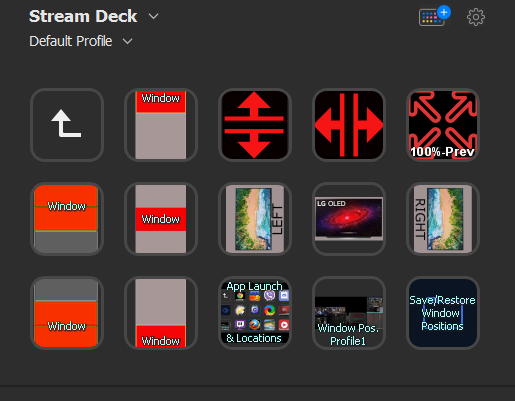
It has a large library of functions and you can build your own window placement function using an easy drag and drop a targeting reticule onto where you have windows placed and sized. It also has saved window position profiles where you can save your whole multi-screen window position layout to several named profiles. There are user submitted functions that you can add to it too and if you want to get tricky you can edit those to relate to different screen #'s or apps, or cobble together code from a few different functions. Even at it's out of the box state with it's included functions it can do a ton of things. If you combine it with a stream deck via hotkeys and add all of the function library of a streamdeck it's quite a command module.

I use displayfusion pro which has a window position save function where you can save window positions to one or multiple named profiles.

I also set my regularly used apps to displayfusion window moving functions so they all have their own "home" position. I set those each to their own hotkey in displayfusion and link those hotkeys each to their own streamdeck button with a little icon for each app.
I cobbled together some displayfusion user scripts from different functions so that each time I hit an apps button it:
--checks to see if the app is open or not, if not, opens it and moves it to set position.
--if it's open it checks to see if it's minimized.
--If it's open and not minimize it.
--If it's open and minimized, restore it to the set position.

... I can hit the same button a few times and get the particular app window back to the home position or minimize/restore it bascially
... I also have a window position profile button on the streamdeck set to the displayfusion window position profile hotkey - so I can simply shuffle them all back at once without having to use the scripted function buttons.


EOKDETC.png


From a reply of mine regarding stream deck:

I just posted a bunch of things I do with it for regular system use outside of obs/streaming, about 3 replies ago. Any action or function you can trigger, toggles, multi-actions/functions.

I integrate it with displayfusion multi monitor / window management app via hotkeys for a lot of useful functions.

https://www.displayfusion.com/Features/Functions/

https://www.displayfusion.com/ScriptedFunctions/

There is also a growing library of useful streamdeck plugins you use directly in the streamdeck app:

https://apps.elgato.com/plugins

:woot:


The big draw is tactile hardware buttons with cutomizable graphics that can change when you for example toggle which sound device you are using on a multi-press... mute/unmute mic, etc but there are a ton of window management and other things you can do with it. I use it to launch and place every app in my 3 monitor setup, restore everything to a saved window position profile, etc. I use it to launch (and place) practically everything now. I have button icons to place the active window to any of a number of set locations and screen-ratios on my 3 screens on the fly. I never have to drag or resize windows ever. I also launch steam big picture or back to desktop version with a toggle button, terminate and re-launch steam button, launch other game stores/libraries. Pop apps or windows system panels up and minimize/restore toggle-cycle them, etc. etc. There is a ton you can trigger with these buttons and the elgato streamdeck library has a lot of stuff already. They are also useful as the toolbox for things like photoshop or gimp or other graphics/video editors, streaming apps, etc etc. There are a lot of app intergration plugins already on the plugin site I linked.
 
Last edited:
The OLEDs are effectively hardware G-SYNC, just not made by NVIDIA. They need LG's custom controller to drive the individual pixels with G-SYNC certified VRR, unlike LCD monitors from manufacturers who make half-baked VRR firmware for existing controllers. NVIDIA's hardware G-SYNC module just standardizes them all.
The Nvidia module is the most effective one. One thing for sure, Nvidia hardware module starts synchronizing frames with 1fps, LG - with 28fps, below that you get the usual v-sync stutter.
 
The Nvidia module is the most effective one. One thing for sure, Nvidia hardware module starts synchronizing frames with 1fps, LG - with 28fps, below that you get the usual v-sync stutter.

As I remember it, the g--sync hardware module version starts doubling the frame rate at sub-30fps and even tripling it at extremely low frame rates, so when you dip that low it's still at or near 60fpsHz . While still technically smooth, it will be a slideshow at those rates, what I like to call "frozen" frames compared to higher frame rates comprrised of unique frames. Anyway that's how I remember is unless g-sync changed. Freesync does have a lower limit and some of the earlier ones were pretty bad at like 48hz on the low end. There are freesync premium screens that will duplicate frames at lower rates though so that confuses the whole freesync thing.

https://www.gpumag.com/freesync-premium-pro/

One of these innovations is low framerate compensation (LFC), which addresses the framerate dropping below the monitor’s range. For example, if the FPS drops below the monitor’s 30Hz range, LFC will increase the monitor’s refresh rate with a consistent ratio. So, if the game is at 25 FPS, LFC will set the refresh rate to 50Hz and that will still prevent the gamer from being affected by screen tearing.
 
Last edited:
As I remember it, the g--sync hardware module version starts doubling the frame rate at sub-30fps and even tripling it at extremely low frame rates, so when you dip that low it's still 60fps that it's operating on . While still technically smooth, it will be a slideshow at those rates, what I like to call "frozen" frames compared to higher frame rates. Anyway that's how I remember is unless g-sync changed. Freesync does have a lower limit and some of t..he earlier ones were pretty bad at like 48hz on the low end. There are freesync premium screens that will duplicate frames at lower rates though so that confuses the whole freesync thing.
interesting.
 
Adjustable LFC point for G-sync enabled Freesync? (blurbusters.com forum)

my games, most game menus are running at 30 frames per second, which causes the FPS counter in my monitor to leap to 60fps — indicating LFC x 2 being activated. Movies at 24 frames per second sometimes creates an LFC x 3 (72fps instead of 48fps), depending on what the bottom-end of VRR range is currently.

ToastyX is capable of modifying the FreeSync range on an AMD Radeon card. But it doesn’t seem to affect the LFC range of an NVIDIA graphics subsystem, and it doesn’t change the 30fps frame rate of some in-game menus (depends on the game).

You can also measure the frame rate of your in-game menu using the in-game framerate counter and/or use RTSS as the frame rate. For any given consistent frame rate — divide the monitor’s frame rate measurement (if monitor has built-in FPS counter), by the computer’s frame rate measurement (game or RTSS framerate measurement), and you’ll see an integer ratio. 1 means LFC not active, 2 and above means LFC is currently active.


https://www.gpumag.com/freesync-premium-pro/

One of these innovations is low framerate compensation (LFC), which addresses the framerate dropping below the monitor’s range. For example, if the FPS drops below the monitor’s 30Hz range, LFC will increase the monitor’s refresh rate with a consistent ratio. So, if the game is at 25 FPS, LFC will set the refresh rate to 50Hz and that will still prevent the gamer from being affected by screen tearing.


He details how LFC works and shows a good example. His summary is that your nvidia gpu or hdmi 2.1 console will do it's own LFC (low framerate compensation) doubling or tripling to remain within the VRR range regardless of whether your screen has freesync premium and regardless of whether you disable it in the OSD even if your screen has freesync premium. I'd still leave fressync premium enabled on the tv though.

 
Last edited:
Honestly, I remember when comparing ips monitors with hw gsync vs without - those with VRR would stutter in fps lower than 48, while monitors equipped with hardware module would be all smooth at any fps rate. People would lower graphics setting to make sure the fps stays always above 48fps to avoid heavy stuttering on VRR monitors. On monitors with HW G-Sync module - there was no need in doing that. So, the LFC didn't help much, and I think that the LG is the same story, except 28 fps is much lower than 48fps and it is much easier to keep fps above the 28 fps threshold. I'd never buy a VRR display with 48fps threshold. I only consider the LG OLED because it can go down to 28fps. I also hope that gaming companies will pick up that 42" OLED and add the NVidia HW G-sync module. I'm not really "hoping" but... I will be looking for possible news about this matter. In any case for the price and the OLED package that comes with it - the 42" LG OLED has to be the ultimate gaming monitor deal, nevermind the 28fps limit.
 
Text will still be quite lousy on the 42" (WRGB pixel structure), so unless it's mostly a gaming and streaming setup, this display is not a great choice.
 
Honestly, I remember when comparing ips monitors with hw gsync vs without - those with VRR would stutter in fps lower than 48, while monitors equipped with hardware module would be all smooth at any fps rate. People would lower graphics setting to make sure the fps stays always above 48fps to avoid heavy stuttering on VRR monitors. On monitors with HW G-Sync module - there was no need in doing that. So, the LFC didn't help much, and I think that the LG is the same story, except 28 fps is much lower than 48fps and it is much easier to keep fps above the 28 fps threshold. I'd never buy a VRR display with 48fps threshold. I only consider the LG OLED because it can go down to 28fps. I also hope that gaming companies will pick up that 42" OLED and add the NVidia HW G-sync module. I'm not really "hoping" but... I will be looking for possible news about this matter. In any case for the price and the OLED package that comes with it - the 42" LG OLED has to be the ultimate gaming monitor deal, nevermind the 28fps limit.
They don't make OLED gsync modules and probably never will.

The gsync modules were mainly made because they needed more advanced lcd overdriving due to variable fps. They added low frame rate compensation because lcds need constant voltage or they will reset. They also needed more advanced backlight control for VRR, which is why no gsync monitors use pwm.
OLED doesn't need any of that. And since nearly all OLED "monitors" are tvs they already have advanced hardware modules that can do anything needed.
 
Text will still be quite lousy on the 42" (WRGB pixel structure), so unless it's mostly a gaming and streaming setup, this display is not a great choice.
I think you are making a far too big a deal about it. I use my CX 48" as a desktop display on both MacOS and Windows and text clarity is honestly fine, especially if a bit of DPI scaling is used.

I have used the CX literally over a year for both my work and personal use and it's been totally fine.
 
They don't make OLED gsync modules and probably never will.

The gsync modules were mainly made because they needed more advanced lcd overdriving due to variable fps. They added low frame rate compensation because lcds need constant voltage or they will reset. They also needed more advanced backlight control for VRR, which is why no gsync monitors use pwm.
OLED doesn't need any of that. And since nearly all OLED "monitors" are tvs they already have advanced hardware modules that can do anything needed.
That is awesome. 👍
Although, are they as effective as dedicated Nvidia modules designed specifically to work with supported Nvidia cards?
 
I think you are making a far too big a deal about it. I use my CX 48" as a desktop display on both MacOS and Windows and text clarity is honestly fine, especially if a bit of DPI scaling is used.

I have used the CX literally over a year for both my work and personal use and it's been totally fine.
Agree. I have CX 48 and use 100% scaling (Windows 10). I've used it for a lot of website browsing (and the occasional coding), and text are definitely fine. Nothing out of the ordinary compare to my previous IPS displays.
 
Honestly, I remember when comparing ips monitors with hw gsync vs without - those with VRR would stutter in fps lower than 48, while monitors equipped with hardware module would be all smooth at any fps rate. People would lower graphics setting to make sure the fps stays always above 48fps to avoid heavy stuttering on VRR monitors. On monitors with HW G-Sync module - there was no need in doing that. So, the LFC didn't help much, and I think that the LG is the same story, except 28 fps is much lower than 48fps and it is much easier to keep fps above the 28 fps threshold. I'd never buy a VRR display with 48fps threshold. I only consider the LG OLED because it can go down to 28fps. I also hope that gaming companies will pick up that 42" OLED and add the NVidia HW G-sync module. I'm not really "hoping" but... I will be looking for possible news about this matter. In any case for the price and the OLED package that comes with it - the 42" LG OLED has to be the ultimate gaming monitor deal, nevermind the 28fps limit.

Yeah but now they have LFC in software from every hdm 2.1 gsync/freesync capable device so we don't need it on a hardware g-sync module anymore. I do remember those days though.

Text will still be quite lousy on the 42" (WRGB pixel structure), so unless it's mostly a gaming and streaming setup, this display is not a great choice.


That 42" screen should be a little more manageable for some people but it's not that huge of a difference viewing distance wise vs PPD at the nearer 60 PPD end. It's still an appreciable difference of 6" at 80PPD where you are more or less sitting the same distance away as the screen's diagonal measurement.

60 PPD on a 42" 4k screen = 29.3"
60 PPD on a 48" 4k screen = 33.5"

80 PPD on a 42" 4k screen = 41.1"
80 PPD on a 48" 4k screen = 47"

These aren't sized suitably for use as up against the wall like a bookshelf / player~upright piano style desk setups. This kind of size demands more of a command center setup.

If you aren't sitting at least that far away, yes your text will look like crap just like a 32" 1440p up close or a 37" 1080p. You will get aliasing and text fringing that no amount of text subsampling tweaking will be able to compensate enough for.

If you sit the appropriate distances away, text and overall pixel structure will look fine once AA and text subsampling are utilized. The viewing angle also gets better viewed at a distance nearing the screen's diagonal measurement to get ~ 45 deg - 50 deg

unless it's mostly a gaming and streaming setup, this display is not a great choice.

I do half-agree with you usage wise but that is due to the 25% brightness buffer used for wear-evening vs burn in longevity wise. I still personally do not use the OLED as a static desktop/app monitor with ABL/ASBL disabled and low brightness settings. It's duty in my setup is as a media and gaming "stage" in my multi-monitor array. In that it is an amazing screen. Best screen ever so far, and TV in living room also in my case.


Being a marginal reduction in view distances I still don't see it as a size that is going to allow people to do the up against the wall like a bookshelf / upright~player piano style desk setup if they are going to view it properly. I don't prefer that kind of setup though personally as long as I have the room and resources to do a longer view command center style setup. Still, saving (4" or) 6" can make a difference in your room layout and could allow for deep desk mounting or more varied screen mounting options in general, as well being different in how it can relate to other screens if you do a multi-monitor setup.

===================================

View Distances
----------------------

Below 60PPD
= below 20/20 vision; most everyone can see individual pixels obviously. You likely need strong anti-aliasing to hide artifacts (at a performance hit).
= requires aggressive text subsampling tweaking, experimenting with alternate forms of subsampling, etc but it will never look as good.
= jumbo pixels to your eyes, aliased graphics, bad text fringing
= bad viewing angle like sitting near to a wall

60 PPD+ is above the 20/20 vision threshold.
..Requires moderate anti aliasing (at a performance hit) and tweaking text sub-sampling.
..The minimum view distance you can use without having a more aggresive pixel structure with jumbo pixels that result in pixelated and fringed graphics that AA struggles to compensate for and text subsampling can't compensate for enough.
..Still displays some more visible pixelization on desktop (or tv viewing) lacking AA or softening - though subsampling helps text look good enough so overall not bad looking even outside of game's AA.
..Not the best viewing angle to the extents of the screen for HUDs. It's pretty narrow.
..64 deg viewing angle at 4k.

80 PPD+
..moderate, slightly above the average visual acuity; few can see individual pixels obviously.
..Anti-aliasing is only necessary in medium- and high-contrast areas
..you still see some fringing where the contrasted areas mesh but can probably get away with more modest and less demanding AA levels or no AA depending on the game and how you feel about it
..approaching the same view distance as the screen's diagonal measurement this results in a much better viewing angle to the extents of the screen and HUD elements (more or less an equilateral triangle/pyramid viewing angle cone)
..48 degree viewing angle at 4k.

120PPD+
..better than 20/10 vision; no one can "see" individual pixels as an obvious/aggressive structure. Anti-aliasing is only necessary in very high-contrast cases if at all.
..pretty extreme and practically unusable distance for a pc on 4k screens (that will change with 8k screens someday, where all these PPD distances will be halved).
..more useful for living room/home theater room environment viewing distances where you watch media without AA and text subsampling
..32 degree viewing angle at 4k.

Viewing Angle regardless of PPD:
..in my opinion, the best case is 45deg - 50 deg viewing angle so you can actually see the extents of the screen and the HUD elements, pointers, notifications, chat, etc without turning away from center in a more extreme amount to see them.
..as a rule of thumb you get what's more or less an equilateral triangle or pyramid viewing angle cone when your view distances is nearing the diagonal screen measurement.
=================================
 
Last edited:
Agree. I have CX 48 and use 100% scaling (Windows 10). I've used it for a lot of website browsing (and the occasional coding), and text are definitely fine. Nothing out of the ordinary compare to my previous IPS displays.

It's useable, but I wouldn't call it "definitely fine". I have a 55" LG C9 (WRGB OLED), and a 55" LG SM9000 (RGB IPS), and the text quality is significantly better on the SM9000. My initial plan was to use the OLED as my monitor, but I use text a lot, and I got tired of looking at it on the OLED, so I replaced it with the IPS panel. The OLED is now relegated to duty on a spare computer.

The LG 32EP950 with the JOLED RGB panel is a completely different story - great text quality. If the LG 42" used such an RGB panel, I'd buy it for sure, but it won't work for me with WRGB.
 
Like they suggested - Changing the named input to be named PC puts it in 4:4:4/RGB. If it hadn't been on that setting before it should be been pretty obvious in text. It appears tattered when not in RGB mode so I would triple check that. Pulling the hdmi cable out and plugging it back in should drop PC/RGB named setting and make it tattered looking. It also happens in graphics, not just text, but text is more obvious. Setting the name of the hdmi input on the TV to "PC" again will but it back to RGB and remove the tattered look.

https://www.rtings.com/tv/learn/chroma-subsampling

I'll also add a few other things to mess with:

..your resolution in the display settings (there can also be a different TV version of some resolutions in addition to the same PC version of that resolution if you scroll down far enough, also make sure it 's on 3840x2160 4k and not 4096x)
..any scaling options that changed the display scaling from 1:1 should be turned off
..your windows desktop/text scaling settings (e.g. if you set text too small or the default is too small for your ppi it will look bad).

..make sure the new gpu doesn't have sharpness settings enabled by default (I think amd kept a sharpness slider where nvidia dropped it at some point, and their "zero" sharpness might be 10, would have to look it up)
..make sure your tv settings don't have any processing enabled in the details settings (incl sharpness), color settings, etc accidentally somehow. Use HGiG/game mode with no processing.

..That and your viewing distance being too close vs the ppi (getting a bad PPD) will show a more aggravated pixel structure that makes text look worse with more aggressive text fringing/aliasing but I assume you are at the same distance you were at with the nvidia GPU previously.

A good reference for settings here that I linked in this thread previously:

(Reddit) LG OLED gaming/PC monitor recommended settings guide
Dear elvin thanks for the suggestions. In only now had time to come back and test further on that matter. I will summarize in the following post
 
Nvidia vs AMD text quality on LG CX48

As pretext to this: I am neither fan of AMD or NVIDIA or any vendor, I am only interested in quality screen output

I had used the CX48 paired with a Gigabyte RTX 3060ti since 01/2021 and had notice the decline in text sharpness compared to my previous IPS monitors but had accepted that loss as OLED inherent and the other qualities in gaming and consuming streams/videos/movies made up for that.

I recently have the possibility to test various GPUs of various vendors and I was instantly blown away when I replaced the 3060ti with a MSI 6600XT, really at the first look I realized the change in text sharpness.

I have since tested forth and back to see if it could be card specific, vendor specific or a setting. With no setting could I get nvidia cards to that level of clarity regarding text sharpness. I tried that in 01/2021 a lot when I first had the combo of 3060ti+cx48, and I tried now.
For both AMD and NVIDIA I targetted: 120Hz freeysnc/gsync, 3840x2160, YCBCCR444 10b 4L10, and confirmed that with the CX48s onscreen info (9x green button)

So for all the cards I tested (list below) I have immediately superb text clarity on AMD cards, and struggle to get that up to par on NVIDIA cards:

NVIDIA:
Gigabyte 3060ti Aorus Master
EVGA 3070 XC3
Nvidia 3090 FE

AMD
MSI 6600 XT Gaming X
Gigabyte 6600 XT Eagle OC
Powercolor 6600 XT Fighter


Attached you can find photos taken with a Huawei Mate 20 Pro, all in Standard mode, all with adjusted 4x zoom. I won't comment on my findings, but focus text and object edges/lines

Looking forward to your feedback.
 

Attachments

  • lgoled_amd_nvidia_hq.jpg
    lgoled_amd_nvidia_hq.jpg
    787.7 KB · Views: 0
Nvidia vs AMD text quality on LG CX48

As pretext to this: I am neither fan of AMD or NVIDIA or any vendor, I am only interested in quality screen output

I had used the CX48 paired with a Gigabyte RTX 3060ti since 01/2021 and had notice the decline in text sharpness compared to my previous IPS monitors but had accepted that loss as OLED inherent and the other qualities in gaming and consuming streams/videos/movies made up for that.

I recently have the possibility to test various GPUs of various vendors and I was instantly blown away when I replaced the 3060ti with a MSI 6600XT, really at the first look I realized the change in text sharpness.

I have since tested forth and back to see if it could be card specific, vendor specific or a setting. With no setting could I get nvidia cards to that level of clarity regarding text sharpness. I tried that in 01/2021 a lot when I first had the combo of 3060ti+cx48, and I tried now.
For both AMD and NVIDIA I targetted: 120Hz freeysnc/gsync, 3840x2160, YCBCCR444 10b 4L10, and confirmed that with the CX48s onscreen info (9x green button)

So for all the cards I tested (list below) I have immediately superb text clarity on AMD cards, and struggle to get that up to par on NVIDIA cards:

NVIDIA:
Gigabyte 3060ti Aorus Master
EVGA 3070 XC3
Nvidia 3090 FE

AMD
MSI 6600 XT Gaming X
Gigabyte 6600 XT Eagle OC
Powercolor 6600 XT Fighter


Attached you can find photos taken with a Huawei Mate 20 Pro, all in Standard mode, all with adjusted 4x zoom. I won't comment on my findings, but focus text and object edges/lines

Looking forward to your feedback.
Very interesting! It almost seems like either Nvidia has some issue with font rendering or AMD handles it in a very different way.

To verify, I tried hooking up my LG CX 48" to my gf's PC which has an old AMD Radeon 390. Out of the box the text rendering did seem like it was a bit better. But I feel it looks pretty close on Nvidia with Better ClearType Tuner set to RGB and the contrast adjusted, try 1200-1600 values.

In any case please report this to Nvidia and maybe they will actually do something about it because it's definitely noticeable in your screenshot!
 
I have since tested forth and back to see if it could be card specific, vendor specific or a setting. With no setting could I get nvidia cards to that level of clarity regarding text sharpness.
Which settings do you mean? Did you adjust ClearType settings?
 
Back
Top