• Some users have recently had their accounts hijacked. It seems that the now defunct EVGA forums might have compromised your password there and seems many are using the same PW here. We would suggest you UPDATE YOUR PASSWORD and TURN ON 2FA for your account here to further secure it. None of the compromised accounts had 2FA turned on.
    Once you have enabled 2FA, your account will be updated soon to show a badge, letting other members know that you use 2FA to protect your account. This should be beneficial for everyone that uses FSFT.

LG 48CX

Yeah, same setup here (77CX and 3090.) Man it's nice, I love that TVs outperform monitors now. My 165hz gsync monitor hasn't been used for gaming in months now..

Right now I'm mostly just playing controller games (Fenyx Rising and Rocket League) on it, I've tried couch mouse/keyboard and still not sure how I feel about it to be honest. Hurts my wrist a bit but I may just need to adjust my setup a bit. If they had low input lag wireless half keyboards ala Logitech lightsync like this I think it might be easier. Not interested in bluetooth keyboards.

https://www.amazon.com/Mechanical-K...&keywords=half+keyboard&qid=1610999731&sr=8-3

This works well at a couch. The couchmaster can provide full elbow-forearm-wrist support if set up properly. I'd also recommend some head and neck support so you can sit upright at times rather than slouching/sinking into the couch all of the time.

Couchmaster couch desk


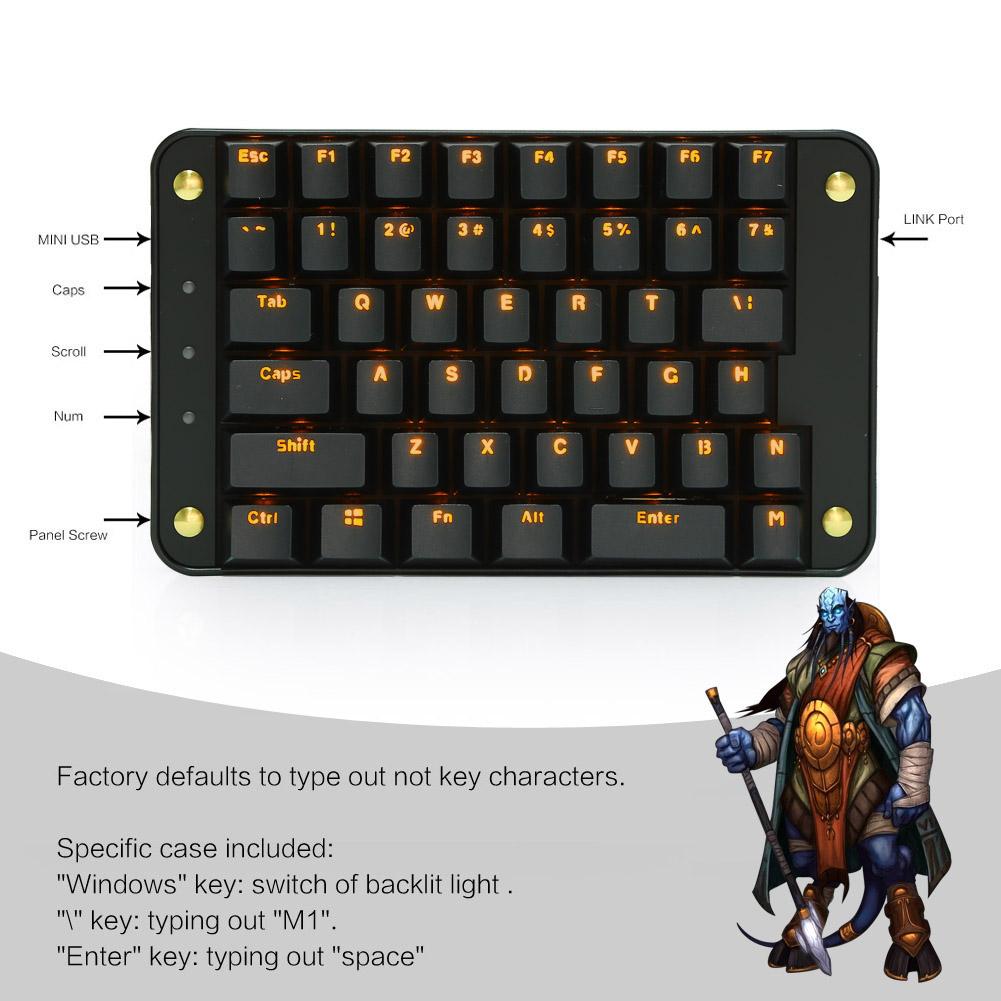
I use this keyboard for gaming at my desk, not at my couch.. It's a "half plus" keyboard since it has a few more keys than exactly half. MX red keys, fully programmable.
https://www.amazon.com/gp/product/B071VRV8FW/

I set the "enter" bar key as the spacebar and the \ | key as "Y", and I on a few profiles I macro the tab key to repeat an action or as a hold an action toggle (e.g. a game that doesn't have a crouch toggle or zoom toggle). There is a lot you can do with it since you can assign any key or combo of keys (including words if you wanted for some reason), macro, etc. to any key. It holds several profiles changeable with Fn + F key # but I don't do too much with it. One other thing it's nice for is reassigning the keys in games that won't let you assign your own movement keys. Like if you don't use WASD or if the game only uses the arrow keys and other locked in key assignments, etc. You can turn off the backlight by pressing the windows key by itself. Mine is MX red mechanical keys which imo are better for gaming. I keep a another split keyboard with MX brown keys for typing and use this gaming 1/2+ board to the left of those in line with my chair arm more or less.
kM9MSX2.jpg

-------------------------------------------------

I use one of these at the couch desk since I don't really game in the living room much and if I did it would be ps4. At least for now. They are backlit and hold a charge for an extremely long time.

https://www.amazon.com/Logitech-Illuminated-Living-Room-Keyboard-Touchpad/dp/B00ZOPVSKW/
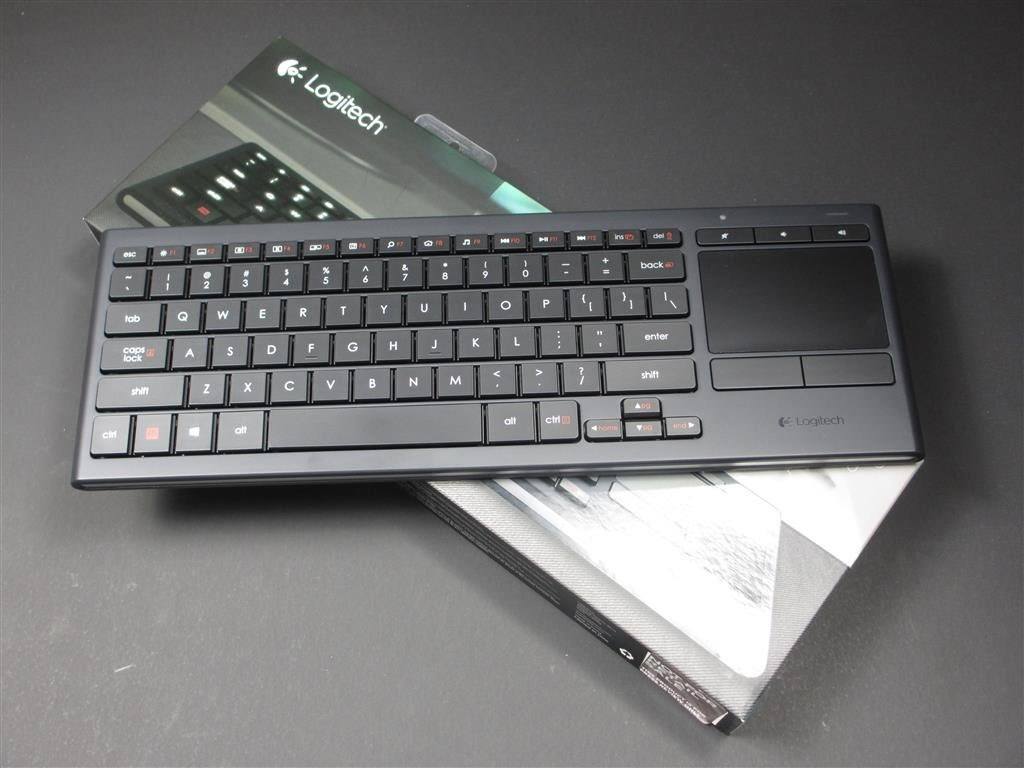
image001.jpg

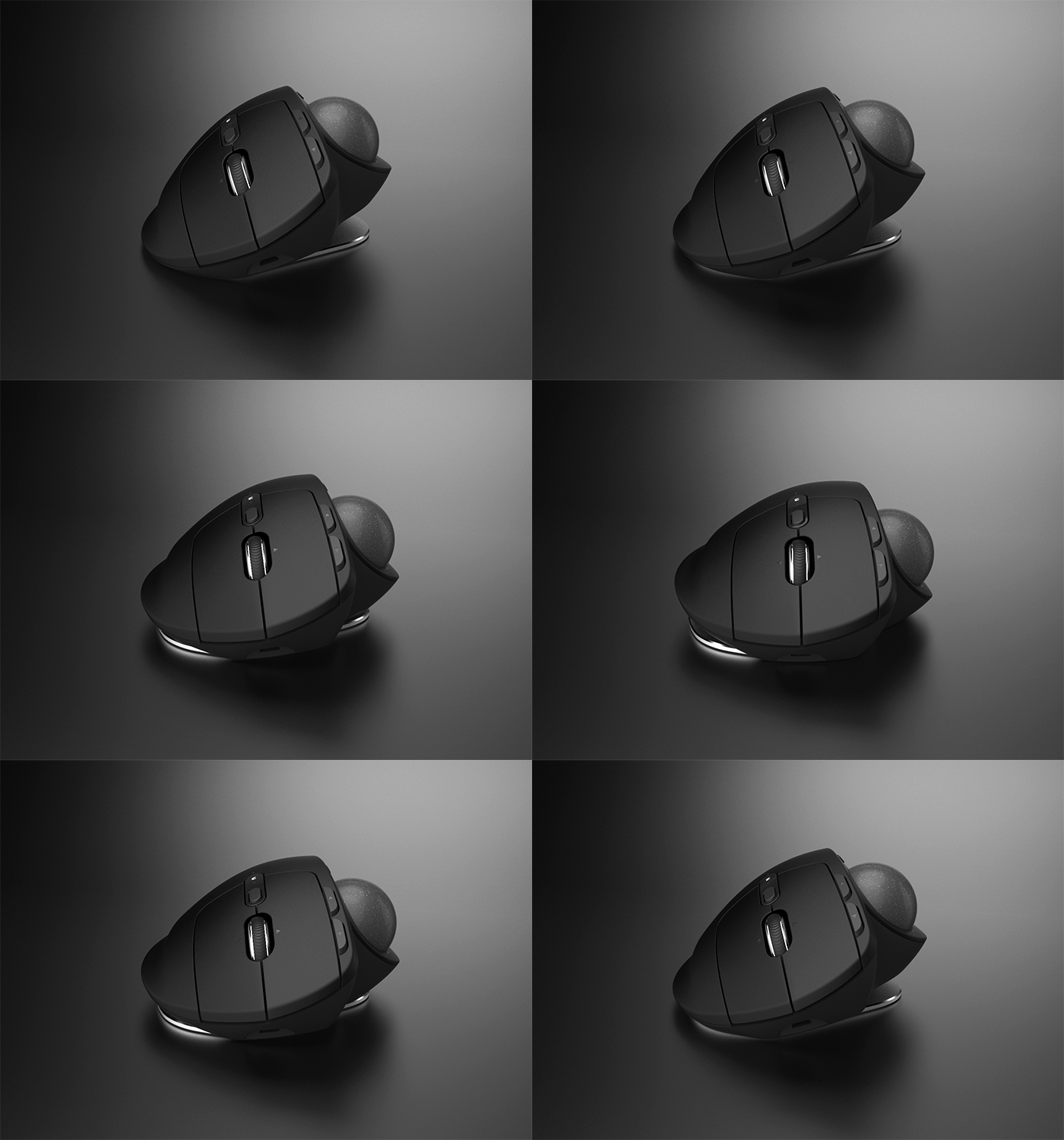
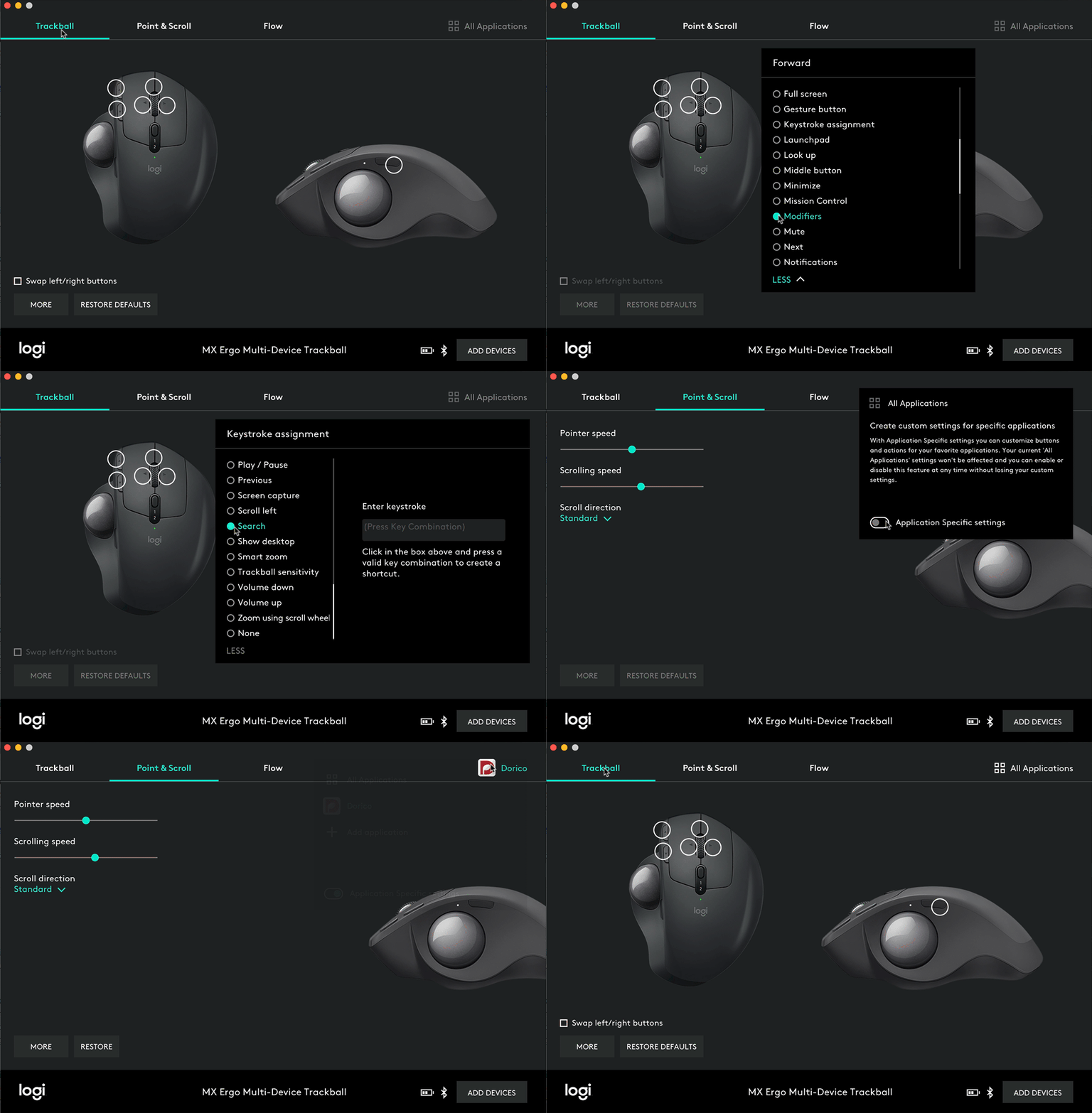
Along with this mouse below since I don't have to scrub the mouse on a mousepad with one of these. They work really well if you configure them so that the mouse cursor crosses the screen when rolling the trackball 90deg either way from center or 180 deg across it's cradle. That is, rather than having the sensitivity too low and "paddling" the track ball. A potentially useful feature of this bluetooth mouse is it can connect to two different machines which you swap between with a button that toggles between a 1 and 2 under the mouse wheel that light up according to which is active. There is also a high speed and low speed button toggle and a fwd and back buttons but you can reconfig the buttons or assign them on a per app basis in the mouse's software.
Cardea_GIF_Animation.gif

logitech-options.gif
 
Last edited:
As an Amazon Associate, HardForum may earn from qualifying purchases.
I'd personally avoid any sort of couch desk / mouse+kb set up. You're asking for chronic pain if you do that, as it locks you into a position and you're on a soft surface. Really, really bad for your back. Stick to controller on the couch, get a proper chair and desk for mouse and kb gaming.
 
I disagree, at least with my setup I posted amongst the gallery pics above which has head and neck support. The arms of the couchmaster provide full elbow and forearm support. It's like sitting on a throne. I do use my LG 48CX at a desk with a chair on a separate desk in my pc room but in the living room I use the couchmaster for laptop use and occasionally connecting the laptop to my TV. You might have to invest in a memory foam pad for some rigidity behind or underneath the regular couch pads and one or two good large couch throw pillows and/or relatively firm chair style pillow to build up a nice throne like configuration , car head rest memory foam pillow etc. as needed..

I keep a folded blanket or throw or a nice towel matching the couch folded under each of the couchmaster arm blocks to provide them some more stability. You can see in this pic of my couch that I have a memory foam pad underneath where I sit and there is a pad behind the couch pillow where my back is too. The back pad (not visible) behind the back pillow keeps me from sinking into the couch too much past 90 deg. I also have a relatively firm chair back style pillow laying face down behind on top so that the end of it makes a headrest that I can pull forward when sitting upright. If I'm lounging more with a controller or watching a movie I can push that big heavy tan pillow behind more to a head back lounging position where I sink more into the couch and can put my feet up on the ottoman.

Not all couches are the same so your mileage may vary. In my case I have a few low narrow hutches even with the top of my couch that run behind it in order to give me some extra space from the back wall for a better surround sound layout. That allows me to have a lot of throw pillows on a long table top of hutches behind the couch and specifically allows me to have that big relatively firm tan one for head support. It required investing in some pads and pillows and a legit couchmaster couch desk though. For me this works excellent.

Incidentally, that's my old mouse in the pic not the new more premium one I linked earlier. Also, I just got the 3.21.16 firmware update notification when I got home and updated the 48 CX. :)

RT1ENxdl.jpg
 
  • Like
Reactions: hhkb
like this
I've been looking forward to playing Nioh2 on the 48 CX OLED. I passed on playing it on PS4 entirely just waiting on the PC release. It comes out on PC February 5, 2021.

I haven't been following it much but I just looked up some info and was very happy to see that it will have 144hz and HDR at launch. Very psyched. :happy:

That puts it above most other souls and souls-like games features wise. (I know you can at least mod/unlock 120hz+ in sekiro though).

 
I've been looking forward to playing Nioh2 on the 48 CX OLED. I passed on playing it on PS4 entirely just waiting on the PC release. It comes out on PC February 5, 2021.

I haven't been following it much but I just looked up some info and was very happy to see that it will have 144hz and HDR at launch. Very psyched. :happy:

That puts it above most other souls and souls-like games features wise. (I know you can at least mod/unlock 120hz+ in sekiro though).


Same here. I looked at the PS4 Pro version and just went nope when I saw all the graphical issues, unstable framerate and whatnot. Koei Tecmo also has a history of bad PC ports so I will definitely not buy this right at release. Here's hoping they have finally learned their lesson and produce a solid PC version.

Then I will need to decide if I want to play at 16:9 or ultrawide...
 
I was watching fextralife on twitch play some of a level + a boss earlier on a pre-release of the PC version he got and I didn't see or hear any issues so it looks promising so far. There are some other twitch streamers playing it right now on pre-release versions too. You can search the Nioh2 game and just look in their stream title for PC / early access PC, etc.
 
Where is SDR brightness slider in windows and how do you know it will do x nits?
It can be found in Windows HD Color settings. There is a link to it in the Windows display settings, accessed by right-clicking your desktop.

1611081389148.png
 
Updated my CX to firmware 03.21.16 last night and now viewing HDR content on it is the greatest it's ever been! No more black/near black issues, just OLED in all it's glory.
 
Agreed. On 3.21.16 as well and things seem to be VERY good in HDR now. And SDR too...

Any remaining issues are pretty minor.
 
Agreed. On 3.21.16 as well and things seem to be VERY good in HDR now. And SDR too...

Any remaining issues are pretty minor.
Agreed.

LG has taken the CX from an excellent TV and elevated it to an absolutely outstanding display. This, right here, is post-purchase support at its finest. They fixed so many complaints that we had about the set over time that I would not hesitate to buy from them again. It's not perfect, obviously, but the CX is literally the best all-around 4K display currently on the market. And if you're not convinced, go to Best Buy's site and sort All TV's by rating.

https://www.bestbuy.com/site/tvs/all-flat-screen-tvs/abcat0101001.c?id=abcat0101001&sp=customerrating numberofreviewssaas

The top TV is the CX 77 at 4.9/5. The CX 65, 55, and 48 are all at 4.8/5 consumer score. That just doesn't happen. LG absolutely NAILED this year's OLED sets, and I hope they continue to improve next year with the C1.
 
Last edited:
Agreed.

LG has taken the CX from an excellent TV and elevated it to an absolutely outstanding display.

This, right here, is post-purchase support at its finest. They fixed so many complaints that we had about the set over time that I would not hesitate to buy from them again. It's not perfect, obviously, but the CX is literally the best all-around 4K display currently on the market.
Yeah I’m really impressed with LG as a company. This is the first LG product I’ve owned and when it comes time to upgrade my living room TV I’ll probably sway from my (outdated) affinity for Sony.
 
Another update down, and the Quickstart+ screenshift bug lives on 🙄 Clearly we need to get Forbes to report on it or it won't ever be fixed.
 
Unless you just leave screenshift on... then it's ok. :) I know, that one does need fixing if you want to leave it off.
 
Lol is there even any real advantage to having Quickstart+ turned on? I've had mine off for months without noticing any real drawbacks.
 
Lol is there even any real advantage to having Quickstart+ turned on? I've had mine off for months without noticing any real drawbacks.
Windows doesn't seem to register a "cable unplug" and go crazy when Quickstart+ is on, but does (sometimes) when it's off. It's just an inconvenience, but also such a trivial bug to fix it's hilarious that they haven't.
 
Quickstart+ does absolutely nothing for me in terms of the unplug thing happening. Every single time the display is put to sleep by windows or I manually turn it off it behaves like it's been unplugged.
 
Lol is there even any real advantage to having Quickstart+ turned on? I've had mine off for months without noticing any real drawbacks.

For me it's a minor convenience in making the display start faster as I tend to turn it off from the remote during the day when I take longer breaks. I don't mind the screen shift now that it no longer blurs the picture at 4K 120 Hz but would still like the bug to be fixed.
 
The only time I've been turning mine fully "off" into standby mode anymore is when I'm leaving the house. Ever since I learned that I could turn the screen off without putting the whole display into standby mode by holding the mic down and saying "turn off the screen".

Before that I was hitting the power button and it would scramble all of my window layouts and made for some clunky transitions between my multiple monitors. Using the mic screen off trick I can turn the display off at any time, even with a HDR game running while I walk away for any random amount of time. It won't scramble my 3 monitor array of desktop space or what is tiled on them window wise, or drop or blink screens re-mapping the desktop space or automatically moving my full screen exclusive game or fulls screen HDR video to a different monitor etc.

While you can map an app to a number key by holding a number key down, it would be nice if you could map the screen off without standby function to a single button too. You can turn the screen off this way from the menus in the OSD but it's a few menus deep in there so isn't very convenient to me that way. (Go to Settings>Energy Saving>Tun off Screen)
The mic works well though. Audio still plays while the screen is "off" using this method too, though I usually mute it with my drok usb volume knob as a push button mute/unmute toggle when I'm walking away from the desk.
 
Last edited:
When you turn the screen off like this I'm 100% sure it won't run the lightweight pixel refresh though. It's still on and even triggers ABSL for some reason.

I'm not saying you should just do a full poweroff all the time but once a day at least (recommendation is every 4h or something but probably overkill with a low OLED light). But yeah when you do it often resets the connection sadly, so might scramble your icons and stuff.
 
How does it trigger ASBL to cut the brightness?? This is different than setting eco mode to ramp down to zero. This is a "turn the screen off" feature in the OSD (and via the microphone more easily).

The screen is entirely off with no mouse or windows showing. It doesn't seem to be duplicating the effect of a black background wallpaper (which is also completely black emitter "off") since there is nothing displayed on the screen when I drag my mouse or a window to it, and when I click the remote my game is still there full screen in HDR when the screen is turned back on. So idk how asbl would be even darker than full infinite black "off" emitters. It looks like it's fully off zero emitter with the display part cut off to me, while retaining the actual gpu signal data and connectivity internally to be displayed again when the remote is pressed.

I usually turn it off completely before I go to sleep so it's off for several hours if it needs to do maintenance or if I'm away from home so it definitely has hours of down time every day though, even if only considering time I am sleeping.
 
Last edited:
I am saying that when I turn it back on after using the screen off function, it's in ABSL mode and it takes motion on the screen to go back to normal brightness. If I do a proper on/off cycle (quickstart or not) this doesn't happen.

But yes the pixels are off so it's not going to be harmful either way and I use it constantly, I only turn it off properly when I'm certain to stay away from it for several hours.

I still get the occasional handshaking issue on power on sadly and it's a pain so I'm extremely thankful for this feature right now.
 
Last edited:
The only time I've been turning mine fully "off" into standby mode anymore is when I'm leaving the house. Ever since I learned that I could turn the screen off without putting the whole display into standby mode by holding the mic down and saying "turn off the screen".

Before that I was hitting the power button and it would scramble all of my window layouts and made for some clunky transitions between my multiple monitors. Using the mic screen off trick I can turn the display off at any time, even with a HDR game running while I walk away for any random amount of time. It won't scramble my 3 monitor array of desktop space or what is tiled on them window wise, or drop or blink screens re-mapping the desktop space or automatically moving my full screen exclusive game or fulls screen HDR video to a different monitor etc.

While you can map an app to a number key by holding a number key down, it would be nice if you could map the screen off without standby function to a single button too. You can turn the screen off this way from the menus in the OSD but it's a few menus deep in there so isn't very convenient to me that way. (Go to Settings>Energy Saving>Tun off Screen)
The mic works well though. Audio still plays while the screen is "off" using this method too, though I usually mute it with my drok usb volume knob as a push button mute/unmute toggle when I'm walking away from the desk.
You can add the screen off setting to the first tier menu when pressing (not holding) the gear button that opens settings. It's the pen icon at the bottom. This is a new feature for the CX.

I still wish it could be mapped to a button for convenience. I've now set up a hot corner to turn on a blank screensaver on MacOS as that's faster to do and does largely the same thing.
 
When you turn the screen off like this I'm 100% sure it won't run the lightweight pixel refresh though. It's still on and even triggers ABSL for some reason.

I'm not saying you should just do a full poweroff all the time but once a day at least (recommendation is every 4h or something but probably overkill with a low OLED light). But yeah when you do it often resets the connection sadly, so might scramble your icons and stuff.
It's not an issue for pixel refresh as that will run automatically after a cumulative amount of 4 hours of use, whenever you turn off the display which is most likely at least at the end of the day.
 
  • Like
Reactions: elvn
like this
You can add the screen off setting to the first tier menu when pressing (not holding) the gear button that opens settings. It's the pen icon at the bottom. This is a new feature for the CX.

I still wish it could be mapped to a button for convenience. I've now set up a hot corner to turn on a blank screensaver on MacOS as that's faster to do and does largely the same thing.

Thanks for the info on the customization.

Agreed about wanting the 1 button accessibility.

Be careful relying on a OS screensaver as app crashes and some other notifications and "ok" button window pop-ups can potentially take top level above the screensaver and be left on in a static location above it. at least with windows. Also, very rare occurrences like the screensaver crashing or stalling on an image or message, the gpu crashing to a frozen screen of signal noise, the os crashing to a static message screen, the system crashing and getting stuck on a bios/boot screen etc. would not be saved by a screensaver where the TV's "turn of the screen" method is independent of the signal source.
 
Yeah that's why I've forced myself a bit at first to get used to it instead of relying on software. Heck I had a very a strange bug once where asking windows to display a pure black screen did not turn the pixels off completely, it was just very very dark grey. A reboot fixed it and it's happened to me only once so far.
 
I keep getting blackouts on my CX.. I sit in Windows doing idle stuff like browsing or editing in lightroom (never when I game) it will just randomly cut to black and say "no signal" then jump back to the signal. Whats the deal here? Is it the screen, cable or graphics card?

The cable is a Nedis HDMI 2.1 2m cable https://nedis.com/en-us/product/con...dmi-connector-hdmi-connector-200-m-anthracite
And the graphics card is a ASUS RTX 3070 TUF OC
 
Windows has never been reliable on the screen saver or monitor off functionality. It's really annoying. There's lots of things that can inhibit it - like simply having a gamepad plugged in!
 
I keep getting blackouts on my CX.. I sit in Windows doing idle stuff like browsing or editing in lightroom (never when I game) it will just randomly cut to black and say "no signal" then jump back to the signal. Whats the deal here? Is it the screen, cable or graphics card?

The cable is a Nedis HDMI 2.1 2m cable https://nedis.com/en-us/product/con...dmi-connector-hdmi-connector-200-m-anthracite
And the graphics card is a ASUS RTX 3070 TUF OC

It is most likely the cable. It might be worth trying a lower bandwidth for a while, like using 8 bit and see if it fixes it.
 
I keep getting blackouts on my CX.. I sit in Windows doing idle stuff like browsing or editing in lightroom (never when I game) it will just randomly cut to black and say "no signal" then jump back to the signal. Whats the deal here? Is it the screen, cable or graphics card?

The cable is a Nedis HDMI 2.1 2m cable https://nedis.com/en-us/product/con...dmi-connector-hdmi-connector-200-m-anthracite
And the graphics card is a ASUS RTX 3070 TUF OC

I had the same thing with my 48CX and RTX3070.
I thought it was that RTX 30x series issue (dropping signal, blinking) but I think it was a cable. I had HDMI 2.0 cable and it was freaking me out, blinking so many t9ime, or giving me signal error.
I got a good Ugreen HDMI 2.1 cable yesterday and issue stopped.
It sounds like you are having same problem, maybe that 2.1 cable of yours isn't that good. One 2.1 cable is not same as other.
 
Guys, where can I order that old school LG remote control with access to Service menu for UE models?
I want to check the total up time of my tv.
 
Guys, where can I order that old school LG remote control with access to Service menu for UE models?
I want to check the total up time of my tv.
Search for MKJ39170828 on amazon or ebay.

I bought mine for the same reason. Whatever you do, do NOT press IN STOP ever - I made that mistake and wiped out my up time hours.
 
  • Like
Reactions: MrTX
like this
Search for MKJ39170828 on amazon or ebay.

I bought mine for the same reason. Whatever you do, do NOT press IN STOP ever - I made that mistake and wiped out my up time hours.
Cool, thanks.
Found one and bought for £6.

What do you press to go to uptime?
 
Cool, thanks.
Found one and bought for £6.

What do you press to go to uptime?

IN START -> 0413. It's on the bottom left of the screen, it shows UTT (total up time hours), and below that it shows your minor pixel refreshes (the 4 hr refresh), followed by major refreshes (every 2000 hrs), like 132/0. Press EXIT to exit the menu, not IN STOP (so easy to mess it up so I must reemphasize).
 
Finally scored a 3090 thanks to a member here and holy cow, this thing looks even better. Going from 8-bit 4:2:0 to 12-bit (I guess downsampled to 10-bit) RGB was NICE. Colors are richer and even more vibrant. And now G-Sync is available in NVCP, at last! This combined with the good news surrounding the recent firmware update and Nvidia driver fixes all came together. The CX is a stunner.
 
I keep getting blackouts on my CX.. I sit in Windows doing idle stuff like browsing or editing in lightroom (never when I game) it will just randomly cut to black and say "no signal" then jump back to the signal. Whats the deal here? Is it the screen, cable or graphics card?

The cable is a Nedis HDMI 2.1 2m cable https://nedis.com/en-us/product/con...dmi-connector-hdmi-connector-200-m-anthracite
And the graphics card is a ASUS RTX 3070 TUF OC
These cables are working very well for me on a desktop CX48 and living room CX65. CX48 is on a 6900 XT running 10 bit RGB 4:4:4, 4K, 120Hz, VRR, HDR, etc.

8K 60Hz HDMI Cable 6.6FT (2 Pack),48Gbps 7680P Ultra High Speed HDMI 2.1 Cord for Apple TV,Roku,Samsung QLED,Sony LG,Nintendo Switch,Playstation,PS5,PS4,Xbox One Series X,HDMI 2.0/4K 120Hz Compatible​


https://www.amazon.com/gp/product/B088T32WTX
 
As an Amazon Associate, HardForum may earn from qualifying purchases.
Finally scored a 3090 thanks to a member here and holy cow, this thing looks even better. Going from 8-bit 4:2:0 to 12-bit (I guess downsampled to 10-bit) RGB was NICE. Colors are richer and even more vibrant. And now G-Sync is available in NVCP, at last! This combined with the good news surrounding the recent firmware update and Nvidia driver fixes all came together. The CX is a stunner.
Finally pulled the trigger today. I hope I can make it work. 🤞
 
These cables are working very well for me on a desktop CX48 and living room CX65. CX48 is on a 6900 XT running 10 bit RGB 4:4:4, 4K, 120Hz, VRR, HDR, etc.

8K 60Hz HDMI Cable 6.6FT (2 Pack),48Gbps 7680P Ultra High Speed HDMI 2.1 Cord for Apple TV,Roku,Samsung QLED,Sony LG,Nintendo Switch,Playstation,PS5,PS4,Xbox One Series X,HDMI 2.0/4K 120Hz Compatible​


https://www.amazon.com/gp/product/B088T32WTX

there is also new certified one which was used by few guys on forums without issues
https://www.amazon.com/Cable-Maxonar-Certified-Ultra-48Gbps/dp/B08P5PPWRB/

I would rather reccomend using certified one than random.
 
As an Amazon Associate, HardForum may earn from qualifying purchases.
These cables are working very well for me on a desktop CX48 and living room CX65. CX48 is on a 6900 XT running 10 bit RGB 4:4:4, 4K, 120Hz, VRR, HDR, etc.

8K 60Hz HDMI Cable 6.6FT (2 Pack),48Gbps 7680P Ultra High Speed HDMI 2.1 Cord for Apple TV,Roku,Samsung QLED,Sony LG,Nintendo Switch,Playstation,PS5,PS4,Xbox One Series X,HDMI 2.0/4K 120Hz Compatible​


https://www.amazon.com/gp/product/B088T32WTX

there is also new certified one which was used by few guys on forums without issues
https://www.amazon.com/Cable-Maxonar-Certified-Ultra-48Gbps/dp/B08P5PPWRB/

I would rather reccomend using certified one than random.
Thanks guys. I’ve got a 3080 on the way and I’m currently using a Monoprice 8K cable. I’m obviously hoping it works fine, but it’s good to have options if it doesn’t.
 
As an Amazon Associate, HardForum may earn from qualifying purchases.
I keep getting blackouts on my CX.. I sit in Windows doing idle stuff like browsing or editing in lightroom (never when I game) it will just randomly cut to black and say "no signal" then jump back to the signal. Whats the deal here? Is it the screen, cable or graphics card?

The cable is a Nedis HDMI 2.1 2m cable https://nedis.com/en-us/product/con...dmi-connector-hdmi-connector-200-m-anthracite
And the graphics card is a ASUS RTX 3070 TUF OC
The packaging for that cable lacks the HDMI authentication label, which is required for the use of the Ultra High Speed designation on cables. Use this to look for good cables in the future:

https://hdmi.org/spec21sub/ultrahighspeedcable

UHS_Program_Identification_09282020.jpg

UHS-Cable-Verification-09282020.jpg
 
Back
Top