![[H]ard|Forum](/styles/hardforum/xenforo/logo_dark.png)
Navigation
Install the app
How to install the app on iOS
Follow along with the video below to see how to install our site as a web app on your home screen.
Note: This feature may not be available in some browsers.
More options
-
Some users have recently had their accounts hijacked. It seems that the now defunct EVGA forums might have compromised your password there and seems many are using the same PW here. We would suggest you UPDATE YOUR PASSWORD and TURN ON 2FA for your account here to further secure it. None of the compromised accounts had 2FA turned on.
Once you have enabled 2FA, your account will be updated soon to show a badge, letting other members know that you use 2FA to protect your account. This should be beneficial for everyone that uses FSFT.
You are using an out of date browser. It may not display this or other websites correctly.
You should upgrade or use an alternative browser.
You should upgrade or use an alternative browser.
LG 48CX
- Thread starter gan7114
- Start date

- Joined
- May 5, 2006
- Messages
- 5,937
just hit windows key + S to search for anything and click the word OPEN on the right when it shows up.

- Joined
- May 18, 1997
- Messages
- 58,456
I use a program called Fences. Hide and unhide all your desktop icons with a quick double click.
- Joined
- May 5, 2006
- Messages
- 5,937
you can also use the taskbarhider app and put the recycle bin on the taskbar itself, toggling the taskbar to show/hide with a hotkey.
taskbarhider
http://www.itsamples.com/taskbar-hider.html
translucent taskbar
https://github.com/TranslucentTB/TranslucentTB
https://www.microsoft.com/en-us/p/translucenttb/9pf4kz2vn4w9?activetab=pivot:overviewtab
How to Pin Fully Functional Recycle Bin to the Taskbar in Windows 10
https://www.tenforums.com/tutorials/29497-pin-recycle-bin-taskbar-windows-10-a.html

or
https://technastic.com/pin-recycle-bin-to-taskbar-in-windows/
taskbarhider
http://www.itsamples.com/taskbar-hider.html
translucent taskbar
https://github.com/TranslucentTB/TranslucentTB
https://www.microsoft.com/en-us/p/translucenttb/9pf4kz2vn4w9?activetab=pivot:overviewtab
How to Pin Fully Functional Recycle Bin to the Taskbar in Windows 10
https://www.tenforums.com/tutorials/29497-pin-recycle-bin-taskbar-windows-10-a.html
or
https://technastic.com/pin-recycle-bin-to-taskbar-in-windows/

Porter_
[H]F Junkie
- Joined
- Sep 10, 2007
- Messages
- 8,467
With the translucent taskbar app, I still have the line from the search bar. Is there a way to remove that, or do you have to turn off the search function from the taskbar?you can also use the taskbarhider app and put the recycle bin on the taskbar itself, toggling the taskbar to show/hide with a hotkey.
taskbarhider
http://www.itsamples.com/taskbar-hider.html
translucent taskbar
https://github.com/TranslucentTB/TranslucentTB
https://www.microsoft.com/en-us/p/translucenttb/9pf4kz2vn4w9?activetab=pivot:overviewtab
How to Pin Fully Functional Recycle Bin to the Taskbar in Windows 10
https://www.tenforums.com/tutorials/29497-pin-recycle-bin-taskbar-windows-10-a.html
or
https://technastic.com/pin-recycle-bin-to-taskbar-in-windows/
- Joined
- May 5, 2006
- Messages
- 5,937
Personally I set up a hotkey in the taskbarhider app to hide/show the whole bar with a toggle (ctrl+SHIFT+Z in my case). But before that I just hid the field and left it as the Magnifying glass search icon instead.
https://www.myofficetricks.com/how-to-hide-search-box-from-taskbar-on-windows-10/
Now I instead just hit the windows key on the keyboard plus the S key. When you do that hotkey the focus is already on the popup so you aren't really saving any steps by typing on the taskbar where you'd have to move your mouse there and click on the field first anyway. Winkey+S no matter where your mouse or focus is and you can start typing your search term immediately.
winkey + S (or Q) = search menu popup (start typing after it pops up)
some other ones I find the most useful:
-------------------------------------------------------------
... the alt tab functions remove the need to using a taskbar for switching (though not launching)
Alt + TAB = switch between open apps with popup
ctrl + Alt + TAB = persistent popup to select between open apps
winkey + D = desktop show/minimize everything toggle
.....
winkey + A = action center/notifications
winkey + E = open file explorer
winkey + R = run command
winkey + TAB = open task view
Now I rarely even toggle my taskbar to show at all since I don't need it. I have side monitors with displayfusion taskbars on them for the windows system tray when I need that though. I use my streamdeck to launch apps but if I ever need one I don't have mapped there I can just hit winkey+S and start typing the name of the app , then hit enter to launch it. That's the easy way. The long way would be to hit the windows key alone and scroll through the start menu if I forgot the name of the app
One other thing I do is I dump all of my desktop icons into a desktop icon folder in my documents and I pin that folder/favorite it in my file explorer. Then I set that folder to show the icons at a size I like which it remembers for whenever I open that folder.
https://www.myofficetricks.com/how-to-hide-search-box-from-taskbar-on-windows-10/
And here's a simple guide for your reference.
- Right-click on any blank area on the taskbar and go to Search on the menu, and there you will have the option to hide it.
- You can also choose to show search icon only, thus a magnifying glass icon will appear next to Start button.
Now I instead just hit the windows key on the keyboard plus the S key. When you do that hotkey the focus is already on the popup so you aren't really saving any steps by typing on the taskbar where you'd have to move your mouse there and click on the field first anyway. Winkey+S no matter where your mouse or focus is and you can start typing your search term immediately.
winkey + S (or Q) = search menu popup (start typing after it pops up)
some other ones I find the most useful:
-------------------------------------------------------------
... the alt tab functions remove the need to using a taskbar for switching (though not launching)
Alt + TAB = switch between open apps with popup
ctrl + Alt + TAB = persistent popup to select between open apps
winkey + D = desktop show/minimize everything toggle
.....
winkey + A = action center/notifications
winkey + E = open file explorer
winkey + R = run command
winkey + TAB = open task view
Now I rarely even toggle my taskbar to show at all since I don't need it. I have side monitors with displayfusion taskbars on them for the windows system tray when I need that though. I use my streamdeck to launch apps but if I ever need one I don't have mapped there I can just hit winkey+S and start typing the name of the app , then hit enter to launch it. That's the easy way. The long way would be to hit the windows key alone and scroll through the start menu if I forgot the name of the app
One other thing I do is I dump all of my desktop icons into a desktop icon folder in my documents and I pin that folder/favorite it in my file explorer. Then I set that folder to show the icons at a size I like which it remembers for whenever I open that folder.
Last edited:
Pretty old message, but could you go into details on how you did this? I tried using CRU to delete that 4096x2160 resolution, but I don't see that option anywhere in CRU.I tried using CRU to delete the 4096x2160 resolutions from the EDID and that also did not do anything. I have had it several times drop to 4:2:0 in 4K 60 Hz and somehow managing to make that really blurry.
Pretty old message, but could you go into details on how you did this? I tried using CRU to delete that 4096x2160 resolution, but I don't see that option anywhere in CRU.
I didn't know either but I found it: edit extension blocks, then double click on TV resolutions.
I've been checking back on this display/TV every now and then waiting for all the issues to be fixed before buying.
I want to use it with a ultrawide resolution 3840x1620.
Is it possible to game on this now without any issues? 120hz, chroma subsampling, stuttering at 100fps, g-sync, hdr, can only run games in windowed mode and not "full screen" when using custom resolution.
Is it all good now?
I want to use it with a ultrawide resolution 3840x1620.
Is it possible to game on this now without any issues? 120hz, chroma subsampling, stuttering at 100fps, g-sync, hdr, can only run games in windowed mode and not "full screen" when using custom resolution.
Is it all good now?
- Joined
- May 5, 2006
- Messages
- 5,937
I know you weren't talking about this specifically and were talking about ultrawide in regard to windowed/full-screen exclusive but in case you weren't aware - afaik most if not all HDR games require full screen exclusive mode in order to activate hdr in their menus. G-sync tech was like that initially though too(having a full screen exclusive requirement and not available in windowed modes,)so maybe that could change someyear.
It's annoying for a multi monitor, multi tasker user like me but worth it for how great HDR looks in some games.
It's annoying for a multi monitor, multi tasker user like me but worth it for how great HDR looks in some games.
You can also empty the recycle bin as part of a monthly disk cleanup run with the new version of it in settings. Windows 10 puts a ton of crap everywhere these days, I usually clean out like 10-20 GB. I don’t use the recycle bin anymore and don’t miss desktop icons. I just pin things to the right side of the start menu.
Thanks! I'll try it once I get home from work tonight.I didn't know either but I found it: edit extension blocks, then double click on TV resolutions.
- Joined
- May 18, 1997
- Messages
- 58,456
- Joined
- Jul 5, 2012
- Messages
- 4,716
And that is why I wouldn't buy that cheap Vizio OLED. You wouldn't get firmware support like this.
Also don't get a lot of the other features. But thats why its cheaper.And that is why I wouldn't buy that cheap Vizio OLED. You wouldn't get firmware support like this.
mirkendargen
Limp Gawd
- Joined
- Dec 29, 2006
- Messages
- 435
I have the Vizio too. It's amazing as a $900 (Best Buy black friday deal) bedroom TV. It has multiple showstopping issues/"features" that would make it unusable as a PC monitor.And that is why I wouldn't buy that cheap Vizio OLED. You wouldn't get firmware support like this.
- Joined
- Jul 5, 2012
- Messages
- 4,716
I have the Vizio too. It's amazing as a $900 (Best Buy black friday deal) bedroom TV. It has multiple showstopping issues/"features" that would make it unusable as a PC monitor.
Right. Guess I should've been more specific in that I would never buy the Vizio OLED as a PC/Gaming display over the LG.
Porter_
[H]F Junkie
- Joined
- Sep 10, 2007
- Messages
- 8,467
Thanks man, swapping to icon only is the perfect fix for me.Personally I set up a hotkey in the taskbarhider app to hide/show the whole bar with a toggle (ctrl+SHIFT+Z in my case). But before that I just hid the field and left it as the Magnifying glass search icon instead.
https://www.myofficetricks.com/how-to-hide-search-box-from-taskbar-on-windows-10/
Now I instead just hit the windows key on the keyboard plus the S key. When you do that hotkey the focus is already on the popup so you aren't really saving any steps by typing on the taskbar where you'd have to move your mouse there and click on the field first anyway. Winkey+S no matter where your mouse or focus is and you can start typing your search term immediately.
winkey + S (or Q) = search menu popup (start typing after it pops up)
some other ones I find the most useful:
-------------------------------------------------------------
... the alt tab functions remove the need to using a taskbar for switching (though not launching)
Alt + TAB = switch between open apps with popup
ctrl + Alt + TAB = persistent popup to select between open apps
winkey + D = desktop show/minimize everything toggle
.....
winkey + A = action center/notifications
winkey + E = open file explorer
winkey + R = run command
winkey + TAB = open task view
Now I rarely even toggle my taskbar to show at all since I don't need it. I have side monitors with displayfusion taskbars on them for the windows system tray when I need that though. I use my streamdeck to launch apps but if I ever need one I don't have mapped there I can just hit winkey+S and start typing the name of the app , then hit enter to launch it. That's the easy way. The long way would be to hit the windows key alone and scroll through the start menu if I forgot the name of the app
One other thing I do is I dump all of my desktop icons into a desktop icon folder in my documents and I pin that folder/favorite it in my file explorer. Then I set that folder to show the icons at a size I like which it remembers for whenever I open that folder.
Thanks again. It works.I didn't know either but I found it: edit extension blocks, then double click on TV resolutions.
Here is a detailed instruction for anyone wanting to remove the 4096x2160 resolutions in NVCP and ingame:
1. Download and run CRU.exe.
2. Click "Export" on the bottom to backup the default profile.
3. Select LG TV SSCR (active)* on top.
4. Under "Extension blocks", double click "CTA-861: 1 detailed resolution, ..." to edit it.
5. Under "Data blocks", double click "TV resolutions" to edit it and delete all "4096x2160". Click ok afterward.
6. Repeat for "HDMI support".
7. Click ok several times to apply changes.
8. Run "restart64.exe" to restart the graphic card.
9. Restart the PC.
10. Go into Nvidia Control Panel-> Change resolution and make sure it's still using 10bpc. Sometimes it resets to default 8bbpc color settings.
Done! Now there should not be any 4096x2160 resolutions in Nvidia Control Panel or ingame.
Been using this for around 3 months now, and I have to say when playing a game with a controller where you can sit back in your desk, its amazing. Playing mouse/keyboard it is very rough however. Its just too close to my eyes (I have a 30" desk).
is there a common monitor arm or TV stand people recommend? I have heard the Ergotron HX is a good monitor arm for this, but I have also heard that because of the way its designed you can only really gain ~3"-4" inches of clearance as the arm does not allow you to go beyond 180 degrees. I thought about buying a TV stand that I can put behind my desk, but I use a adjustable desk and that would render that moot.
Really love the monitor, but if I cannot figure this out I'll have to sell it to get a more manageable sized monitor.
is there a common monitor arm or TV stand people recommend? I have heard the Ergotron HX is a good monitor arm for this, but I have also heard that because of the way its designed you can only really gain ~3"-4" inches of clearance as the arm does not allow you to go beyond 180 degrees. I thought about buying a TV stand that I can put behind my desk, but I use a adjustable desk and that would render that moot.
Really love the monitor, but if I cannot figure this out I'll have to sell it to get a more manageable sized monitor.
Thanks again. It works.
Here is a detailed instruction for anyone wanting to remove the 4096x2160 resolutions in NVCP and ingame:
1. Download and run CRU.exe.
2. Click "Export" on the bottom to backup the default profile.
3. Select LG TV SSCR (active)* on top.
4. Under "Extension blocks", double click "CTA-861: 1 detailed resolution, ..." to edit it.
5. Under "Data blocks", double click "TV resolutions" to edit it and delete all "4096x2160". Click ok afterward.
6. Repeat for "HDMI support".
7. Click ok several times to apply changes.
8. Run "restart64.exe" to restart the graphic card.
9. Restart the PC.
10. Go into Nvidia Control Panel-> Change resolution and make sure it's still using 10bpc. Sometimes it resets to default 8bbpc color settings.
Done! Now there should not be any 4096x2160 resolutions in Nvidia Control Panel or ingame.
Good catch on the "hdmi support"
Without deleting the resolution there also I could still select 4096x2160 and integer scaling was still broken because of it (nvidia treated 4096x2160 as the native resolution and scaled to that...). Now it's all good!
- Joined
- Sep 15, 2011
- Messages
- 3,476
I bought this and it works well for me, though it was missing a part upon arrival and I had to get them to ship out a replacement part, which they did promptly.Been using this for around 3 months now, and I have to say when playing a game with a controller where you can sit back in your desk, its amazing. Playing mouse/keyboard it is very rough however. Its just too close to my eyes (I have a 30" desk).
is there a common monitor arm or TV stand people recommend? I have heard the Ergotron HX is a good monitor arm for this, but I have also heard that because of the way its designed you can only really gain ~3"-4" inches of clearance as the arm does not allow you to go beyond 180 degrees. I thought about buying a TV stand that I can put behind my desk, but I use a adjustable desk and that would render that moot.
Really love the monitor, but if I cannot figure this out I'll have to sell it to get a more manageable sized monitor.
https://www.amazon.com/gp/product/B00681HGB6/ref=ppx_yo_dt_b_asin_title_o02_s00?ie=UTF8&psc=1
I use a height adjustable desk and so being able to move the stand around and rotate the screen if needed is handy.
As an Amazon Associate, HardForum may earn from qualifying purchases.

- Joined
- Jun 10, 2011
- Messages
- 441
This is the highest quality stand:Been using this for around 3 months now, and I have to say when playing a game with a controller where you can sit back in your desk, its amazing. Playing mouse/keyboard it is very rough however. Its just too close to my eyes (I have a 30" desk).
is there a common monitor arm or TV stand people recommend? I have heard the Ergotron HX is a good monitor arm for this, but I have also heard that because of the way its designed you can only really gain ~3"-4" inches of clearance as the arm does not allow you to go beyond 180 degrees. I thought about buying a TV stand that I can put behind my desk, but I use a adjustable desk and that would render that moot.
Really love the monitor, but if I cannot figure this out I'll have to sell it to get a more manageable sized monitor.
https://www.monoprice.com/product?p_id=39657
- Joined
- May 5, 2006
- Messages
- 5,937
I'd recommend using a flat footed or heavy caster wheeled stand that has good reviews rather than using a monitor arm, like some of the ones people have replied with. Then you could put the monitor behind your desk. The stands that don't articulate much are cheaper. If you need one with full portrait mode spin and a lot of tilt they can be a little more pricey. Still in the range of the heavier ergotron arms though price wise.
These are a little more expensive but have full articulation on the first one and the second one is super heavy-duty up to 100 lb. They all appear to have quality caster wheels for more ease of positioning control and movement (but whose install is usually optional if you need the clearance).
https://www.displays2go.com/P-16610/Black-Cheap-LCD-TV-Stands-Economy-Design-32-47-Monitors
https://www.amazon.com/gp/product/B00681HGB6/

----------------------
https://www.amazon.com/dp/B07T1HQBPM/
~ $156 on sale at the moment
(shelf installs are optional)


"If you plan on placing a tv cabinet over the feet, you can remove the wheels easily enough. But you will still need about 3 1/4 inches clearance under the cabinet for the feet to fit comfortably. But a reasonable option."
-----------------------------
Similar to the previous one but rated at 80 lb and for ~ $130
https://www.amazon.com/Kanto-MTM65PL-Mobile-Stand-Screens/dp/B00RPP3262/

---------------------------
Other options depending on your room layout would be things like:
...keeping the monitor(s) on their own bench-style desk and adding another smaller desk island in front of that. That's what I do, with a kidney-shaped/xbox controller shaped small desk on caster wheels butted up against my main long narrow desk.
Somewhat dated pic now. Mainly that the side monitors are in portrait now with 48" CX in the middle and the 2nd desk is just touching the one the monitors are on rather than overlapping as much as in these pictures. I also moved the whole setup so that it's facing that window and swapped a few peripherals, etc. I'll have to take new pics eventually, but this shows the 2nd desk on caster wheels in front of the one the monitors are on. It's difficult to get them all in one pic so it always comes out looking a bit out of aligment and bloated looking. That was a 32" VA in the middle when I took these.


... A long time ago I also did a different config where I put a nice wooden pillar-like microwave cabinet stand behind my desk to mount a fw900 crt so that it's screen was just at the start of the main desk. I tried a 37" westinghouse on it a bit more distant from the desk too at this point (since the ppi was so bad at 1080p). It's pretty much the same type of thing you'd do with legitimate wheeled or flat footed TV stands, it's just using furniture like small hutches or microwave wooden platforms instead. So something between what I do with my two desks and what TV stands do more or less.

These are a little more expensive but have full articulation on the first one and the second one is super heavy-duty up to 100 lb. They all appear to have quality caster wheels for more ease of positioning control and movement (but whose install is usually optional if you need the clearance).
https://www.displays2go.com/P-16610/Black-Cheap-LCD-TV-Stands-Economy-Design-32-47-Monitors
https://www.amazon.com/gp/product/B00681HGB6/
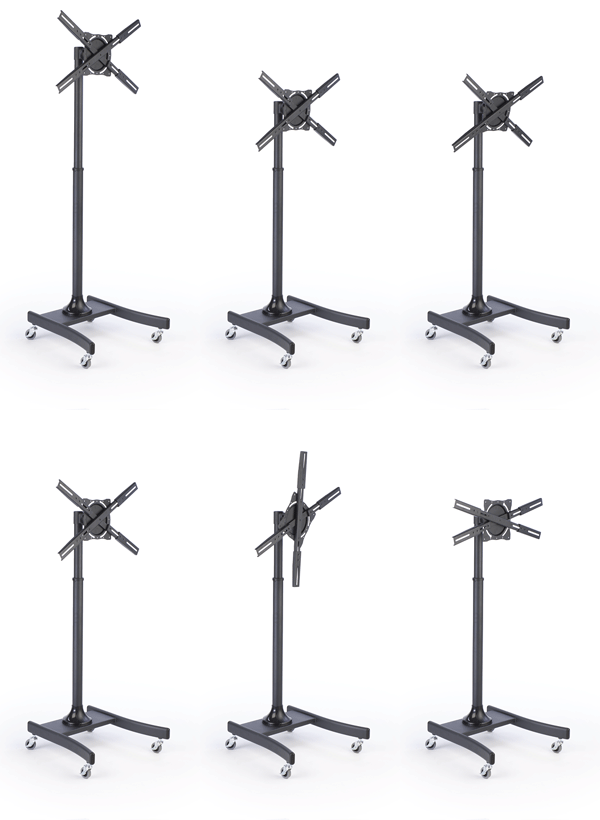
----------------------
https://www.amazon.com/dp/B07T1HQBPM/
~ $156 on sale at the moment
(shelf installs are optional)


"If you plan on placing a tv cabinet over the feet, you can remove the wheels easily enough. But you will still need about 3 1/4 inches clearance under the cabinet for the feet to fit comfortably. But a reasonable option."
-----------------------------
Similar to the previous one but rated at 80 lb and for ~ $130
https://www.amazon.com/Kanto-MTM65PL-Mobile-Stand-Screens/dp/B00RPP3262/
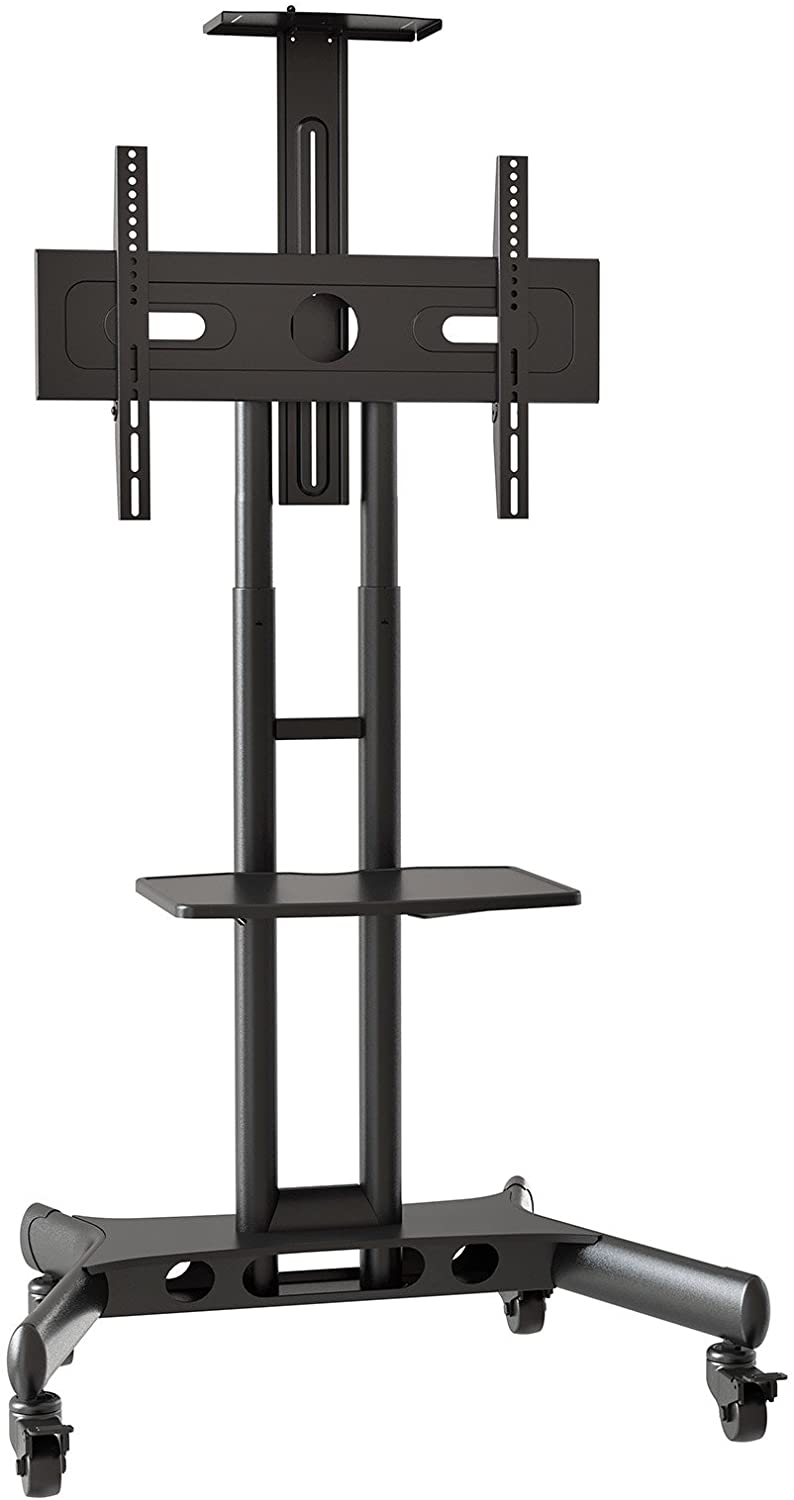
---------------------------
Other options depending on your room layout would be things like:
...keeping the monitor(s) on their own bench-style desk and adding another smaller desk island in front of that. That's what I do, with a kidney-shaped/xbox controller shaped small desk on caster wheels butted up against my main long narrow desk.
Somewhat dated pic now. Mainly that the side monitors are in portrait now with 48" CX in the middle and the 2nd desk is just touching the one the monitors are on rather than overlapping as much as in these pictures. I also moved the whole setup so that it's facing that window and swapped a few peripherals, etc. I'll have to take new pics eventually, but this shows the 2nd desk on caster wheels in front of the one the monitors are on. It's difficult to get them all in one pic so it always comes out looking a bit out of aligment and bloated looking. That was a 32" VA in the middle when I took these.


... A long time ago I also did a different config where I put a nice wooden pillar-like microwave cabinet stand behind my desk to mount a fw900 crt so that it's screen was just at the start of the main desk. I tried a 37" westinghouse on it a bit more distant from the desk too at this point (since the ppi was so bad at 1080p). It's pretty much the same type of thing you'd do with legitimate wheeled or flat footed TV stands, it's just using furniture like small hutches or microwave wooden platforms instead. So something between what I do with my two desks and what TV stands do more or less.

Last edited:
As an Amazon Associate, HardForum may earn from qualifying purchases.
So the new FW is also UP on LG EU/US support site. Just succesfuly updated my EU model via USB (no need to switch to engineering mode).
[03.21.09]
1. Launcher visibility improvement
2. Listening to TV sound from mobile devices with LG ThinQ application
3. Adding number/color keys on screen remote
[03.21.16]
1. Enhance the picture quality
[03.21.09]
1. Launcher visibility improvement
2. Listening to TV sound from mobile devices with LG ThinQ application
3. Adding number/color keys on screen remote
[03.21.16]
1. Enhance the picture quality
Last edited:
I think I like this one! Its pretty minimalistic and the rear pole part is very near the back, meaning I can have the stand very close to the desk and have very little hanging out the back. Thanks!This is the highest quality stand:
https://www.monoprice.com/product?p_id=39657
- Joined
- Sep 15, 2011
- Messages
- 3,476
If you get this one, make sure all parts have been included before you set it up. The X brace you see in the pic was missing a part in mine.I'd recommend using a flat footed or heavy caster wheeled stand that has good reviews rather than using a monitor arm, like some of the ones people have replied with. Then you could put the monitor behind your desk. The stands that don't articulate much are cheaper. If you need one with full portrait mode spin and a lot of tilt they can be a little more pricey. Still in the range of the heavier ergotron arms though price wise.
These are a little more expensive but have full articulation on the first one and the second one is super heavy-duty up to 100 lb. They all appear to have quality caster wheels for more ease of positioning control and movement (but whose install is usually optional if you need the clearance).
https://www.displays2go.com/P-16610/Black-Cheap-LCD-TV-Stands-Economy-Design-32-47-Monitors
https://www.amazon.com/gp/product/B00681HGB6/
View attachment 319865
----------------------
As an Amazon Associate, HardForum may earn from qualifying purchases.
- Joined
- Sep 15, 2011
- Messages
- 3,476
third time posting this, maybe I should get the hint and stop asking:
Anyone know how to disable the Soundshare prompt screen? I get it everytime the monitor wakes up or turns on and it takes two clicks on the remote to close it. I'd rather this prompt not appear.
Thanks.
Anyone know how to disable the Soundshare prompt screen? I get it everytime the monitor wakes up or turns on and it takes two clicks on the remote to close it. I'd rather this prompt not appear.
Thanks.
t1337duder
Gawd
- Joined
- Sep 7, 2014
- Messages
- 783
So I've had my 77" LG CX for 4 months now and my GTX 3090 for 2 months. What a fantastic TV, and was worth selling my 65" LG C7 for. I was happy with 4k/60Hz for the few years I had the C7 - it made it difficult to enjoy my 144Hz 1440P monitor on my other gaming rig. But the G-Sync and 120Hz really ties it all together to make the CX a fantastic gaming TV. There are other improvements as well - the HDR and the color uniformity, particularly on gray-content, has massively improved. I was not super lucky with the uniformity on my C7, but it would only reveal itself in certain content so I was able to over look it. These screens are game changers - most people don't know what they're missing out on, and they probably wouldn't want to know if they couldn't afford it in the first place.
- Joined
- Jun 10, 2011
- Messages
- 441
Try All Settings > Connections > Mobile Connections Management > Sound Share (Delete).third time posting this, maybe I should get the hint and stop asking:
Anyone know how to disable the Soundshare prompt screen? I get it everytime the monitor wakes up or turns on and it takes two clicks on the remote to close it. I'd rather this prompt not appear.
Thanks.

Armenius
Extremely [H]
- Joined
- Jan 28, 2014
- Messages
- 54,522
hey all, I installed one of the desktop clearing apps as recommended in this epic thread, so that my desktop is pure black. I am not finding the trashcan via searching in Windows and I need to empty it. I am used to doing so from the desktop icon.
Can anyone explain how I can access it now? Thanks.
Shift+DeleteYou can also empty the recycle bin as part of a monthly disk cleanup run with the new version of it in settings. Windows 10 puts a ton of crap everywhere these days, I usually clean out like 10-20 GB. I don’t use the recycle bin anymore and don’t miss desktop icons. I just pin things to the right side of the start menu.
Ask yourself how often you need to restore things from the recycle bin.

phinix
Gawd
- Joined
- Dec 13, 2005
- Messages
- 914
Guys, what settings do you use when you play games?
HDR mode on TV or Windows?
When HDR, is OLE light set to 100?
HDR mode on TV or Windows?
When HDR, is OLE light set to 100?
- Joined
- Jul 5, 2012
- Messages
- 4,716
Guys, what settings do you use when you play games?
HDR mode on TV or Windows?
When HDR, is OLE light set to 100?
HDR toggled ON in Windows which then triggers HDR mode on the TV itself. OLED light set to 100 but SDR brightness slider in windows adjusted to a value that outputs 120 nits.
So I've had my 77" LG CX for 4 months now and my GTX 3090 for 2 months. What a fantastic TV, and was worth selling my 65" LG C7 for. I was happy with 4k/60Hz for the few years I had the C7 - it made it difficult to enjoy my 144Hz 1440P monitor on my other gaming rig. But the G-Sync and 120Hz really ties it all together to make the CX a fantastic gaming TV. There are other improvements as well - the HDR and the color uniformity, particularly on gray-content, has massively improved. I was not super lucky with the uniformity on my C7, but it would only reveal itself in certain content so I was able to over look it. These screens are game changers - most people don't know what they're missing out on, and they probably wouldn't want to know if they couldn't afford it in the first place.
Yeah, same setup here (77CX and 3090.) Man it's nice, I love that TVs outperform monitors now. My 165hz gsync monitor hasn't been used for gaming in months now..
Right now I'm mostly just playing controller games (Fenyx Rising and Rocket League) on it, I've tried couch mouse/keyboard and still not sure how I feel about it to be honest. Hurts my wrist a bit but I may just need to adjust my setup a bit. If they had low input lag wireless half keyboards ala Logitech lightsync like this I think it might be easier. Not interested in bluetooth keyboards.
https://www.amazon.com/Mechanical-K...&keywords=half+keyboard&qid=1610999731&sr=8-3
As an Amazon Associate, HardForum may earn from qualifying purchases.
- Joined
- Sep 15, 2011
- Messages
- 3,476
Thanks, that seems to have done itTry All Settings > Connections > Mobile Connections Management > Sound Share (Delete).
phinix
Gawd
- Joined
- Dec 13, 2005
- Messages
- 914
Where is SDR brightness slider in windows and how do you know it will do x nits?HDR toggled ON in Windows which then triggers HDR mode on the TV itself. OLED light set to 100 but SDR brightness slider in windows adjusted to a value that outputs 120 nits.
- Joined
- Jun 10, 2011
- Messages
- 441
I posted the formula for it earlier. 0 is 80 nits and 10 is 120 nits. These are absolute values and are constant for any display that is calibrated correctly.Where is SDR brightness slider in windows and how do you know it will do x nits?