• Some users have recently had their accounts hijacked. It seems that the now defunct EVGA forums might have compromised your password there and seems many are using the same PW here. We would suggest you UPDATE YOUR PASSWORD and TURN ON 2FA for your account here to further secure it. None of the compromised accounts had 2FA turned on.
    Once you have enabled 2FA, your account will be updated soon to show a badge, letting other members know that you use 2FA to protect your account. This should be beneficial for everyone that uses FSFT.

LG 48CX

Holy cow things are changing fast out there.

I'm working toward moving off Windows to Linux and I did a Manjaro (KDE) install last night and while the included VLC player didn't work with HDR on my RTX 3080 (I never have any luck with it on windows either frankly)... I installed MLC and it played a H265 HDR video just fine.

So that means GSYNC, 120hz, 8bit, HDR, with dual monitors (secondary 1440p IPS) actually works with the CX as the primary monitor under Linux now... even with Nvidia! I'm still kind of shocked.

My requirement for being able to switch my main system was being able to use almost all of the advanced features on the OLED or it just doesn't make sense. Well, it works.

The remaining 2 "advanced" features I really want to see are:

Full true 10 bit desktop support for everything. (probably going to happen soon with the rate of updates going on in the community)
7.1 channel audio support. (I really can live without this, 5.1 works fine.)

That's about it. Thanks to Valve and Wine pretty much all games either are working or are about to as the game devs with anti cheat turn on support ahead of the Steam Deck.

Exciting times.
 
Guys, I just noticed this setting in Windows 10. Right click on desktop > Display settings > Graphics settings:

1635280878704.png


Mine was set to "Off" previously. Will this setting interfere in any way with having VRR/FreeSync/G-Sync/etc. enabled anywhere else? I just don't want to break any functionality. It sounds to me like games would use this setting (if enabled) if they were unable to use native G-Sync/FreeSync/VRR. But then, I'm also unaware of games that wouldn't use those technologies. I thought that as long as your hardware supported VRR, it would work in all titles. Do they have to be coded to support it or something?
 
Last I heard this setting was a band aid fix for Windows Store games. I don't even remember if I have it on or off right now, lol. Most games will definitely use VRR just fine without it (at least in my experience with nvidia) since g-sync mostly "just works".

Meanwhile I just hit 4000 hours on my unit last night and it still looks perfect. Which is expected, based on Rtings test and the OLED light setting I'm running.
 
Holy cow things are changing fast out there.

I'm working toward moving off Windows to Linux and I did a Manjaro (KDE) install last night and while the included VLC player didn't work with HDR on my RTX 3080 (I never have any luck with it on windows either frankly)... I installed MLC and it played a H265 HDR video just fine.

So that means GSYNC, 120hz, 8bit, HDR, with dual monitors (secondary 1440p IPS) actually works with the CX as the primary monitor under Linux now... even with Nvidia! I'm still kind of shocked.

My requirement for being able to switch my main system was being able to use almost all of the advanced features on the OLED or it just doesn't make sense. Well, it works.

The remaining 2 "advanced" features I really want to see are:

Full true 10 bit desktop support for everything. (probably going to happen soon with the rate of updates going on in the community)
7.1 channel audio support. (I really can live without this, 5.1 works fine.)

That's about it. Thanks to Valve and Wine pretty much all games either are working or are about to as the game devs with anti cheat turn on support ahead of the Steam Deck.

Exciting times.

Yet the nvidia driver still crashes on Linux if your TV is off when it tries to resume the display signal - requiring a hard reboot. Really annoying, lots of threads on the nvidia forums, and yet to be fixed. I have to be really careful and make sure I turn the TV on before moving my mouse or anything that will wake the display normally. Otherwise, the CX has been great for me on Linux using it everyday since release.
 
Woudn't it be nice if LG for a parting gift put in a "PC sleep mode" function checkbox so we could have the set come back up with the PC from sleep?

I can dream...

But it does really help prevent any accidents of the screen coming on when you aren't around and being static all day.
 
Woudn't it be nice if LG for a parting gift put in a "PC sleep mode" function checkbox so we could have the set come back up with the PC from sleep?

I can dream...

But it does really help prevent any accidents of the screen coming on when you aren't around and being static all day.

I just got a C1 for the living room recently. On that one I set up my nvidia shield to do a screen saver that cycles a gallery of full black and other dark images randomly after 5 minutes idle. I also set it up to turn off the screen after 20 or 30 minutes of not running anything. I might set the power off to longer than that but that's how I have it right now. However devices like a shield or a PC can crash or freeze, reboot freeze, get stuck on a floating error message on a top layer above the screensaver, the screensaver itself get stuck, etc. thereby leaving static material on the screen potentially even if it's rare. So a device screensaver is not entirely safe.

When I'm going afk I use the "turn off the screen" trick whenever I can manage to. That just turns off the oled emitters without putting the screen into standby. When I return to give the screen face time again I hit any button on the remote and it wakes the emitters up instantly. I usually just hit the right side of the navigation ring to turn the emitters back on. I only hit the power button to standby when I'm going to sleep for the night, leaving the house for awhile, or if I'll be busy doing something else for hours.

The remote could get bumped somehow and turn the screen emitters back on I guess (e.g. cats) but that hasn't been a problem so far. I think a screen saver on the default device/pc combined with "turn off the screen" emitters is a pretty solid combo. I do wish the LG tv would have it's own screensaver on a timer and more defined "turn off" timer. 4 hours is way too long. Other than the 4 hr idle timer - as far as I'm aware the only timer available in the TV's OSD is not a usage/idle time but a coundown/scheduler style timer.

I turn all three of my tv-screens on the first time I use the pc setup that day. It's not an issue for me. The side screens are both the same model samsung so I can use a single remote to turn both of those screens on.

-------------------------------------------------

Now that I think of it, I can potentially turn everything on from google assistant/home via voice or clicking the saved room if I set it up that way. e.g. "Ok Google, turn on PC room". or "Ok google, turn on PC screens". That and vice-versa with the "off" versions of those commands. I'll have to try that out. Not certain that I can get the samsung screens onboard (since they don't have nvidia shields on them to wake them via hdmi and don't have built in google assistants) but I'll google it to see if I can give it a shot somehow. I have google assistant on my phone and I already had a speaker unit version in my living room so I don't have to rely on the TV's built in one while it's off.

Edit: according to this device Q&A answer to whether it is possible to power my samsung TV's on and off via google assistant I should be able to do it:
"Yes it is, you attach your smart TV to the smartthings app then go into google home add new device and add your smartthings account to your home and it will show up"


I know. I hear ya. It's just too darn big. I love my 65" C9 for movies and anime though. No one ever talks about how great OLED is at displaying anime.

I set up a named setting just for anime/cartoon stuff. I turned the motion settings up to make the lower framerate animations work better and I tweaked the color/saturation, brightness, etc. to better suit cell shaded and hard lined cartooning. It looks really nice. My shield 2019 also upconverts things really well, especially paired with an oled. It's really pretty amazing looking. Even old lower rez live action stuff without new masters like "Farscape" in 720p 4:3 looks better than 1080p, practically 4k fidelity compared to what it would look like otherwise. I'm very impressed.


I don't think the 48" is too big, it's just too big for a "terminal" setup. It's only a good size if you can do a command center style setup at 38" - 48" viewing distance from the screen to your eyeballs. That rules out the stereotypical chair-desk-monitor up against the wall like a bookshelf / upright piano style setup.

That said, personally I don't use my 48cx for static desktop/apps. It's a media and gaming "stage" or theater with 4k VA screens on the sides for the static stuff.. but those are big too, both are 43" 4k VA screens.
 
Last edited:
48 C1 is same price at target now too in case that matters to anyone ~ $1100 (w/o warranty)
 
What is max luminance of LG C1 in SDR in strobing (motion blue reduction) mode?
 
Yet the nvidia driver still crashes on Linux if your TV is off when it tries to resume the display signal - requiring a hard reboot. Really annoying, lots of threads on the nvidia forums, and yet to be fixed. I have to be really careful and make sure I turn the TV on before moving my mouse or anything that will wake the display normally. Otherwise, the CX has been great for me on Linux using it everyday since release.
I kinda have the same issue under windows. If I turn off my CX without my other monitor on neither display will turn on til I reboot. It is not a crash since I can hear everything going on through the speakers and it doesn't stop mining.
 
I apologize if this has been asked before in this thread bu I only scrolled through like 20 pages.

I love my cx48 but the panel but the auto-dimming feature is killing me. I can deal with this in the desktop by quickly min/maxing everything, it gets old but it's quick fix every few minutes. But this is completely unacceptable playing a slow paced very darkly lit game, every few minutes it makes the game unplayable. It's a deal breaker honestly. I saw there is a remote that lets you open settings to change this? It doesn't seem like you can disable this but at least change the timeout to something no where as aggressive as it is. Was hoping for advice for someone that has the remote on what is possible.

This monitor is past the return window so I can't take it back. If I have to decrease the lifespan of the panel to 1/4 of normal to be able to use the monitor than so be it.
 
Meanwhile I just hit 4000 hours on my unit last night and it still looks perfect. Which is expected, based on Rtings test and the OLED light setting I'm running.

My 55C7 was perfect until about 8,000 hours mark. By 14,000 hours it was noticeably burned in and I replaced it with 48C1. I used 100% OLED and 100% contrast (max settings) through its life. I had pixel shift and both ABLs turned on always.

For best results only light up the pixels that you are actually using:

Remove desktop icons or move them to a side monitor (I used 2nd small monitor)
Auto hide taskbar or move it to second monitor
Black screen background in windows
Dark theme in windows
Black screen saver on short timeout (the TV will display images for extended time if you just put monitor into power saving)
Dark reader in your browser
 
Probably better off doing all of that plus using another non OLED screen on the side for static stuff. I use a few in portrait mode as well as a 10" tablet on a metal easel style stand along with 10" keyboard. The tablet is also often in portrait mode. It comes in handy when I'm doing full-screen exclusive (HDR) gaming and want to type to people or look something up without clunkily dropping out of Full Screen Exclusive HDR mode (lots of blinking and clicking over like a sloppy resolution change).


I love my cx48 but the panel but the auto-dimming feature is killing me. I can deal with this in the desktop by quickly min/maxing everything, it gets old but it's quick fix every few minutes. But this is completely unacceptable playing a slow paced very darkly lit game, every few minutes it makes the game unplayable. It's a deal breaker honestly

I didn't turn off any asbl or abl and I played:

- Jedi: Fallen Order (in HDR mode)
- Nioh 2 (HDR mode)
- Darksiders 3 (with reshade applying a fakeHDR filter and a lightroom filter for a quasi HDR look)
- some Fenxy: immortals rising (in HDR mode)
- some assassin's creed odyssey (in HDR mode)

I'm also looking forward to "SDR+" ~ partial HDR color volume games using windows 11's auto HDR in the long run. (the might update win10 to use it eventually too, rumored but I didn't expect them to)

The brightness limiters didn't bother me at all in those games (on the 48 CX) and those games are well known to have a lot of dark fantasy areas and areas where you are walking or traversing heights or pitfalls, "tight rope walking", avoiding water hazards etc. so you aren't always dashing around. Brightness limiters haven't bothered me in dark fantasy movies either for that matter on both the CX and the C1. I'm not saying I've never seen it happen on occasion but it's nothing that's slapping me in the eyeballs constantly consiously where I'd consider it overt and annoying.

I've not gamed on the C1, only the 48CX so there could be a difference between them. There are also a lot of settings that can vary between people's setups:

https://www.reddit.com/r/OLED_Gaming/comments/mbpiwy/lg_oled_gamingpc_monitor_recommended_settings/

.. and games that allow gamma/white point/brightness adjustments in HDR that people could set up in a way that could exacerbate abl triggering. Some people might also use overly bright peaks and brightness settings in SDR settings on their OLED from the TV's OSD settings that would trigger it more often. You could also potentially suffer more ABL by using dynamic HDR and/or dynamic color scaling settings which use relative/interpolated~guessed values (sort of like using a dynamic vivid mode) - instead of letting the HDR metadata be tone mapped directly by the tv alone to absolute values ~ HGiG or leaving SDR settings more natural.

For SDR - If you set your peak brightness low enough it really shouldn't trigger ABL anymore but asbl would still happen occasionally on a fully static screen.
The Rtings C9 review mentions how the peak brightness setting, which still exists in the CX and C1, etc, can aggravate ABL triggering.
The C9 has a new Peak Brightness setting, which adjusts how the ABL performs. Setting this to 'Off' results in most scenes being displayed at around 303 cd/m², unless the entire screen is bright, in which case the luminosity drops to around 139 cd/m². Increasing this setting to 'Low', 'Med', or 'High' increases the peak brightness of small highlights.
If ABL bothers you, setting the contrast to '80' and setting Peak Brightness to 'Off' essentially disables ABL, but the peak brightness is quite a bit lower (246-258 cd/m² in all scenes).

That would cover you for ABL (not asbl) for SDR usage. SDR is typically in those ranges anyway. Reference is 100nit white. Some people use 120 or 200 based on how bright their room is. With an oled, or any real theater media viewing, you shouldn't be in a powerfully bright lighting environment though imo.

https://www.lightillusion.com/viewing_environment.html

If you were to calibrate a home TV within a Home Viewing Environment to the above Reference Standards for SDR displays the on-screen image would be far too dull and washed-out with the imagery nothing like that intended by the program maker. To arrive at a viewing image that is as similar as possible to look & feel of the graded intent means increasing the peak brightness, as well as reducing the EOTF value, so the on-screen imagery can better counter the bright viewing environment.


Obviously, if you are serious about watching accurate imagery at home you will control your viewing environment. But even then, there may be compromises that have to be accepted, and understanding that will enable the best alternative calibration to be defined.


The issue is that there are no standard approaches as to how to adjust TV display calibration to accurately counter the variable environmental settings within a standard home viewing environment. This is an area in desperate need of research, and is something the BBC have attempted to look at with their HLG HDR standard's System Gamma value, as HDR viewing environments are far more critical than SDR.

https://www.lightspace.lightillusion.com/uhdtv.html


I also use a browser addon called "turn off the lights" that auto dims web pages by % I set. That and/or the "color changer" addon that can change background and text color on a per site basis on the fly. They both have blacklist/whitelist so you can exclude sites that don't need those addons applied (like hardforum for example with it's dark theme). I use those addons on all of my pc's browsers. The turn off the lights addon acts like ABL but the transition is much more noticeable due to varying web page load times. If set on auto it doesn't dim the web page until it's fully loaded.. Once I apply the color changer addon manually per site I don't have to dim them anymore though. If ABL was that slow and on "every page load" / scene change in the same way as the turn off the lights addon it would be super annoying but that is not the case with my TV and my settings (which more or less match those in the reddit link above). I've primarily been watching and playing HDR content and I have no complaints on the dimming safety features overall.
 
Last edited:
I apologize if this has been asked before in this thread bu I only scrolled through like 20 pages.

I love my cx48 but the panel but the auto-dimming feature is killing me. I can deal with this in the desktop by quickly min/maxing everything, it gets old but it's quick fix every few minutes. But this is completely unacceptable playing a slow paced very darkly lit game, every few minutes it makes the game unplayable. It's a deal breaker honestly. I saw there is a remote that lets you open settings to change this? It doesn't seem like you can disable this but at least change the timeout to something no where as aggressive as it is. Was hoping for advice for someone that has the remote on what is possible.

This monitor is past the return window so I can't take it back. If I have to decrease the lifespan of the panel to 1/4 of normal to be able to use the monitor than so be it.

Then just disable ASBL...

https://play.google.com/store/apps/details?id=by.makarov.smarttvlgrc

Hit IN START, Code: 0413, go to OLED section and disable TPC and hit EXIT OR IN START again.

Your phone must support IR blaster afaik.
 
Last edited:
The LG C1 48" appears to be $1099 everywhere in the US. This is the time to pick up this display. If you're on the fence and have just over $1000 to drop on a monitor, do it.
 
Anyone able to take a Pic of the voltage input specs on their 48c1 or 48cx monitor (or a Pic of the psu board inside the tv/monitor)? I am trying to confirm if they are dual voltage (100-240v, 50/60hz) or locked to us specs (120v, 60hz) Since I frequently move internationally.

Thanks in advance!
 
Anyone able to take a Pic of the voltage input specs on their 48c1 or 48cx monitor (or a Pic of the psu board inside the tv/monitor)? I am trying to confirm if they are dual voltage (100-240v, 50/60hz) or locked to us specs (120v, 60hz) Since I frequently move internationally.

Thanks in advance!
My CX says it's 120V 50/60hz, so should be usable with a relatively cheap transformer.
 
My CX says it's 120V 50/60hz, so should be usable with a relatively cheap transformer.

That's interesting (and lines up with what I have read at AVS or reddit); the combination of those power frequencies with a specific voltage is pretty non standard. According to some of those threads, the actual psu inside the TV is 100-240v, but the exterior of the TV is marked as 120v.

May just have to snag one on BF and pop it open :)

Thanks!
 
That's interesting (and lines up with what I have read at AVS or reddit); the combination of those power frequencies with a specific voltage is pretty non standard. According to some of those threads, the actual psu inside the TV is 100-240v, but the exterior of the TV is marked as 120v.

May just have to snag one on BF and pop it open :)

Thanks!
Yeah I would have expected any internally-DC electronics these days to be 100-240V 50/60hz, especially when sold globally...but who knows. Like I said, worst case it's nothing a $50 transformer can't solve. Requiring 60hz would have been a much bigger problem.
 
At least with the Xbox Series X, John from Digital Foundry says that firmware 04.30.10 on his CX allowed him to enable VRR and black frame insertion at the same time and, better yet, it worked.

However, he was only able to do so when Dolby Vision was enabled (not even HDR10), so he thinks this VRR + BFI may not necessarily be an intentional feature. Furthermore he did mention that you really need to keep the frame rate up, like maybe 90fps and above, or else the flicker gets bad (though obviously different people have different tolerances to flicker).

So now the question is if we could enable this VRR + BFI but on a PC? Perhaps making a custom EDID via CRU could help in this endeavor? I only have access to a 2019 OLED, so I can't test any of this out myself.

EDIT: The real question is if, possibly through EDID trickery, we could get VRR + BFI working withOUT HDR.

Digital Foundry video in question @ 42:31:
 
Last edited:
I don't mess with BFI but I can tell you that BFI lowers the peak brightness. The rule of thumb traditionally has been the same % it reduces the blur = around the same % it lowers the brightness. So if you did 50% blur reduction via BFI you'd have a 50% peak brightness reduction. That is pretty much incompatible with HDR to start with, imo even if you did 25% - 30% .. let alone the technical hurdles.

It could be very difficult to maintain a constant brightness level as the scene brightness changes were you using both VRR + BFI. Also, the peak brightness of OLEDs leaves no overhead for HDR 800/1000 to be cut down from on HDR material. There was one monitor that tried to do BFI + VRR it but the implementation was very bad in the end. That doesn't mean it's impossible but afaik no one has made a good implementation of BFI+VRR. Also, like I said, it doesn't address the higher color volume ranges for HDR issue besides.

We already have some great HDR games , probably more on console but there are some great ones on pc. Going forward we are going to have autoHDR on a lot more titles too, even if the highlights and light sources in autoHDR are more in the 450 - 600 nit range instead of up to 800 (to 1000 on hdr 1000 screens) like native HDR has. In my opinion, HDR is as much as.. probably more of an improvement than 4k resolution is on a highly capable HDR screen like a modern OLED tv.

he did mention that you really need to keep the frame rate up, like maybe 90fps and above, or else the flicker gets bad (obviously though different people have different tolerances to flicker)

Even if you can't consciously "see" flicker - it can still be eye-fatiguing and even headache inducing after a time. PWM monitors are generally avoided like the plague. As far as I'm aware it's only if you keep your frame rate at a solid -minimum-, without VRR, that BFI will it be invariable in regard to the frequency.

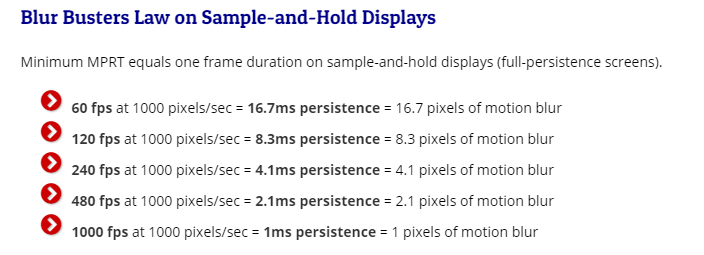
Part of the reason BFI looks better at 120fps solid instead of varying fpsHz rates it due to the variance but also because at 120fpsHZ you are already cutting the sample-and-hold blur by 50% compared to a 60fpsHz solid baseline just by nature of the 120fpsHz rate *without* BFI/strobing. I'd rather just run 100 to 110fps average where possible settings wise and get something like (70) 85fpsHZ <<<<< 100fpsHz avg >>>> 115fpsHz (117capped). At 4k or 3840x1600 that can be asking a lot. On easy to render old games or simpler games like cs:go and mobas, you could maintain 117fpsHz minimum (solid) though.

Theoretically we could get much higher Hz screens, especially with OLED response times but without using some kind of frame duplication (e.g. 100fps solid x4 for 400fpsHz, or 100fps solid basline x 10 for 1000fpsHz) - that higher hz won't come into play much. If we did get to those points it would cut the blur near to and equal to BFI.

From blurbusters.com

okw997S.png
 
Wow!
Did you know, that all current OLED's can do 2000Hz (pixel response time under 0.5ms)?
However, there is signalling interface that do support data bandwidth required to deliver that kind of image update speeds @2160p or even 1080p (not even DP2.1).
And there are currently no TCONs / display processors that do support that kind of display update frequences (refresh is not a correct word, as it is related to refreshing CRT phosphors, and is no longer valid for LCD/OLED panels).
https://tftcentral.co.uk/reviews/lg_cx_oled
View attachment 404196
And I will really heartily welcome any 2160p or better MicroLED display that is smaller than 100", costs under 50K$/k€ and is available during the current decade.
I was meaning for VR use. For lithographic processes the microLED will not be beaten by OLED. Sure OLED can be as fast (actually it's much slower, LEDs can have 10ns rise time) but the real advantage is massive heatsinking and power density possibilities (e.g. crazy HDR/contrast levels) via silicon. Microled is already available and viable and proven, I work with it all the time. But only if you want a 10m wide screen ;)

For now I'll stick with OLED for a darker room as it's the best overall tech for PC display panels (for most scenarios anyway), hands down. In my books ;D
 
I was meaning for VR use. For lithographic processes the microLED will not be beaten by OLED. Sure OLED can be as fast (actually it's much slower, LEDs can have 10ns rise time) but the real advantage is massive heatsinking and power density possibilities (e.g. crazy HDR/contrast levels) via silicon. Microled is already available and viable and proven, I work with it all the time. But only if you want a 10m wide screen ;)

For now I'll stick with OLED for a darker room as it's the best overall tech for PC display panels (for most scenarios anyway), hands down. In my books ;D

....

=================================================================================================================


https://www.macrumors.com/roundup/apple-glasses/


516752_apple-view-concept-right-corner.jpg


516753_apple-view-concept-back.jpg


Micro OLED for both the headset and the glasses supposedly:


bad rez on the lightweight AR glasses so they seem like they are mostly for HUD type things and simple graphics compared to the actual "dual 8k" 8k resolution headset.

==============================

https://uploadvr.com/ps5-vr-headset-hdr-oled-aaa/


===================================

Valve and Facebook are also working on next gen headsets. Valves is probably going to microOLED and they are also probably going to use varifocal optic lenses (thin clear Liquid crystal lenses stacked with polarizers that change your focal point). This would make VR more realistic compared to how our normal vision works, and could work better with foveated rendering, using lower resolution outside of what you are focused on. Facebook is prob also going to use Varifocal Lenses but idk if their headest will be microOLED (probably though gauging by what everyone else is doing and what optical/display tech companies are being tapped).

So as you can see, OLED display tech isn't going away any time soon. Quite the opposite for the near future.
 
I don't mess with BFI but I can tell you that BFI lowers the peak brightness.

Whoops I'm a derp and forgot to mention that I was mainly thinking that, possibly through EDID trickery, we could get VRR + BFI working withOUT HDR.

But even with having to rely on HDR being enabled, to completely write-off the idea of VRR+BFI just because of the reduction in brightness seems incredibly narrow-focused on nothing but the HDR experience since we all know that the "darkroom experience" is one of OLED's key strengths as was just mentioned by N4CR in the post right after yours. Heck the "darkroom experience" is even one of the biggest reasons I still use a CRT in an LCD+CRT dual-monitor setup while the other reason is CRT's motion resolution, and OLED + BFI is the only display tech that isn't a CRT I know of that can properly handle both attributes at the same time.

(also I've never actually played a game that supported HDR, and yes I know that both Xbox Series S/X and Windows 11 support auto-HDR for non-HDR software, but I have none of those and have no interest in those consoles or that OS; heck I've never even owned an Xbox, not to mention my internet is only 10mbps down, and I also have gone the Windows 7 --to-> Linux Mint route OS-wise and never even had Win8/8.1/10/etc.)


EDIT: And regarding flicker = fatigue, viewing bright images (e.g. HDR) in a dark environment also cause fatigue, and ideally you would turn the brightness down below standard SDR levels anyway in a darkroom environment (which is what I do with the aforementioned CRT).

This tells me that you either only use your OLED display in a well-lit room even at night (which to me feels like a waste) or you simply never view HDR content at night, which farther makes me question why you focused half of your post on HDR anyway. Maybe you live in a latitude that has lots of daylight all year round? (I live in a northerly latitude that ends up seeing sunset at like 5pm, and I'm naturally a night owl to boot)
 
Last edited:
Whoops I'm a derp and forgot to mention that I was mainly thinking that, possibly through EDID trickery, we could get VRR + BFI working withOUT HDR.

But even with having to rely on HDR being enabled, to completely write-off the idea of VRR+BFI just because of the reduction in brightness seems incredibly narrow-focused on nothing but the HDR experience since we all know that the "darkroom experience" is one of OLED's key strengths (and is my primary interest in OLED) as was just mentioned by N4CR in the post right after yours.

(also I've never actually played a game that supported HDR, and yes I know that both Xbox Series S/X and Windows 11 support auto-HDR for non-HDR software, but I have none of those and have no interest in those consoles or that OS; heck I've never even owned an Xbox, not to mention my internet is only 10mbps down, and I also have gone the Windows 7 --to-> Linux Mint route OS-wise and never even had Win8/8.1/10/etc)

This is interesting. Any dolby vision games on PC that can be used to test this out? I don't have an XSX. Would be fantastic if LG made this an official feature to give us the choice between peak brightness or motion clarity. Let the user decide how they want to play their games.
 
My CX says it's 120V 50/60hz, so should be usable with a relatively cheap transformer.

Since at least as far back as the B6, they've all worked fine on 220v. I'm only had one LG that didn't and it was 2012 model, step down transformer worked fine with it though, no issues with 50 hz.
 
Whoops I'm a derp and forgot to mention that I was mainly thinking that, possibly through EDID trickery, we could get VRR + BFI working withOUT HDR.

But even with having to rely on HDR being enabled, to completely write-off the idea of VRR+BFI just because of the reduction in brightness seems incredibly narrow-focused on nothing but the HDR experience since we all know that the "darkroom experience" is one of OLED's key strengths as was just mentioned by N4CR in the post right after yours. Heck the "darkroom experience" is even one of the biggest reasons I still use a CRT in an LCD+CRT dual-monitor setup while the other reason is CRT's motion resolution, and OLED + BFI is the only display tech that isn't a CRT I know of that can properly handle both attributes at the same time.

(also I've never actually played a game that supported HDR, and yes I know that both Xbox Series S/X and Windows 11 support auto-HDR for non-HDR software, but I have none of those and have no interest in those consoles or that OS; heck I've never even owned an Xbox, not to mention my internet is only 10mbps down, and I also have gone the Windows 7 --to-> Linux Mint route OS-wise and never even had Win8/8.1/10/etc.)


EDIT: And regarding flicker = fatigue, viewing bright images (e.g. HDR) in a dark environment also cause fatigue, and ideally you would turn the brightness down below standard SDR levels anyway in a darkroom environment (which is what I do with the aforementioned CRT).

This tells me that you either only use your OLED display in a well-lit room even at night (which to me feels like a waste) or you simply never view HDR content at night, which farther makes me question why you focused half of your post on HDR anyway. Maybe you live in a latitude that has lots of daylight all year round? (I live in a northerly latitude that ends up seeing sunset at like 5pm, and I'm naturally a night owl to boot)


Constant high frequency flickering induced eye fatigue (especially if you allow the rate to vary like PWM) is really not comparable to displaying realistic highlight and light source color volumes in HDR throughout varying scenes, camera panning and FoV movement. That's really being insincere imo.

PWM / flickering is like taking a high frequency strobe light shutter to your eyes on the full frame of the screen the entire time you are staring at the screen. It's like a constant full-screen stutter to your eyes/brain when it's in a near margin of consciously seeing it or not.

also I've never actually played a game that supported HDR,

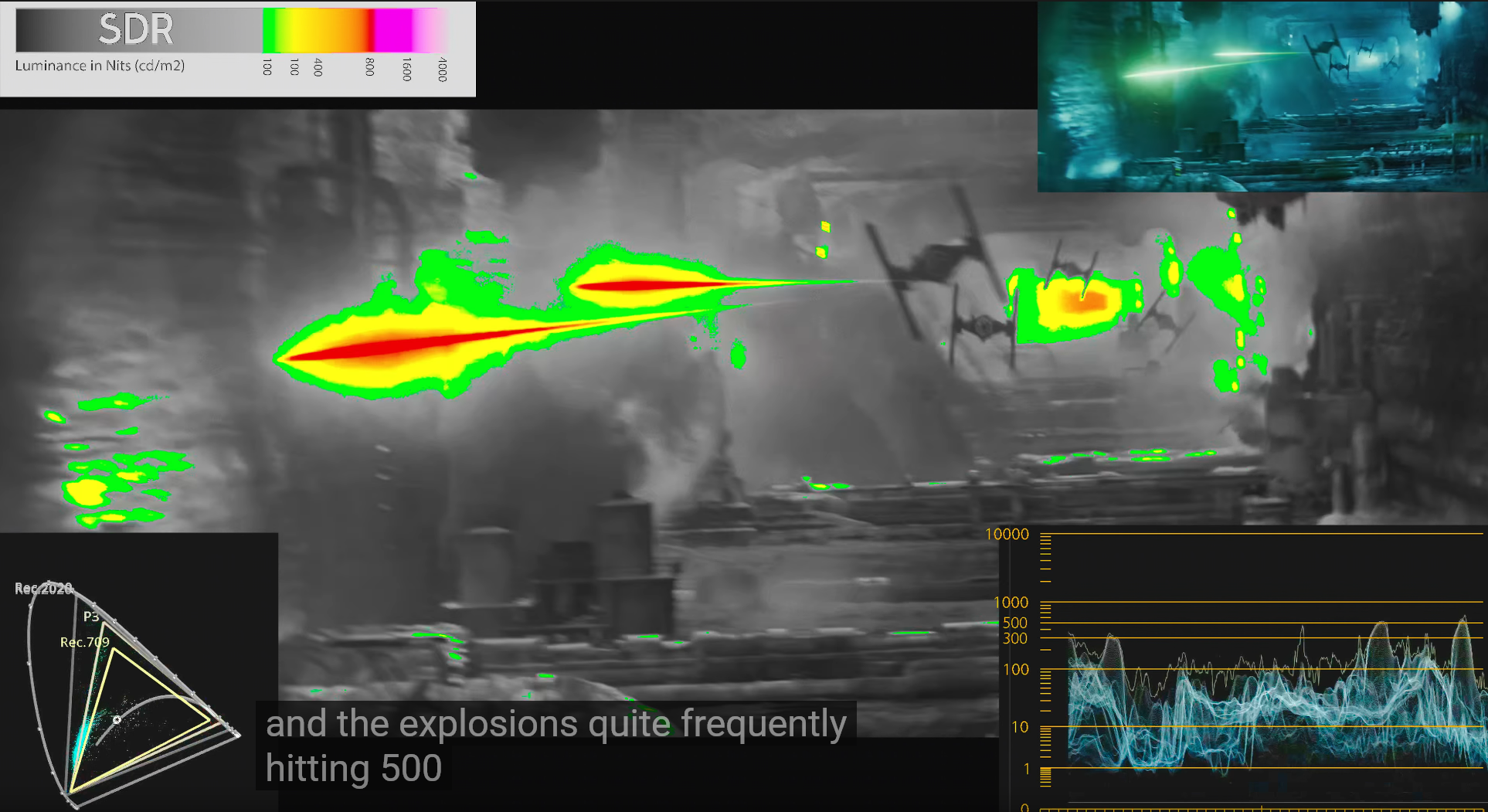
HDR is NOT taking a SDR screen's relative values and turning the screen brightness up 10x. The bulk of a scene is still in SDR ranges. HDR's higher, more realistic color volumes (the "brightness" aspect of HDR) is typically highlights and point light sources, much of that is in the 200 - 600 nit range of small areas in dynamic moving scenes and switching cinematography.


Heck the "darkroom experience" is even one of the biggest reasons I still use a CRT in an LCD+CRT dual-monitor setup while the other reason is CRT's motion resolution

Yes CRTs have a relatively low peak brightness and look more contrasted and saturated in dimmer viewing environments. I used a FW900 next to different LCDs for years. They eventually go dimmer and/or bloom as they slowly die with age too. People are sometimes using 80nit peak on a fw900 but a brand new one that hasn't suffered dimming with age is capable of going to like 115nit peak.

--------------------------------------------------------------------
Reference standard is 100nit white. Some people use 120 or 200 on modern screens based on how bright their room is. With an oled, or any real theater media viewing, you shouldn't be in a powerfully bright lighting environment though imo.

The SDR reference is 100nit white , Peak luma range 100 to 250 nits . A brand new non-aged crt can do 115nit peak or so. Those reference values would appear dim and washed out in brighter than reference viewing environments

https://www.lightillusion.com/viewing_environment.html
If you were to calibrate a home TV within a Home Viewing Environment to the above Reference Standards for SDR displays the on-screen image would be far too dull and washed-out with the imagery nothing like that intended by the program maker. To arrive at a viewing image that is as similar as possible to look & feel of the graded intent means increasing the peak brightness, as well as reducing the EOTF value, so the on-screen imagery can better counter the bright viewing environment.


Obviously, if you are serious about watching accurate imagery at home you will control your viewing environment. But even then, there may be compromises that have to be accepted, and understanding that will enable the best alternative calibration to be defined.


The issue is that there are no standard approaches as to how to adjust TV display calibration to accurately counter the variable environmental settings within a standard home viewing environment. This is an area in desperate need of research, and is something the BBC have attempted to look at with their HLG HDR standard's System Gamma value, as HDR viewing environments are far more critical than SDR.

https://www.lightspace.lightillusion.com/uhdtv.html

UHDTV - HDR and WCG
more detail can be seen in the brighter areas of the image, where existing SDR images simply clip, or at least roll-off, the image detail.

----------------------------------------------------------

brightness seems incredibly narrow-focused on nothing but the HDR experience since we all know that the "darkroom experience" is one of OLED's key strengths

Oled is of course better viewed in dim to dark viewing environments but HDR itself is designed for dim to dark room viewing environments.

https://www.lightillusion.com/viewing_environment.html
Specifications for a HDR colour critical Reference Viewing Environment are also defined by various standards bodies, including SMPTE and the ITU-R. Specifications for a Home Viewing Environment do not presently exist, due in part to issues with the absolute nature of the PQ HDR specification.


The following defines the basic standards for a HDR Reference Viewing Environment, and match those for HDTV.


  • Monitor surround luminance to be 5 nits*
  • Colour of monitor surround to be D65
  • Surround extent to be 90° horizontal, 60° vertical
  • Remaining surfaces to be dark matte to prevent stray light
  • Average room Illumination ≤ 5 nits
  • Viewing distance 1.5 screen height**
  • Viewing angle to define < 0.001 Δuv

5 nits*: A 5 nits surround is defined due to the potentially low luma of shadow detail, based on the specified EOTF for both PQ and HLG based HDR. This is part of the issue with home viewing environments, where the surround illumination is often difficult to control, especially down to the specification levels.


1.5 screen height**: This relates to the UHD TV screen resolution, rather than HDR (High Dynamic Range).

Its format is ultimately designed for absolute values (though you can break that rule with higher brightness settings that distort the scale of it's absolute curve for higher brightness viewing environments). You aren't supposed to be looking at your world. The screen is supposed to be your world/theater/light source/viewing environment almost like VR in a way. All screens also have limits of the % of screen vs the highest brightness ranges. 50%, 25% screen area, 10%, etc. in graduated amounts. The brightest amounts can only be shown on small %'s of the screen at any given time.

Examples showing that the bulk of the scene is in SDR range. The highlights and light sources make it look amazing though:

7X2ncu9.png


kaag2Cm.jpg


These highlights and brighter areas add realism but they are nowhere near the nits you could experience in real life highlights, reflections, and light sources. However I'd still much rather view something that looks more realistic rather than have a shutter going off in front of my eyeballs constantly. To me there is no comparison between the two.
also I've never actually played a game that supported HDR,
Whether you care about HDR or not (after apparently not even experiencing it in a game :confused: ) - more native HDR games and ~60% HDR via autoHDR gaming content will be available and it does look incredibly better than SDR content on a proper HDR screen.

So we'll have a growing library of native HDR titles (and atmos surround titles) plus what could be a large library of autoHDR titles with windows 11. Whether true or not remains to be seen but It has also been rumored that autoHDR will eventually be brought to windows10.
For the console crowd, xbox x has autoHDR. The PS5 also is getting auto HDR but incredibly/infuriatingly -- sony is locking it to their newer sony bravia tvs alone - even though it could theoretically work with any dolby vision capable display (and probably even with any HDR 10 display just like win11 and xbox if they wanted to engineer the firmware to).

Some of the improvements of HDR: https://en.wikipedia.org/wiki/High-dynamic-range_video
  • Highlights (i.e. the brightest parts of an image) can be brighter, more colorful, and more detailed.[2]
  • Shadows/lowlights (i.e. the darkest parts of an image) can be darker and more detailed.[2]
  • More realistic luminance variation between scenes (such as sunlit, indoor, and night scenes).[2]
  • Better surface material identification.[2]
  • Better in-depth perception, even with 2D imagery.[2]

the Windows 7 --to-> Linux Mint route OS-wise and never even had Win8/8.1/10/etc
For the majority of gamers experiencing the highest gaming performance, the most streamlined pc gaming performance, and the most immediate availability of full gaming features and fixes across the board - they will be on windows 10 and most likely eventually windows 11.

narrow-focused on nothing but the HDR experience

HDR on a quality HDR screen is arguably a bigger improvement than 4k.
It's not turning a SDR screen's brightness knob up, it's opening it's range taller (both higher and lower) for colors, detail-in-colors and dark-detail. It's a more colorful and detailed screen on a much taller and deeper range, and on a quality screen that is side by side at the same time and dynamically throughout the content. On an oled, that side by side is down to the emissive pixel.
SDR is a narrow band that clips or crushes, rolls off of detail-in-color and lowlights/detail-in-darks on both ends, even in the same scenes. So you completely lose that detail on both ends.
HDR has way more color and way more detail shown throughout the whole light and dark range.. also better surface material ID and better in-depth perception (even in 2D) due to the high side-by-side contrast and increased color and shadow detail.

051617_av_vet_color_vol.jpg


Other than a few TV shows and some anime stuff - I prioritize all of my movie watching to HDR (dolby vision where possible) and I also prioritize HDR games now. HDR is that good. AutoHDR is great too. I hope it opens up a lot of games to 50% - 60% HDR volume. To me (for games currently, there are a lot of HDR movies) it's like when there was a limited library of content that was 1080p or 4k before they each became ubiquitous.. except imo it's even more impactful (provided you have a really high quality HDR display).
 
Last edited:
Other than a few TV shows and some anime stuff - I prioritize all of my movie watching to HDR (dolby vision where possible) and I also prioritize HDR games now. HDR is that good. AutoHDR is great too. I hope it opens up a lot of games to 50% - 60% HDR volume. To me (for games currently, there are a lot of HDR movies) it's like when there was a limited library of content that was 1080p or 4k before they each became ubiquitous.. except imo it's even more impactful (provided you have a really high quality HDR display).

AutoHDR is not as great as you might think it is. I have Windows 11 and have extensively tested a bunch of SDR games with the AutoHDR function and it only works "OK" at best. I guess one should not expect it to perform like a real HDR game but honestly I was more disappointed than pleased with the results. I have tested Witcher 3, Greedfall, Rise of the Tomb Raider, and many more. I would say it does indeed do something but it isn't a massive game changer. If I had the choice of using a fully implemented HDR experience and foregoing BFI, I would absolutely forego BFI. But if it was an "Auto HDR" game, I would rather just stick to the SDR image and use BFI + VRR for the absolute best motion clarity because AutoHDR really just isn't a big difference over SDR. If I was playing Far Cry 6 which looks absolutely incredible in HDR, I would just turn BFI off and enjoy the full native HDR experience the game has to offer. But if I'm going back and playing something like Rise of the Tomb Raider where the AutoHDR doesn't really impress me, I would happily take a BFI + VRR experience instead. Of course Microsoft can always continue to refine and improve the AutoHDR itself over the years so my preference may also change depending on that.
 
  • Like
Reactions: elvn
like this
Haven't tried autoHDR yet so I'll just take your opinion as it is for now on that non-native HDR ~ sdr upscaling to partial HDR color volumes. I appreciate your opinion on it having actually used it. It could be a matter of preference when talking about "quasi" or "1/2 HDR" like you said though.

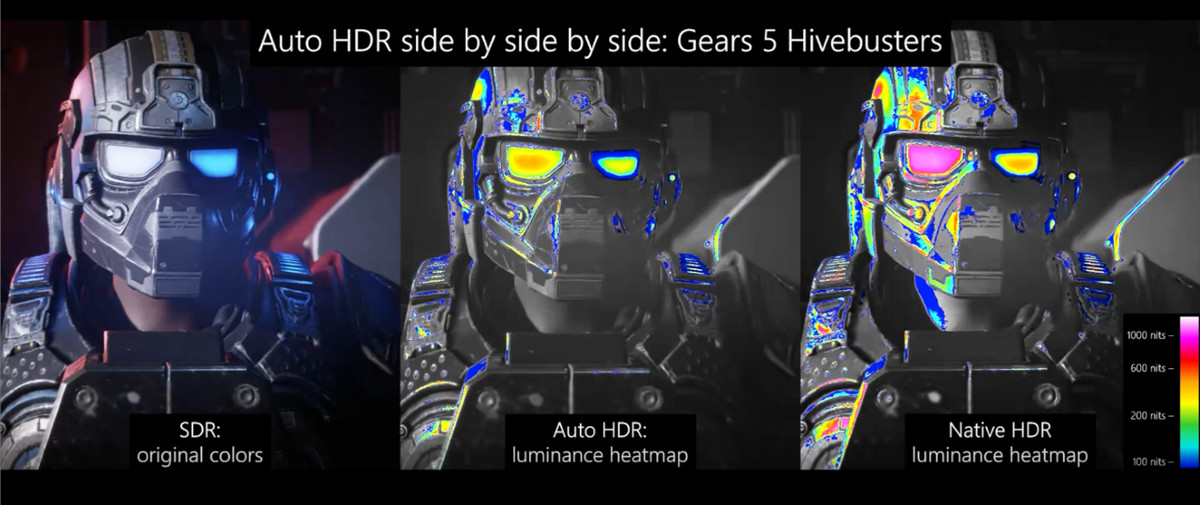
From the heat maps like the image I linked below it appeared to increase the highlights up to 50% comparing it between SDR and native HDR. If that was the case I'd take it.
The increased color and highlights and also the detail shown. I am wondering if autoHDR also increases the detail in blacks just as much as it does the color volume, dropping the bottom out with a lot more "lowlights" detail like native HDR does. Because combined and side by side the expanded ranges of highlights and "lowlights" create a ton of detail in native HDR. Even a gain of near half as much would be considerable to me compared to a narrow SDR range.

From the examples it looked up to halfway to native nits/color temp and highlight area. Of course that could be marketing. I'll have to see how it looks whenever I decide to upgrade to win11 (or if they someday update win10 to support autoHDR).

heatmap.jpg


In regard to BFI:

..are you maintaining 120fps (117fps capped) minimum/solid?
or
.. are you capping your Hz to a lower ceiling and maintaining a matching fpsHz minimum solidly in your game and graphics settings?
.. are you getting VRR+BFI like someone claimed and at a consistent brightness without exacerbating flicker or other artifacts?

...Are you instead using BFI without VRR and without exceeding the Hz with your frame rate - allowing your frame rate to fluctuate wildly, or are you only using BFI playing a game/settings that allow the bottom of your frame rate graph to be high enough to avoid fluctuation?
.... Which BFI setting are you using low/med/high ?

-----------------------------------

As I remembered it BFI works best, exhibiting the lowest flicker or eye fatigue and the least blur, when you already run your fpsHz at 120(117capped) so that:
.... you are already getting 50% sample and hold blur reduction (compared to 60fpsHz baseline)by nature of the 120fpsHz rate before the BFI is considered and added.
....you aren't causing stroboscopic effects or PWM like temporal variance by combining changing the frame rate with BFI.

NM64 mentioned that the video he linked said you needed to keep 90fps+ to avoid the worst flicker (probably more).

If that's true then optimally you'd need an easy to render game or considerably lower graphics setting on modern demanding games, especially at 4k resolution. That also doesn't touch on raytracing as a potential issue dropping the frame rate again.

I'm definitely for dialing settings in to get 100fps average or better wherever possible, even without BFI. The motion definition/pathing/articulation is much higher and smoother (more unique pages in an animated flip book) and it cuts the blur down some even w/o BFI.

When articles like the tft central review mention 60Hz and 120Hz they usually mean AT 60fps solid (minimum) and AT 120fps solid (minimum), because they are testing with a simple ufo bitmap graphic and a pursuit camera:
tftcentral review of the LG CX, BFI section:
At 60Hz the BFI behaves a bit differently. In the low and medium modes it is unfortunately not in sync with the refresh rate and you get two “strobes” per refresh rate cycle. It inserts a black frame every 8.33ms which has the negative impact of causing a doubled ghost image to moving content and doesn’t look very good. You can see this clearly from the pursuit camera photos above. If you switch up to the high mode then the “strobing” is brought in sync with the refresh rate at 60Hz and you get a much clearer picture with great motion clarity again. It makes a huge difference relative to normal mode (BFI turned off) at 60Hz making the moving image much sharper, clearer and easier to track. The issue though here is that the BFI is then every 16.67ms which introduces a noticeable flicker to the screen (at 60Hz frequency). For motion and gaming this is harder to spot, but could still cause you issues with eye strain and discomfort. It’s certainly very noticeable for static images when you first turn it on. Some people may like it still and at least at 60Hz it’s a usable option that really helps with motion clarity. We would not recommend using the low or medium


----------------

https://forums.blurbusters.com/posting.php?mode=quote&f=2&p=61438

How To Reduce Discomfort With Strobing

1. Use framerate = refreshrate = stroberate with high quality strobing such as Blur Busters Approved
2. Use a VSYNC ON technology (unless you can run VSYNC OFF frame rates far beyond refresh rate).
3. If you hate lag, use Low-Lag VSYNC HOWTO, or RTSS Scanline Sync, since VSYNC OFF can make strobing sometimes bad/uncomfortable especially when you're not able to do overkill VSYNC OFF frame rates far beyond refresh rate.
4. Lower your refresh rate below your minimum frame rate, 120Hz strobing looks better.
5. Use refresh rate headroom (120Hz strobing on 240Hz panels look better than 120Hz strobing on 144Hz panels)
6. Strobing amplifies jitters/stuttering. Control your stutters if you want to use strobing!
7. Strobing is bad for frame rates far below refresh rates. Raise your frame rate or lower your refresh rate until framerate=Hz. 120Hz can be superior to 240Hz sometimes, if motion blur reduction is your priority.
8. Put mouse into high-DPI operation (1600dpi or 3200dpi if your game supports low-sensitivity well) to smooth-out your slow mouseturns.

If you strobe at too high a refresh rate, you can get strobe crosstalk -- www.blurbusters.com/crosstalk -- which looks awful and can be just as bad as PWM dimming, especially for frame rates far below Hz!

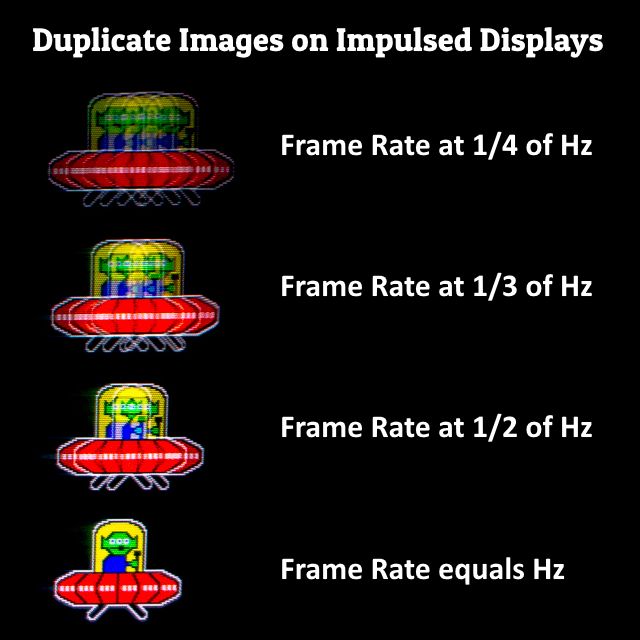
You get duplicate images if your frame rate is far below refresh rate during strobing. This produces duplicate images, like PWM dimming can also do (multi-strobing per refresh cycle).

Some people get more discomfort/nausea from motion blur, so that the "single-pulse-per-Hz-PWM" of strobing can be more eye-pleasing than the alternatives.

How To Avoid discomfort/nausea from duplicate images:
- Stutters will generate random duplicate images, and feel jittery, fix your stutters as much as you can!
- Make sure you guarantee framerate=Hz so don't let framerate go below Hz often. Lower refresh rate can make picture better!
- Easiest is to use VSYNC ON at a refresh rate at or below your game's 0.1%-0.5% worst frametimes. This avoids stutters.
- If you must, must use VSYNC OFF, try to run framerates well beyond refresh rate. Preferably at over 2x margin, but do your best.
- Slow turns on a 400dpi or 800dpi mouse will often strobe duplicate-image at slow mouseturn speeds, use 1600dpi or 3200dpi + low sensitivity with a newer mouse, if you want TestUFO-smooth slowturns. Be noted, older engines such as CS:GO has wonky effects on high DPI + low sensitivity operation, while some newer engines such as Valorant is 3200dpi-friendly + low-sensitivity.


strobed-display-image-duplicates.png
 
Last edited:
Oh I would not use BFI unless I could actually maintain over 100fps at all times, so really it's just older titles that either lack AutoHDR support or just has a lackluster implementation AND are super easy to run at >100 FPS on the latest gen of GPUs. I guess I should also clarify on why exactly I think that AutoHDR isn't so great. Basically from my testing, AutoHDR has either not given specular highlight detail enough brightness (i.e flames in a campfire have no impact at all and look barely any brighter than SDR), or it simply blows out highlight detail entirely. Here's an example picture from Rise of the Tomb Raider, and no that isn't just my camera doing weird things, that is how the image actually looks. I guess it's suppose to be fog/mist? But basically AutoHDR completely blows out all the detail to pure white and just blasts that area with brightness. Looking at the sun in the Witcher 3 also has the same effect where you can't even make out the sun anymore because that area of the screen has just been completely blown out. I tested on both my CX and X27 and the results were the same. Meanwhile in Far Cry 6 notice how all bright highlight detail is properly maintained, HDR set to 1100 nits on my X27. AutoHDR also seems to do absolutely nothing for the color gamut, only brightness levels. So it seems like they are just taking an SDR color space, and then trying to give specular highlight detail some extra brightness, but so far as either not given it enough brightness, or has completely blown out the detail entirely. The library of AutoHDR titles needs to be expanded as well to older titles, as it seems like the 2013 Tomb Raider reboot and Left 4 Dead completely lack any AutoHDR support. AutoHDR also has NO brightness sliders, what you get is what you get. This could also be the reason why it's not performing as great because who knows just what peak brightness level the AutoHDR is shooting for here and then our displays just have to try and tone map it as best as it can. HDTV test has demonstrated what happens when a game has a peak brightness that is too far too high with Microsoft Flight Simulator targeting a whopping 10,000 nits which might be the case with AutoHDR.
 

Attachments

  • 20211101_004058.jpg
    20211101_004058.jpg
    743.5 KB · Views: 1
  • 20211008_195651.jpg
    20211008_195651.jpg
    539 KB · Views: 1
Last edited:
  • Like
Reactions: elvn
like this
Oh I would not use BFI unless I could actually maintain over 100fps at all times, so really it's just older titles that either lack AutoHDR support or just has a lackluster implementation AND are super easy to run at >100 FPS on the latest gen of GPUs. I guess I should also clarify on why exactly I think that AutoHDR isn't so great. Basically from my testing, AutoHDR has either not given specular highlight detail enough brightness (i.e flames in a campfire have no impact at all and look barely any brighter than SDR), or it simply blows out highlight detail entirely. Here's an example picture from Rise of the Tomb Raider, and no that isn't just my camera doing weird things, that is how the image actually looks. I guess it's suppose to be fog/mist? But basically AutoHDR completely blows out all the detail to pure white and just blasts that area with brightness. Looking at the sun in the Witcher 3 also has the same effect where you can't even make out the sun anymore because that area of the screen has just been completely blown out. I tested on both my CX and X27 and the results were the same. Meanwhile in Far Cry 6 notice how all bright highlight detail is properly maintained, HDR set to 1100 nits on my X27. AutoHDR also seems to do absolutely nothing for the color gamut, only brightness levels. So it seems like they are just taking an SDR color space, and then trying to give specular highlight detail some extra brightness, but so far as either not given it enough brightness, or has completely blown out the detail entirely. The library of AutoHDR titles needs to be expanded as well to older titles, as it seems like the 2013 Tomb Raider reboot and Left 4 Dead completely lack any AutoHDR support. AutoHDR also has NO brightness sliders, what you get is what you get. This could also be the reason why it's not performing as great because who knows just what peak brightness level the AutoHDR is shooting for here and then our displays just have to try and tone map it as best as it can. HDTV test has demonstrated what happens when a game has a peak brightness that is too far too high with Microsoft Flight Simulator targeting a whopping 10,000 nits which might be the case with AutoHDR.


Ah thanks for the clarification and the examples. That sounds like bad dynamic tone mapping that would clip details similar to the examples in this thread:

https://discuss.pixls.us/t/luminance-hdr-how-to-prevent-highlights-from-blowing/724

If you recall, when trying to play hdr on windows desktop in mpc it won't read the metadata so defaults to a HDR4000 curve unless you manually set it with madVR to 800 or 1000 for example so you might be on the right track as to what it's doing. Hopefully it is autoHDR growing pains and the wrinkles will be ironed out more as time goes on.
 
Last edited:
Ah thanks for the clarification and the examples. That sounds like bad dynamic tone mapping that would clip details similar to the examples in this thread:

https://discuss.pixls.us/t/luminance-hdr-how-to-prevent-highlights-from-blowing/724

If you recall, when trying to play hdr on windows desktop in mpc it won't read the metadata so defaults to a HDR4000 curve unless you manually set it with madVR to 800 or 1000 for example so you might be on the right track as to what it's doing. Hopefully it is autoHDR growing pains and the wrinkles will be ironed out more as time goes on.

Possibly. My X27 can't tone map, at least I don't think so? I'm assuming the way it works is that anything above 1100 nits it will just hard clip because it doesn't have the brightness level required to display the detail, so in that case just how much brightness is the game calling for on that spot? 4,000 nits? 10,000 nits? Seems pretty crazy brightness for what is suppose to just be some fog/mist from the waterfall lol. Meanwhile the campfires are extremely dull looking as if it's SDR.
 
Possibly. My X27 can't tone map, at least I don't think so? I'm assuming the way it works is that anything above 1100 nits it will just hard clip because it doesn't have the brightness level required to display the detail, so in that case just how much brightness is the game calling for on that spot? 4,000 nits? 10,000 nits? Seems pretty crazy brightness for what is suppose to just be some fog/mist from the waterfall lol. Meanwhile the campfires are extremely dull looking as if it's SDR.

When I was newer to window's HDR Monstieur thankfully explained it to me much earlier in the thread, in regard to the LG CX at least:


The curves are arbitrarily decided by LG and don't follow a standard roll-off. There does exist the BT.2390 standard for tone mapping which madVR supports (when using HGIG mode).

LG's 1000-nit curve is accurate up to 560 nits, and squeezes 560 - 1000 nits into 560 - 800 nits.
LG's 4000-nit curve is accurate up to 480 nits, and squeezes 480 - 4000 nits into 480 - 800 nits.
LG's 10000-nit curve is accurate up to 400 nits, and squeezes 400 - 10000 nits into 400 - 800 nits.

I would use only the 1000-nit curve or HGIG for all movies, even if the content is mastered at 4000+ nits. All moves are previewed on a reference monitor and are designed to look good at even 1000 nits. It's fine to clip 1000+ nit highlights. HGIG would clip 800+ nit highlights.

LG defaults to the 4000-nit curve when there is no HDR metadata, which a PC never sends.


But he also said:
The 4000-nit curve results in reduced clipping, not more clipping, by reducing peak brightness and rolling off above 480 nits.
..
So the 4000nit curve compresses the high end inaccurately.

So I'm not sure what kind of curve windows autoHDR is working with.

I also saw this comment on a reddit thread which might explain that (lacking tools/sliders in windows autoHDR settings to do it more easily as you said).

https://www.reddit.com/r/OLED_Gaming/comments/ptw8z4/answering_questions_on_auto_hdr_windows/

https://www.reddit.com/user/PartyLocoo/
PartyLocoo · 7d

LG C1
Have you tried changing the default Windows tone mapping by using CRU? It is under extension block, HDR static metadata. From what I've understood it should change Max luminance from 1499 to the input value.
 
Last edited:
A reply from the OP of that reddit thread:

they are prob running HGIG or nothing at all. So far, AutoHDR has never really went as far as going very far in the nits and I tried adjusting the slider and it still shows a difference at the highest level. I highly recommend trying to use DTM with black level set to low. For some reason, black level Auto doesn't actually use the proper black levels...in fact, it's washed out af. I'm using low and everything is fine now. I don't recall having tried to change max luminance, but I wouldn't recommend it as we don't know what's actually happening in the background, in auto hdr and as I said, it still shows a difference in luminance, when the slider is adjusted to the maximum.

Also, in reading that thread, it appears there is an HDR intensity slider in autoHDR.

From the thread starter again in a reply to someone else:

u/TeeHiHi avatarTeeHiHi 39d

Unfortunately windows still applies the "1499,99 nits capable" value for HDR displays... No matter how popular. Which is weird, because they can read but capabilities on laptops with hdr screens...

All you get is "hdr intensity" which is basically just max brightness. That's why I use it with DTM :/ it still does an amazing job, but yes, hgig would be great and I don't see a technical reason why it wouldn't work, since it does work on some internal displays and on external ones on the Xbox.
 
Back
Top