• Some users have recently had their accounts hijacked. It seems that the now defunct EVGA forums might have compromised your password there and seems many are using the same PW here. We would suggest you UPDATE YOUR PASSWORD and TURN ON 2FA for your account here to further secure it. None of the compromised accounts had 2FA turned on.
    Once you have enabled 2FA, your account will be updated soon to show a badge, letting other members know that you use 2FA to protect your account. This should be beneficial for everyone that uses FSFT.

LG 48CX

if anyone elsi is also looking for new cable and maybe missed this announcement like me:
Club 3D is proud to announce having received the certification of our Ultra High Speed HDMI™ Cable 4K120 8K60Hz 48Gbps M/M 2m/6.56ft with item code CAC-1372 by the HDMI™ organisation, as one of the first cables worldwide. Since its launch this cable has always been one of our bestsellers and it should attract even more users with the now received certificate. The product page of CAC-1372 has been reworked with placing informartion and pictures, including the Ultra High Speed HDMI™ certificate whereever suitable.
For the record my much cheaper CableMatters cable performs identically to the CAC-1372 when used with both my Club3D DP to HDMI 2.1 adapter and my PS5.
 
As an Amazon Associate, HardForum may earn from qualifying purchases.
I'm having a minor issue where when I boot PC, tv won't recognize PC HDMI input, says no signal. Most times I have to turn TV off then on again and windows login screen will appear. Am I not giving ti enough time or is there a TV/Windows/Bios setting I need to adjust?
Are you turning the TV on _before_ your PC? I think nvidia cards have some issues with HDMI handshaking if the TV is off.
 
According to LTT's video, LG is planning an update with DSC for the 8K OLEDs. Those models have two 48 Gbps ports as well. Maybe the 4K models will get the DSC update too. I wonder if HDMI 2.0 GPUs can use DSC since they have the capability for DisplayPort, though it's only part of the HDMI 2.1 specification. If so, it would allow 4K 120 Hz at higher than 8-bit 4:2:0 on HDMI 2.0.

interesting. My 1080ti(s) can't do VRR either way so time to upgrade when the gpu model I want is available later.

Some games will struggle to hit 100fpsHz average even with a 3090 (and even with DLSS 2.0 support and no RTX turned on in some cases). It would be nice as an option for 2000 series gpu owners holding on to those (especially after blowing $ on a ~ 1500+ tv) though, sure. Would have been even nicer before the 3000 series gpus were out- though not many people can get them so maybe that's what you were getting at too.

I'm having a minor issue where when I boot PC, tv won't recognize PC HDMI input, says no signal. Most times I have to turn TV off then on again and windows login screen will appear. Am I not giving ti enough time or is there a TV/Windows/Bios setting I need to adjust?

This happens once in awhile on my displayport adapter to hdmi screens(s) but when it happens it usually just blinks a bunch of times. Only rarely does it fail and give up to "no signal". It never happens hdmi to hdmi so I always thought it was a hdmi handshaking issue on wakeup from standby. However I've also seen people in forums suggesting that the GPU is waking up before the display does causing them to be out of sync (and possibly the handshaking out of sync). There is a way to reinitialize the gpu but that seems like a harsh workaround.

I think my 43" TCL died partly due to cheap parts but I also think that because it's backlight was often caught in a flashing loop when I'd wake it up. So I think that contributed to it's shortened lifespan combined with the cheap parts. Half of the screen would always be dim due to the backlight failing. Now I have the same samsung 6900 on each side on dp adapters with the LG CX in the middle hdmi to hdmi. The one side samsung rarely does the wakeup issue but it doesn't come up much anymore since I've started just turning them all off via remote if I'm going to be away for awhile.

Eventually I'm hoping to get a gpu with several hdmi outputs so I won't have to rely on displayport adapters anymore.

In the same vein, I'm a little disappointed with how clunky switching in and out of active HDR mode content can be when paging off of it to another monitor. It's like the old days of alt-tabbing out of a fullscreen game with clunky lag and possibly even blinking screen before it switched out of it completely. I'd rather the HDR mode just stay active on the main monitor and not drop and reinitialize the HDR mode needlessly.
 
Last edited:
Still tweaking some things on my pc. I realized that if you leave a video running in mpc-hc it will restore from fullscreen leaving the player window and frame static on your desktop. You can instead set it up this way:

MeqCa5D.png

Edit: It's actually here to make it always happen:

LWKlqHj.png
 
Last edited:
Latest Nvidia 457 based drivers seem to have some problems with color space when 120 Hz is in use. I have to use an older 456.71 driver to get working DSC support on my Club3D adapter. If I use a newer one it will only support 4K 120 Hz 4:2:0 as if I was using a HDMI 2.0 cable.

PC resolution should still change correctly if scaling is set to display. Try changing it from Windows display settings to see if that does anything different.
Same when changing from windows display settings. It only acept like 1360x768 resolution from PC list. Anyone with 3xxx nvidia card can test if he is able to switch to 1440p and what TV reports in windows via VRR menu /hdmi diagnostic.
If I choose the 1440p resolution in game TV will report correct resolution.

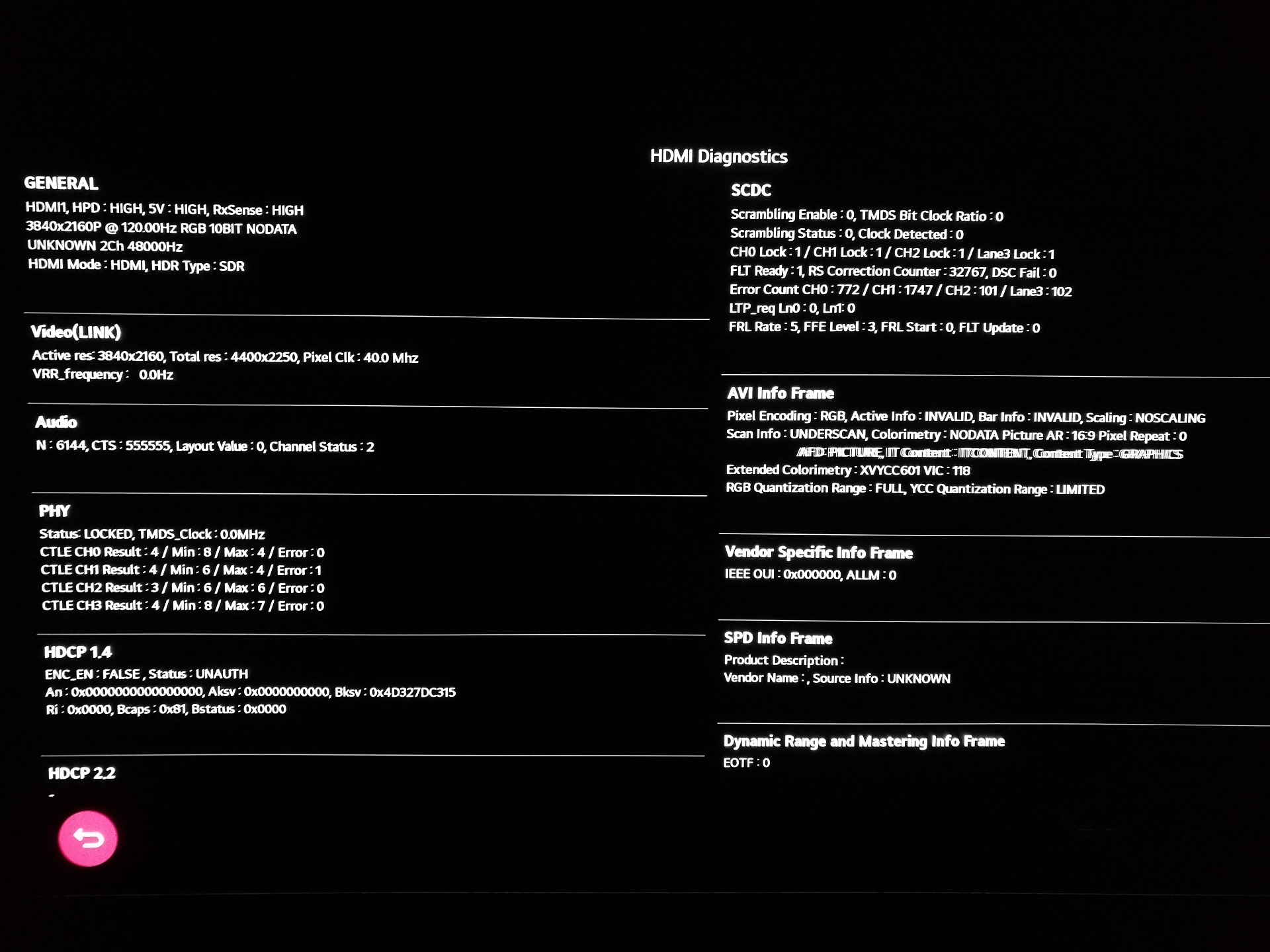
Also can anyone with 3840x2160*120 RGB/444 10 bit can provide HDMI diagnostic menu screen, I would like to check if its normal getting errors there or it should be at 0. I am getting 1-3 errors every few minutes on lanes 0 and 1 but no flashes or artifacts. Only issue I have is random TV recconect like once per day. IDK if it could be caused by cable or it will be just random handshake issue or some issue with card caused by multimonitor setup.
 
Same when changing from windows display settings. It only acept like 1360x768 resolution from PC list. Anyone with 3xxx nvidia card can test if he is able to switch to 1440p and what TV reports in windows via VRR menu /hdmi diagnostic.
If I choose the 1440p resolution in game TV will report correct resolution.

Also can anyone with 3840x2160*120 RGB/444 10 bit can provide HDMI diagnostic menu screen, I would like to check if its normal getting errors there or it should be at 0. I am getting 1-3 errors every few minutes on lanes 0 and 1 but no flashes or artifacts. Only issue I have is random TV recconect like once per day. IDK if it could be caused by cable or it will be just random handshake issue or some issue with card caused by multimonitor setup.

I would try another cable if you haven't already. Bad HDMI cables can do very very weird things. Also try reinstalling your Nvidia drivers with the Clean install option.
 
I would try another cable if you haven't already. Bad HDMI cables can do very very weird things. Also try reinstalling your Nvidia drivers with the Clean install option.
I am on 3rd different driver version from 3080 rls, I dont want just try another random cable so I was waiting for Zeskit but still no available in EU, so already ordered club3d one because its also cerified.
I will provide my hdmi screen here if anyone can check if there is something wrong there or maybe compare with his.
menu.png
 
I am on 3rd different driver version from 3080 rls, I dont want just try another random cable so I was waiting for Zeskit but still no available in EU, so already ordered club3d one because its also cerified.
I will provide my hdmi screen here if anyone can check if there is something wrong there or maybe compare with his.
View attachment 306274
The high error count does suggest something going wrong, most likely due to the cable. I would see if dropping down to 8-bit color helps at all.

Also remember to check that the input is in PC mode on the Home dashboard of the TV. When unplugging cables it loves to reset that setting.
 
The high error count does suggest something going wrong, most likely due to the cable. I would see if dropping down to 8-bit color helps at all.

Also remember to check that the input is in PC mode on the Home dashboard of the TV. When unplugging cables it loves to reset that setting.
Yep its in PC mode, changed to 8 bit and 420 and 100 hz but same errors. Weird thing is yesterday I pluged same cable to HDMI4 port on TV and got only like 100 errors for hours and it still drop and recconect. Only when I drop to 4k 60 or FHD it change from FRL to TMDS and then I got 0 errors. I was just currious if its common for FRL to have some comunication errors.
 
What are those SCDC errors? I just noticed I got quite a few myself yet everything is working perfectly. Is that counter reset when you power cycle the TV?
 
What are those SCDC errors? I just noticed I got quite a few myself yet everything is working perfectly. Is that counter reset when you power cycle the TV?
I think they reset when you inicialize connection, so sometimes even when you change resolution.
What I found FRL is doing some kind of line training on video inicialization so sometimes I am getting errors on 1 lane sometimes on another. Sometimes I got 200 after 5 hours, sometimes 5000. I didnt have also any other issue except that random recconect which display only blinks and its back, so if you are not all the time in front of TV you can miss it. And its realy random sometimes 2times per day, sometimes not for few days.
 
I have 0 errors on PHY and 207 errors in SCDC after 24 hours, but I have no dropouts at all.
 
Playing World of Warcraft at 3840x2160 i get a hitch every 20 secs or so. FPS is still high over 100 normally.

I have a 2080ti do you think this is a game settings issue or something with the tv/video card?

Thanks
I don't have a hitch in wow shadowlands but I've been running 1440p with ray tracing on high on a 3090. The fps really tanks in bastion but it is a consistent drop.
 
I don't have a hitch in wow shadowlands but I've been running 1440p with ray tracing on high on a 3090. The fps really tanks in bastion but it is a consistent drop.
Yeah same here. Running 4K ray tracing on high. 4x masa maxed out I get between 80-100fps most of the time. Bastion does drop me, but been very smooth in mythics. Also running the latest nvidia drivers and firmware on the cx
 
What picture mode do you guys use: isf dark, game, or ??? Do the picture modes have any difference in terms of input lag?
 
What picture mode do you guys use: isf dark, game, or ??? Do the picture modes have any difference in terms of input lag?
Game seems to make a difference in input lag but it's a shit calibration out of the box and needs to be adjusted to match ISF Dark. I calibrated mine with a colorimeter and on my panel at least RTings listed settings were quite close, just put them in on Game instead of ISF Dark.
 
  • Like
Reactions: MrTX
like this
Game seems to make a difference in input lag but it's a shit calibration out of the box and needs to be adjusted to match ISF Dark. I calibrated mine with a colorimeter and on my panel at least RTings listed settings were quite close, just put them in on Game instead of ISF Dark.
That's what I would use as a starting point as well, game mode with settings from ISF Dark. Game mode has the lowest input lag while the others have marginally higher lag with Instant Game Response enabled based on my testing with Doom Eternal at 4K 120 fps just moving around my viewpoint with my mouse.
 
  • Like
Reactions: MrTX
like this
Game mode looks pretty good to me as long as you set contrast 85, sharpness 0, gamma to 2.2, and color warm2 as suggested earlier in this thread. I need to use my calorimeter still but I'm pretty happy w/ the stock settings as long as I make those adjustments.
 
  • Like
Reactions: MrTX
like this
Are you turning the TV on _before_ your PC? I think nvidia cards have some issues with HDMI handshaking if the TV is off.
So turn on TV first?

Correction, I thought I disable "fast boot" but didn't save changes haha... will try again.
 
Last edited:
  • Like
Reactions: elvn
like this
I don't have a hitch in wow shadowlands but I've been running 1440p with ray tracing on high on a 3090. The fps really tanks in bastion but it is a consistent drop.
I realized that I only had fullscreen and not window fullscreened in the nvidia settings.

After that all good. FPS does drop some in Bastion for sure. Overall impressed though at max ultra settings with my 2080ti.
 
Yes I'd try turning the TV on first. I'd also try a different hdmi port on the TV for the hell of it. I'd avoid the eARC one until last.

Also a different 48gbps cable 6ft or less.

I never have trouble with mine turning on. I've been turning it off wherever I'm not running media for a while since I have two other screens to do desktop stuff on. I turn all three off if I'm leaving or going to sleep. I leave my pc on all of the time so reboot rarely. I've never seen an issue with the oled hdmi to hdmi even when booting but the TV is usually on already when I do.

The only screens that ever blink due to bad handshaking for me are the ones on display port adapters. One or the other (never both) will sometimes flash a bunch of times when I turn them on with the pc already(still) running. This doesn't happen very often but I don't like that it does since I'm afraid it could shorten the LCD backlight lifespan on those screens. At least I suspect that it contributed to the early demise of the cheaper tcl version I had on one side formerly, though it was probably just a matter of time before that cheaper screen's backlight would have died early anyway (just perhaps not quite as early as it did).

‐------------

Unrelated to that- I noticed that coming in and out of active HDR content (at times even when you don't want to) can be quite clunky on the oled too, at least when using multiple screens with the others displaying regular content.

edit : still experimenting with all three having hdr turned on in windows display settings, hoping to make it more seamless
 
Last edited:
So turn on TV first?

Correction, I thought I disable "fast boot" but didn't save changes haha... will try again.
Yes turn the TV on first :).

I never had a problem in Windows. But on Linux, the nvidia driver crashes (causing a hard lockup requiring a reboot) if the TV is off when I wake it up from DPMS off (with an HDMI handshake error). I have to be careful not to touch anything until I turn the TV on first. It may be related somehow.
 
I finally got 4k/120/8bpp/GSync working and it's just breathtaking. I am so happy to have purchased this display - I do wish it were a bit smaller, however the many, many superlative advantages more than offset the size issue for me which was an otherwise serious misgiving I had going into the purchase.

It's no surprise, but I certainly have had to go through a number of HDMI cables and still do not have a stable, error-free signal at 10bpp. (I am currently using a "8K/48GBps" labeled 9ft cable from a local store but who knows.)
 
Last edited:
  • Like
Reactions: hhkb
like this
I finally got 4k/120/GSync working and it's just breathtaking. I am so happy to have purchased this display - I do wish it were a bit smaller, however the many, many superlative advantages more than offset the size issue for me. It's no surprise, but I certainly had to go through a number of HDMI cables and I still do not have a stable, error-free signal at 10bpp. (I am currently using a "8K/48GBps" labeled 9ft cable from a local store but who knows.)
Yep, the G-sync fix made this screen the ultimate screen for me. It's so smooth and low lag now. Best PC related purchase I ever made imo.

What kind of errors are you seeing though? That shouldn't be happening. If you're in EU, I highly recommend the kabeldirekt Ultra HD cables, I've used both the 2m and 3m and they have been flawless. (edit: Looks like they also sell those in the US on amazon.)
 
Yep, the G-sync fix made this screen the ultimate screen for me. It's so smooth and low lag now. Best PC related purchase I ever made imo.

What kind of errors are you seeing though? That shouldn't be happening. If you're in EU, I highly recommend the kabeldirekt Ultra HD cables, I've used both the 2m and 3m and they have been flawless. (edit: Looks like they also sell those in the US on amazon.)
At 10bpp, the screen exhibits one of three behaviors:
  1. No image displayed at all
  2. Screen flashing / re-sync... frequency from once every few seconds to 1-2 times per second e.g. extreme
  3. Brief intermittent Horizontal lines of garbage displayed (seemingly single pixel) randomly
The HDMI diag page shows errors for (2) and (3). I was seeing the exact same behaviors at 120/8bpp with older HDMI cables. I purchased aforementioned "8K" cables from a local store ($9 or so) and the 8bpp is utterly stable now but 10bpp is still marginal. I noticed that of the two otherwise identical cables I purchased, one behaves better than the other so there clearly are some tolerances at work here. I've ordered a couple of well reviewed cables on Amazon (and 6ft, which turned out to be all I need) which I expect will solve the issue.
 
At 10bpp, the screen exhibits one of three behaviors:
  1. No image displayed at all
  2. Screen flashing / re-sync... frequency from once every few seconds to 1-2 times per second e.g. extreme
  3. Brief intermittent Horizontal lines of garbage displayed (seemingly single pixel) randomly
The HDMI diag page shows errors for (2) and (3). I was seeing the exact same behaviors at 120/8bpp with older HDMI cables. I purchased aforementioned "8K" cables from a local store ($9 or so) and the 8bpp is utterly stable now but 10bpp is still marginal. I noticed that of the two otherwise identical cables I purchased, one behaves better than the other so there clearly are some tolerances at work here. I've ordered a couple of well reviewed cables on Amazon (and 6ft, which turned out to be all I need) which I expect will solve the issue.
I noticed difference in error rate also from how the cable was angled/rotated on the plug, even when I switched ends got different behavivour, also little difference on different hdmi ports.
 
I noticed difference in error rate also from how the cable was angled/rotated on the plug, even when I switched ends got different behavivour, also little difference on different hdmi ports.
I suspect the protocol has error correction of some sort because some errors are normal. Most electrical signals do, you just may not have a way to view that errors are happening. PCIe has error correction for example. I think looking at the screen when you aren't noticing any problems will just make you paranoid ;)
 
I suspect the protocol has error correction of some sort because some errors are normal. Most electrical signals do, you just may not have a way to view that errors are happening. PCIe has error correction for example. I think looking at the screen when you aren't noticing any problems will just make you paranoid ;)
You are right, but there should be some ammount which is normal and which is too high and could cause issues. So you could be on the edge with the error rate, it could work for hours and just randomly drop just because of more intereference from your environment.
 
Any help here would be super appreciated. I'm right on the line of ordering the CX 48 but I'm very nervous that it will be too large of a display to comfortably use as a monitor. For those of you using one, what size is the depth of your desk or how far are you sitting away from the screen? I want to be able to play FPS games comfortably and don't want to be forced to move my head to see the edges of the screen (or another example, the start button to the X close button in the top right). Any pictures of setups would be cool too.
 
Any help here would be super appreciated. I'm right on the line of ordering the CX 48 but I'm very nervous that it will be too large of a display to comfortably use as a monitor. For those of you using one, what size is the depth of your desk or how far are you sitting away from the screen? I want to be able to play FPS games comfortably and don't want to be forced to move my head to see the edges of the screen (or another example, the start button to the X close button in the top right). Any pictures of setups would be cool too.
At 4 to 5 feet, it feels like a 27" 4K monitor.
 
Any help here would be super appreciated. I'm right on the line of ordering the CX 48 but I'm very nervous that it will be too large of a display to comfortably use as a monitor. For those of you using one, what size is the depth of your desk or how far are you sitting away from the screen? I want to be able to play FPS games comfortably and don't want to be forced to move my head to see the edges of the screen (or another example, the start button to the X close button in the top right). Any pictures of setups would be cool too.
yeah about 100-110 cm is good. best is just wallmount or put it on different table. You can image it just like 4x 24 inch 1080p monitors.
 
My screen surface is sitting 15" back from the front edge of my main long rectangular desk. I have a smaller width circular kidney shaped desk butted up against that one with about 1" overlapping. I end up sitting 40" to 45" regularly, maybe 48" at times (depending how I have my chair) away with no problems. That's probably in the THX recommended 45deg to 50deg viewing angle and it keeps the perceived pixel density from looking too jumbo at that distance.

I thought I might have to roll my circular peripheral/command desk farther back before I got the OLED but it turns out that if the screen was any smaller I'd actually have to move it closer on the rectangular desk it's on. I ended up pushing my caster wheeled desk right up against the monitor desk and even overlapping it 1". The fact that I can keep my seated desk so close is nice for keeping the room looking more spacious (it's a relatively small room) , but considering how easily I can roll my desk back I probably could have gotten away with using a 55" CX for $250 cheaper and just rolling back another foot. I'm still very happy with the setup though. Any smaller and I think letterboxed videos or uw game resolutions would be too small for me and my particular setup.
 
Any help here would be super appreciated. I'm right on the line of ordering the CX 48 but I'm very nervous that it will be too large of a display to comfortably use as a monitor. For those of you using one, what size is the depth of your desk or how far are you sitting away from the screen? I want to be able to play FPS games comfortably and don't want to be forced to move my head to see the edges of the screen (or another example, the start button to the X close button in the top right). Any pictures of setups would be cool too.
My desk is only 80 cm. I initially had it on a monitor arm which allowed me to put it at roughly 85-90 cm viewing distance. I have since moved to using a floor stand and that works far better at about 100-110 cm viewing distance. It feels more comfortable like that. I use 120% scaling to get a font size that I find comfortable.
 
Any help here would be super appreciated. I'm right on the line of ordering the CX 48 but I'm very nervous that it will be too large of a display to comfortably use as a monitor. For those of you using one, what size is the depth of your desk or how far are you sitting away from the screen? I want to be able to play FPS games comfortably and don't want to be forced to move my head to see the edges of the screen (or another example, the start button to the X close button in the top right). Any pictures of setups would be cool too.
I'm similar to the above posts. I have an 80cm deep desk. I had to get an aftermarket stand to push it back far enough on my desk - so it's just about 70cm from the edge of my desk now, and about 80cm from myself. I used to have it around 10cm closer to me and that was just a tad too close. I'm finding 80cm to be the sweet spot for myself personally. I used to have a 32" 1440p and the PPI is basically the same, so using it as a workstation monitor at this distance is great - it's basically like 2.5x 30" in portrait mode next to each other.

At this distance I can comfortably mouse+kb game fullscreen, although it took me a little bit of time to get used to. For controller and watching content, I just scoot back and it's perfect. It's also possible to play games at 1440p non-scaled by the way - which is equivalent to a 32" screen, if you find the size too large for FPS games. This is probably ideal for comp gaming (although if you're really serious, a dedicated 240hz 24" TN is probably the way to go).
 
I wonder if you use this as a monitor, watch Youtube videos like normally do, with video window on the left and other stuff list on the right, where titles are white font etc - would that burn in with time?
Normally you can watch videos 10-20 minutes long, then maybe switch, so those other items list on the right would stay there for 20 minutes, then switch to different content, but still would be displaying the lists titles etc
What do you think? Would it burn in that right side area?
Would it be bad to have some static content on for 20-30 minutes, here and there, maybe 10 times a day, 3-4 days a week - trying to summarise usual monitor use - would that burn in with time?
Same for some white areas, empty parts of the windows open, like word doc or excel or some website, with white sides - being displayed for an hour for example, few time a week. Would that burn in too?
 
Last edited:
Probably not but your risk?? People have used their oleds with lower light settings for desktop/app stuff without too much problem over a few years but your mileage may vary. You can usually find at least few reports of some mild burn in from logos or huds, even from one or two oled proponents in this thread. The burn-in avoidance tech (ABL, ABSL, pixel shifting) has improved some over the generations though, too. Then again, there are people who are turning some of that off b/c they find it annoying. It's also worth noting that people report that the best buy extended warranty, though expensive, does cover burn in and it even states that in the extended warranty policy from what I've been told.

I've dedicated the oled to be a media and gaming "stage", with monitor(s) on the side of it in portrait for desktop/apps. That way I don't have to worry about static desktop apps normally (even though I have the BB ext warranty). For example, a 43" series 8 samsung 4k VA was just on sale for $300 over black friday/cyber monday. That would be similar to my NU6900 samsung(s) which I am using as a side desktop/app screen. That would work great as a 2nd screen for static desktop/apps imo.

I still feel the need to turn the tv off if I'm going to be away for a while because notification screens and app notifications/updates etc can pop up on the oled even when using a black wallpaper. I can use a black screensaver on that screen but crashed or bugged app notifications, app updates, file operation timeouts/issue or security windows and such can still take the top level so can be stuck there on top of the running screensaver. Another thing that can happen is you can get stuck on a frozen bios screen on random reboot, or at the windows logon screen, or if your video card ever flakes out and leaves frozen garbage signal noise on your screen. Besides that, depending on what you are doing windows can juggle some app windows off of my side monitor(s) and throw one or more of them back on the OLED (rarely). Even though most of these issues would very rarely happen, it might only take once for a long enough period of time. So for me I've been turning it off with the remote if I'm leaving for more than a bathroom or a drink afk or whatever.

Personally I wouldn't use white board office apps and static toolboxes and stuff and would opt for secondary monitor(s). If you have to ask then you are probably concerned enough that it would bother you to be using it as a desktop/app monitor. Even if the chance of burn in is slim it's not impossible that it could happen accidentally (human and/or hardware error).
 
I wonder if you use this as a monitor, watch Youtube videos like normally do, with video window on the left and other stuff list on the right, where titles are white font etc - would that burn in with time?
Normally you can watch videos 10-20 minutes long, then maybe switch, so those other items list on the right would stay there for 20 minutes, then switch to different content, but still would be displaying the lists titles etc
What do you think? Would it burn in that right side area?
Would it be bad to have some static content on for 20-30 minutes, here and there, maybe 10 times a day, 3-4 days a week - trying to summarise usual monitor use - would that burn in with time?
Same for some white areas, empty parts of the windows open, like word doc or excel or some website, with white sides - being displayed for an hour for example, few time a week. Would that burn in too?
I haven't seen a single ounce of burn-in using my CX 48 normally 8h a day. I run what I can in dark mode but occasionally may have something like a bright Excel open and bright websites are pretty normal. It's been fine. Ask me again in 2-3 years.
 
I haven't seen a single ounce of burn-in using my CX 48 normally 8h a day. I run what I can in dark mode but occasionally may have something like a bright Excel open and bright websites are pretty normal. It's been fine. Ask me again in 2-3 years.
I'm up to 1793 hours power on time on mine for work and play. 0 burn-in.
 
So after few hours with using Club3d CAC-1372 I did not get any single error in hdmi diagnostic menu (there is some value on start). It also does have a HDMI certification sticker on box and its geniue after confirmed with hdmi authority app.
With previous calbe which is local OEM brand and was just relased few weeks ago and claiming to be HDMI 2.1 I got hundreds of errors. So if anyone is looking for cable and dont want take a risk I would recomend Club3D CAC-1372.
 
Back
Top