• Some users have recently had their accounts hijacked. It seems that the now defunct EVGA forums might have compromised your password there and seems many are using the same PW here. We would suggest you UPDATE YOUR PASSWORD and TURN ON 2FA for your account here to further secure it. None of the compromised accounts had 2FA turned on.
    Once you have enabled 2FA, your account will be updated soon to show a badge, letting other members know that you use 2FA to protect your account. This should be beneficial for everyone that uses FSFT.

LG 48CX

I picked up a CX 55 today and set it up for PC use.

To those who have an OLED for PC monitor...what kind of settings are using to minimize the potential for any kind of burn in? I had a Samsung LED before this so never did anything besides make the screen go off after 15 minutes, so input is welcome on how to make the most of this thing.

Use it in a dark room with lowest OLED light that is comfortable to you (talking SDR here, HDR is more complicated and I'm frankly not bothering with it too much, I'll wait for better software and hardware support). Note that you need to give your eyes a bit of time to adjust before assessing whether brightness is high enough or not.

Optional: dark mode when possible within the apps, auto hide taskbar, black desktop background with no icons, black screensaver.
 
Last edited:
I picked up a CX 55 today and set it up for PC use.

To those who have an OLED for PC monitor...what kind of settings are using to minimize the potential for any kind of burn in? I had a Samsung LED before this so never did anything besides make the screen go off after 15 minutes, so input is welcome on how to make the most of this thing.
Just don't unplug it from the wall socket and you will never have any permanent burn-in. Use it like a normal monitor how you like it and don't bother with burn-in. Even if you see the burn-in it will disappear. Just learn not to pay attention.
 
Use it in a dark room with lowest OLED light that is comfortable to you (talking SDR here, HDR is more complicated and I'm frankly not bothering with it too much, I'll wait for better software and hardware support). Note that you need to give your eyes a bit of time to adjust before assessing whether brightness is high enough or not.

Optional: dark mode when possible within the apps, auto hide taskbar, black desktop background with no icons, black screensaver.

I set my background to a 10 minute slideshow to change background images. Does that sound fine?
 
I set my background to a 10 minute slideshow to change background images. Does that sound fine?

As long as there are enough images in the rotation, I would think so. Remember the moving wallpapers that Vista had? OLEDs would be a great use case for those. :) Personally I just use a black wallpaper because where I don't run browsers etc. full screen, it looks great since anything outside of my active window is pitch black (not glowy black like it is with LCDs).

I really think it's overblown though; I daily'd my B7 as a monitor for years and never developed any burn-in. I think the biggest thing is keeping your OLED light as low as is comfortable and varying the content from time to time.
 
As long as there are enough images in the rotation, I would think so. Remember the moving wallpapers that Vista had? OLEDs would be a great use case for those. :) Personally I just use a black wallpaper because where I don't run browsers etc. full screen, it looks great since anything outside of my active window is pitch black (not glowy black like it is with LCDs).

I really think it's overblown though; I daily'd my B7 as a monitor for years and never developed any burn-in. I think the biggest thing is keeping your OLED light as low as is comfortable and varying the content from time to time.

Right now I have 4 photos on a 10 minute rotation. and I minimized task bar, removed all desktop icons, and running dark mode.
 
I set my background to a 10 minute slideshow to change background images. Does that sound fine?

It's fine, it'll still wear down the panel a bit, but evenly so it's not an issue. The burn-in that bothers people is just 'uneven' aging, i.e. when one small of the screen gets abused way more than the rest. OLED components have a limited life, so if you have for example a bright static logo in one part of the screen for a really long time it will become harder and harder for the TV to compensate the uneven wear of the panel. It's a slow process with recent OLED TVs.

Oh and the part about never unplugging the TV is true. When you turn it off with the remote it will occasionally do stuff in the background to combat burn-in.
 
Right now I have 4 photos on a 10 minute rotation. and I minimized task bar, removed all desktop icons, and running dark mode.

RTINGS has done a long term burn in test with multiple OLEDs displaying different content. The gist of it is that OLED burn in is cumulative and will occur after thousands of hours of displaying the same content has been racked up. So even without much precautions taken, it would take quite a while for you to get any burn in. If you are varying content consistently then the amount of cumulative hours it would take for you to get burn in will be so long that you probably will have bought another display by then. My oldest OLED is 4 years old (2016 B6) and to this day still has no signs of any burn in.
 
It's fine, it'll still wear down the panel a bit, but evenly so it's not an issue. The burn-in that bothers people is just 'uneven' aging, i.e. when one small of the screen gets abused way more than the rest. OLED components have a limited life, so if you have for example a bright static logo in one part of the screen for a really long time it will become harder and harder for the TV to compensate the uneven wear of the panel. It's a slow process with recent OLED TVs.

Oh and the part about never unplugging the TV is true. When you turn it off with the remote it will occasionally do stuff in the background to combat burn-in.

I will say the one thing I can see is, I have the taskbar minimized and I can still see the very TOP line of the "search bar" at the bottom of my screen. Is that going to be a problem?
 
RTINGS has done a long term burn in test with multiple OLEDs displaying different content. The gist of it is that OLED burn in is cumulative and will occur after thousands of hours of displaying the same content has been racked up. So even without much precautions taken, it would take quite a while for you to get any burn in. If you are varying content consistently then the amount of cumulative hours it would take for you to get burn in will be so long that you probably will have bought another display by then. My oldest OLED is 4 years old (2016 B6) and to this day still has no signs of any burn in.

It's also worth mentioning that their TVs are set to a 200 nits setitng which is far higher brightness than you would use on a desktop monitor. My display is calibrated for 120 nits. On top of that varying content, dark modes etc will help. I have also disabled ASBL on mine so that will have a little bit of effect but overall I hope not that much.

I hope to get about 4 years out of this as by that time we are should have something better on the market. If they make a smaller OLED display of similar quality in that time then I will sell my current one.

I've had mine for about 1.5 months now and have just stopped babying it. I do run dark modes wherever I can, have a screensaver on a short timer and use a black background but otherwise just use it like normal.
 
I will say the one thing I can see is, I have the taskbar minimized and I can still see the very TOP line of the "search bar" at the bottom of my screen. Is that going to be a problem?

Nah don't worry about it. Like I said this is optional anyway. I'm using mine like a regular monitor. Dark mode/hidden taskbar/blank wallpaper is just because for me it's totally no hassle to do so (I haven't had a desktop wallpaper in a very long time nor have I ever relied too much on desktop icons).

What really matters is being reasonable with the brightness and leaving it plugged in when you turn it off. With brightness at 100% I bet I could get burn-in in a matter of months with how many hours a day I use it (and there are games that I can cumulate many hours on). Which does not mean that it would be noticeable when not specifically looking for it with solid colour backgrounds, pretty sure it would take quite a long time to reach that point.
 
I will say the one thing I can see is, I have the taskbar minimized and I can still see the very TOP line of the "search bar" at the bottom of my screen. Is that going to be a problem?
Yes, after a very long time it can be (a very long time). There is a program that's been mentioned in this thread that can hide that last bit. I don't recall the name offhand.
 
I don't have my OLED yet but this is some of what I do already and the rest of what I will do once I get mine:

-Translucent taskbar for windows 10 from the microsoft store (makes the taskbar itself clear so no "line" left showing when hidden)

-Taskbar hider app. Set a hotkey to lock the taskbar away hidden. Stays hidden until you hit the hotkey again. Operates by hotkey rather than mouseover if you set it up that way.

-Dump all of my desktop icons into a "desktop-icons" folder in my documents folder and make it a favorite or pinned in file browser

-Black desktop background

-Displayfusion pro and use multiple monitors.
.....set displayfusion pro to use it's own taskbars on the other monitor(s), including windows start menu button, system tray, system clock. Set to slim height (my preference). The system tray(incl. accessing system tray icons and their right click menus, etc) and start menu work on these so there is no reason to use them on the OLED in a multi monitor setup.
.....set displayfusion pro to make the Alt+Tab or CTRL+Alt+Tab menu to only show the apps open on that particular active monitor (that you've been using or that your mouse is currently on). This makes it a lot easier to just use that thumbnail menu to switch apps instead of using the taskbar. You can also customize the size of the thumbnails in the popup in displayfusion's settings.
.....set displayfusion pro to save window position layouts to a named file once I get my most often used apps set up, or a few permutations of window positions/apps to different desciptively named saved layouts.


-only use the OLED for games and multimedia content as a "stage"(my preference, to be safe). Games, movies/videos, streams, art/photography/screenshot slideshows, animated audio visualiztions, etc. Leave things running on it (videos or slideshows, audio visualization etc) even if I'm reading/browsing/working on a different monitor.

-use the logo dimming function of the OLED
-use the pixel shifting function of the OLED
-keep ABL on
-keep the OSD screensaver/power saving on in case windows, bios, or an app ever freezes on screen.
-keep out of extreme heat, direct sunlight building heat even on the back of it, and off of heat exchange vents directly.


------------------------------------

What limits OLEDs in lower peak color volume/color brightness vs % of the screen with brigthness stepdowns and the ABL"reflex" kickin on as tradeoffs are the very things that keep the OLEDs on "simmer" (with brief, generally small % of screen flares in HDR) making it much more unlikely that they will get burn in. There is also a wear-evening function during standby that can "wear down" or "burn down" the rest of the oleds to match the slightly worn areas which can extend the quality lifespan of the untis potentially.
 
Last edited:
👑OLED👑 is really not that fragile. You just need to keep it connected to the power socket and that's all. For all the years I never hid the taskbar or desktop icons, never run any type of screensavers of any sort, left it on for 10+ hours... and never run into permanent burn in. The burn in you get from windows or icons goes away as soon as you turn it off with the remote and let the display conduct its pixel refresh routine or watch some youtube videos for 5-10 minutes in full screen. Just use it as a normal PC monitor and forget about burn-in. And don't cut the power to the display. 🦄
 
^ Really, the best thing for OLED longevity is don't even turn it on. Why risk it? Mine's staying in the box.

1597186979376.png
 
Last edited:
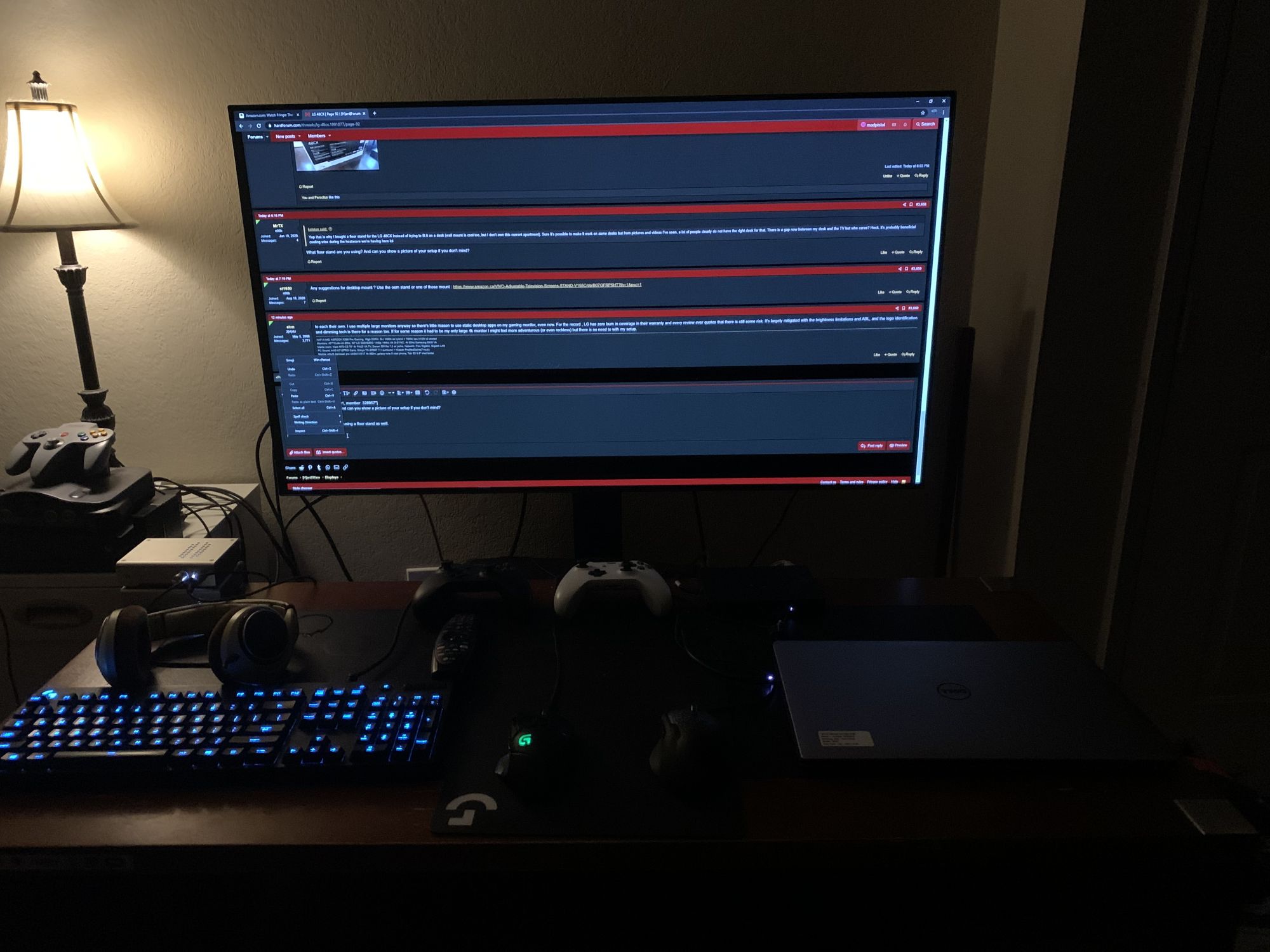
Yup that is why I bought a floor stand for the LG 48CX instead of trying to fit it on a desk (wall mount is cool too, but I don't own this current apartment). Sure it's possible to make it work on some desks but from pictures and videos I've seen, a lot of people clearly do not have the right desk for that. There is a gap now between my desk and the TV but who cares? Heck, it's probably beneficial cooling wise during the heatwave we're having here lol
What floor stand are you using? And can you show a picture of your setup if you don't mind?
 
to each their own. I use multiple large monitors anyway so there's little reason to use static desktop apps on my gaming monitor, even now. For the record , LG has zero burn in coverage in their warranty and every review ever quotes that there is still some risk. It's largely mitigated with the brightness limitations and ABL, and the logo identification and dimming tech is there for a reason too. If for some reason it had to be my only large 4k monitor I might feel more adventurous (or even reckless) but there is no need to with my setup.
 

Attachments

  • 1597195574612.png
    1597195574612.png
    2.9 MB · Views: 0
As an Amazon Associate, HardForum may earn from qualifying purchases.
👑OLED👑 is really not that fragile. You just need to keep it connected to the power socket and that's all. For all the years I never hid the taskbar or desktop icons, never run any type of screensavers of any sort, left it on for 10+ hours... and never run into permanent burn in. The burn in you get from windows or icons goes away as soon as you turn it off with the remote and let the display conduct its pixel refresh routine or watch some youtube videos for 5-10 minutes in full screen. Just use it as a normal PC monitor and forget about burn-in. And don't cut the power to the display. 🦄

Newer ones maybe, but my B6 does have burn-in of the taskbar. Some care is necessary.
 
  • Like
Reactions: elvn
like this
As long as you turn around and sell them a few months later like your AW55 you shouldn't have to worry about it.
 
So what is current status on raised black levels when using Windows 10 HDR + VRR (Gsync)? SDR with Gsync seems perfect.

Ah so SDR with VRR looks perfect? Thanks for backing me up on this because someone on AVSForums was making claims that VRR also effects SDR black levels. I tested VRR with SDR and everything looks perfectly fine. I actually haven't really tested HDR with VRR so maybe that's where it happens.
 
Windows 10 HDR with Gsync off also causes raised blacks just by itself but HDR + Gsync is significantly worse. I cannot notice any difference between SDR with or without Gsync enabled in black levels.

I've noticed that the black sidebar in LG's menu remains perfectly black in Game HDR mode, so the raised blacks is definitely an issue with just Windows and/or nVidia. I wish I had an AMD GPU to help narrow the issue down between nVidia's drivers, Gsync/VRR vs FreeSync, LG firmware, or Windows 10.

I see. I've been using my CX at 4k 120Hz 420 so I cannot even enable HDR due to bandwidth restrictions until I get an HDMI 2.1 GPU. At 4k120Hz SDR + Gsync there has been zero raised black levels. I wouldn't be surprised if HDR was the cause.
 

Yeah, using the exact same Fitueyes stand. Have no complaints.

Windows 10 HDR with Gsync off also causes raised blacks just by itself but HDR + Gsync is significantly worse. I cannot notice any difference between SDR with or without Gsync enabled in black levels.

I've noticed that the black sidebar in LG's menu remains perfectly black in Game HDR mode, so the raised blacks is definitely an issue with just Windows and/or nVidia. I wish I had an AMD GPU to help narrow the issue down between nVidia's drivers, Gsync/VRR vs FreeSync, LG firmware, or Windows 10.

That's very reassuring, really hope that is the case as HDR is a bit of mess and I play lots of older titles anyway.
 
As an Amazon Associate, HardForum may earn from qualifying purchases.
  • Like
Reactions: MrTX
like this
I bought the BX 55" version and I've noticed the screen sets itself to a darker contrast, my guessing this is to prevent burn in.

So far no issues with it, though the first time I used it, the TV would automatically turn itself off, not sure why it did that but I haven't seen that happening again with the latest firmware update.

Also, if you have an NVIDIA card, you can use 120Hz but you will be limited to 4:2:0 colour chroma due to a lack of HDMI 2.1 on the GPU.
 
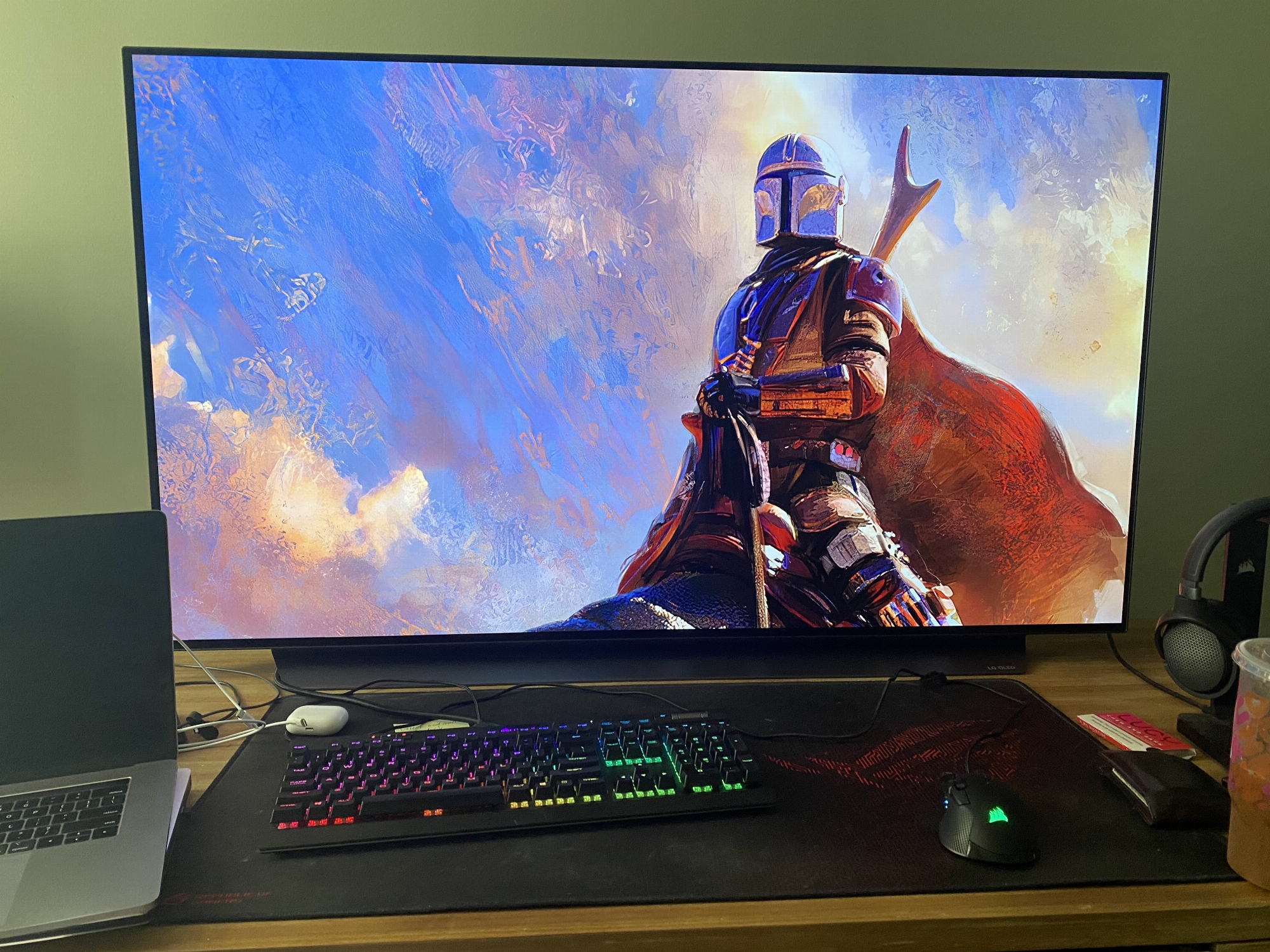
Getting mine wall mounted next week. Biggest complaint about it on my desktop is there's really no way to route cords around it from keyboard etc. But I removed all icons, taskbar hidden, slideshow desktop background change every 10 min. It's a dream.
r645V6F.jpg
 
What floor stand are you using? And can you show a picture of your setup if you don't mind?
I am using this floor stand and I really like it. I did have to lower it more, though. There are 4 screws and 6 holes to secure the height. I am only using 2 of the lowest screws. But other than that, it is great.
 
  • Like
Reactions: MrTX
like this
Hey, I wanted you to know, I posted over on AVSForum a solution to raised blacks with HDR. I could correct it by either setting the Black Level to Low or lowering the brightness to 46 (VRR On).

I'm not an expert on how HDR signals are encoded at the RGB level...but setting the black level to low when it shouldn't be would prevent raised blacks....by raising everything even more. If you send a limited range RGB signal to a TV, it's going to send 16-16-16 as black, and your TV with the black level set to low will consider 0-0-0 as black and display the signal as grey.
 
From what I read over at avsforum, the raised blacks when VRR is active are because the near-black fix is being bypassed. Near blacks had been flashing on C9's so LG released a firmware for dithering them but apparently it resulted in some lost detail in so LG changed the near-black fix to flattening of blacks. Again, from what I read, the near black fix is bypassed when VRR is active. That means the grey-blacks would be around high contrasted edges in near blacks. If it's localized like that then adjusting the whole screen darker really isn't a valid "fix" since it would darken the rest of the screen too. I mean, it might be a choice between two evils ~pick your poison if that were the case but I wouldn't call it a real fix. Assuming all of that is true, what was posted on avs forum and what Vincent at HDTVtest has said in reviews .. LG could still address it in a future firmware fix potentially.
 
Getting mine wall mounted next week. Biggest complaint about it on my desktop is there's really no way to route cords around it from keyboard etc. But I removed all icons, taskbar hidden, slideshow desktop background change every 10 min. It's a dream.
View attachment 269350
If I go this route, I would have two monitors with the taskbar, icons etc. on the 2nd monitor and keep the TV free from fixed position stuff or long term items. Wall mount too which would free up the desk and also make it more clean looking as well.
 
The one thing I struggled finding an answer for. Using this as a monitor, I have my input changed to PC. Obviously (currently) I can only reap the benefits of 4:4:4 when at 60hz. The question is, if I'm using my PS4 Pro and connected to a different HDMI input, should I be changing that input to PC as well? Will the input not display 4:4:4 otherwise? I'd find that terribly un-intuitive for someone just casually buying this TV and not understanding the dynamics of all these tweaks. Anyone know?
 
I intend to use this monitor for general PC use and have been reading a lot of people's suggestions. I just wanted to post my preferred settings for others that may be new to this screen. I have tried to achieve a balance of image saturation at the expense of accuracy based on personal preference. Appreciate any feedback.

-Game Mode Settings SDR / HDR
---OLED Light: 80 / 100
---Contrast: 100 / 100
---Color: 70 / 70 (I chose this to match Vibrant mode setting.)
---Color Temperature: Cool / Cool (I chose this because this is most similar to Vibrant mode setting.)
---Dynamic Tone Mapping: - / On (Off/HGiG appear too dim for general PC use. HGiG may be more accurate in bright areas of applicable games and could be toggled as needed.)

WINDOWS 10 SETTINGS
-Misc
---ClearType: Off (This is easiest way I found to minimize rainbow text fringing, which is especially noticeable in Chrome.)
---Power plan: (AMD Ryzen) High Performance
-Display Settings
---HDR: Off (I keep this Off to avoid running OLED Light at 100 constantly, which increases risk of temporary image retention and MAY accelerate brightness loss over time.)
---If HDR On: Set SDR brightness to 10% to avoid automatic brightness limiter going on/off

These are the ones I don't agree with.
  • You are running OLED light very high for SDR.
  • Settings equivalent to Vibrant mode can afaik have more strain on the OLED which is why they are generally not recommended. It's also the least accurate mode so you are really mangling your image quality but you do you.
  • Dynamic tone mapping in PC use should be Off or HGIG. On will again make everything less accurate. Off/HGIG is definitely not too dim, you are most likely just reacting to it being dimmer than On.
  • Cleartype should be kept on. Text looks completely awful with Cleartype off. Chrome generally does not respect Cleartype settings very well and does its own thing. If you are getting rainbow text fringing make sure you are actually in PC mode and have the color space set to RGB. Check the HDMI diagnostics on the TV (11111 in Programme -> Programme settings highlighted) that it is actually outputting RGB.
  • Ryzen High performance might just increase power use for no good reason depending on how it's set. Ryzen Balanced is what I use.
  • SDR brightness slider should be set to have appropriate SDR brightness levels when HDR is enabled. Not to combat ABL.
 
Yeah you are pretty much burning your OLED as hard as you can with those settings. It's your choice but you should at least give lower OLED light a chance for SDR. Remember you need to give your eyes times to adjust when you change this setting. And don't use the OLED in an overly bright room, that's really a waste and not where the technology shines anyway.
 
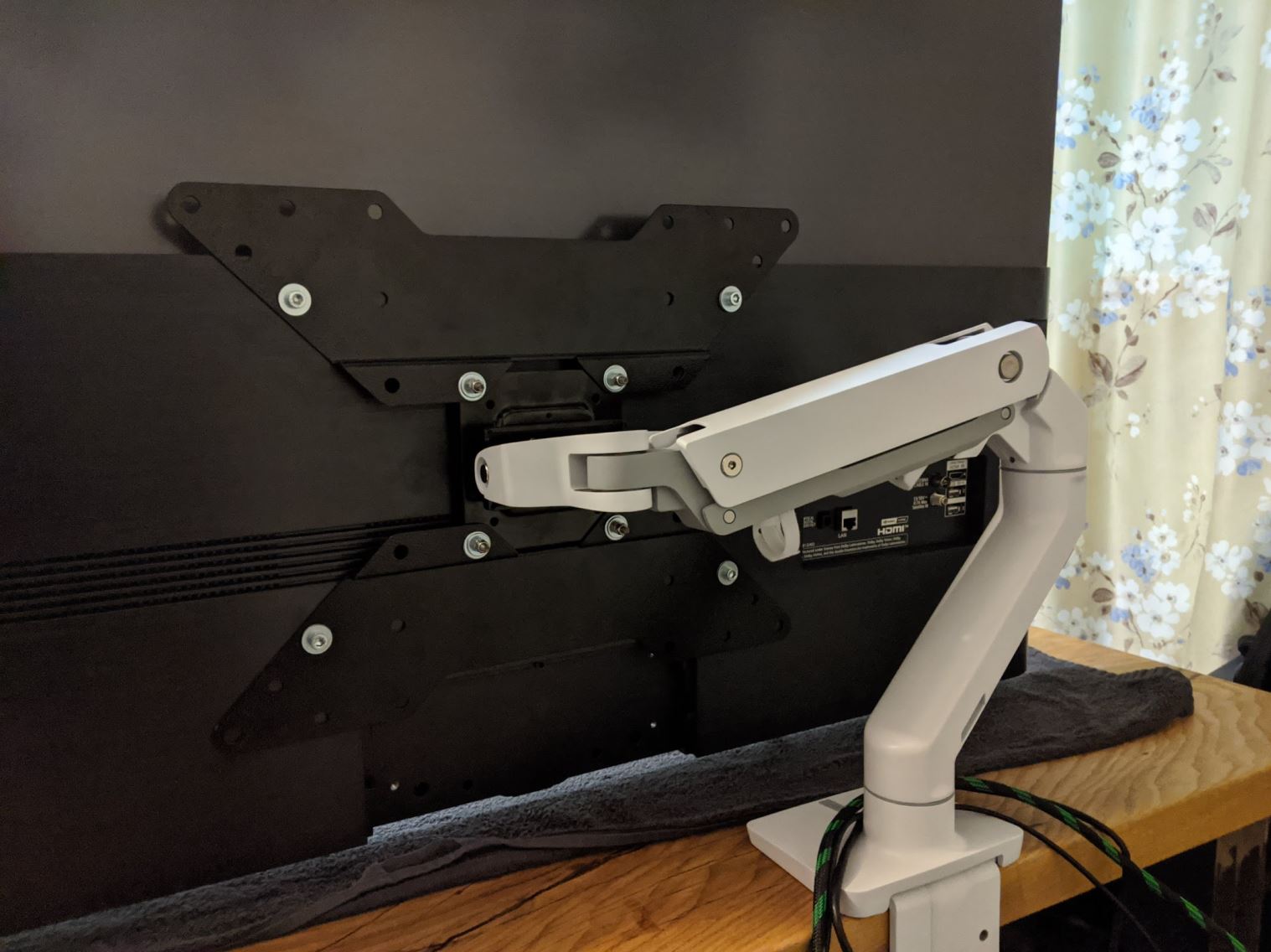
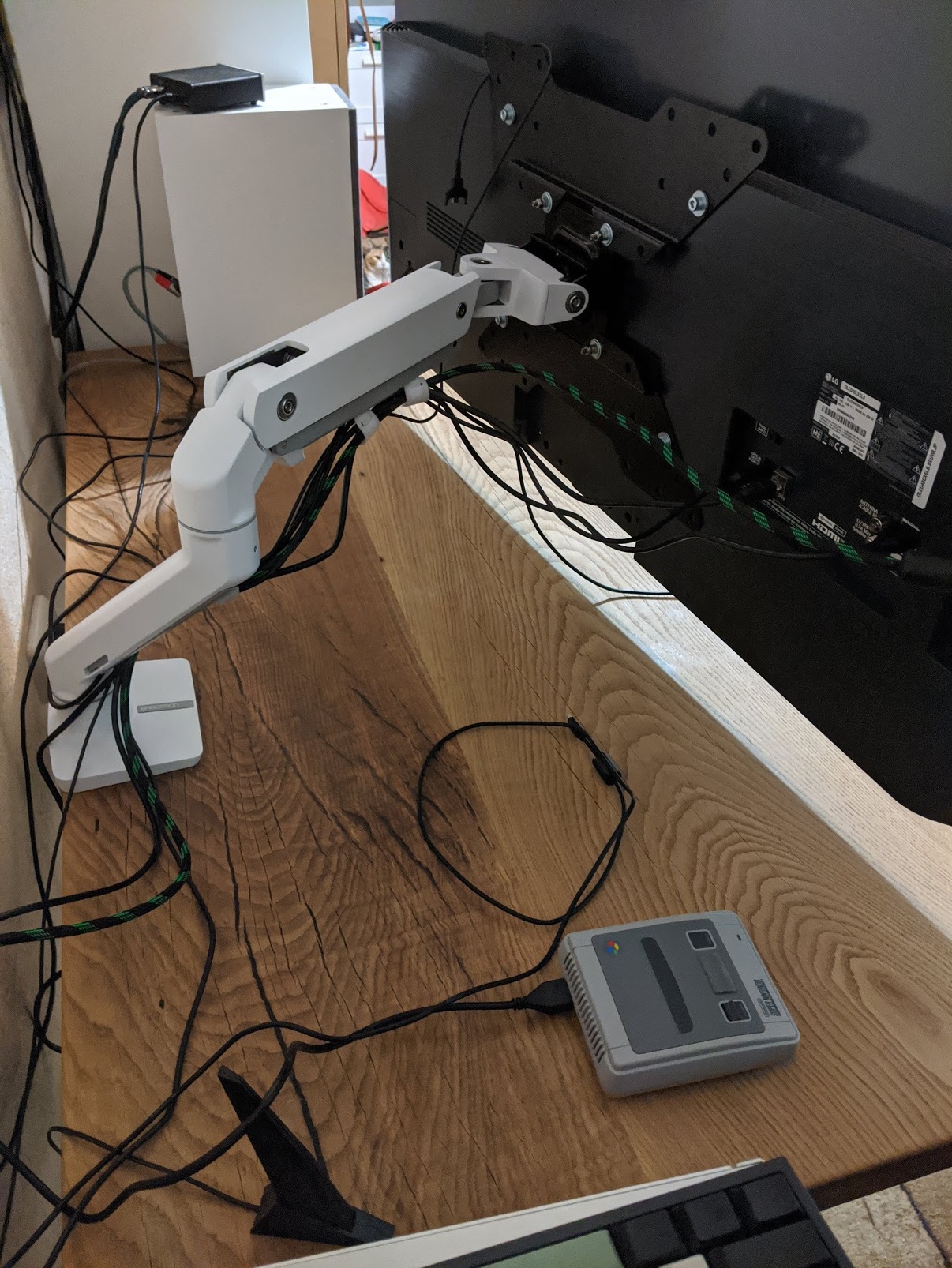
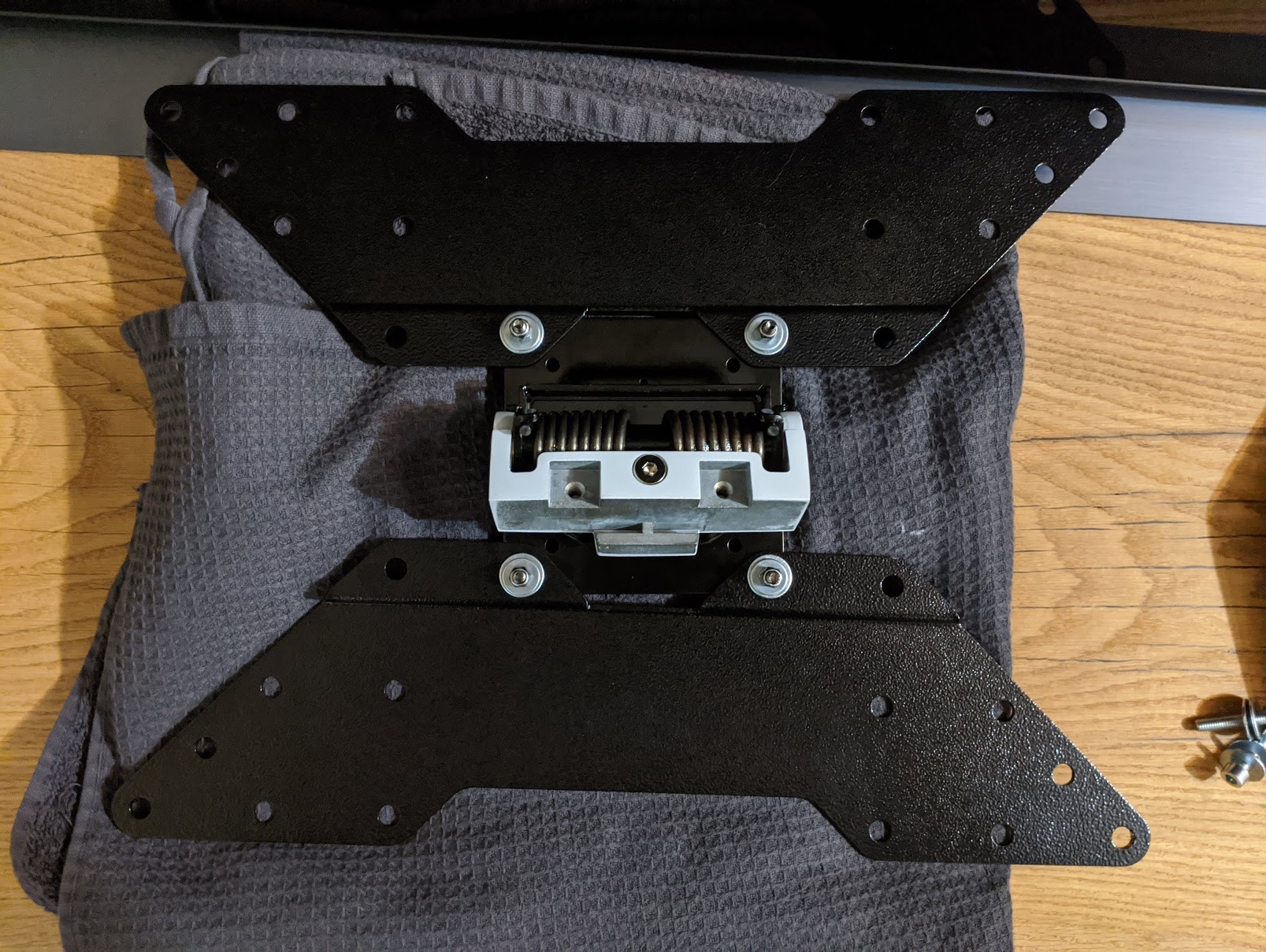
Heard multiple times discussion of mounting 48CX on a monitor arm. Stopped following thread few dozens pages ago after getting my own TV so don't know if this configuration was showed in flesh in that time. Though it still might be interesting for somebody here to see how mounting on Ergotron HX looks and share my impressions.
I must say that even mighty Ergo HX is almost not enough for this chonker. Upper part of the arm is moving pretty good, but lower arm is overloaded and is hard to manipulate. I think it is fine for medium range of adjustment but trying to extend everything to the max is a pain and I wouldn't recommend this configuration if you need to move TV a lot. HX also needs a lot of space behind the TV, even when folded to the slimiest position possible. There is a "hack" - you can remove one locking screw on the lower part of the arm to make lower joint turn 360(instead of 180) which can win you few more centimetres by moving lower joint behind the table, that way you can extend space between you and a TV and that way TV is only sticks out around 15 cm from the edge of the table. That is probably not very safe and not in any way recommended or even mentioned by Ergotron, but HX is very sturdy and I think it can handle that. When leaving arm in factory configuration it still takes less space than standard stand, but not by a lot, couple cm I think.
 

Attachments

  • mounted_1.jpg
    mounted_1.jpg
    148.5 KB · Views: 0
  • mounted_2.jpg
    mounted_2.jpg
    747.9 KB · Views: 0
  • adapter_plate.jpg
    adapter_plate.jpg
    826 KB · Views: 0
Also, about font rendering and all that jazz - I'm running MacType on my 48CX, looks much better than standard Windows grayscale or ClearType font renderer. I would recommend to try it, as it looks to be free and result is very good in my opinion.
 
Heard multiple times discussion of mounting 48CX on a monitor arm. Stopped following thread few dozens pages ago after getting my own TV so don't know if this configuration was showed in flesh in that time. Though it still might be interesting for somebody here to see how mounting on Ergotron HX looks and share my impressions.
I must say that even mighty Ergo HX is almost not enough for this chonker. Upper part of the arm is moving pretty good, but lower arm is overloaded and is hard to manipulate. I think it is fine for medium range of adjustment but trying to extend everything to the max is a pain and I wouldn't recommend this configuration if you need to move TV a lot. HX also needs a lot of space behind the TV, even when folded to the slimiest position possible. There is a "hack" - you can remove one locking screw on the lower part of the arm to make lower joint turn 360(instead of 180) which can win you few more centimetres by moving lower joint behind the table, that way you can extend space between you and a TV and that way TV is only sticks out around 15 cm from the edge of the table. That is probably not very safe and not in any way recommended or even mentioned by Ergotron, but HX is very sturdy and I think it can handle that. When leaving arm in factory configuration it still takes less space than standard stand, but not by a lot, couple cm I think.

My LX HD is similar but it is a pole mount and then the arm, so it has a lot more travel space. I'll probably give the LX HD a shot in novermber if I end up with a 48" CX rather than a 55" c9, e9, cx on sale (or a 55" vizio oled). The desk itself has to be strong enough or reinforced as well , that is a lot of torque if you ever lift and extend it.
 
The desk itself has to be strong enough or reinforced as well , that is a lot of torque if you ever lift and extend it.

That is true, my desk is about 5 cm (~2 inch) of solid oak with a large metal base plate underneath, I wouldn't recommend to mount TV like this on IKEA`s cardboard honeycomb table.
 
You set the color temperature to cool? Isn't that way too blue? I set it to Warm2 and even then I still had to dial down the blue gain by -11 to get to 6500k.
 
You set the color temperature to cool? Isn't that way too blue? I set it to Warm2 and even then I still had to dial down the blue gain by -11 to get to 6500k.

Some people (including me personally) obsess about calibration and things looking "correct". Others just look at it subjectively and what they prefer, and I think people generally prefer bluer whites from screens and redder whites from lights.
 
Last edited:
Some people (including me personally) obsess about calibration and thinks looking "correct". Others just look at it subjectively and what they prefer, and I think people generally prefer bluer whites from screens and redder whites from lights.
I'll take it a step further: I want to start from a calibrated point and if I need to do more to make it look subjectively nice, I may do that. Green is not the new purple :D.
 
Back
Top