- Joined
- Sep 15, 2011
- Messages
- 3,512
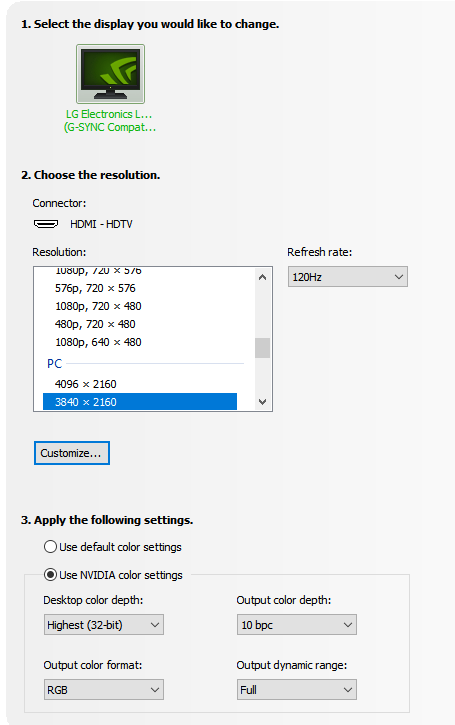
Nice man. Jealous/not jealous. I'm stuck at 60Hz until god knows when. But I still love this thing.FINALLY scored an RTX 3090! Time to unleash the full potential of my CX after 6 months of 120Hz 4:2:0
![[H]ard|Forum](/styles/hardforum/xenforo/logo_dark.png)
Follow along with the video below to see how to install our site as a web app on your home screen.
Note: This feature may not be available in some browsers.
Nice man. Jealous/not jealous. I'm stuck at 60Hz until god knows when. But I still love this thing.FINALLY scored an RTX 3090! Time to unleash the full potential of my CX after 6 months of 120Hz 4:2:0


Thanks, will do.peppergomez,
You really shouldn't be disabling it... for obvious reasons. Try to live with it on.
If you leave the screen in SDR mode and get your oled brightness down to 20 +/- it won't do it much and its plenty bright in a dim room. I believe I currently use mine at 21 and I havn't noticed any frequent shifting on my desktop when I'm using it at that level. Also set dark mode for every program and website you can and it will really leave you alone. If you run your screen at oled 75-100 like when viewing HDR games or movies... yes it kicks in big time. Like if I'm playing Cyberpunk in HDR and I leave a static screen or the inventory menu up it dims the whole screen down pretty quickly if it sits. Which all in all... is a good thing. As long as the screen is updating it goes back into high brightness mode within a second or so.
TRY to not use things with solid white backgrounds. Browsers have dark modes built in, and there are add-ons if it doesn't. I believe there is also a way to dark mode Office.
And leave the screen shift on. Any time you are using a full screen app or game the text elements sit on exactly the same pixels forever. This can add up to thousands of hours of text sitting in one place. Might as well let it move those around and diffuse the wear. I have had no issue leaving the shift on. On a 4k screen to me anyway it's been completely unnoticeable. I have to work at figuring out which few lines are off the screen. About the only way I know it's even working is because I can't make the taskbar autohide line go away entirely, but it's set to grey. Sometimes I can see the grey line at the bottom of the screen, and at max shift in that direction it disappears completely for a little while. The screen remains at full resolution, it just moves the image around so a few lines are off screen at any one time. It doesn't dither or anything destructive to the image like that.
Both of these features seem to me to work well and as intended to protect the screen when it should be and without being too annoying. If it's constantly knocking brightness down or irritating you, try to change the way you use the screen or you might be cruising for burn-in. The feature is doing a good thing and trying to help you save the screen.
I havn't really encountered it frequently until I started playing Cyberpunk in HDR a lot last night. Shadow of the Tomb Raider in HDR only rarely caused it to kick on. It's a difference in the way the game elements sit static on screen and how bright they are.
Excel or a white web page... yes... it's going to do it.
Never seen what they're talking about happen.Someone here on the latest FW 3.21.09 and having issues?
I read some bad stuff:
https://www.avsforum.com/threads/2020-lg-cx–gx-dedicated-gaming-thread-consoles-and-pc.3138274/post-60374172
So a list just got from my buddy in the EU that swears by his....
id say set it up in game mode so it stays at 120hz 0ms
make the windows bar auto hide
no desktop icons
set wallpaper to rotate through various images
make sure screen shift is on
set pixel refresher to begin when tv is off - that will refresh every pixel (off is remote power button, not off the plug.. needs to stay plugged in)
logo luminance adjustment shoukd be set to high
and then color calibration, contrast etc should be up to your needs, room, etc
_________________________
If you guys have any other suggestions as to what to look at, let me know please.
Where is the screen shift setting found? I don't see it in Picture Options or General.
I have the taskbar set to be hidden but when it is and there is a black/blank screen, I can still see the top line of it visible at the bottom of the screen. Is this cause for concern?
I have a rotating screensaver set after 10 min of inactivity so the menu isn't visible for longer than that at a time.
Under Picture / OLED Screen SaverWhere is the screen shift setting found? I don't see it in Picture Options or General.
I have the taskbar set to be hidden but when it is and there is a black/blank screen, I can still see the top line of it visible at the bottom of the screen. Is this cause for concern?
I have a rotating screensaver set after 10 min of inactivity so the menu isn't visible for longer than that at a time.
Thanks! I'll hunt that up.You can use Translucent Taskbar to completely hide that pesky line.
I had the option so went ahead and wall mounted mine. I wanted the thinnest I could reasonably find and snagged one off Amazon that's about 1.2" off the wall. Mine just has some basic tilt which is all I wanted/needed, if you want full articulation then you're looking at something around 2.5" off the wall at least. The 48" actually isn't that heavy for a TV, under 35 lbs sans stand, so a single stud wall mount can probably hold it fine. I've used ECHOGEAR and PERLESMITH personally and they're fine for what they do.has anyone tried the LG CX48 with any slim wall mounts? Wanted to get as close to the wall as possible. Wish id gotten the GX instead but too late.
Which mount would you recommend,
Cool. Thanks for the tip. I went ahead and order one of the ECHOGEAR.I had the option so went ahead and wall mounted mine. I wanted the thinnest I could reasonably find and snagged one off Amazon that's about 1.2" off the wall. Mine just has some basic tilt which is all I wanted/needed, if you want full articulation then you're looking at something around 2.5" off the wall at least. The 48" actually isn't that heavy for a TV, under 35 lbs sans stand, so a single stud wall mount can probably hold it fine. I've used ECHOGEAR and PERLESMITH personally and they're fine for what they do.

About the only way I know it's even working is because I can't make the taskbar autohide line go away entirely, but it's set to grey. Sometimes I can see the grey line at the bottom of the screen, and at max shift in that direction it disappears completely for a little while. The screen remains at full resolution, it just moves the image around so a few lines are off screen at any one time. It doesn't dither or anything destructive to the image like that.
Where is the screen shift setting found? I don't see it in Picture Options or General.
I have the taskbar set to be hidden but when it is and there is a black/blank screen, I can still see the top line of it visible at the bottom of the screen. Is this cause for concern?
I have a rotating screensaver set after 10 min of inactivity so the menu isn't visible for longer than that at a time.
You can use Translucent Taskbar to completely hide that pesky line.
=================================================Thanks! I'll hunt that up.
Hiding the windows taskbar on the primary monitor
==========================================
There is another app I use called taskbar hider, along with the Translucent Taskbar app. I set a shortcut key in the taskbar hider app to lock my primary monitor's windows taskbar away entirely. I can always hit the shortcut key again to show it but I have little reason to now:
.. All of my tray icons are available on my other monitors. All of their apps are running active on their own monitor's taskbar.
.. If I need to access a media or game app on my primary monitor, I can just alt+Tab or ctrl+alt+Tab there and it will only show the apps that are running on that monitor to choose from.
.. If I need to launch a game or media app to my primary monitor, I have displayfusion shortcut keys (tied to streamdeck buttons) to launch and place them with a keypress or button press. However it would be easy to just hit the windows key while the mouse is on the primary monitor, and keep those primary monitor aimed app shortcuts up on top in the start menu popup. Displayfusion should remember where the app was located last time it was run.
Notification area and Search
=======================
So far the only things that the displayfusion taskbars don't have that I am aware of is the windows notification area and the search icon (or field if you've left it a text entry field). However the roll-out notification panel is easily accessible with the Win+A shortcut (A for "actions") and the search popup is available with Win+S, even with the taskbar locked away hidden. The A and the S are right next to each other on a regular keyboard too incidentally.
Displayfusion taskbars can be enabled on your secondary monitors.
=================
The displayfusion taskbars can:
..have app icons with live mini-window popups just like the regular windows taskbar.
..have a popup tray (and the clock/chronograph) with tray icons you can interact with just like the regular windows taskbar
..have a windows icon with start menu popup just like the regular windows taskbar.
..when you hit the windows key on your keyboard, the start menu pops up in the lower left corner on whatever monitor your mouse is on.
..you can force the application shortcuts you make on each taskbar to launch on the same monitor as the taskbar the shortcut is on (recommended)
..you can force the app to run as admin by it's shortcut within the displayfusion shortcut editing options instead of the windows shortcut menus.
..adjust the size of the taskbar
..move the windows button to left or right side, or disable it
..move the clock and tray to left or right side or set either of them to be hidden
..
Alt+TAB menu (or Ctrl+ALT+Tab which makes the popup persistent until you click on something)
=====================================================================
Displayfusion can change the behavior of your alt+Tab menu:
..you can change the width and height of the thumbnails
..you can choose whether the thumbs appear on all monitors or only on the current monitor, current windows.
.."current windows only" is very useful so I'm not seeing all of the app thumbnails of what is running on the other monitors.

I actually noticed this but didn't recognize it for what it was... I only calibrate game mode because it's all I use, and I saw it's peak uncalibrated brightness at ~625nit and peak calibrated brightness at 550nit and thought "I guess my panel has aged some
 ". I'll check another mode later today.
Keep in mind when you label the input as pc. You change the icon of the input for it to switch modes.
I haven't really looked into it but I'd like to find a way to automate swapping between standard (movie setup for me) mode and game mode using the remote app on my phone or some other app someday instead of having to flip through the menu. On my Vizio low density FALD VA in my living room I can hit one button on the remote to pop up a quick menu that lets me swap between saved sets of settings I configured and named (day/bright, night1, night2, custom1, game, animation, etc).
On the LG CX I have to hit the cog on the magic remote, naviagate with the air mouse to the top left icon, then click to page between user modes while holding my arm up aiming the air mouse. Using all disc directional navigation from the home button involves even more steps.
They should enable a button on the remote that pops up the user settings and jumps to the next setting with every press of that button. And have it set up so that Holding that button will pop up a drop down selection. That's how my vizio does it and it is way more efficient. Unless I'm missing something of course. Like I said, maybe there is a way to do it in the wifi phone app faster, I'll have to look into it. You can HOLD the gear icon down as a shortcut to get to where you can adjust the settings of the input you are already on, but it doesn't let you swap between the named settings from there without air navigating to the top left icon and air clicking between settings again afaik.
Maybe there is a way to customize the remote more. I really haven't done the homework on it yet as I've just been enjoying the TV so far. I'd really like the "LIST channels" button to "List user modes" for quick selection instead since I'll never be using the integrated TV functions on this display. That and/or program the colored buttons to each be one named setting.
The last time I tried it a few firmware versions ago, there was a noticeable increase in input latency on anything other than Game, even with instant game response on and the input labeled PC.I use "Expert Dark Room" for Desktop SDR and SDR gaming, and when an HDR source is detected it's in Filmmaker Mode (User) which I use for both HDR movies and HDR gaming.
I do not use the actual "game" screen mode.
Under picture, instant game response, enable it for the HDMI input you have your PC on.
Now you have low latency mode enabled in that picture mode... just like "game" mode but with most of the other preferred settings the setup guides recommend.
The HDMI input is set to PC on the Home Dashboard.
You don't need any game to notice. Many can immediately tell the difference just moving the mouse on desktop. Game mode is noticeably less laggy.Could be why I havn't noticed. The competitive games I play lock at near 120fps... the single player pretty games I don't care. I'm interested though. I'll do some more tests in game mode.
Icon is the only one that matters. Label can be anything you want.Keep in mind when you label the input as pc. You change the icon of the input for it to switch modes.
The TV has static tone mapping for all HDR content. Even if you’re watching something mastered in a max of 4000 nits our TVs aren’t so stupid they’d just clip anything over 800. Having dynamic tone mapping turned off just means it does it once at the start of the film/show/game based on the metadata that the content states is its max and min brightness.
Why is this such a common misconception? Just to be clear:
The TVs will tone map, or it would look ridiculous. It’s part of being an HDR tv! Reading the metadata and mapping it to the TVs capability.
Dynamic tone mapping is different. Dolby Vision has dynamic meta data produced by the content creator to adjust the max and min brightness for each scene or frame. This dynamic tone mapping setting is for HDR10 content which has one set of max and min brightness for the entire content. This is a way for some TVs to try and work out a way of guessing that meta data based on each scene or frame for HDR10 content. It might look brighter or more punchy but it’s not what the content creator predicted and is the best guess of the tv.
Turning off DYNAMIC meta data does not mean you will have everything over ~800 nits clipped!