• Some users have recently had their accounts hijacked. It seems that the now defunct EVGA forums might have compromised your password there and seems many are using the same PW here. We would suggest you UPDATE YOUR PASSWORD and TURN ON 2FA for your account here to further secure it. None of the compromised accounts had 2FA turned on.
    Once you have enabled 2FA, your account will be updated soon to show a badge, letting other members know that you use 2FA to protect your account. This should be beneficial for everyone that uses FSFT.

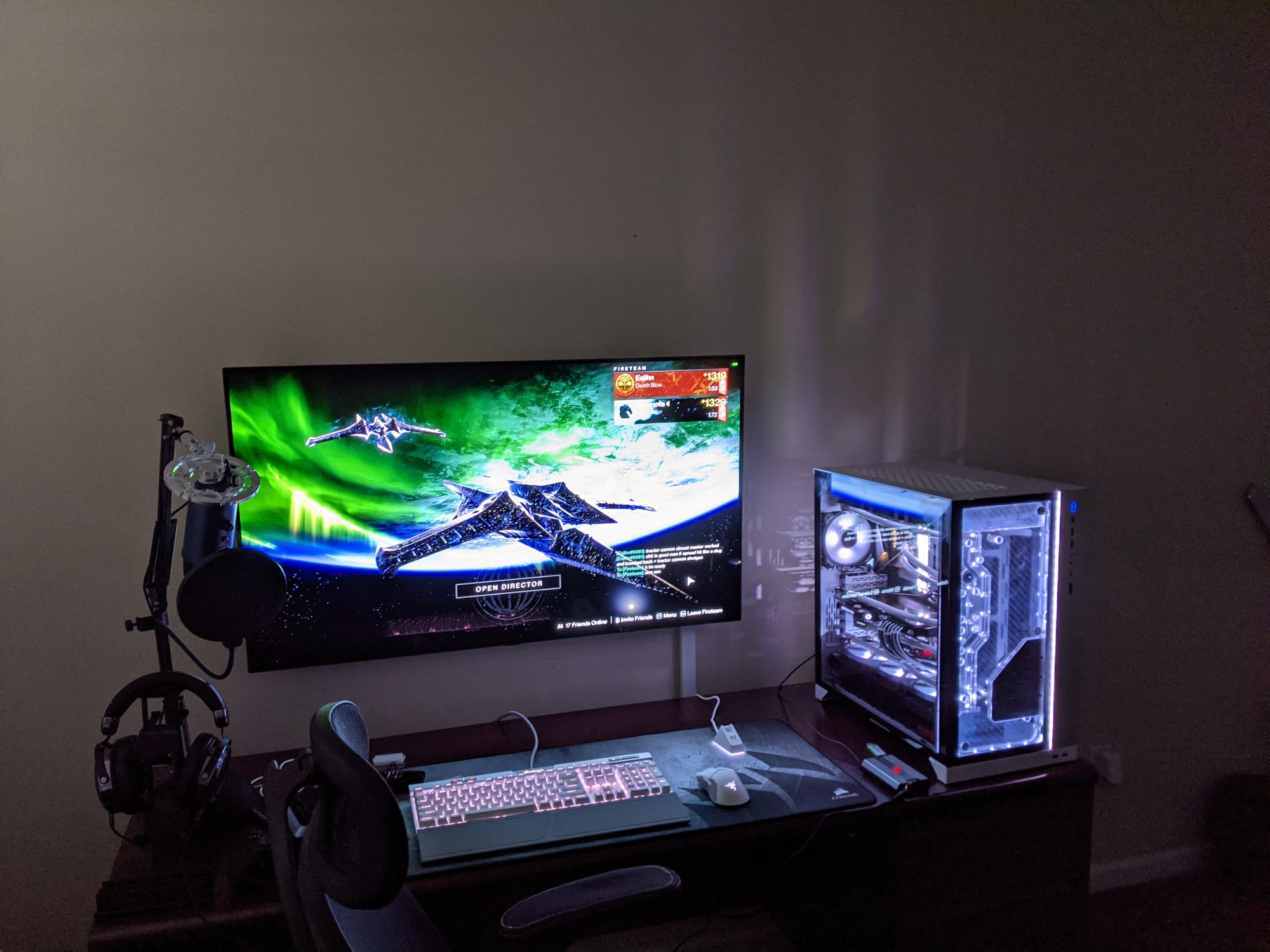
LG 48CX

For some reason after doing a Windows reinstall last week and unplugging then replugging the digital audio cable from the LG 48cx into my Logitech speakers, when I choose Realtek as the audio option I Windows, the audio plays through my laptop speakers and not the Logitech speakers. In the LG settings, I have selected Optical as the audio option, ditto on the Logitech. Not sure what the problem is here, or if its a Windows things or a setting on the LG 48cx. Can anyone assist?

So you have no digital audio output on your laptop and you are passing hdmi audio to the tv, then outputting the TV's optical output to the speakers/amp? What graphics card / hdmi audio are you using? If you are trying to pass hdmi audio, you'd need to select the gpu's hdmi audio out to the tv, in the panel screenshot I linked above.

The realtek digital out is only for actual optical (or maybe even coaxial) outputs from the device. If you had a direct optical out from the laptop, you wouldn't need to pass audio through the tv at all necessarily, unless you had to for the WebOS or other inputs (consoles, etc). Did you try running optical out to the speakers from the TV and playing something from the WebOS? (youtube, emby/plex, whatever) to see if you get sound with the laptop out of the loop? Then try running the laptop directly to the speakers (if possible, outputs wise) and see if you get sound that way. Process of elimination.

You can get a cheap usb audio device if nothing else works but you should be able to get it working eventually.
 
Last edited:
Anyone with 48" c1 knows correct SDR settings?
I am using PC mode, Game optimizer, warm50, gamma 2.2 and oled pixel brightness 30. Rest at default.
watched hdtvtest ps5 recommended settings and he sets (for SDR), oled brightness to 75 and gamma to 1886.

I cannot find setting to nits measurements anywhere. I was under the impression that value of 30 is close to 100 nits. anyone knows?
 
Anyone with 48" c1 knows correct SDR settings?
I am using PC mode, Game optimizer, warm50, gamma 2.2 and oled pixel brightness 30. Rest at default.
watched hdtvtest ps5 recommended settings and he sets (for SDR), oled brightness to 75 and gamma to 1886.

I cannot find setting to nits measurements anywhere. I was under the impression that value of 30 is close to 100 nits. anyone knows?

maybe someone would know here https://www.reddit.com/r/OLED_Gaming/
 
Anyone with 48" c1 knows correct SDR settings?
I am using PC mode, Game optimizer, warm50, gamma 2.2 and oled pixel brightness 30. Rest at default.
watched hdtvtest ps5 recommended settings and he sets (for SDR), oled brightness to 75 and gamma to 1886.

I cannot find setting to nits measurements anywhere. I was under the impression that value of 30 is close to 100 nits. anyone knows?
There is no such thing as recommended brightness. You set it as bright or dim as you like.
Same with gamma, though here generally recommended are values from 2.2 to 2.4.
Even whitepoint (temperature) is something user should choose for themselves. Generally standards state 6500K so pure white but some people like it warmer or colder (more blueish).

Just keep in mind that the higher brightness the more burn-in will happen so it is probably the best to not make screen super bright.
 
There is no such thing as recommended brightness. You set it as bright or dim as you like.
Same with gamma, though here generally recommended are values from 2.2 to 2.4.
Even whitepoint (temperature) is something user should choose for themselves. Generally standards state 6500K so pure white but some people like it warmer or colder (more blueish).

Just keep in mind that the higher brightness the more burn-in will happen so it is probably the best to not make screen super bright.
To add to this, OLED Light is the setting that determines the display brightness and the control labeled Brightness should be left as is because it's basically digital brightness and will largely just make the screen less accurate.

So for SDR, use a low OLED light setting. In HDR leave it to 100. In SDR I use something like 20-30 depending on the time of day and find this to be a comfortable brightness level for my room.
 
To add to this, OLED Light is the setting that determines the display brightness and the control labeled Brightness should be left as is because it's basically digital brightness and will largely just make the screen less accurate.

So for SDR, use a low OLED light setting. In HDR leave it to 100. In SDR I use something like 20-30 depending on the time of day and find this to be a comfortable brightness level for my room.
YOU MUST LIVE IN A BASEMENT WITH BLACKOUT CURTAINS OVER THE WINDOWS BRO

/s
 
To add to this, OLED Light is the setting that determines the display brightness and the control labeled Brightness should be left as is because it's basically digital brightness and will largely just make the screen less accurate.

So for SDR, use a low OLED light setting. In HDR leave it to 100. In SDR I use something like 20-30 depending on the time of day and find this to be a comfortable brightness level for my room.
I actually use mine at 10 which is like 80nits and it's too bright at night when it comes to white webpages.
 
I actually use mine at 10 which is like 80nits and it's too bright at night when it comes to white webpages.

Coming from an Aorus 43 VA panel, this monitor has been quite the adjustment. I have a history with high end plasmas and after that, LG OLEDs, for console gaming. But when I switched to PC, I started getting into 43 inch 4k monitors, and there are only a couple of the 120hz variety. All of which, especially the gigabyte, are several times brighter than the CX in SDR. Initially I was disappointed with the brightness, especially in game mode which is the only way (yes, even with the input label PC) to get the lowest input lag. My old 55 inch BX OLED has similar brightness, and might even be a little brighter in SDR game mode. While the CX is superior in every other way, it was a little shocking to find this out. Possible I lost the panel lottery with my CX and won it with my BX because the measurements posted on Rtings and elsewhere say otherwise.

To hype game mode up and make it look similar to Sport (my preferred setting for the games I main like Destiny 2 which IMO look best with an exaggerated, extra colorful palette), I set the HDR module to ON for SDR in the service menu and in the 'secret' colorimetry menu, set the colorspace to 'bt2020'. I know, I know, this destroys the image according to any purist. Vncent Teo from HDTV Test made a whole video 'correcting' another youtuber on this topic. But I'm not looking for accuracy right now. I had that for years with professionally calibrated high end plasmas. The oranges/reds are the most far off and I'm looking for a way to get those to look reasonable. Maybe some service menu tweaking for the colors? You don't have fine controls in game mode so that's all I can think of. Anyone else attempted this?
 
To hype game mode up and make it look similar to Sport (my preferred setting for the games I main like Destiny 2 which IMO look best with an exaggerated, extra colorful palette), I set the HDR module to ON for SDR in the service menu and in the 'secret' colorimetry menu, set the colorspace to 'bt2020'.
Wait, you actual don't play Destiny 2 in HDR? You play it in SDR with forced BT2020? o_0
 
Wait, you actual don't play Destiny 2 in HDR? You play it in SDR with forced BT2020? o_0

HDR in Windows looks weird to me. I don't think they ever fixed it on PC. On console it might be better? Game mode on my CX looks very desaturated, and there's nothing you can do to get the colors any closer to one of the other modes. I was always ok playing games in game mode on my Kuro plasmas. I was used to looking at an unenhanced picture. For some reason, the CX's game mode skews even closer to that. My B6 looks more saturated and hyped in game mode with the wide color space selected and the color saturation dialed up (sorry, previously stated 'BX' while my other OLED is actually the much oled b6, so the brightness deficiency on the CX is considerably more troubling in light of that). Nothing on the CX really get the 'oomph' in the picture that I've become accustomed to now, sans the two tweaks I mentioned. I'm not worried about the longevity of the panel decreasing by running it at its brightest, or about burn in. I just want a picture that's half-way to the light cannon the Aorus was without all the disadvantages of the VA (or any LED) tech. For lowest input latency, guess I'm shit outta luck for a punchier picture with great brightness that isn't WAY off in accuracy until they make an affordable mini-led at 42+ inches. I don't think unlocking the evo panel trick on the C1 makes the 10% extra brightness noticeable in anything but HDR highlights? Anyway, it's a great tv. I just had hoped for more brightness and tweakability in the one mode that matters to me.
 
Last edited:
Coming from an Aorus 43 VA panel, this monitor has been quite the adjustment. I have a history with high end plasmas and after that, LG OLEDs, for console gaming. But when I switched to PC, I started getting into 43 inch 4k monitors, and there are only a couple of the 120hz variety. All of which, especially the gigabyte, are several times brighter than the CX in SDR. Initially I was disappointed with the brightness, especially in game mode which is the only way (yes, even with the input label PC) to get the lowest input lag. My old 55 inch BX OLED has similar brightness, and might even be a little brighter in SDR game mode. While the CX is superior in every other way, it was a little shocking to find this out. Possible I lost the panel lottery with my CX and won it with my BX because the measurements posted on Rtings and elsewhere say otherwise.

To hype game mode up and make it look similar to Sport (my preferred setting for the games I main like Destiny 2 which IMO look best with an exaggerated, extra colorful palette), I set the HDR module to ON for SDR in the service menu and in the 'secret' colorimetry menu, set the colorspace to 'bt2020'. I know, I know, this destroys the image according to any purist. Vncent Teo from HDTV Test made a whole video 'correcting' another youtuber on this topic. But I'm not looking for accuracy right now. I had that for years with professionally calibrated high end plasmas. The oranges/reds are the most far off and I'm looking for a way to get those to look reasonable. Maybe some service menu tweaking for the colors? You don't have fine controls in game mode so that's all I can think of. Anyone else attempted this?
Any picture mode gets you game mode input lag as long as VRR is enabled. Game mode looks disgusting in terms of greyscale/color accuracy so I use ISF Darkroom which basically requires 0 calibration and looks 100x better to me. With Gsync enabled it's input lag is the same as game mode.

I use this as a monitor and value accuracy for the SDR content I consume so what you consider desaturated (sRGB) is what I'm after because using any other color space makes everyones skin tone like Donald Trump and otherwise completely blows out colors. The red title bars of this forum outside of sRGB look really bad for example.

When you want the color pop, that's what HDR content is for.
 
Last edited:
I watched Linus's most recent video on the new 48" OLED Gigabyte monitor, and he talked about ultrawide resolutions on that monitor being an option. So I decided to try a custom 3840x1600 @ 120hz on my LG CX 55, and wouldn't you believe it... it actually works! Not sure when LG fixed this, but yea... Ultrawide resolutions now work.

I was like "Nah... it can't be this easy." So I fired up Doom Eternal maxed out 3840x1600, HDR, etc.... and holy beejebus it works.
 
I watched Linus's most recent video on the new 48" OLED Gigabyte monitor, and he talked about ultrawide resolutions on that monitor being an option. So I decided to try a custom 3840x1600 @ 120hz on my LG CX 55, and wouldn't you believe it... it actually works! Not sure when LG fixed this, but yea... Ultrawide resolutions now work.

I was like "Nah... it can't be this easy." So I fired up Doom Eternal maxed out 3840x1600, HDR, etc.... and holy beejebus it works.

Yeah, on my C1 i don't even use native 4K for gaming anymore if i have the choice. I also kinda like 3840*1800.
 
Any picture mode gets you game mode input lag as long as VRR is enabled. Game mode looks disgusting in terms of greyscale/color accuracy so I use ISF Darkroom which basically requires 0 calibration and looks 100x better to me. With Gsync enabled it's input lag is the same as game mode.

I use this as a monitor and value accuracy for the SDR content I consume so what you consider desaturated (sRGB) is what I'm after because using any other color space makes everyones skin tone like Donald Trump and otherwise completely blows out colors. The red title bars of this forum outside of sRGB look really bad for example.

When you want the color pop, that's what HDR content is for.

I don't use Gsync. Never saw the need for it pushing a consistent ~ 120 fps at 4k.

Game mode has lower input lag with it off than any other mode. It may only be 3-4 ms but in competitive shooters, it is noticeable.
 
I've seen people test it with appropriate equipment (like jorimt, who is behind many of blurbusters' articles) and ISF (or any other mode) does have a bit of lag vs game mode but it was only one frame on a PC, so very little at 120hz (~8ms).

But it still felt noticeable to me at least when playing a 60fps locked game with g-sync. Happened to me a couple times that I forgot to switch and it hit me.

The two modes don't look noticeably different at all on my unit (I copied the ISF settings, that's it) so I stick with game mode for everything except when I want 2.4 gamma (many SDR blu-rays), then I'll use ISF.
 
Last edited:
Strange. I'm always using PC-mode and Game-mode and both my C9 and C1 look identical in game-mode compared to other modes if i use in the same settings, even before i started to calibrate my OLEDs with Calman Home + x-rite i1display pro plus.
 
I've seen people test it with appropriate equipment (like jorimt, who is behind many of blurbusters' articles) and ISF (or any other mode) does have a bit of lag vs game mode but it was only one frame on a PC, so very little at 120hz (~8ms).

But it still felt noticeable to me at least when playing a 60fps locked game with g-sync. Happened to me a couple times that I forgot to switch and it hit me.

The two modes don't look noticeably different at all on my unit (I copied the ISF settings, that's it) so I stick with game mode for everything except when I want 2.4 gamma (many SDR blu-rays), then I'll use ISF.
Yeah I tested game vs other modes in Doom Eternal on my CX and to me the game mode felt slightly more responsive. I just stick to game mode and like you use the ISF settings there so they look largely the same to me, no complaints about image quality. I just use game mode for literally everything because I can't be bothered to change them with my PC based on use case.

In the living room C9 the built in apps are configured for ISF and consoles for game mode.
 
There is a huge difference in input lag between game mode and any other mode with VRR off. Enable VRR (auto game mode/auto low latency or whatever) and the difference vanishes.

You can quickly test this yourself. Mouse is super laggy in ISF dark without VRR but enabling VRR disables all processing and gets you the benefit of ISF modes calibration.

My TVs game mode has some nasty green tint to greyscale that's visible on explorer windows (dark mode). Dealing with displaycal and the 50 different sensor profiles for an WOLED panel is annoying when ISF modes exist and take care of it all.
 
Because it's been a while, remind me again if there was a fix for the flickering/flashing in dark scenes (or at least that's where it's really noticable) with G-Sync on? I only noticed it in one game recently, when I played through the enhanced Quake update. Disabling G-Sync immediately fixed it and of course the gameplay didn't feel any different because it was hitting my frame cap anyway. When I did a search on the issue, I found a few pages discussing it and the general consensus is it's an issue with many/most/all? G-Sync displays. Is that the case?
 
Because it's been a while, remind me again if there was a fix for the flickering/flashing in dark scenes (or at least that's where it's really noticable) with G-Sync on? I only noticed it in one game recently, when I played through the enhanced Quake update. Disabling G-Sync immediately fixed it and of course the gameplay didn't feel any different because it was hitting my frame cap anyway. When I did a search on the issue, I found a few pages discussing it and the general consensus is it's an issue with many/most/all? G-Sync displays. Is that the case?
It's definitely still an issue. Particularly if your frame rate is fluctuating a lot. Flight Sim is a good torture test. If you take a night flight over a particularly GPU intensive area you would think there's a lightning storm going on because the sky is flashing. Very annoying.

I don't recall ever seeing this near-black flashing on my Predator X34. I only started to notice it after I switched to OLED. Maybe it's just much more pronounced on OLED displays?

Disclaimer: I have not attempted to mess with the black level equalizer settings, so perhaps the flashing can be improved.
 
It's definitely still an issue. Particularly if your frame rate is fluctuating a lot. Flight Sim is a good torture test. If you take a night flight over a particularly GPU intensive area you would think there's a lightning storm going on because the sky is flashing. Very annoying.

A frame rate with (a lot) fluctuation isn't the problem, it's about bad frametimes. These very quick hiccups are causing a rapid gamma shift of the OLED sub-pixels which is noticable as gamma flickering. The reason for this can you read here at 1:18:


While using VRR in a game with a dark scene, compare 60FPS vs 120FPS. You can see the lifted blacks at 60FPS because of the overcharged OLED sub-pixel and therefore inconsistent gamma curve at 60Hz. "fine tune dark area" or "blacks stabilizer" can fix the lifted blacks, but only if you play at a locked frame rate. As soon as it gets variable it can't work anymore. Lets see if LG can fix this completely in 2022 by adding multiple gamma curves for lower refresh rates. It needs a hardware fix btw, not possible by software.

I mainly only see VRR flickering at dark loadings screens in some games, but there are a few games which can trigger it also ingame pretty well. Last game where i saw annoying ingame flickering was "The Medium" (because there was a frame time hiccup exactly every 4 seconds).

The best solution to prevent flickering atm is to set the display to 60Hz, because you basically also cap the range of overcharged - not overcharged state of the sub-pixel with this method (In other words, you force the OLED sub-pixel into a permanent overcharge state).
 
Last edited:
Because it's been a while, remind me again if there was a fix for the flickering/flashing in dark scenes (or at least that's where it's really noticable) with G-Sync on? I only noticed it in one game recently, when I played through the enhanced Quake update. Disabling G-Sync immediately fixed it and of course

When I did a search on the issue, I found a few pages discussing it and the general consensus is it's an issue with many/most/all? G-Sync displays. Is that the case?

I'm surprised that it happened in Quake because on a modern gaming rig I'd think that game's minimum frame rate would be above 120fps so would be a solid graph with no dips. Did you try capping the frame rate at 115fpsHz with VRR on? If it's frame rate is way over the top to begin with, you shouldn't really need VRR in the first place and could just cap it at 115fps.

Disabling G-Sync immediately fixed it and of course the gameplay didn't feel any different because it was hitting my frame cap anyway.

Did you manually cap it at 115fps using RTSS or nvidia control panel?

Enhanced quake's advertising also states enhanced colored lighting (not ray tracing) and Depth of Field, AA.

Quake Remaster features widescreen resolution support, enhanced models, dynamic and colored lighting, anti-aliasing, and depth of field.

Have you tried disabling some of those settings to see if there is any difference? That game just dropped recently I think, like 1 or 2 days ago. It could be something particular to that game if you aren't noticing it in other games to that degree. Maybe the DoF or how they render their lighting (or both) .. or something. I'd definitely test out other games.

-------------

It's definitely still an issue. Particularly if your frame rate is fluctuating a lot. Flight Sim is a good torture test. If you take a night flight over a particularly GPU intensive area you would think there's a lightning storm going on because the sky is flashing. Very annoying.

I don't recall ever seeing this near-black flashing on my Predator X34. I only started to notice it after I switched to OLED. Maybe it's just much more pronounced on OLED displays?

Disclaimer: I have not attempted to mess with the black level equalizer settings, so perhaps the flashing can be improved.

Flight sim on the other hand is one I'd expect to have drastic frame rate fluctuations ("torture test") that turn into a slide show. "GPU intensive areas". Any game with extreme line of sight rendered (especially with objects/effects rendered in extreme distance, animated objects, etc).. can crawl. That's why corridor shooters can be so optimized and run faster or have higher graphics detail by comparison.

----------------

Lets see if LG can fix this completely in 2022 by adding multiple gamma curves for lower refresh rates. It needs a hardware fix btw, not possible by software.
best solution to prevent flickering atm is to set the display to 60Hz, because you basically also cap the range of overcharged - not overcharged state of the sub-pixel with this method (In other words, you force the OLED sub-pixel into a permanent overcharge state).

--------------------

If you keep your frame rate on the high end it shouldn't be as aggressive.

like:

100fpsHz Average

(70) 85fpsHz <<<<----------100fpsHz --------->>>>> 115 capped

Or better yet 110 - 115fpsHz average:

(85) 100fpsHz <<<------------------- 115fpsHz --------------->>>> 115capped


I realize this eliminates much of the variable Hz range most people use variable Hz for in the first place but it still allows that fluctuation without having to keep a 120fpsHz MINIMUM which is much more demanding than even the high fpsHz average rate's spans I posted.

Those are a big difference from something like 80fpsHz average:

(50) 65fpsHz <<<<<------------- 80 fpsHz ---------------->>>> 95fpsHz (110)


You could do a 60fps CAP using a frame rate that has a 60fps minimum (which would be 60Hz on the display) too, or set the display to 60hz but I'm not interested in 60hz gameplay when I can get higher. I'm also not interested in VRR ranging BELOW 60fpsHz which is why I suggested minimums with cap instead of free ranging.

You could also experiment with setting a FPS cap on a per game basis (with RTSS or nvidia control panel) at whatever minimum frame rate you are capable of on that particular game (avoiding using VRR). The idea of VRR is that people can use poorer frame rates though essentially, in order to experience higher graphics with some moderate fluctiation. Personally I love VRR but I avoid going into the shallow end of the pool for the lower 1/3 of the graph.

--------------------------------------------------------------------

What "console 4k" games do is dynamically change the resolution (down) when you hit intense areas of action/gpu stress instead of letting the frame rate take an instant nose dive and crash. That along with more limited view distances, less objects in scene than pc (e.g. crowds), maybe some lower textures, etc. Also checkerboarding. There are some pc games that have dynamic resolution available. I'm not a huge fan of it but it would allow you to set a frame rate priority so you aren't fluctuating into the garbage end of frame rates in the shallow end of the pool where it's more like a molasses slide show.

Like has been said it's not just that you find yourself in on the rocks~in the molasses with slower frames... it's also the abrupt changes in altitude. The more normalized that slope is and the less drastic the range of changes in altitude are, the less obvious any black depth changes should be. That can be achieved by keeping a higher frame rate in general with a VRR range that is nearer to the peak Hz of the screen, but capped.

-----------------------------------------------

TLDR: Some games (and user settings) have drastic frame rate crashing and perhaps other design issues that aggravate VRR vs black depth. The gamma on the LG CX is set for 120hz so set RTSS or nvidia control panel to 115fpsHz cap (or 117) and try to keep your frame rate graph touching that peak or exceeding it (on the high end ) so that the low end isn't drastically slower (and paler).
 
Last edited:
Thanks for the feedback, guys.
The best solution to prevent flickering atm is to set the display to 60Hz, because you basically also cap the range of overcharged - not overcharged state of the sub-pixel with this method (In other words, you force the OLED sub-pixel into a permanent overcharge state).
I'm sure it depends on the game and personal preference but I think if it was a game where I could achieve >60fps I'd rather set it to 120Hz and live without VRR/G-Sync. If it's an extremely demanding game where you're struggling to maintain 60fps, your suggestion might be preferable though.

I'm surprised that it happened in Quake because on a modern gaming rig I'd think that game's minimum frame rate would be above 120fps so would be a solid graph with no dips. Did you try capping the frame rate at 115fpsHz with VRR on? If it's frame rate is way over the top to begin with, you shouldn't really need VRR in the first place and could just cap it at 115fps.
I set a frame rate cap of 117fps in RTSS. Fully agree with the part that I bolded!

Did you manually cap it at 115fps using RTSS or nvidia control panel?
See above.
Have you tried disabling some of those settings to see if there is any difference? That game just dropped recently I think, like 1 or 2 days ago. It could be something particular to that game if you aren't noticing it in other games to that degree. Maybe the DoF or how they render their lighting (or both) .. or something. I'd definitely test out other games.
I have not. But yeah, I play a lot of dark/horror games and Quake was the first one I noticed it in. I played through the Quake II RTX update which has lots of dark corridors/crawlspaces and didn't notice anything like this in that game. Odd, but thankfully the frame rate was so high that I didn't miss out on anything by disabling G-Sync.
 
If you keep your frame rate on the high end it shouldn't be as aggressive.

That doesn't matter from my experience. Even with >100 FPS average you can still have annoying VRR-flickering due to frametime issues. 90-93-85-95-100-110 FPS *frametime hiccup occurs* and suddenly it goes down to 60fps or even lower for a split of a second. But not every game has to have perfect frametimes to be flicker free. Watch Dogs Legion didn't have good frametimes either, especially if you drove through the city. It actually also felt very stuttery in these situations because VRR can't compensate stuttering due to bad frametimes, but surprisingly I never saw VRR-flickering in this game.


I'm sure it depends on the game and personal preference but I think if it was a game where I could achieve >60fps I'd rather set it to 120Hz and live without VRR/G-Sync. If it's an extremely demanding game where you're struggling to maintain 60fps, your suggestion might be preferable though.

There are three things I absolutely hate the most to see while gaming: DSE, stuttering and flickering. If i encounter a game with ingame flickering and it could only be fixed by setting the display to 60Hz or disabling VRR, I would definitely play at 60Hz + VRR instead of 60-85FPS without VRR + 120Hz for example. But that is just my preference.
 
Last edited:
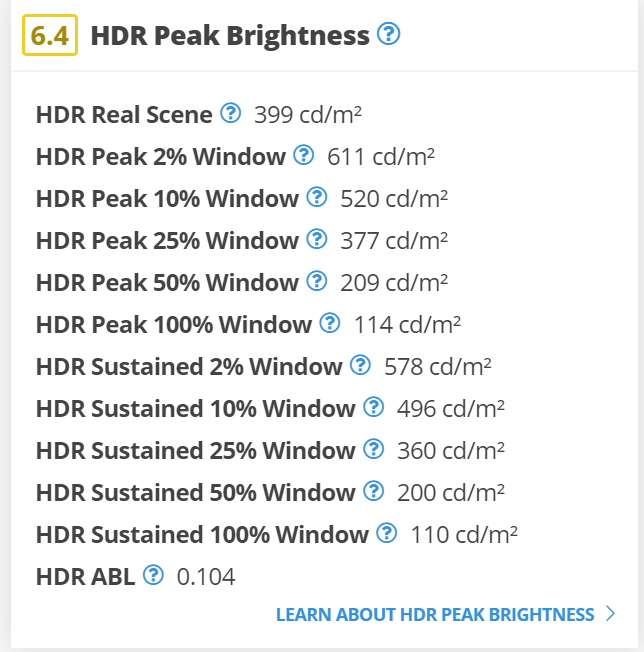
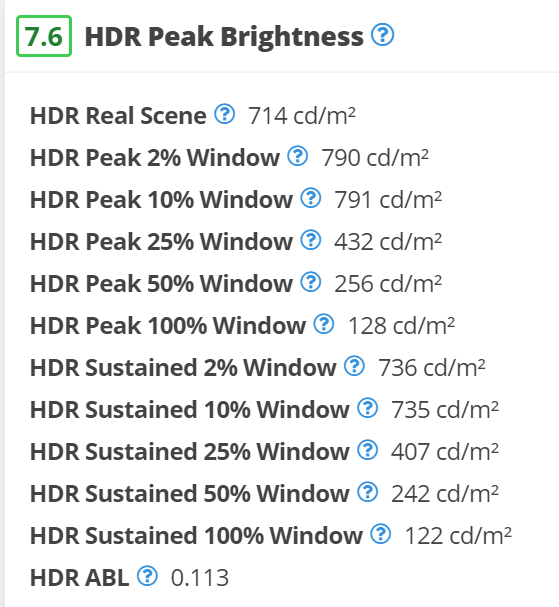
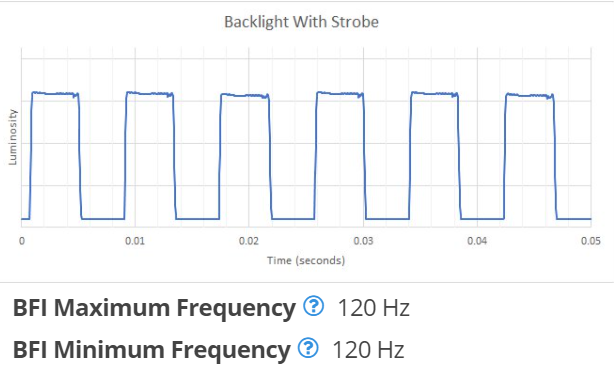
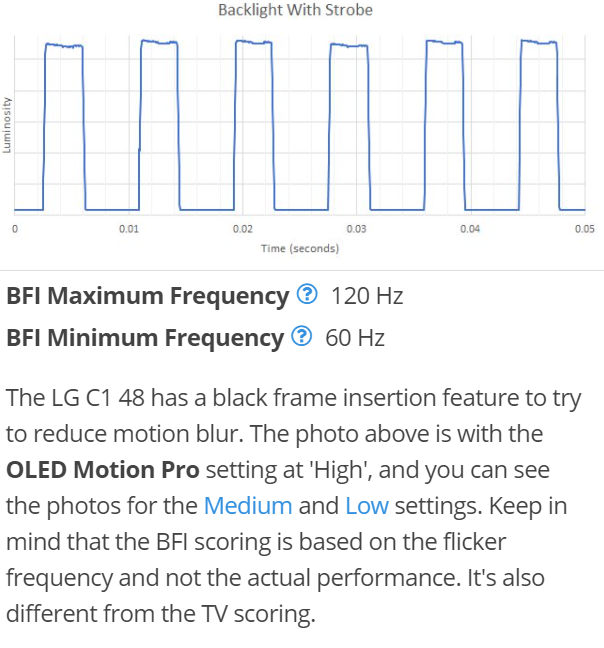
Looks like the very comparable Gigabyte FO48U is somewhat of a bust compared to the LG C1 (and even CX) if you care at all about HDR brightness and/or BFI (Per the RTings.com Early Access review). I understand that Display Port input can be very important to some people but not worth the downgrade IMO. Everything else trades blows since it's probably the same LG panel (FO48U has slightly better SDR color gamut / volume, HDR color volume, and Image retention). More discussion in the Gigabyte AORUS FO48U thread btw.

TestLG C1FO48UDiff
Build Quality9.09.00.0
Contrast10.010.00.0
Local Dimming10.010.00.0
SDR Peak Brightness6.26.30.1
HDR Peak Brightness7.66.4-1.2
Horizonal Viewing Angle9.19.10.0
Vertical Viewing Angle9.49.2-0.2
Gray Uniformity9.29.0-0.2
Black Uniformity10.010.00.0
Pre Calibration7.27.20.0
Post Calibration9.69.4-0.2
SDR Color Gamut8.79.40.7
SDR Color Volume9.19.80.7
HDR Color Gamut8.17.9-0.2
HDR Color Volume6.87.30.5
Image Retention8.99.91.0
Gradient9.19.10.0
Color Bleed9.710.00.3
Reflections9.19.20.1
Text Clarity7.06.5-0.5
Response Times @ Max Refresh9.910.00.1
Response Times @ 60hz9.910.00.1
Image Flicker10.010.00.0
Black Frame Insertion (BFI)8.95.9-3.0
Refresh Rate8.78.70.0
Input Lag9.39.30.0
Resolution and Size9.09.00.0
Sum239.5237.6-1.9

FO48U:

506134_1632431012629.png


LG C1:

506137_1632431059681.png


FO48U:

506148_1632431482728.png


LG C1:

506146_1632431453431.png
 
I wouldn't compare it to a 55" C1. I would compare Rtings monitor review of the 48" CX because with a PC input icon/game mode it's quite a bit dimmer in real content compared to the movie/whatever modes Rtings tests the 55" TV's at (ignoring panel variance).

https://www.rtings.com/monitor/reviews/lg/48-cx-oled
You're somewhat correct, I didn't realize they split off the LG's into a separate TV/Monitor reviews. The HDR #'s still stand though for the C1 "Monitor" review (fortunately, looks like that was the one I was using in the comparison):

https://www.rtings.com/monitor/reviews/lg/48-c1-oled
 
I wouldn't compare it to a 55" C1. I would compare Rtings monitor review of the 48" CX because with a PC input icon/game mode it's quite a bit dimmer in real content compared to the movie/whatever modes Rtings tests the 55" TV's at (ignoring panel variance).

https://www.rtings.com/monitor/reviews/lg/48-cx-oled

With my X-Rite i1 Display Pro plus I measured 700 nits in HDR Cinema-mode and 674 nits in PC + Game-mode on my 48C1 (non-evo panel) after calibration. I really would like to know why there is such a gap in their 48CX vs 48C1 review in terms of HDR real scene, that does not make any sense. They also ususally get much higher overall brightness measurments at least on 10% window compared to any other review.
 
Last edited:
You're somewhat correct, I didn't realize they split off the LG's into a separate TV/Monitor reviews. The HDR #'s still stand though for the C1 "Monitor" review (fortunately, looks like that was the one I was using in the comparison):

https://www.rtings.com/monitor/reviews/lg/48-c1-oled
Oh yeah I didn't realize they did a 48" C1 "monitor" review yet so that is the most comparable and your #'s are accurate.

EDIT: There seems to be lots of panel variance when it comes to HDR brightness. Unlike LCD's, different review sites have wildly different measurements. An 80-100nit difference between 2 panels is pretty massive and much more obvious to the eye on a OLED vs LCD. Might explain some people claiming OLED's are too dark and others saying they are blindingly bright.
 
Last edited:
Their CX 48 vs C1 48 "monitor" review does look a bit suspect when looking at the HDR peak brightness section. I was fairly confident the CX48 was ever so slightly brighter than the C1 48 from all the initial reviews. I believe there has been firmware updates & fixes though on the C1 and I believe they even retested the C1 with these new revisions which might explain the better HDR #'s.
 
Has anyone experienced tons of dead pixels appearing?


I haven't cared about burn in at all since buying in July 2020 but just checked for the fun of it and there are hundreds of dead pixels on the edges of the TV (top/right/left bezels). Some are chunks or clusters of dead pixels. Gonna reach out to LG and see if they'll do an out of warranty repair. I've never seen this happen on any of the 40+ displays I've owned.
 
Last edited:
Has anyone experienced tons of dead pixels appearing?

I haven't cared about burn in at all since buying in July 2020 but just checked for the fun of it and there are hundreds of dead pixels on the edges of the TV (top/right/left bezels). Some are chunks or clusters of dead pixels. Gonna reach out to LG and see if they'll do an out of warranty repair. I've never seen this happen on any of the 40+ displays I've owned.

My 55" C9 did as well after a few years in. I have dozens of dead pixels but all seem to be along the very left edge/side of the screen only. Really weird since I know for sure they weren't there in the beginning. Honestly I didn't even notice until I was like cleaning the screen. I'm really sensitive to dead/stuck pixels but even I agree I can't even see them at the distance I sit from the TV (around 6' - using a recliner & wireless keyboard/mouse).
 

Attachments

  • IMG_3469.JPG
    IMG_3469.JPG
    1.2 MB · Views: 1
Yeah mine weren't here when I bought it new either. I'm now noticing there are some scattered around the center too. I kinda noticed them in the center but just passed them off as specks of dust/dirt. The ones on the edge though I for sure couldn't see at all until I put up test slides. Overall though this has kind of soured my opinion of these TV's given it's 14 months old and seeing reports of others experiencing the same.

I'll update once LG gets back to me.
 
Has anyone experienced tons of dead pixels appearing?

I check it from time to time. I have only one towards the bottom of the screen on my C9 (October 2019) and none on my C1 (June 2021).

The other supposedly dead pixels that I find are just dirt.
 
Has anyone experienced tons of dead pixels appearing?

View attachment 397523

I haven't cared about burn in at all since buying in July 2020 but just checked for the fun of it and there are hundreds of dead pixels on the edges of the TV (top/right/left bezels). Some are chunks or clusters of dead pixels. Gonna reach out to LG and see if they'll do an out of warranty repair. I've never seen this happen on any of the 40+ displays I've owned.
Huh, not seeing anything like that on my 48CX that I use for work+play (it's powered on for the majority of the day most days). Thought I spotted a dead pixel near the bottom edge, but it wiped away with a Swiffer. :p

Didn't notice anything like that with my 55B7, either. But I'll say this: if that does by some chance happen to my 48CX, I'd immediately replace it with a C1. There's just no replacement for these until Micro/MiniLED become common and affordable IMO, and even then I doubt they'll be perfect in every regard since every display type ever has had drawbacks, limitations and compromises.
 
I just asked my buddy who I sold my previous C9 to whether he's seeing something similar and now he's as pissed as I am after discovering a bunch of dead pixels (only on the left). I told him if he hadn't noticed them this entire time what's it matter.

Still though at this rate I don't expect mine to survive another 2 years without the center developing noticeably more dead pixels. Seems there is a lot of variance between panels in every regard including longevity.
 
The only reason I finally decided to pull the trigger on such an expensive screen was because when I got the CX from Costco they were offering a combination of solid warranties (for free) that came out to SEVEN YEARS.

I honestly don't expect the set to be trouble free that long. So at some point... we will find out. Or at least it will help cover the next display when the time comes.

Or... it will be trouble free for a decade. Which will be fine too.
 
Back
Top