• Some users have recently had their accounts hijacked. It seems that the now defunct EVGA forums might have compromised your password there and seems many are using the same PW here. We would suggest you UPDATE YOUR PASSWORD and TURN ON 2FA for your account here to further secure it. None of the compromised accounts had 2FA turned on.
    Once you have enabled 2FA, your account will be updated soon to show a badge, letting other members know that you use 2FA to protect your account. This should be beneficial for everyone that uses FSFT.

LG 48CX

It blows me away that software updates saying "bugfixes and general performance improvements."
If I was a software engineer on this stuff I'd be furious. Oh that project I've been slaving away on? Management considered it, officially
"Computer stuff or whatever."

No way consumers, or other companies would want to know what got fixed, why it happened, or how they fixed it.
The reason it's like that is that many don't have very good setups for keeping track of all the stuff that has been changed unless it's new features. The other reason is that someone needs to translate the issues to a layman version of what the fix is because the internal terms used won't make sense for anybody but programmers.

So it's just easier to write "bug fixes and improvements", especially when most users won't care about what the exact fixes are unless they are affected by the issue. I would like more detailed lists of fixes too but unfortunately that's not the reality.
 
Yep, I agree with the above. A lot of times you fix things no users are even aware of, and it would just confuse people if you explained what it was, or even worse, make them think the product is broken or you're making it worse in some way.

Or you fix some sort of potential security issue and letting people know would just encourage hackers to look for it and try to exploit people who haven't updated. Or make people worried they were hacked and that's why it was fixed. It's better to just not say anything sometimes. People jump to stupid conclusions and even hiding the notes away so only the curious advanced users see them, you'll still get some stupid clickbait journalist trying to make it into a story
 
Is it possible to emulate 27-32" 1440p working space somehow?
No windowed/windowed borderless I want my apps running in full screen but be smaller and exact sizes (different dimensions and resolutions including 1600x1200 and 24-27" for example)
 
Is it possible to emulate 27-32" 1440p working space somehow?
No windowed/windowed borderless I want my apps running in full screen but be smaller and exact sizes (different dimensions and resolutions including 1600x1200 and 24-27" for example)
1. Turn on GPU scaling in NVCP (or AMD equivalent).
2. Set scaling mode to "no scaling".
3. Set game resolution to e.g. 2560x1440.
 
Is it possible to emulate 27-32" 1440p working space somehow?
No windowed/windowed borderless I want my apps running in full screen but be smaller and exact sizes (different dimensions and resolutions including 1600x1200 and 24-27" for example)

There's my previously-mentioned insane idea of using the display in portrait, setting cleartype to greyscale (or turning it off altogether), and then using something like fancyzones or Win11's built-in equivalent to only use the bottom half of the screen combined with a black desktop background, effectively turning it into a 2160x1920 display that takes up about as much desk space as a 27" monitor, and you'd still have the upper 2160x1920 half of the panel to use if you really wanted it.

(this can similarly double as a burn-in mitigation tactic if you then rotate the display 180 degrees once every year or so)
 
1. Turn on GPU scaling in NVCP (or AMD equivalent).
2. Set scaling mode to "no scaling".
3. Set game resolution to e.g. 2560x1440.
I know about no scaling feature but that won't emulate different panel sizes unfortunately. To think about it I don't think its possible because of fixed amount of pixels

Any news on 40-42" panels?
 
There's my previously-mentioned insane idea of using the display in portrait, setting cleartype to greyscale (or turning it off altogether), and then using something like fancyzones or Win11's built-in equivalent to only use the bottom half of the screen combined with a black desktop background, effectively turning it into a 2160x1920 display that takes up about as much desk space as a 27" monitor, and you'd still have the upper 2160x1920 half of the panel to use if you really wanted it.

(this can similarly double as a burn-in mitigation tactic if you then rotate the display 180 degrees once every year or so)

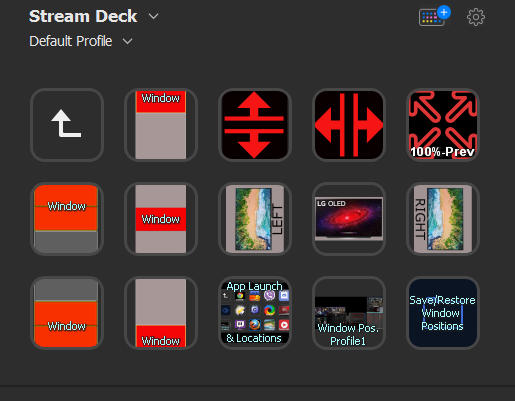
I use the 48cx as a media and gaming "stage" in between two 43" samsung nu6900 4k 60hz hdmi 2.0b VA screens that are around 6100:1 contrast ratio. Those samsung 43" 4k screens on each end of the 48cx are in portrait mode.

Displayfusion hotkeys mapped to streamdeck buttons allow me to set window space wherever I want on the fly.

I have a few overall window position named profiles saved in displayfusion that I can activate via hotkey but I mapped those hotkeys to streamdeck buttons.

I have a bunch of other window placement displayfusion hotkeys mapped to streamdeck keys when I want to micromanage active windows.

I even cobbled together existing displayfusion scripts and customized them to my most used apps. Now I can hit an app icon on my streamdeck keys multiple times and it will:
-- check to see if the app is open.
--If not open, open it at coordinates/size I set in the script as it's "home" position.
--If open, check to see if it is minimized.
--If it's not minimized, then minimize it.
--If it's already minimized, restore it to the coordinates and size I set as it's "home" position in the script.

So I can do that on my main apps just hitting the apps button (with the apps icon on it) a few times to minimize/restore to the set location for that app.

In addition, when any app is the active window, I can use the general window placement buttons I made to move things around. Setting up 3 tiers of windows for a portrait mode monitor as well as 2/3 heights and 1/3 heights, etc.

Combined with the saved position profile it's gives a lot of quick control.

EOKDETC.png

I have other sets of buttons when going back up to the main directory of buttons using that up arrow for sets of things like graphics apps, windows/system, sound, gaming, etc. too but I just wanted to show my general window position buttons here.

================================================


In my opinion it would be a waste to keep the 48cx in portrait mode but it pairs very well with side monitor(s). I think the main issue with most people mentioning defining smaller screen space, outside of running a game at higher fps at a lower rez or running in ultrawide mode for the uw experience, is that they don't want to commit to sitting at a proper distance from the 48" display. That or their environment/living conditions or budget prevent that from being possible.

The THX and SMPTE movie viewing standards converge at a sweet spot of around 45 to 50 degree viewing angle width. That's for movies of course but a good point of reference.

And more importantly:


20/20 vision threshold is 60 PPD which starts at (meaning no closer than)
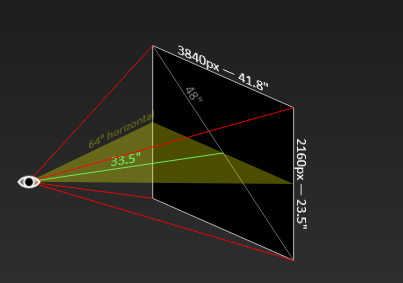
33.5" viewing distance and 64 degree viewing angle for a 48" 16:9 4k screen (and starts at ~1.5' on a 27" 4k)


Sitting any closer will be much poorer text and aliasing. You can try to compensate with aggressive AA and try to tweak subpixel sampling on text but it's still not optimal.

While
33.5" - 60 PPD - 64deg is the nearest you can sit while still within the 20/20 vision threshold, personally I think what's best for this screen is:

38" -- 41" - 44.4" - 48" view distance
66.6 - 72 -- 76 - -- 81.5 PPD
58 - - 54 -- 50 --- 47 degree horizontal viewing angle

---------------------------------------------

At 38" viewing distance you get the same PPD on a 48"4k as a 27" 4k looks at ~ 21.4" away.
At 48" viewing distance you get the same PPD on a 48" 4k as a 27" 4k looks at 27" away.

------------------------------------------------


I typically sit 38" to 48" away. If I find I'm not looking at my HUD enough to my detriment in some games I'll kick back to near 48"
When you sit around the same distance away as the monitor's diagonal measurement you are making a nearly equilateral triangle out of your viewing angle compared the screen diagonal which make a better viewing "cone". Any closer it's a more squat triangle (or pyramid) with a more extreme angle to view the corners.

===================================================================================================

48" 4k at 33" or less viewing distance:

59.3 ppd is below 20/20 vision; most everyone can see individual pixels. You likely need strong anti-aliasing to hide artifacts.
= jumbo pixels to your eyes. Requires attempting to use aggressive AA (and the performance hit) + massaging text subsampling or using other types of text subsampling but it will never look as good as higher, more proper PPD/viewing distance.

----------------------------------


33.5" viewing distance = 64 degree 60 PPD = 20/20 vision threshold

l93kumm.png
60 ppd is above the 20/20 vision threshold of 60 ppd, but below the average vision of ~20/15. You likely need moderate anti-aliasing.

-----------------------------------------------------------------------

38" viewing distance = 58 degree 66.6 PPD

428127_NgeuhzE.png

66.6 ppd is above the 20/20 vision threshold of 60 ppd, but below the average vision of ~20/15. You will likely need moderate anti-aliasing.

---------------------------------------------------------------------------

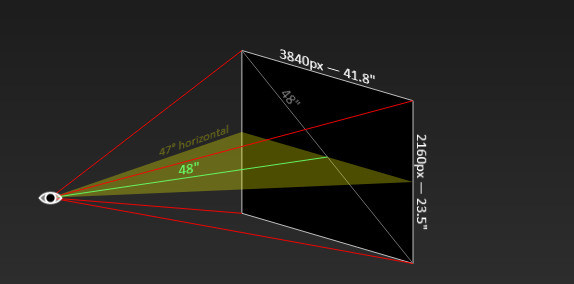
48" viewing distance = 47 degree 81.5 PPD

POSXE7f.png

81.5 ppd is moderate, slightly above the average visual acuity; few can see individual pixels. Anti-aliasing is only necessary in medium- and high-contrast areas.
 
Last edited:
I know about no scaling feature but that won't emulate different panel sizes unfortunately. To think about it I don't think its possible because of fixed amount of pixels

Any news on 40-42" panels?
So I suppose you were thinking running 4K but smaller? That would not work because you only have the pixels you have. You could do weird things like run at 1440p with game resolution scale above 100% if a game supports that.

No news on smaller panels. Don't expect anything this year.
 
So I suppose you were thinking running 4K but smaller? That would not work because you only have the pixels you have. You could do weird things like run at 1440p with game resolution scale above 100% if a game supports that.

No news on smaller panels. Don't expect anything this year.
I wasn't expecting to run it at 4k but smaller size more like to run applications/games in full screen but at lower resolution with option to move around the screen to prevent burn-in for long gaming sessions.
Plus maybe to emulate 24-27" with an option to record gameplay @ 1440p for example (even if pixel count is different) just to have 1440p footage. It may sound weird a bit but once figured out all makes sense.
 
I wasn't expecting to run it at 4k but smaller size more like to run applications/games in full screen but at lower resolution with option to move around the screen to prevent burn-in for long gaming sessions.
Plus maybe to emulate 24-27" with an option to record gameplay @ 1440p for example (even if pixel count is different) just to have 1440p footage. It may sound weird a bit but once figured out all makes sense.
You can have either 1440p in fullscreen or 1:1 scaled, which is about a 31.5" screen size. With black bars on all sides. The only way to move it around is running in windowed mode.

But IMO there's no need to do that for burn in reasons. With the two LG OLED I have neither has had any burn in despite playing a ton of games with static HUD.
 
I wasn't expecting to run it at 4k but smaller size more like to run applications/games in full screen but at lower resolution with option to move around the screen to prevent burn-in for long gaming sessions.
Plus maybe to emulate 24-27" with an option to record gameplay @ 1440p for example (even if pixel count is different) just to have 1440p footage. It may sound weird a bit but once figured out all makes sense.

I've mentioned in threads before that it would be cool if someday in the future we could have a whole wall of extreme resolution and be able to assign virtual monitor space wherever we wanted (and at what virtual rez with something like DLSS upscaling).

Realistically with what I've seen or read about in current tech and in future tech projections I think that kind of thing is more likely to happen, easier to do and more affordably, with VR and AR someday with virtual screens in virtual space and in real space (aka "mixed reality") within more extreme resolution glasses. You can already do virtual screens in real space in a rudimentary fashion on current boxey VR headsets though it is very primitive with poor black and white cameras. Some people have modded web cams onto their headsets to better effect, and there are some apps or functionality that will map your physical keyboard or controller to virtual space, etc but it is still very early baby steps so far and like I said, very boxy headsets and relatively low resolutions for what we'd need in the future to do it right.

For now, you can mess with running windowed mode but that's not optimal and with HDR active in content it takes over the whole screen usually anyway. Like I said I earlier, I opted to sort of make a wall out of having separate screens on the sides and using window management software with hotkeys tied to a streamdeck. I might even put an uw over the top of the 48" oled to fill in the gap between the rabbit ears/book-end screens someday. In a way I have a giant screen 4k + 4k +4k segmented by two bezel junctions. I mainly use the middle oled as a media/gaming "stage" though.
 
It blows me away that software updates saying "bugfixes and general performance improvements."
If I was a software engineer on this stuff I'd be furious. Oh that project I've been slaving away on? Management considered it, officially
"Computer stuff or whatever."

No way consumers, or other companies would want to know what got fixed, why it happened, or how they fixed it.
Sony has been doing this since the PS3 days. They would even add completely new features and not list them in the notes. I can understand not listing all of your bugfixes, but new features?
 
Anyone know what would cause this? I'm getting flicker in Resident Evil games when I move my mouse. Happens both in menu screens and in game.


edit - Seems to be G-Sync/VRR related? If I turn off G-Sync I no longer get the flicker.
 
Last edited:
If it's occurring in menu's, loading screens it's normal. Should not happen in game.
 
It does happen in game unfortunately. Someone on reddit told me it will happen if the frame rate is fluctuating a lot. I did some further testing and my frame rate drops anywhere from 5-15 fps just by moving the mouse. Even in a menu. Makes me wonder if RE games have really unoptimized mouse movement or if something else is going on with my setup.

edit - Just tried a different game (with a different engine) and I get no such frame rate drops when moving the mouse. Maybe it's all the mouse smoothing/acceleration that RE engine does under the hood that's making my frame rate drop.
 
Last edited:
It does happen in game unfortunately. Someone on reddit told me it will happen if the frame rate is fluctuating a lot. I did some further testing and my frame rate drops anywhere from 5-15 fps just by moving the mouse. Even in a menu. Makes me wonder if RE games have really unoptimized mouse movement or if something else is going on with my setup.

edit - Just tried a different game (with a different engine) and I get no such frame rate drops when moving the mouse. Maybe it's all the mouse smoothing/acceleration that RE engine does under the hood that's making my frame rate drop.

Are you running an AMD card? This sounds like something "Radeon Chill" could cause
 
90% of these VRR flicker complaints with OLED are a result of poor frametime (big swings) whether it's a poor CPU or badly optimized game causing it. Same thing occurs on many VRR displays.
 
90% of these VRR flicker complaints with OLED are a result of poor frametime (big swings) whether it's a poor CPU or badly optimized game causing it. Same thing occurs on many VRR displays.
It's especially bad on OLED simply because of the black levels. The gamma curves just aren't optimized at all framerates, so with VRR you should expect a gamma flicker when sub pixels are over/undercharging

Our eyes are just really sensitive to near black gamma flux, especially on static screens (such as loading screens) where frametimes can be wild due to heavy CPU use (such as loading screens). Not much you do
 
Lg still flickers with VRR on? Wow
.
90% of these VRR flicker complaints with OLED are a result of poor frametime (big swings) whether it's a poor CPU or badly optimized game causing it. Same thing occurs on many VRR displays.


Apparently on games with severe fps potholes ? Badly optimized, or just poorly coded, or bad console port perhaps? I've not experienced this myself but I just recently got my 3090 for full hdmi 2.1 444 VRR.

Since I got my new hdmi 2.1 gpu I've mostly been playing "Immortals:Fenyx Rising" on nightmare mode. That makes it kind of souls-like while zelda-like at the same time. The game has great HDR which looks gorgeous on the LG CX OLED.

TwistedMetalGear said his RE game did it even in menus, which should have no frame rate struggles (though some, console ports especially, seem to cut to 60hz or even 30hz in menus in some titles). He also said it did not happen on other title(s) he tried.
It does happen in game unfortunately. Someone on reddit told me it will happen if the frame rate is fluctuating a lot. I did some further testing and my frame rate drops anywhere from 5-15 fps just by moving the mouse. Even in a menu. Makes me wonder if RE games have really unoptimized mouse movement or if something else is going on with my setup.

edit - Just tried a different game (with a different engine) and I get no such frame rate drops when moving the mouse. Maybe it's all the mouse smoothing/acceleration that RE engine does under the hood that's making my frame rate drop.
 
TwistedMetalGear said his RE game did it even in menus, which should have no frame rate struggles (though some, console ports especially, seem to cut to 60hz or even 30hz in menus in some titles). He also said it did not happen on other title(s) he tried.

The menus are definitely maxing out my frame rate because they're hitting the 117 fps cap that I have set in NVCP. All I have to do is start moving the mouse left and right repeatedly and I see it dip down to the low hundred range or even high 90s. Anyone else have an RE engine game installed that can run the same test?

Funny you should mention Immortals, because that's another game that I ran the same test in. Moving the mouse left and right repeatedly in the Immortals menu results in no change in frame rate.
 
Well it's the same studio that did AC: odyssey which also has great HDR so hopefully they coded both well overall. Fenxy is great. It was punishing re-learning my action buttons at first since I was coming right out of finishing darksiders3 on apocalyptic and then straight into fenxy on nightmare difficulty but after I spend around 20 mins or so on a minotaur mini-boss I had my skills up again. (I kept hitting an attack button that used to be dodge for darksiders3 the whole game). Fenyx is cool adventure game and the narrations were written and voice acted well. They are pretty funny and add an extra layer of entertainment.

=================================================.

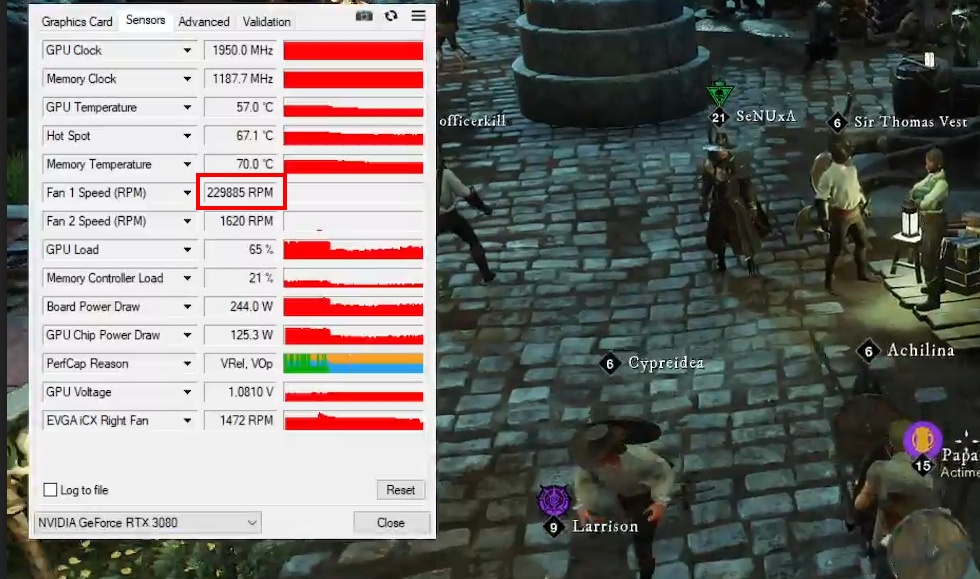
Be careful of games that blast over the top of the frame rate cap in game menus and right click menus, popup infos, etc. Some evga 3090 FTW gpus have overvolted and popped their fan controller and bricked the card.. that or a fuse blows. The official reason hasn't been confirmed. It's also been reported to have black screened and bricked a few people's gigabyte 3090s. Also some misc mfg. 2000 series and 1080tis though the bulk of the reports are evga 3000 series.

The amazon mmo game "New World" had a crazy frame rate in the menus that caused this to happen to a bunch of people's 3090 gpus but it has also happened on doom, League of Legends and a few other games.. I think vermintide 2 for one person and I used to play the hell out of that game when it was released. Supposedly "New World" has been patched to avoid the issue.

From what I've read , limiting the fps doesn't necessarily prevent this from happening but it's definitely smart to do so. Some people report limiting voltage to the card. It hasn't happened to everyone obviously but since you mentioned the menus vs frame rate cap I thought I'd mention it. My card is gigabyte aorus so idk if the fan controller chip popping issue would happen to mine but the black screen and bricked gpu could. Since I'm modding my card with an AiO on it's big copper front component heatsink - I'm considering just not using the on graphics board fan ports at all and just running extra fans on the back of the ram on set on high a different controller.

There are a bunch of theories of why it happens if you look online on reddit, evga forums, and this forum.

Teaser.jpg
 
The first thing I did to my 3080 FTW3 was to manually create a voltage curve that was more sane. The card gets slightly higher clocks than stock at substantially less voltage. Win-win. It's 100% stable. All the video card makers are overvolting the 3000 series to hell and gone for no good reason. It is exactly the same concept as overclocking a Ryzen 5000 CPU. You call for less voltage and higher clocks at a given voltage.

Also, Nvidia CP has had a frame rate cap for a while now. Just USE it. It is functional on nearly every title and capping a few FPS below 120 (I use 116 or 117) does nothing but good things for GSYNC on practically every game. Set it and forget it.

You don't really have to worry after that, but it's still good practice to set the FPS limit in every game anyway... just in case. Some games have fixed numbers like 120, and then the Nvidia CP setting holds it below that anyway. If the game allows Fixing the frame rate a few under 120, just do that.

If the game is some kind of outlier that somehow bypasses all frame rate limits on the menus... that's pretty bad. Skip playing games that do that.
 
The first thing I did to my 3080 FTW3 was to manually create a voltage curve that was more sane. The card gets slightly higher clocks than stock at substantially less voltage. Win-win. It's 100% stable. All the video card makers are overvolting the 3000 series to hell and gone for no good reason. It is exactly the same concept as overclocking a Ryzen 5000 CPU. You call for less voltage and higher clocks at a given voltage.

Also, Nvidia CP has had a frame rate cap for a while now. Just USE it. It is functional on nearly every title and capping a few FPS below 120 (I use 116 or 117) does nothing but good things for GSYNC on practically every game. Set it and forget it.

You don't really have to worry after that, but it's still good practice to set the FPS limit in every game anyway... just in case. Some games have fixed numbers like 120, and then the Nvidia CP setting holds it below that anyway. If the game allows Fixing the frame rate a few under 120, just do that.

If the game is some kind of outlier that somehow bypasses all frame rate limits on the menus... that's pretty bad. Skip playing games that do that.

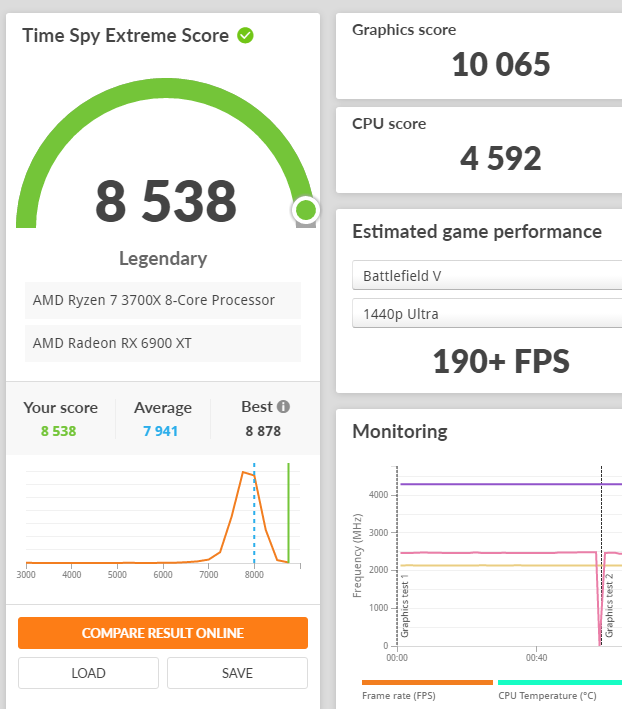
Yep, everyone should be undervolting nowadays since there's literally zero drawbacks to doing so. Most 3080/3090 GPUs can comfortably run in the ~9xx mV range just fine, far below the factory voltage which is like 1.2v or something. Strangely, my 6900 XT actually lost a lot of performance when I overclocked it UNTIL I also undervolted the card at the same time, then it managed to pull this nice score in Time Spy.
 

Attachments

  • unknown.png
    unknown.png
    64.2 KB · Views: 0
The first thing I did to my 3080 FTW3 was to manually create a voltage curve that was more sane. The card gets slightly higher clocks than stock at substantially less voltage. Win-win. It's 100% stable. All the video card makers are overvolting the 3000 series to hell and gone for no good reason. It is exactly the same concept as overclocking a Ryzen 5000 CPU. You call for less voltage and higher clocks at a given voltage.

Also, Nvidia CP has had a frame rate cap for a while now. Just USE it. It is functional on nearly every title and capping a few FPS below 120 (I use 116 or 117) does nothing but good things for GSYNC on practically every game. Set it and forget it.

You don't really have to worry after that, but it's still good practice to set the FPS limit in every game anyway... just in case. Some games have fixed numbers like 120, and then the Nvidia CP setting holds it below that anyway. If the game allows Fixing the frame rate a few under 120, just do that.

If the game is some kind of outlier that somehow bypasses all frame rate limits on the menus... that's pretty bad. Skip playing games that do that.

I've capped my frame rate for years using rtss though nvidia's version no longer has increased latency compared to rtss now so I can use that. From some reports that was NOT enough to prevent some of the cards bricking on some games though.

I haven't undervolted yet. I never had to on my 1080ti sc hybrids (AiOs) in sli. I just upgraded to an aorus 3090 recently. From what I've been reading I'll prob go with the undervolting route.
 
Last edited:
For the 3080 and 3090 I absolutely would. It takes a little bit to get the curve sorted out but it'll make a big difference to power consumption, heat, and hopefully longevity. And you'll get more performance anyway so there's just not a down side.

Even the 1080, 1080 Ti etc didn't have the kind of power draw and heat issues the 3080 and 3090 cards have. They're way hotter in general at "stock".

You can knock 20-50w off the power consumption... without sacrificing performance.
 
  • Like
Reactions: elvn
like this
So it seems my LG 48CX has decided to drop back down to 60Hz after running fine for a good while at 120Hz. I did "upgrade" the initial cable to one that did not have that issue, but am wondering what it might be now.

Any ideas on trouble shooting this? Try another cable? If so, what is the go-to cable now for this display?
 
I "think" I'm using a zesskit 8k 120hz cable, the heavy braided one, Short. Biggest issues I had for a while was occasional dropping of handshake in Gsync AND 120hz where it would like to flash the image until I restarted the comp or screen.

Interestingly, somewhere over the last few firmware updates that problem seems to be completely gone.

Also, I do run the modded monitor file to allow 12bit.

But at the moment, all is smooth with this.

I suspect the cable has to be completely perfect for 120hz to work. Makes me wonder what we are going to do for standards when we need 8k 120hz.
 
So it seems my LG 48CX has decided to drop back down to 60Hz after running fine for a good while at 120Hz. I did "upgrade" the initial cable to one that did not have that issue, but am wondering what it might be now.

Any ideas on trouble shooting this? Try another cable? If so, what is the go-to cable now for this display?
1628618350723.png
 
I "think" I'm using a zesskit 8k 120hz cable, the heavy braided one, Short. Biggest issues I had for a while was occasional dropping of handshake in Gsync AND 120hz where it would like to flash the image until I restarted the comp or screen.

Interestingly, somewhere over the last few firmware updates that problem seems to be completely gone.

Also, I do run the modded monitor file to allow 12bit.

But at the moment, all is smooth with this.

I suspect the cable has to be completely perfect for 120hz to work. Makes me wonder what we are going to do for standards when we need 8k 120hz.
1628618429971.png
 
I have tried about every combination of settings I can configure and I cannot get it to see above 60Hz....again when it used to work fine with this cable.

One thing I can't see to get to turn off is "Instant Game Response." Even toggled to the off position it still launches according to the menu pop-up on-screen.
 
I "think" I'm using a zesskit 8k 120hz cable, the heavy braided one, Short. Biggest issues I had for a while was occasional dropping of handshake in Gsync AND 120hz where it would like to flash the image until I restarted the comp or screen.

Interestingly, somewhere over the last few firmware updates that problem seems to be completely gone.

Also, I do run the modded monitor file to allow 12bit.

But at the moment, all is smooth with this.

I suspect the cable has to be completely perfect for 120hz to work. Makes me wonder what we are going to do for standards when we need 8k 120hz.
Well, just went ahead and ordered one for delivery today. Want to get to the bottom of this.
 
Well, just went ahead and ordered one for delivery today. Want to get to the bottom of this.
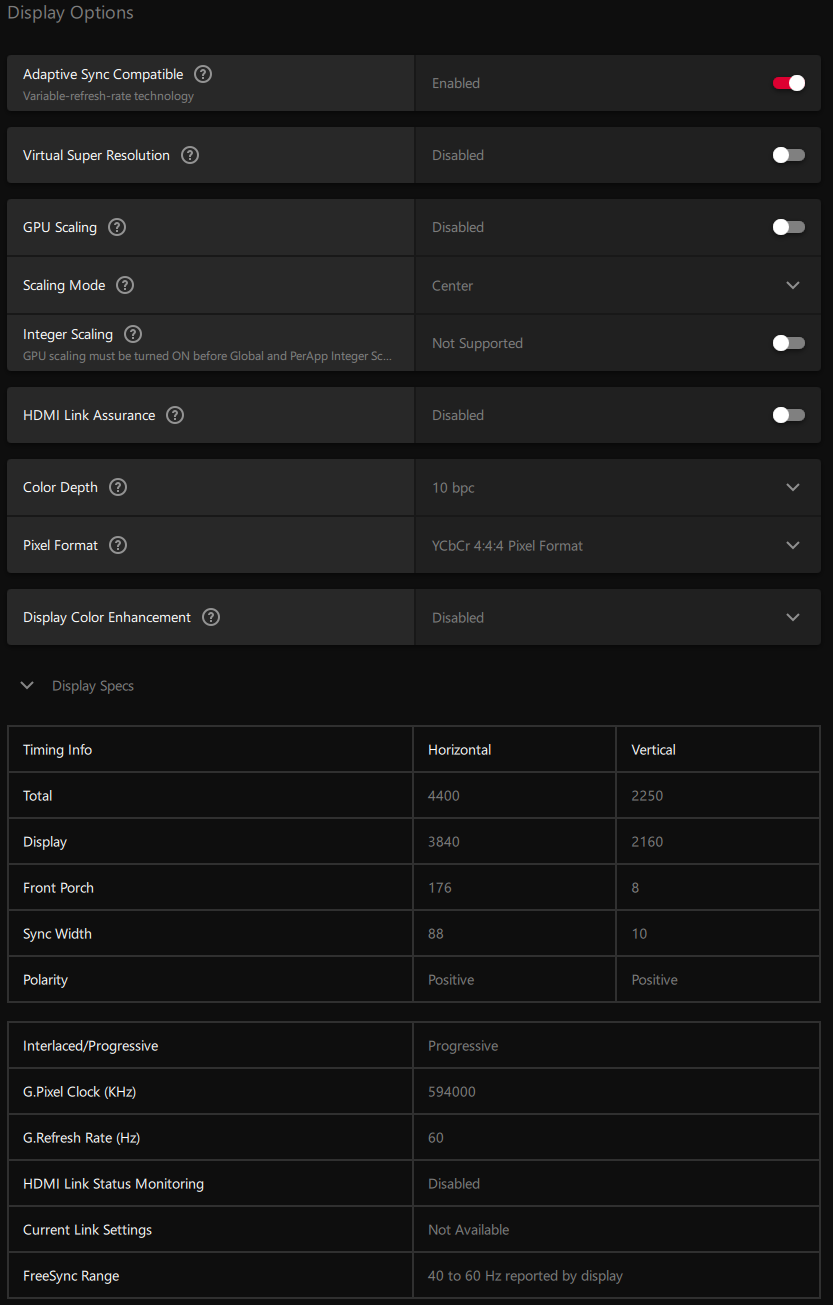
Are you still seeing 3840x2160 @ 120Hz as an available resolution, and the TV just won't lock on, or is it unavailable entirely?

Also - tried a driver reinstall for S&Gs?
 
Are you still seeing 3840x2160 @ 120Hz as an available resolution, and the TV just won't lock on, or is it unavailable entirely?

Also - tried a driver reinstall for S&Gs?
Wow, you are effin sheeting me. Yep, it was set to 60 in the Windows display control panel. No reasoning why that had changed.

THANK YOU SO MUCH FOR THE KICK IN THE ASS ON THAT!

1628621625214.png
 
Wow, you are effin sheeting me. Yep, it was set to 60 in the Windows display control panel. No reasoning why that had changed.

THANK YOU SO MUCH FOR THE KICK IN THE ASS ON THAT!

View attachment 383521
I've had that happen as well. It's really confusing until you realize there's a set of resolutions for TV and a separate set for PC.
 
Back
Top