Both are amazing off-angle. The CX probably edges out the Q90R by a hair.What about off-angle viewing?
![[H]ard|Forum](/styles/hardforum/xenforo/logo_dark.png)
Navigation
Install the app
How to install the app on iOS
Follow along with the video below to see how to install our site as a web app on your home screen.
Note: This feature may not be available in some browsers.
More options
You are using an out of date browser. It may not display this or other websites correctly.
You should upgrade or use an alternative browser.
You should upgrade or use an alternative browser.
LG 48CX
- Thread starter gan7114
- Start date

HiCZoK
Gawd
- Joined
- Sep 18, 2006
- Messages
- 860
What can I do aside from autohide taskbar, minute on 1min rotation and Blank 1 minute screensaver?
-Is there a way to speed up and down the terrible taskbar autohide?
-Is there a way to autohide whole top of chrome (tabs, bookmarks, search bar) and reappear on mouse over or something ?
Yeah, I use dark theme where possible
-Is there a way to speed up and down the terrible taskbar autohide?
-Is there a way to autohide whole top of chrome (tabs, bookmarks, search bar) and reappear on mouse over or something ?
Yeah, I use dark theme where possible
Windows dark themeWhat can I do aside from autohide taskbar, minute on 1min rotation and Blank 1 minute screensaver?
-Is there a way to speed up and down the terrible taskbar autohide?
-Is there a way to autohide whole top of chrome (tabs, bookmarks, search bar) and reappear on mouse over or something ?
Yeah, I use dark theme where possible
Black background (no rotating pictures)
Dark reader addon for your browser
If you have small second monitor move your taskbar and icons there.
If no 2nd monitor autohide taskbar and remove all static icons from desktop
Auto turn off monitor if computer is inactive for a few minutes
The basic idea is simple. Do not light up any pixels you are not using. Every pixel has a finite lifetime so do not waste it.
What about that 1 pixel strip when the taskbar is hiding?Windows dark theme
Black background (no rotating pictures)
Dark reader addon for your browser
If you have small second monitor move your taskbar and icons there.
If no 2nd monitor autohide taskbar and remove all static icons from desktop
Auto turn off monitor if computer is inactive for a few minutes
The basic idea is simple. Do not light up any pixels you are not using. Every pixel has a finite lifetime so do not waste it.
I just leave the one pixel strip and ignore it. Make the taskbar a darker shade and just go with it.
Be common sense here... since the 1 pixel strip is the LAST strip on the bottom, you won't ever really be able to see damage to those pixels even IF it happens. Which it won't in any meaningful timeframe if you keep your SDR brightness sane.
Be common sense here... since the 1 pixel strip is the LAST strip on the bottom, you won't ever really be able to see damage to those pixels even IF it happens. Which it won't in any meaningful timeframe if you keep your SDR brightness sane.

- Joined
- May 5, 2006
- Messages
- 5,956
I've had my LG CX for roughly a year, so hopefully I am well qualified to post my thoughts on it at this point.
I've done numerous comparisons between it and my old Dell 27" 1440P 144hz GSYNC monitor. The conclusion is... there is no comparison. The LG CX blows it away in all areas. Motion handling, brightness, contrast, color... the list goes on. The LG CX wipes the floor with my old GSYNC monitor.
The more interesting comparison happens when you compare the LG CX to an LCD-based tech. In this case, I am comparing the LG CX vs Samsung Q90R, the 2019 Samsung competitor to the LG C9. I will cover the high points on each.
LG CX:
- PC Gaming - This thing is a gaming BEAST! Input lag is minimal, GSYNC is incredible, Pixel response is nearly instantaneous, etc. For gaming, the LG CX goes head-to-head with some of the best gaming monitors out there.
- HDR - For HDR content, this thing pops. Absolute brightness is not the highest of any TV out there, but what makes it so incredible is its contrast; you can have one pixel at 0 and another pixel right next to it all full brightness. When you see it, it's painfully beautiful.
- Tech Support - LG should be given an award for post-purchase support. This TV had major issues with HDMI 2.1, and they corrected all of them, and did so fairly quickly. That's what I want in a SmartTV, and as long as LG continues that level of support, I will GLADLY buy their products.
Samsung Q90R:
- Console Gaming - I don't know why, but all consoles I've tried on the Q90R just look better, even in game mode, compared to the CX. It's obvious that Samsung designed the Q90R with console gaming in mind; it all works really well.
- SDR - NOW HOLD ON A SECOND!!! How is this possible?!?!?! The LG CX only gets up to 750-nits, while the Q90R gets up to an eye-watering 1500-nits peak brightness. That makes no sense!!! Actually, it does because, IMO, nits are a useless measurement when comparing a TV's ability to output HDR content. What you should be looking for is contrast between the darkest and brightest points, and the fact is that an FALD LCD display will never be able to match the contrast of an OLED panel. Because of this, HDR pops harder in high contrast areas on the LG CX. But we're talking about SDR, and in this case, the Samsung Q90R has more natural looking color. It's not as punchy as the LG CX, but it is much more pleasing and, dare I say, realistic on the Q90R.
- Upscaling - This goes back to console gaming. The built-in resolution upscaler on the Q90R is really good. It gets very close to making a 1080P image look like Native 4K with some AA on top of it. My stock PS4 looks like a blurry mess on my LG CX, but the picture is clean and beautiful on the Q90R. The Q90R also handles macro-blocking far better in super dark scenes (although in absolute black, the LG CX is the champ by far).
The LG CX does really good at being a computer monitor, but I dare say that the Q90R does a better job at being a TV. It stings a little to admit that because the LG CX has a wow factor about it that is lacking in the Q90R.... but the Q90R still sits in my living room and I have absolutely no plans to replace it with an OLED. It's a gorgeous display, one that is most definitely a Samsung flagship QLED TV.
I get a lot of sunlight on the back of my living room tv and my wife's usage habits aren't really OLED friendly. OLED are more sensitive to heat since they are organic. Eventually I'll remodel/re-arrange the room so the tv is on the opposite wall but all things considered I might not put an oled in the living room whenever I get around to upgrading that tv.
LCD are brighter but you trade-off for zone lighting with glow/dim halos which end up losing details and detail in colors. That is especially where their quoted nits would otherwise matter more in HDR but since each zone can't overpower the other it ends up actually losing and muting details and not operating at that full nit range outside of a few overall bright scenes.. Also LCD response times are poor compared to OLED. Some of the more recent LCD models also have a viewing angle filter layer on them which destroys there contrast ratios.
People typically watch living room tvs in a lot of sunlight during the day too.. where HDR material is really designed for a dark home theatre and movie theater environment and OLEDs look best in dim to dark viewing conditions to start with. There are settings you can change to make up for this on modern OLED TVs but you are are modifying to suit a poorer viewing environment.
If you watch HDRtest's heat map videos of star wars and other movies you'd see that a lot of a scene remains in the "monochrome" sdr range and also within the 750-800nit and lower range for HDR highlights. That's not saying that a 10k nit OLED or superminimicro-nano LED at pixel level lighting/emitting would not look more realistic overall with 10k nit content showing color detail that scales higher in the > 800 nit ranges but it's something to consider when talking about HDR along with, like you said, emissive based per pixel side by side contrast and ultimate/"infinitie" black depth.
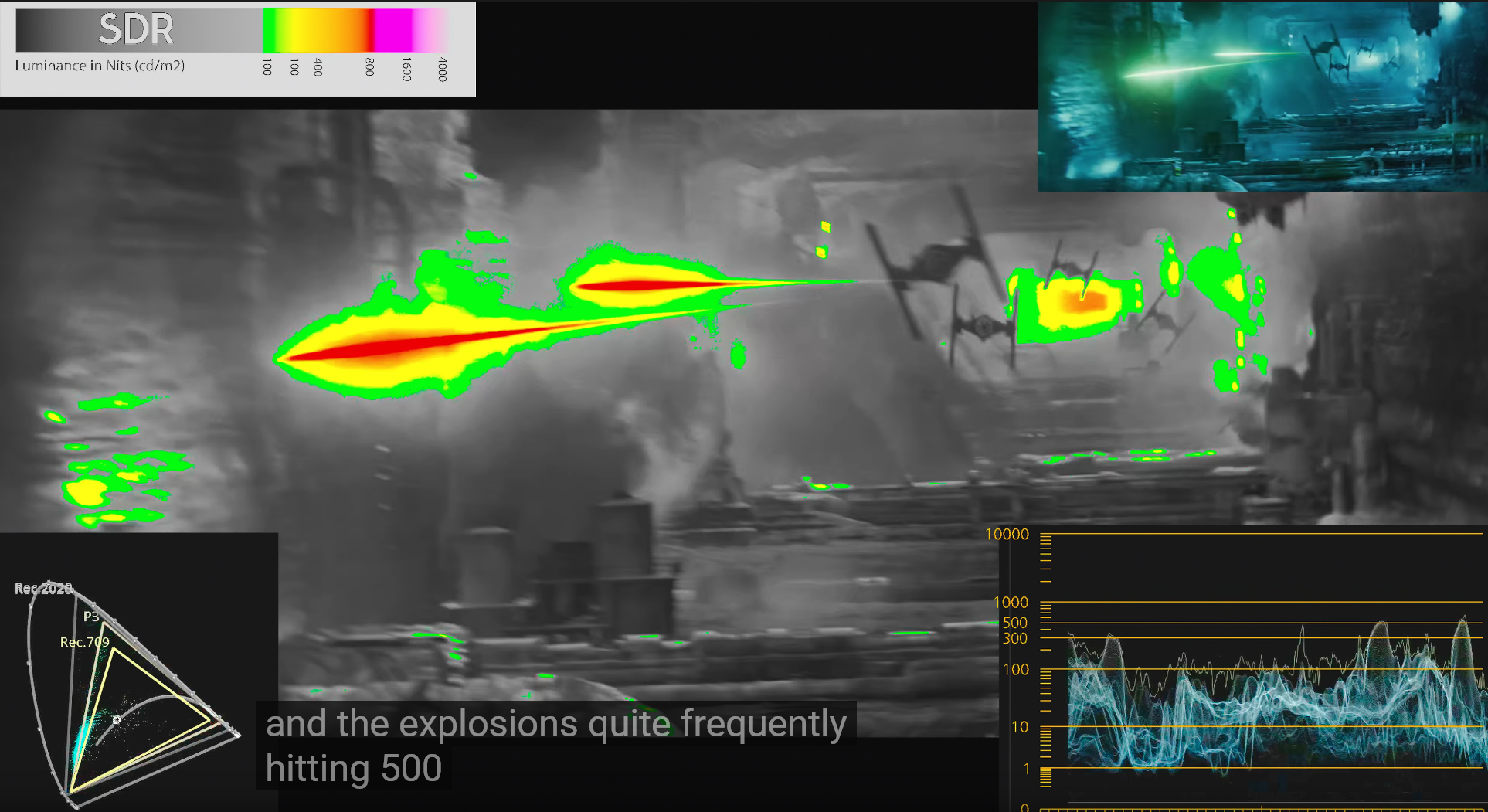
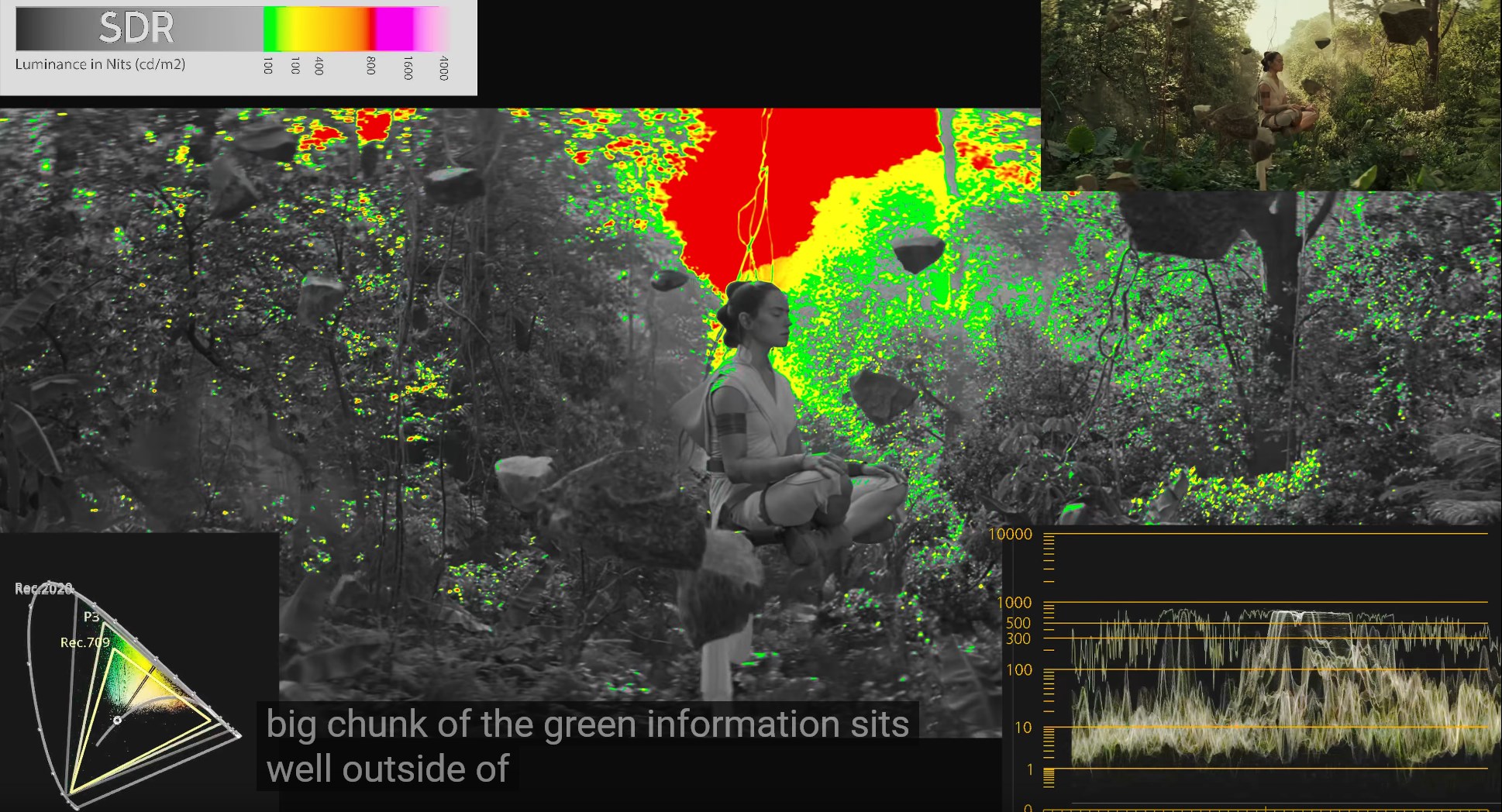
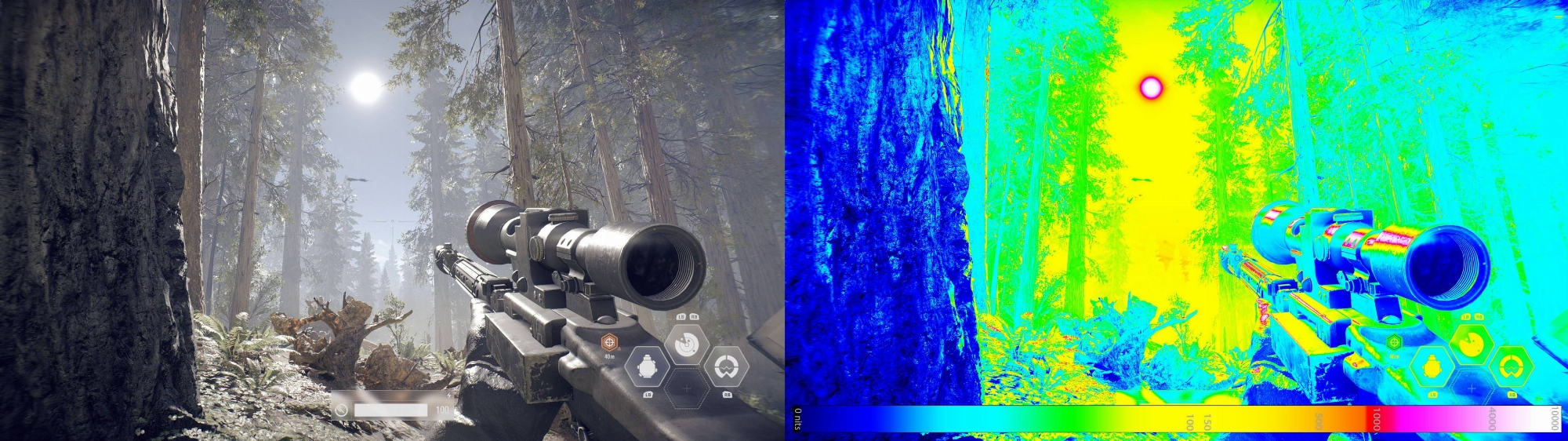
some movie scenes and highlights in particular movies (bladerunner 2049 is one of the few mastered to 10k nit) and scenes in some games can technically map higher but there are no 10k displays yet to do what this image below is showing so it would still be tone mapped and after a set nit cutoff then compressed in a short range above that to the peak nits of whatever display. I still look forward to future HDR 10k screens with per pixel contrast someday though.
Last edited:
- Joined
- May 5, 2006
- Messages
- 5,956
What can I do aside from autohide taskbar, minute on 1min rotation and Blank 1 minute screensaver?
-Is there a way to speed up and down the terrible taskbar autohide?
-Is there a way to autohide whole top of chrome (tabs, bookmarks, search bar) and reappear on mouse over or something ?
Yeah, I use dark theme where possible
you can also use the taskbarhider app and put the recycle bin on the taskbar itself, toggling the taskbar to show/hide with a hotkey.
taskbarhider
http://www.itsamples.com/taskbar-hider.html
translucent taskbar
https://github.com/TranslucentTB/TranslucentTB
https://www.microsoft.com/en-us/p/translucenttb/9pf4kz2vn4w9?activetab=pivot:overviewtab
How to Pin Fully Functional Recycle Bin to the Taskbar in Windows 10
https://www.tenforums.com/tutorials/29497-pin-recycle-bin-taskbar-windows-10-a.html
or
https://technastic.com/pin-recycle-bin-to-taskbar-in-windows/

If using multiple monitors you can also unlock and drag the taskbar to a side monitor. I keep mine on the top of my tall portrait mode monitor on the right side of the LG CX. When I turn all my monitors~TVs on for the first time I have to re-drag the taskbar over though which is a little annoying. I still toggle hide/show it with the taskbarhider hotkey and it is translucent.
===================================================
To save me from digging through 180+ pages
Here I dug up a few replies of mine that give my take on a few things. I waited to buy until most of the issues (all the major ones really) were fixed with firmware patches. This is by far the best multimedia and gaming oriented screen I've owned I'm extremely happy with it.
-----------There are a lot of repeat Q & A's in this thread as more people interested in buying are making inquiries. Which is fine but if you do a search on this thread for things like text, viewing distance, screensaver, burn in , burn-in etc you'd find most of the answers you are looking for.and people's opinions in the surrounding replies.
I wouldn't trust operating system screen savers.
From about one page back in this thread::
screen savers / avoiding static content where possible
https://hardforum.com/threads/lg-48cx.1991077/post-1044971422
...Taskbar hider set to a hotkey to lock the taskbar away (show/hide toggle). Translucent taskbar app to make it and it's edge see-through.
...Dark themes in windows and browsers/browser add-ons ("color changer", "turn off the lights") to make the backgrounds dark on a per site basis..
...True black (empty of art) desktop wallpaper.
...Low (relatively low to SDR levels) HDR brightness on desktop using the HDR color control menu slider.
...Keep all the burn-in reduction tech on (like Derangel said), including ABL, ASBL, logo dimming, etc.
...Activate the remote's voice functions so that you can hold down the mic button and tell it to "turn off the screen" (which leaves everything running and just turns off the emitters after a 5 second countdown). I do that any time I walk away from my pc (afk) even if just for a minute because I can get sidetracked and/or forget that I left a game running in a static/paused state on the tv.
...Don't rely on pc/android etc system screensavers because systems/apps/video device itself can crash/freeze rarely. Crashed app notifaction windows can take top layer above a screen saver. Stuck on bios screen (or even just the log on screen) on a spontaneous reboot can happen too. You might want to change your logon screen too for this reason. A lot of 3rd party apps let you customize the logon screen.
...I think the best thing you can do besides that (other than buying at bestbuy and adding the bestbuy warranty that reportedly covers burn-in for ~ $66/yr over 5 yrs) is to use a 2nd monitor for static desktop/apps and keep the OLED usage scenario as a gaming/video/multimedia "stage".
Screen dimming will turn on by default if you leave a static screen on for too long though and it's pretty dim so that would will definitely help already aside from doing all of the above. That doesn't happen the same when people turn off dimming when trying to use the OLED as a static app/desktop monitor. If you keep a set of settings just for desktop that is well below the ABL level then you will avoid ABL but you won't avoid ASBL unless you go into the service menu and disable it.
---------------------------------------------------------------
I'm pretty sure this info from Rtings.com 's C9 OLED review would still work:
The C9 has a new Peak Brightness setting, which adjusts how the ABL performs. Setting this to 'Off' results in most scenes being displayed at around 303 cd/m², unless the entire screen is bright, in which case the luminosity drops to around 139 cd/m². Increasing this setting to 'Low', 'Med', or 'High' increases the peak brightness of small highlights. If ABL bothers you, setting the contrast to '80' and setting Peak Brightness to 'Off' essentially disables ABL, but the peak brightness is quite a bit lower (246-258 cd/m² in all scenes).
Otherwise just keeping HDR on all of the time on the desktop and turning the HDR Color slider down low enough should do similar and wouldn't affect the color brightness scaling for HDR content/metadata - so that is what most people do I think. I keep the HDR slider down to where SDR images still pop, so more like a SDR image level of color brightness/nits but some people set this brightness slider very low because they use a lot of static text based stuff on their screen since it is usually their only screen in that case.
-----------
View distance vs. text quality and AA
https://hardforum.com/threads/lg-48cx.1991077/post-1044972495
20/20 vision threshold is 60 PPD which starts at (meaning no closer than)
33.5" viewing distance and 64 degree viewing angle for a 48" 16:9 4k screen (and starts at ~1.5' on a 27" 4k)
Sitting any closer will be much poorer text and aliasing. You can try to compensate with aggressive AA and try to tweak subpixel sampling on text but it's still not optimal.
While
33.5" - 60 PPD - 64deg is the nearest you can sit while still within the 20/20 vision threshold, personally I think what's best for this screen is:
38" -- 41" - 44.4" - 48" view distance
66.6 - 72 -- 76 - -- 81.5 PPD
58 - - 54 -- 50 --- 47 degree horizontal viewing angle
--------
WOLED contributes to text issues like others have said but if you are sitting closer than the 20/20 vision threshold your text/subsampling and graphics aliasing are going to be bad regardless to start with - requiring more aggressive attempts at cleartype work arounds and more aggressive AA in games just attempting to get back to what you'd be seeing at 33.5" to 48" away .
Last edited:
- Joined
- May 5, 2006
- Messages
- 5,956
If you make chrome fullscreen it will hide it's interface/bars. You could probably use the F11 hotkey to pop it back and forth from fullscreen and set that to a mouse button or a streamdeck button if you have one. Might be able to remap that hotkey to something else too if you look into it. The problem with that is that it would be the whole width of the screen when fullscreen which isn't optimal imo.-Is there a way to autohide whole top of chrome (tabs, bookmarks, search bar) and reappear on mouse over or something ?
You can use F11 to enter the fullscreen view which allows you to hide the address bar and the tabs easily. And you can change tabs in the fullscreen mode by pressing CTRL+TAB(change to the right tab) and CTRL+SHIFT+TAB(change to the left tab).
---------------------------
This addon also removes the interface when you open a tab or a link as a pop-out. Unfortunately it leaves a black named bar at the top of the window (plus min/restore/X) .. but you can set it to auto open fullscreen or you can try to set up a window position that keeps that top bar scrolled off of the top of the screen but even by default with the black bar it's better than having the whole chrome UI on top.
https://chrome.google.com/webstore/detail/open-as-popup/ncppfjladdkdaemaghochfikpmghbcpc/related
Open-as-Popup settings
Please read my settings introduction where I explain all the settings in detail.
Position and size of the new popup window
Let the browser internal window manager define position and size.
Copy the position and size of the previous window.
Only if previous window state was normal (not maximized or fullscreen).
Copy previous window state (normal, maximized, fullscreen)
Tab index when attached back to a normal window
Before the first tab.
After the last tab.
After the current active tab.
Keyboard shortcut
Define a keyboard shortcut to toggle to and back from a popup window. The default is "Alt + 0".
There might be a few other addons that would help but would take a little searching.
If you want to get a little more creative you could use displayfusion app to set up a few positions for chrome that place the window so that the top of the browser is off screen and then back again. Set up a function to move a chrome window's top bars offscreen and back as a toggle with a hotkey tied to it. That way you wouldn't have to use full browser width in fullscreen but it takes a little tinkering with pre-built functions in displayfusion pro.
------------------------------------
I use side monitors so I don't bother with having app windows on my OLED much but hope that might help a little.
- Joined
- May 5, 2006
- Messages
- 5,956
I also neglected to mention that if you use firefox full screen, it will hide the interface/top bars automatically and when you mouse over they will pop back down so that is probably your easiest fix. Chrome doesn't behave the same way. It still doesn't solve the full frame full screen width issue but otherwise works well. I use both firefox and chrome with select addons on my system incidentally.
Last edited:
shadow2761
Limp Gawd
- Joined
- Mar 11, 2016
- Messages
- 455
Has anyones used on their CX48 a ultrawide custom resolution like here:
https://youtu.be/VfK0ob8pQbU
Does this increase the pixel density (PPi) if gaming like that?
https://youtu.be/VfK0ob8pQbU
Does this increase the pixel density (PPi) if gaming like that?
Yes, but it does not change PPI. You would be running a resolution like 3840x1600 which would be just narrower vertically.Has anyones used on their CX48 a ultrawide custom resolution like here:
https://youtu.be/VfK0ob8pQbU
Does this increase the pixel density (PPi) if gaming like that?
shadow2761
Limp Gawd
- Joined
- Mar 11, 2016
- Messages
- 455
Man after using the Aorus FI27Q-X for some time with its 109ppi it's really hard to play games on the 48CX with its mere 93ppi. The extra pixel density is so sharp and nice to look at.
Furthermore, even though the panel of the OLED is superior on paper to IPS panels, the Aorus SS-IPS is extremly vibrant to my eyes and yet again makes the image very appealing to the point I am finding it hard to want to go back and game on the CX. Yes call me krazi, but I am almost preferring the Aorus for gaming over the CX.
Only let down is the Arous is a mere 27". Where the hell are all the (16:9) 32+ inch 4K panels with high quality IPS panels (nano or SS) and atleast 144hz?? There literally is none?
Only ones I can think of are the yet to be released PG32UQX and Acer X32 and the Gigabyte FI32U. There seems to be a massive gap in the market.
Furthermore, even though the panel of the OLED is superior on paper to IPS panels, the Aorus SS-IPS is extremly vibrant to my eyes and yet again makes the image very appealing to the point I am finding it hard to want to go back and game on the CX. Yes call me krazi, but I am almost preferring the Aorus for gaming over the CX.
Only let down is the Arous is a mere 27". Where the hell are all the (16:9) 32+ inch 4K panels with high quality IPS panels (nano or SS) and atleast 144hz?? There literally is none?
Only ones I can think of are the yet to be released PG32UQX and Acer X32 and the Gigabyte FI32U. There seems to be a massive gap in the market.
- Joined
- May 5, 2006
- Messages
- 5,956
Man after using the Aorus FI27Q-X for some time with its 109ppi it's really hard to play games on the 48CX with its mere 93ppi. The extra pixel density is so sharp and nice to look at.
Furthermore, even though the panel of the OLED is superior on paper to IPS panels, the Aorus SS-IPS is extremly vibrant to my eyes and yet again makes the image very appealing to the point I am finding it hard to want to go back and game on the CX. Yes call me krazi, but I am almost preferring the Aorus for gaming over the CX.
Only let down is the Arous is a mere 27". Where the hell are all the (16:9) 32+ inch 4K panels with high quality IPS panels (nano or SS) and atleast 144hz?? There literally is none?
Only ones I can think of are the yet to be released PG32UQX and Acer X32 and the Gigabyte FI32U. There seems to be a massive gap in the market.
I recommend investing in having your setup capable of sitting farther from the CX comfortably (using different desk, tv floor stand, etc. whatever it takes). 48" screens are not suited for sitting up against a wall like a bookshelf or reading sheet music on top of an upright piano.
The PPD of a 48" 4k viewed at 33.5" to your eyeballs is exactly the same as a 27" 4k at 1.5'.
Any closer than that and text subsampling and graphics aliasing is going to be poorer than normal.
33.5" distance on a 48" 4k = 1.5" distance on a 27" 4k = 60 PPD.
I sit 38" to 48" away which is 72 to 81.5 PPD so I am getting in effect a higher pixel density than a 27" 4k at 1.5' viewing distance.
20/20 vision threshold is 60 PPD which starts at (meaning no closer than)
33.5" viewing distance and 64 degree viewing angle for a 48" 16:9 4k screen (and starts at ~1.5' on a 27" 4k)
Sitting any closer will be much poorer text and aliasing. You can try to compensate with aggressive AA and try to tweak subpixel sampling on text but it's still not optimal.
While
33.5" - 60 PPD - 64deg is the nearest you can sit while still within the 20/20 vision threshold, personally I think what's best for this screen is:
38" -- 41" - 44.4" - 48" view distance
66.6 - 72 -- 76 - -- 81.5 PPD
58 - - 54 -- 50 --- 47 degree horizontal viewing angle
--------
WOLED contributes to text issues like others have said but if you are sitting closer than the 20/20 vision threshold your text/subsampling and graphics aliasing are going to be bad regardless to start with - requiring more aggressive attempts at cleartype work arounds and more aggressive AA in games just attempting to get back to what you'd be seeing at 33.5" to 48" away .
- Joined
- May 5, 2006
- Messages
- 5,956
There are these being developed that would probably be better suited to people who have near seating limitation:
https://www.tftcentral.co.uk/blog/a...gies-including-4k-144hz-oled-and-8k4k-panels/
they are using an antiglare of some type though
... and idk if HDR and on same level as LG HDR tvs feature wise. I didn't see any mention of HDR at all at this point.
https://www.tftcentral.co.uk/blog/a...gies-including-4k-144hz-oled-and-8k4k-panels/
32″ 4K inkjet printing OLED panel with 144Hz
While pursuing innovation in display technology, AUO commits to energy conservation and environmental sustainability, and continues to develop inkjet printing OLED technology, which has a higher material utilization rate than traditional evaporation techniques. AUO’s 32-inch UHD 4K inkjet printing OLED panel is driven by oxide backplane and offers industry-leading ultra-high frame rate of 144Hz with 4K 140 PPI resolution. The inkjet printing OLED technology will meet the increasing demand for high image quality and high
they are using an antiglare of some type though
... and idk if HDR and on same level as LG HDR tvs feature wise. I didn't see any mention of HDR at all at this point.
Last edited:

Armenius
Extremely [H]
- Joined
- Jan 28, 2014
- Messages
- 54,754
You sure you were not running the FI27Q-X with oversaturated color? Were both displays calibrated?Man after using the Aorus FI27Q-X for some time with its 109ppi it's really hard to play games on the 48CX with its mere 93ppi. The extra pixel density is so sharp and nice to look at.
Furthermore, even though the panel of the OLED is superior on paper to IPS panels, the Aorus SS-IPS is extremly vibrant to my eyes and yet again makes the image very appealing to the point I am finding it hard to want to go back and game on the CX. Yes call me krazi, but I am almost preferring the Aorus for gaming over the CX.
Only let down is the Arous is a mere 27". Where the hell are all the (16:9) 32+ inch 4K panels with high quality IPS panels (nano or SS) and atleast 144hz?? There literally is none?
Only ones I can think of are the yet to be released PG32UQX and Acer X32 and the Gigabyte FI32U. There seems to be a massive gap in the market.
- Joined
- May 5, 2006
- Messages
- 5,956
You can make different named sets of settings on TVs so even if you didn't accurately calibrate them you could fiddle around and match them to how you'd like to see them in games on one throw-away named setting.
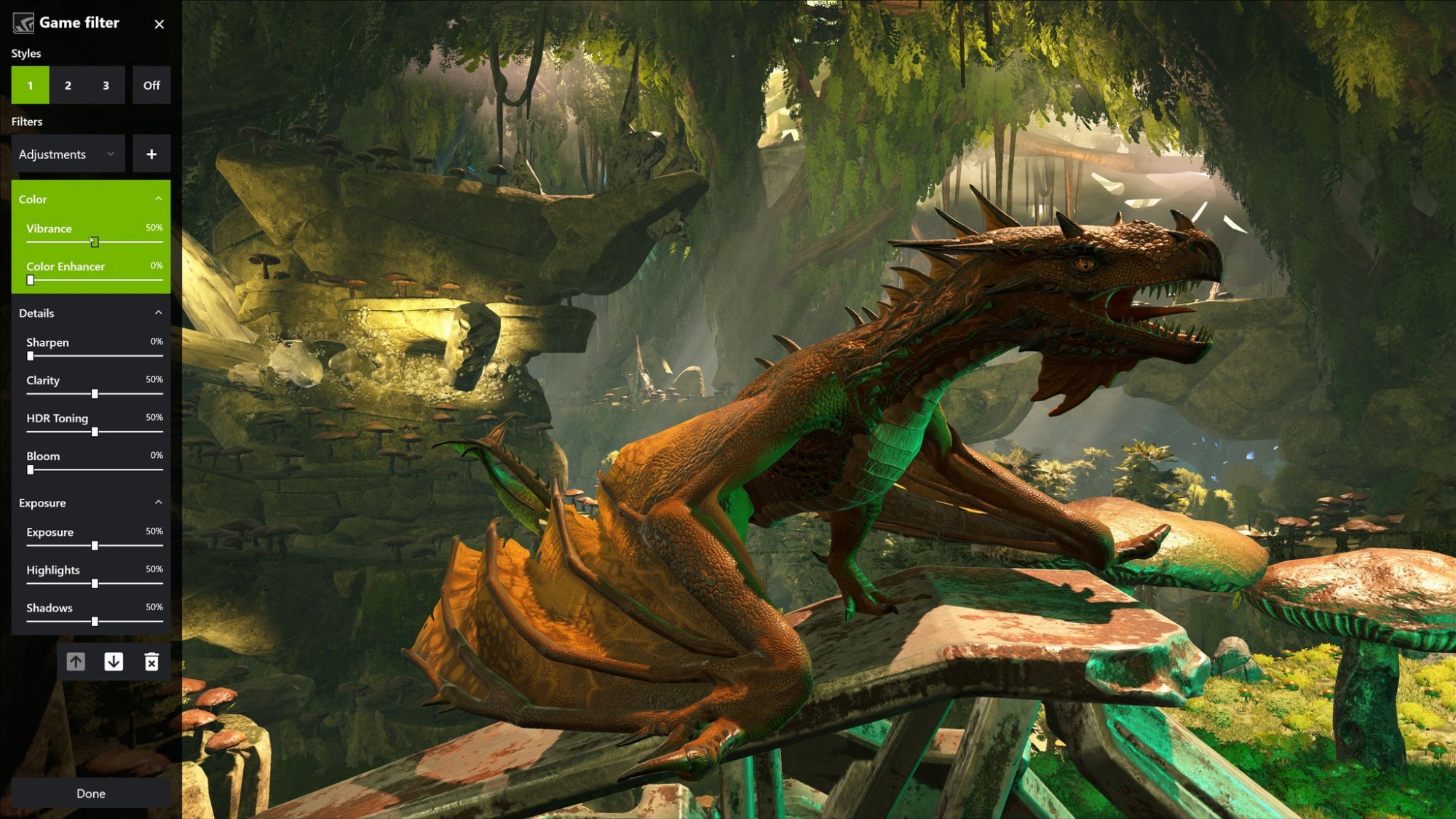
I'd also recommend first trying nvidia freestyle which is an easy overlay of sliders that control shaders like reshade. It can add vibrancy and a ton of other adjustments in games. For games not supported you could probably still use reshade which is still pretty easy to use itself. Freestyle (or reshade) remembers the settings on a per game basis so you can have different settings for a cell shaded/simple textured or platformer, high detail game, dark game, etc. It goes back to your normal desktop settings once you exit the game so you aren't messing with your standard setup for desktop/images/videos outside of games. In fact you couldn't if you wanted to b/c it only works on directX rendering but it's nice to be able to alter games without changing your display settings.

Using either a screen OSD's named settings or with freestyle/reshade filters you can tweak to a custom look you might be aiming for while still being able to keep other settings or your default settings available for viewing other material/desktop.
I'd also recommend first trying nvidia freestyle which is an easy overlay of sliders that control shaders like reshade. It can add vibrancy and a ton of other adjustments in games. For games not supported you could probably still use reshade which is still pretty easy to use itself. Freestyle (or reshade) remembers the settings on a per game basis so you can have different settings for a cell shaded/simple textured or platformer, high detail game, dark game, etc. It goes back to your normal desktop settings once you exit the game so you aren't messing with your standard setup for desktop/images/videos outside of games. In fact you couldn't if you wanted to b/c it only works on directX rendering but it's nice to be able to alter games without changing your display settings.
Using either a screen OSD's named settings or with freestyle/reshade filters you can tweak to a custom look you might be aiming for while still being able to keep other settings or your default settings available for viewing other material/desktop.
Last edited:
Tooterfish
Limp Gawd
- Joined
- May 16, 2011
- Messages
- 148
Read that HDR would be disabled in the comments unless you (unverified) disable G-Sync. Seems like a huge trade off to me.Yes, but it does not change PPI. You would be running a resolution like 3840x1600 which would be just narrower vertically.
shadow2761
Limp Gawd
- Joined
- Mar 11, 2016
- Messages
- 455
No, but I did increase the vibrance setting in NVCP by 10%.You sure you were not running the FI27Q-X with oversaturated color? Were both displays calibrated?
Both displays out of the box, i think the Aorus is factory calibrated. The image just looks so sharp and pretty compared to the CX. Obviously a fully blown HDR game like Resident Evil 2 Remake or Horizon Zero Dawn craps all over the Aorus, but HDR aside I kind of prefer the Aorus image.
Not sure I'd be happy about that. The CX is big, but it doesn't really compromise on anything.Read that HDR would be disabled in the comments unless you (unverified) disable G-Sync. Seems like a huge trade off to me.
Armenius
Extremely [H]
- Joined
- Jan 28, 2014
- Messages
- 54,754
The example Rtings reviewed showed the out-of-the-box settings on the CX to be out of whack. All the colors were inaccurate, the gamma curve was way off, and the white point was too warm.No, but I did increase the vibrance setting in NVCP by 10%.
Both displays out of the box, i think the Aorus is factory calibrated. The image just looks so sharp and pretty compared to the CX. Obviously a fully blown HDR game like Resident Evil 2 Remake or Horizon Zero Dawn craps all over the Aorus, but HDR aside I kind of prefer the Aorus image.

The Gigabyte on the other hand benefitted from its factory calibration, only being too cool on the white point.
- Joined
- Jul 5, 2012
- Messages
- 4,745
Man after using the Aorus FI27Q-X for some time with its 109ppi it's really hard to play games on the 48CX with its mere 93ppi. The extra pixel density is so sharp and nice to look at.
Furthermore, even though the panel of the OLED is superior on paper to IPS panels, the Aorus SS-IPS is extremly vibrant to my eyes and yet again makes the image very appealing to the point I am finding it hard to want to go back and game on the CX. Yes call me krazi, but I am almost preferring the Aorus for gaming over the CX.
Only let down is the Arous is a mere 27". Where the hell are all the (16:9) 32+ inch 4K panels with high quality IPS panels (nano or SS) and atleast 144hz?? There literally is none?
Only ones I can think of are the yet to be released PG32UQX and Acer X32 and the Gigabyte FI32U. There seems to be a massive gap in the market.
Lol the Nintendo Switch has over 230 PPI, do games look insanely sharp and crisp on that?
Armenius
Extremely [H]
- Joined
- Jan 28, 2014
- Messages
- 54,754
Actually, they kind of doLol the Nintendo Switch has over 230 PPI, do games look insanely sharp and crisp on that?

- Joined
- Jul 5, 2012
- Messages
- 4,745
Actually, they kind of do
Some games like BOTW has insane jaggies for being on a >230PPI screen. And I believe handheld mode runs at it's native 720p resolution too. Meanwhile, running the same game on CEMU at 4k on a "measly" 93ppi screen, game looks WAY sharper.
- Joined
- May 5, 2006
- Messages
- 5,956
It's not measely at all. You have to go by PPD.
At 33.5" viewing distance the pixels are just as tight to your eyes and brain on a 48" 4k as they are at ~ 1.5' away on a 27" 4k screen.
The viewing angle is also the same of course. The 20/20 vision threshold starts there. Any closer will be compromised pixel subsampling and graphics aliasing compared to that. Pixels will look too large like running 1440p on a 31.5" screen up close. So the key is having a computer and room setup, desk, tv stand etc that allows you to view the 48 CX properly.
In addition to 33.5" starting point for 20/20..
At 38" viewing distance you get the same PPD on a 48"4k as a 27" 4k looks at ~ 21.4" away.
At 48" viewing distance you get the same PPD on a 48" 4k as a 27" 4k looks at 27" away.
So the ppi of the 48 CX at the proper distance is not an issue at all. At 33.5", the 20/20 vision threshold, it appears exactly the same as 27" 4k at 1.5' viewing distance. In fact the PPD and effective pixel density to your eyes can be higher than a 27" 4k (at 1.5') when viewing the 48 CX at 38" - 48".
At 33.5" viewing distance the pixels are just as tight to your eyes and brain on a 48" 4k as they are at ~ 1.5' away on a 27" 4k screen.
The viewing angle is also the same of course. The 20/20 vision threshold starts there. Any closer will be compromised pixel subsampling and graphics aliasing compared to that. Pixels will look too large like running 1440p on a 31.5" screen up close. So the key is having a computer and room setup, desk, tv stand etc that allows you to view the 48 CX properly.
In addition to 33.5" starting point for 20/20..
At 38" viewing distance you get the same PPD on a 48"4k as a 27" 4k looks at ~ 21.4" away.
At 48" viewing distance you get the same PPD on a 48" 4k as a 27" 4k looks at 27" away.
So the ppi of the 48 CX at the proper distance is not an issue at all. At 33.5", the 20/20 vision threshold, it appears exactly the same as 27" 4k at 1.5' viewing distance. In fact the PPD and effective pixel density to your eyes can be higher than a 27" 4k (at 1.5') when viewing the 48 CX at 38" - 48".
- Joined
- Jul 5, 2012
- Messages
- 4,745
It's not measely at all. You have to go by PPD.
At 33.5" viewing distance the pixels are just as tight to your eyes and brain on a 48" 4k as they are at ~ 1.5' away on a 27" 4k screen.
The viewing angle is also the same of course. The 20/20 vision threshold starts there. Any closer will be compromised pixel subsampling and graphics aliasing compared to that. Pixels will look too large like running 1440p on a 31.5" screen up close. So the key is having a computer and room setup, desk, tv stand etc that allows you to view the 48 CX properly.
In addition to 33.5" starting point for 20/20..
At 38" viewing distance you get the same PPD on a 48"4k as a 27" 4k looks at ~ 21.4" away.
At 48" viewing distance you get the same PPD on a 48" 4k as a 27" 4k looks at 27" away.
So the ppi of the 48 CX at the proper distance is not an issue at all. At 33.5", the 20/20 vision threshold, it appears exactly the same as 27" 4k at 1.5' viewing distance. In fact the PPD and effective pixel density to your eyes can be higher than a 27" 4k (at 1.5') when viewing the 48 CX at 38" - 48".
I meant measely in a sarcastic sense hence the quotes lol

- Joined
- May 5, 2006
- Messages
- 5,956
yeah I realize what you were getting at
..but I hate to see the ppi figure get parroted as being low when the screen size demands a farther view distance for both the viewing angle and the ppd. Some people might see that PPI number in the comment and only go by that ignoring the fact that the PPD is the same or even higher (than a near desktop 4k) at proper viewing distances.
like the original recent reply and a few others have commented before:
93ppi 48" 4k at 33.5" = 163 ppi 27" 4k at 18.85"
Same sharpness and density, Pixels Per Degree on your eyeballs. Sitting farther it will be even higher density per degree.
So he and some other people who complain about the ppi (and I suspect even text subsampling to a large degree) - are almost certainly sitting too close, perhaps much too close for this screen.
..but I hate to see the ppi figure get parroted as being low when the screen size demands a farther view distance for both the viewing angle and the ppd. Some people might see that PPI number in the comment and only go by that ignoring the fact that the PPD is the same or even higher (than a near desktop 4k) at proper viewing distances.
like the original recent reply and a few others have commented before:
Man after using the Aorus FI27Q-X for some time with its 109ppi it's really hard to play games on the 48CX with its mere 93ppi. The extra pixel density is so sharp and nice to look at.
93ppi 48" 4k at 33.5" = 163 ppi 27" 4k at 18.85"
Same sharpness and density, Pixels Per Degree on your eyeballs. Sitting farther it will be even higher density per degree.
So he and some other people who complain about the ppi (and I suspect even text subsampling to a large degree) - are almost certainly sitting too close, perhaps much too close for this screen.
spintroniX
Gawd
- Joined
- Apr 7, 2009
- Messages
- 974
So for those of you running with the adapter on an older RTX 2xxx series GPU, are you just running 4k 120 Hz HDR with vsync enabled? Perhaps a stupid question, but nobody specified vsync on or off.
Not my experience. I've been able to run custom resolutions with HDR. But my Club3D adapter does not support G-Sync so that might be the kicker. Personally I haven't been too bothered by not having G-Sync.Read that HDR would be disabled in the comments unless you (unverified) disable G-Sync. Seems like a huge trade off to me.
shadow2761
Limp Gawd
- Joined
- Mar 11, 2016
- Messages
- 455
yeah I realize what you were getting at
..but I hate to see the ppi figure get parroted as being low when the screen size demands a farther view distance for both the viewing angle and the ppd. Some people might see that PPI number in the comment and only go by that ignoring the fact that the PPD is the same or even higher (than a near desktop 4k) at proper viewing distances.
like the original recent reply and a few others have commented before:
93ppi 48" 4k at 33.5" = 163 ppi 27" 4k at 18.85"
Same sharpness and density, Pixels Per Degree on your eyeballs. Sitting farther it will be even higher density per degree.
So he and some other people who complain about the ppi (and I suspect even text subsampling to a large degree) - are almost certainly sitting too close, perhaps much too close for this screen.
Well I tried sitting further, like 1.5m from the screen, and I even used DSR 2.0x and these made a big improvement to my resolution quality viewing on the CX.
But after going back on forth between the CX and the FI27Q-X testing out Divinity OS2, I hate to say it, I much preffered the Aorus because the ppi and hence image quality feels tons more sharper still. And the colors are far more vibrant.
Maybe the next saving grace would be to calibrate the CX, then compare but I don't have any calibrating tools.
Even then, I'm starting to feel that the 48CX is still too large. It's shame for me, because HDR gaming on it looks so good! But HDR aside, I prefer my Aorus monitor for gaming.
yeah I realize what you were getting at
..but I hate to see the ppi figure get parroted as being low when the screen size demands a farther view distance for both the viewing angle and the ppd. Some people might see that PPI number in the comment and only go by that ignoring the fact that the PPD is the same or even higher (than a near desktop 4k) at proper viewing distances.
like the original recent reply and a few others have commented before:
93ppi 48" 4k at 33.5" = 163 ppi 27" 4k at 18.85"
Same sharpness and density, Pixels Per Degree on your eyeballs. Sitting farther it will be even higher density per degree.
So he and some other people who complain about the ppi (and I suspect even text subsampling to a large degree) - are almost certainly sitting too close, perhaps much too close for this screen.
I would add that scaling used will have an effect in desktop use. At 100-110 cm viewing distance I use 120-125% scaling (MacOS vs Windows) for a text size that I feel is comfortable. But if I was using a 27" monitor I would probably want to use 150% to have a comfortable reading experience. That of course ends up with sharper text due to the scaling but decreased desktop space. On the CX that is a bit uncomfortably large for my tastes without adding a good chunk more viewing distance.
Games just ignore this of course. Then it becomes just a case of display size and viewing distance. Even Switch games running at 1080p with crap or non-existent AA look super sharp on my 65" LG C9 in the living room if I am standing behind my sofa, at something like 3-4 meter viewing distance.
- Joined
- May 5, 2006
- Messages
- 5,956
I think he's just not set up for the viewing distance. He keeps saying the ppi is bad even though he now claims to have viewed it from far enough away to pass the 20/20 threshold ~ 60 PPD. Yet the CX at the proper viewing distances is actually a much higher PPD than the desktop monitor he is using. So at 33.5" viewing distance or greater it is in effect the same density to your eyeballs as a 163ppi 4k 27" screen (at 1.5') and much higher if viewing the 48 CX at 38" - 48" away. He's comparing the 48 CX to a 109ppi desktop monitor so what he is claiming does not compute at all.
Regarding "pop" ... if you like a slightly oversaturated look for some games, like I said you can either:
...... set up one of the named settings in the 48 CX OSD specifically for more saturated gaming. Then you can use the mic or navigate with the remote to switch to that named setting when you are gaming and back when you are done.
......or you can use nvidia freestyle or reshade to adjust a bunch of game filter parmeters easily with overlay sliders that will be remembered on a per game basis without affecting your TV OSD settings at all.
I similarly keep specific sets of named settings on my living room 4k FALD VA tv just for gaming, anime/animation (more saturated and different interpolation settings), daytime bright, a few middle level contrast/gamma, and one for dark viewing. I've used freestyle in the past on a few games and it can really help with some genres, especially on va screens. I haven't felt the need to use freestyle/reshade on the CX at all so far (when viewing in medium lighting to dim lighting environments that OLED is suited for) .. so again, what he is saying does not compute. I was playing mostly HDR games since I got it (jedi: fallen order on jedi master difficulty with no HUD mod, a full playthrough of Nioh2) and they looked incredible.. but now I've been playing darksiders III in SDR and it still looks great and very colorful.
==================================
Regarding scaling - for me viewing at at 33.5" distance at times but more often at the 38" to 48" viewing distances I use I'm not scaling at all on my 48" 4k CX. I have both of my 43" 4k screens at 125% scaling though. On my 15" 4k laptop I use 150% scaling but I'm sitting a lot closer at the built in laptop keyboard when using that obviously. Of course people have their own personal preferences (and eyesight if not corrected with lenses).
Regarding "pop" ... if you like a slightly oversaturated look for some games, like I said you can either:
...... set up one of the named settings in the 48 CX OSD specifically for more saturated gaming. Then you can use the mic or navigate with the remote to switch to that named setting when you are gaming and back when you are done.
......or you can use nvidia freestyle or reshade to adjust a bunch of game filter parmeters easily with overlay sliders that will be remembered on a per game basis without affecting your TV OSD settings at all.
I similarly keep specific sets of named settings on my living room 4k FALD VA tv just for gaming, anime/animation (more saturated and different interpolation settings), daytime bright, a few middle level contrast/gamma, and one for dark viewing. I've used freestyle in the past on a few games and it can really help with some genres, especially on va screens. I haven't felt the need to use freestyle/reshade on the CX at all so far (when viewing in medium lighting to dim lighting environments that OLED is suited for) .. so again, what he is saying does not compute. I was playing mostly HDR games since I got it (jedi: fallen order on jedi master difficulty with no HUD mod, a full playthrough of Nioh2) and they looked incredible.. but now I've been playing darksiders III in SDR and it still looks great and very colorful.
==================================
Regarding scaling - for me viewing at at 33.5" distance at times but more often at the 38" to 48" viewing distances I use I'm not scaling at all on my 48" 4k CX. I have both of my 43" 4k screens at 125% scaling though. On my 15" 4k laptop I use 150% scaling but I'm sitting a lot closer at the built in laptop keyboard when using that obviously. Of course people have their own personal preferences (and eyesight if not corrected with lenses).
Last edited:
- Joined
- Jul 5, 2012
- Messages
- 4,745
109 ppi is hardly even impressive lol. If it was at least a 27 inch 4k monitor with over 150 ppi then sure maybe I can believe it. But like elvn said, a 27 inch 1440p monitor looking sharper than the CX doesn't add up. I still have a 27 inch 1440p screen too (HP Omen X27 240Hz) and that definitely doesn't look sharper than my CX.
- Joined
- May 5, 2006
- Messages
- 5,956
...
even though the panel of the OLED is superior on paper to IPS panels, the Aorus SS-IPS is extremly vibrant to my eyes and yet again makes the image very appealing to the point I am finding it hard to want to go back and game on the CX. Yes call me krazi, but I am almost preferring the Aorus for gaming over the CX.
Well I tried sitting further, like 1.5m from the screen, and I even used DSR 2.0x and these made a big improvement to my resolution quality viewing on the CX.
But after going back on forth between the CX and the FI27Q-X testing out Divinity OS2, I hate to say it, I much preffered the Aorus because the ppi and hence image quality feels tons more sharper still. And the colors are far more vibrant.
I took a little time to mess with a TV setting to make it more saturated and brighter for games. That won't be accurate and could end up crushing some colors at the far end but I definitely made it pop more in darksiders 3. Give it a try if you get a chance.
I didn't tweak it too much yet but so far I did this...
Set the TV to VIVID Mode.. it will end up being Vivid (Custom) once you edit it.
It will look like torch mode at first so turn down the brightness to 47. Still bright but the end result will be tempered somewhat. You can turn it down to 45 or lower if you still find it too bright. That's what I settled on for now. You could try 38 and see how that looks but you'd have to change some of the other numbers at that point.
OLED Light = 100
Contrast = 100
Brightness = 38 - 47
sharpness = 20
Color = 70
tint = 0
Color Temp = C50
**** DO NOT CLICK --> APPLY TO ALL INPUTS****
Picture Options: Turn them all off. Black level = auto
Additional Settings:
..instant game response on for the hdmi input from the gaming machine
..hdmi deep color on for that same input
----------------------------------------------
Nvidia Freestyle
....geforce experience running before you launch the game
...access via ALT+Z for the main overlay or alt+F3 to go directly to the freestyle overlay
+ Add Filter
---> Add Color Filter
Color Filter settings
Tint Color: 20%
Tint Intensity: 11%
Temperature: 0
Vibrance: 20
+Add Filter
---> Add Brightness/Contrast Filter
Brightness/Contrast Filter Settings
Exposure: 0%
Contrast: +5%
Highlights: +20%
Shadows: -18% (minus)
Gamma: 0%
---------------------------------
You could probably match the same tint and vibrance the filter is doing in the LG CX OSD but it's nice to be able to change things on a per game basis in freestyle or reshade.
The end result could still use some tweaking but it's definitely more console saturated looking. You can adjust a lot of things to taste.
I can tell the remote to swap back and forth between game mode and vivid mode whenever I want to go back to my normal settings.
Disclaimer ---- running higher brightness settings could lower the lifespan of your oled potentially , but then so could HDR material .
Last edited:
HiCZoK
Gawd
- Joined
- Sep 18, 2006
- Messages
- 860
Is there a way to check what software blocks screensaver from activating?
I've got it set to blank after 1 minute. It works most of time. Even when I leave a movie paused or yt video.
But sometimes it does not work. But I can't see anything really activated that could block it
I've got it set to blank after 1 minute. It works most of time. Even when I leave a movie paused or yt video.
But sometimes it does not work. But I can't see anything really activated that could block it
shadow2761
Limp Gawd
- Joined
- Mar 11, 2016
- Messages
- 455
elvn
My apologies, but I have finally got the CX to be vivid and saturated in Game mode in PC games.
I followed some suggestions from here:
And that did wonders for me. Now my CX is vibrant as ever.
But I remember doing these kind of settings a while back when I first got the CX, and then for the last 2 months I did not touch my CX and it seems all my settings reverted to stock. That's why when I was comparing my Aorus to it, I was comparing it to the factory crappy settings for colour on the CX and it was looking so dull. Now that it is all set up and proper, I can safely say I am definitely in love with my OLED screen again.
Still wish they would hurry up and release the 42" version though.
Anyhows, I have a question. What input label has the lowest input latency for PC gaming?
I always though it was suppose to be labeled PC, but it seems if I switch the label to game console it feels noticeably quicker.
Is this correct?
My apologies, but I have finally got the CX to be vivid and saturated in Game mode in PC games.
I followed some suggestions from here:
And that did wonders for me. Now my CX is vibrant as ever.
But I remember doing these kind of settings a while back when I first got the CX, and then for the last 2 months I did not touch my CX and it seems all my settings reverted to stock. That's why when I was comparing my Aorus to it, I was comparing it to the factory crappy settings for colour on the CX and it was looking so dull. Now that it is all set up and proper, I can safely say I am definitely in love with my OLED screen again.
Still wish they would hurry up and release the 42" version though.
Anyhows, I have a question. What input label has the lowest input latency for PC gaming?
I always though it was suppose to be labeled PC, but it seems if I switch the label to game console it feels noticeably quicker.
Is this correct?
Anyhows, I have a question. What input label has the lowest input latency for PC gaming?
Input label does not matter, but its icon should be set to PC if connected to a PC.
The lowest input lag setting is using Picture mode: Game. Even with the Instant Game Response enabled I find the game mode has a slight input lag advantage.
Personally I don't even bother swapping picture presets and just use the Game mode all the time. I have it configured similar to one of the IFS Expert modes.
- Joined
- May 5, 2006
- Messages
- 5,956
It's probably not a huge input lag difference compared to game picture mode but I'd be interested to know how much difference there is in other picture modes while they are named PC and with instant game response turned on. That is, once you also turn off all of the other picture option settings manually on the other picture mode - which game mode does by default automatically. If you leave those on it will be way worse obviously.
I had been using game picture mode all along prior for games. I used vivid mode as a starting point yesterday to experiment with more vivid/saturated color and brightness. You could edit your regular game picture mode to look similar once you found a look you liked and then set vivid back to default. (You can't have two different easily swap-able sets of settings for game mode afaik). I'm more interested in keeping my normal and cinema picture modes more accurate than my game mode. Editing game mode differently than a default calibration's guidelines would probably be worth it for the vibrancy/saturation/brightness as long as it didn't crush colors too obviously/horribly on the high end. At least for SDR games. HDR mode probably overrides your OSD settings when it kicks in after you launch a HDR game anyway.
I had been using game picture mode all along prior for games. I used vivid mode as a starting point yesterday to experiment with more vivid/saturated color and brightness. You could edit your regular game picture mode to look similar once you found a look you liked and then set vivid back to default. (You can't have two different easily swap-able sets of settings for game mode afaik). I'm more interested in keeping my normal and cinema picture modes more accurate than my game mode. Editing game mode differently than a default calibration's guidelines would probably be worth it for the vibrancy/saturation/brightness as long as it didn't crush colors too obviously/horribly on the high end. At least for SDR games. HDR mode probably overrides your OSD settings when it kicks in after you launch a HDR game anyway.
Last edited:
- Joined
- May 5, 2006
- Messages
- 5,956
I always though it was suppose to be labeled PC, but it seems if I switch the label to game console it feels noticeably quicker.
Is this correct?
From Rtings:
With an Xbox plugged in, it automatically enables the Auto Low Latency Mode and it turns on HDMI Deep Color Mode, but you have to enable Instant Game Response first for ALLM to work.
Consoles might identify differently in order for that to kick in automatically idk.
HiCZoK
Gawd
- Joined
- Sep 18, 2006
- Messages
- 860
Another c1 quesiton here . I am only using media player classic home cinema with madvr to play movies on pc and the camera panning scenes show visible JUDDER.
But there is no way to reduce it on pc. Gsync and everything is enabled but I don't think it is used by mpc hc. Anyway - either 24 or 30 is an integer of 120hz so I don't think it's the issue.
When I watch movies through the netflix app build in the TV, there is "cinema screen" and separate true motion with "cinematic movement", natural, smooth and user settings.
The cinema screen and cinematic movement in trumotion looks the same to me and don't seem to do much to the image.
Other options smooth out the movement like magic but of course introduce soap opera effect.
What de-judder value are people using? I am trying 5 now and it seems ok.
But the intended way is to watch with ever of this stuff disabled, right? Like on pc ?
edit: Also - wheather watching 30/24 fps movie or playing 60fps locked ps5 game, The tv is best to be set to locked 120hz to achieve proper gamma too... right?! I am overthinking this shit way too much Btw the screen is absolutely amazing! grab it !
But there is no way to reduce it on pc. Gsync and everything is enabled but I don't think it is used by mpc hc. Anyway - either 24 or 30 is an integer of 120hz so I don't think it's the issue.
When I watch movies through the netflix app build in the TV, there is "cinema screen" and separate true motion with "cinematic movement", natural, smooth and user settings.
The cinema screen and cinematic movement in trumotion looks the same to me and don't seem to do much to the image.
Other options smooth out the movement like magic but of course introduce soap opera effect.
What de-judder value are people using? I am trying 5 now and it seems ok.
But the intended way is to watch with ever of this stuff disabled, right? Like on pc ?
edit: Also - wheather watching 30/24 fps movie or playing 60fps locked ps5 game, The tv is best to be set to locked 120hz to achieve proper gamma too... right?! I am overthinking this shit way too much
Btw the screen is absolutely amazing! grab it !Read that HDR would be disabled in the comments unless you (unverified) disable G-Sync. Seems like a huge trade off to me.
What if you try making the custom resolution via CRU, making sure to add the necessary data blocks for "HDR static metadata" and "HDMI 2.x" (for VRR)?
There's also the option of black frame insertion which is something that's only available on the CX when not using VRR.
Another c1 quesiton here . I am only using media player classic home cinema with madvr to play movies on pc and the camera panning scenes show visible JUDDER.
But there is no way to reduce it on pc. Gsync and everything is enabled but I don't think it is used by mpc hc. Anyway - either 24 or 30 is an integer of 120hz so I don't think it's the issue.
Without trying to use software like SVP* configured to subtle settings, one option would be to use the automatic resolution/refresh rate changer that is built into both madvr and MPC-HC (only configure one of them; configuring both may cause issues) to switch to 24Hz for 24fps video content, 30Hz or 60Hz for 30fps video content, 25Hz or 50Hz for 25fps content, etc.
From there use the "cinematic movement" function built into the TV and theoretically everything should work well... emphasis on "theoretically" since I don't have access to any OLED TV newer than an E9.
*I just want to say that, as a long-time SVP user, you can always try using the older SVP 3.1 if you don't want to pay money or deal with a 30 day trial. Similarly the Linux version of SVP4 is completely free if that's an option for you (though I've also had issues getting newer versions of the installer even running so instead I had to use an older installer and then use the built-in software updater to upgrade to the newest version)
Last edited: