Anything with a low framerate will be problematic on OLED because of its near instant response times. Try different dejudder settings for movies and TV and just use what works best to you.Another c1 quesiton here . I am only using media player classic home cinema with madvr to play movies on pc and the camera panning scenes show visible JUDDER.
But there is no way to reduce it on pc. Gsync and everything is enabled but I don't think it is used by mpc hc. Anyway - either 24 or 30 is an integer of 120hz so I don't think it's the issue.
When I watch movies through the netflix app build in the TV, there is "cinema screen" and separate true motion with "cinematic movement", natural, smooth and user settings.
The cinema screen and cinematic movement in trumotion looks the same to me and don't seem to do much to the image.
Other options smooth out the movement like magic but of course introduce soap opera effect.
What de-judder value are people using? I am trying 5 now and it seems ok.
But the intended way is to watch with ever of this stuff disabled, right? Like on pc ?
edit: Also - wheather watching 30/24 fps movie or playing 60fps locked ps5 game, The tv is best to be set to locked 120hz to achieve proper gamma too... right?! I am overthinking this shit way too muchBtw the screen is absolutely amazing! grab it !
![[H]ard|Forum](/styles/hardforum/xenforo/logo_dark.png)
Navigation
Install the app
How to install the app on iOS
Follow along with the video below to see how to install our site as a web app on your home screen.
Note: This feature may not be available in some browsers.
More options
-
Some users have recently had their accounts hijacked. It seems that the now defunct EVGA forums might have compromised your password there and seems many are using the same PW here. We would suggest you UPDATE YOUR PASSWORD and TURN ON 2FA for your account here to further secure it. None of the compromised accounts had 2FA turned on.
Once you have enabled 2FA, your account will be updated soon to show a badge, letting other members know that you use 2FA to protect your account. This should be beneficial for everyone that uses FSFT.
You are using an out of date browser. It may not display this or other websites correctly.
You should upgrade or use an alternative browser.
You should upgrade or use an alternative browser.
LG 48CX
- Thread starter gan7114
- Start date

- Joined
- May 5, 2006
- Messages
- 5,781
Another c1 quesiton here . I am only using media player classic home cinema with madvr to play movies on pc and the camera panning scenes show visible JUDDER.
But there is no way to reduce it on pc. Gsync and everything is enabled but I don't think it is used by mpc hc. Anyway - either 24 or 30 is an integer of 120hz so I don't think it's the issue.
When I watch movies through the netflix app build in the TV, there is "cinema screen" and separate true motion with "cinematic movement", natural, smooth and user settings.
The cinema screen and cinematic movement in trumotion looks the same to me and don't seem to do much to the image.
Other options smooth out the movement like magic but of course introduce soap opera effect.
What de-judder value are people using? I am trying 5 now and it seems ok.
But the intended way is to watch with ever of this stuff disabled, right? Like on pc ?
edit: Also - wheather watching 30/24 fps movie or playing 60fps locked ps5 game, The tv is best to be set to locked 120hz to achieve proper gamma too... right?! I am overthinking this shit way too much
I switched to using a nvidia shield for everything other than the LG WebOS Youtube app because the shield doesn't have hardware support for youtube HDR (Youtube HDR content often has static channel logos though so I don't watch HDR that much on youtube anyway). Although when I first got the CX I did mess with mpc-hc and madVR. You have to use the HDR tone mapping option in madVR for HDR content and map it to near the limits of the LG CX OLED if you weren't aware because pc/mpc-hc doesn't read any HDR metadata from HDR files on windows. So if not using MadVR's hdr metadata feature you'd otherwise end up at the default color curve which would be an incorrect curve for the OLED(which I found out from user Monstieur in this thread). That would mean that though you would still be getting HDR video shown - a lot more of the last portion of high nits in your curve would be compressed than should be so you'd lose more color detail and some highlights would be cut off.
The curves are arbitrarily decided by LG and don't follow a standard roll-off. There does exist the BT.2390 standard for tone mapping which madVR supports (when using HGIG mode).
LG's 1000-nit curve is accurate up to 560 nits, and squeezes 560 - 1000 nits into 560 - 800 nits.
LG's 4000-nit curve is accurate up to 480 nits, and squeezes 480 - 4000 nits into 480 - 800 nits.
LG's 10000-nit curve is accurate up to 400 nits, and squeezes 400 - 10000 nits into 400 - 800 nits.
I would use only the 1000-nit curve or HGIG for all movies, even if the content is mastered at 4000+ nits. All moves are previewed on a reference monitor and are designed to look good at even 1000 nits. It's fine to clip 1000+ nit highlights. HGIG would clip 800+ nit highlights.
LG defaults to the 4000-nit curve when there is no HDR metadata, which a PC never sends.
MadVR also has a pretty good interpolation feature which I had been using because the PC mode hdmi doesn't allow smooth motion~interpolation on the LG CX to start with. OLED response times are so fast that they can make frame rates and judder more obvious, like kasakka said. I think videos look way better interpolated for uhd videos once tweaked personally, almost 3d... but I understand that some people don't like the look. As long as interpolation method is quality and isn't overdone by the user (doesn't cause artifacts or obvious dark halos, trailing, etc.). I prefer that over judder any day even if it makes some backgrounds look more like a movie set or a play in some scenes. As you said, the PC mode on your pc's hdmi in to the tv doesn't have the option to use the TV's smoothing - but you can get it in the built in apps since they aren't running off of your pc or any input. You'd also get it on any of the other hdmi inputs if you didn't make them PC like I am doing with my nvidia shield.
The best bet for playing movies/videos on the LG CX imo, other than using an external player, is to use plex or emby WebOS apps on the tv instead of using windows to play videos. You can use the remote to navigate to the apps or if the voice control is enabled you can just hold the mic button down and tell it to open the app, then tell it to "go to PC" or "Go to hdmi<#>" (where # is the hdmi number that the pc is on) when you want to go back to PC.
Last edited:
- Joined
- May 5, 2006
- Messages
- 5,781
I was playing some darksiders3 last night and tried vivid mode again. I ended up turning the brightness down to around 35 and then using nvidia freestyle to adjust the contrast and shadows down -30% each to brighten their level up enough. It could still use some tweaking but it looked good and vibrant at night. I'm still curious what the input lag difference is between game picture mode and other modes when the additional picture options are all turned off manually (which game mode does automatically by default), with both on hdmi input pc icon/label and game instant response.
Eventually I'll settle on some settings I like outside of freestyle to start with and I'll probably end up adjusting game picture mode to match it, adjusting values and swapping between modes until they look the same.
---------------------------
I also found this in case anyone wasn't aware. I have been using the "turn off the screen" trick , holding the mic button and saying that to turn off the emitters without powering down the screen to standby. I do that any time I leave my keyboard or page off a paused game for awhile. If I hit the windows key while in game I get my mouse cursor back when windowed+fullscreen without minimizing windows like alt-tab tends to do.
There is a a way to "turn of the screen" (emitters) drilling down in the menus of the tv but this way I looked up is a lot faster:
https://www.reddit.com/r/OLED/comments/j0mia1/quick_tip_for_a_fast_way_to_turn_off_the_screen/
Eventually I'll settle on some settings I like outside of freestyle to start with and I'll probably end up adjusting game picture mode to match it, adjusting values and swapping between modes until they look the same.
---------------------------
I also found this in case anyone wasn't aware. I have been using the "turn off the screen" trick , holding the mic button and saying that to turn off the emitters without powering down the screen to standby. I do that any time I leave my keyboard or page off a paused game for awhile. If I hit the windows key while in game I get my mouse cursor back when windowed+fullscreen without minimizing windows like alt-tab tends to do.
There is a a way to "turn of the screen" (emitters) drilling down in the menus of the tv but this way I looked up is a lot faster:
https://www.reddit.com/r/OLED/comments/j0mia1/quick_tip_for_a_fast_way_to_turn_off_the_screen/
Quick Tip for a fast way to turn off the screen without voice commands or deep menu selection.
Discussion
This option seems to only be for the LG CX, BX and GX unfortunately.. Would be nice for LG to add this to previous models with enough requests.
I notice many people have been going all the way through the settings or using voice commands to turn the screen off. Screen off comes in handy for many things like Spotify and podcasts with a static image while still hearing sound (the tv isn't actually off). There is a very quick and convenient way to simply add a screen off button to your quick settings when you press the settings button once (not holding as that will take you to main settings)
So you want to press the settings cog button once and then scroll to the bottom pencil button aka edit. You may have to delete a less used button to make room and then press the + button and find 'screen off'. This will add it to your quick menu which is really fast and doesn't require you to find it deep in settings or talk into your remote and wait for the countdown (it's instant). You can add a bunch of other stuff to quick menu via + but screen off was the big one for me.
I hope this helps! I've noticed many users didn't know this when I've commented so I figured it may help some of you worried about static images.

Last edited:
shadow2761
Limp Gawd
- Joined
- Mar 11, 2016
- Messages
- 455
So all you guys gaming outside of 'game' picture mode, some of you guys said you use 'vivid', doesn't that increase input latency when outside of 'game' picture mode?
- Joined
- May 5, 2006
- Messages
- 5,781
So all you guys gaming outside of 'game' picture mode, some of you guys said you use 'vivid', doesn't that increase input latency when outside of 'game' picture mode?
People say there is some slight input lag difference outside of game picture mode. In default settings on each mode its probably something like 13ms game picture mode vs 20ms outside of game picture mode.
I'm curious what pc mode (pc icon on input) + instant game response on but with all of the addtional picture options off has for input lag when not on game picture mode (any of the others --- cinema, normal/standard, vivid, etc).
Picture/Picture Mode Settings
..Noise Reduction: off
..MPEG Noise Reduction: off
..Smooth Gradation: Off
..Black Level: Auto
..Real Cinema: Off
..Motion Eye Care: Off
..Truemotion: Off
..etc.
That is, what is the input lag difference in PC mode(icon) + instant game response on comparing :
.....game picture mode which by default automatically turns off all of the additional picture options
-----VS.------
....vivid picture mode(with brightness turned down and edited) with all of the additional picture options turned off manually
========================
I've been using vivid to experiment with more saturated colors without messing up my current game picture mode settings. You could edit game picture mode to the same result more or less eventually if you still found a small input lag difference.
Last edited:
i get that on my B7 too with my 1080 or 3080.Is there a way to check what software blocks screensaver from activating?
I've got it set to blank after 1 minute. It works most of time. Even when I leave a movie paused or yt video.
But sometimes it does not work. But I can't see anything really activated that could block it
- Joined
- May 5, 2006
- Messages
- 5,781
Game mode by default is terribly unsaturated outside of HDR games so I can see why shadow2761 was complaining about the default settings. I have been playing HDR games since I got the TV so desaturated SDR games in game mode was new to me.
I set my game picture mode OSD color setting to 95 at the moment. The rest of the OSD settings are pretty normal --> brightness 50 (OLED bright 100) , contrast 100
Then in Nvidia Freestyle (running darksiders 3) for now I set:
+Brightness/Contrast Filter
...Contrast +5% (more inky)
...Highlights +20%
...Shadows -30% (minus to show detail in darks)
...Gamma = zero
+Color Filter
...Tint +20%
...Tint Intensity +30%
...Vibrance 0% to +10% or wherever you like +/- depending how high you left your color slider in the TV OSD to start with and what kind of game you are setting up filters on
Optionally
+Details Filter
...Sharpen +0% (+/- might be useful on some games)
...Clarity +20%
...HDR Toning +10%
I can adjust the TV OSD (esp. color) differently if needed but it's nice to be able to adjust on a per game basis in Freestyle for more saturation or not, along with other freestyle filters. The ability to change overall brightness/contrast on a game instantly is appreciated day to night in my room for example. Unfortunately the LG CX does not allow for the full game mode in more than one picture mode or set of named OSD settings. Otherwise I'd have one mode or name for game high color/vivid day, one for high color/vivid night, one for game natural day, one for game natural night, etc. Changing more than one parameter in the OSD on a per game or per time of day basis would be a pita but I guess it's doable if you had to. Using filter methods instead - once you get your game profile of filters set up in freestyle (or reshade), the specific filter set you made per game will load every time you play a particular game and unload when you quit.
That's how I have it for the darksiders 3 profile #2 during the daytime. I can hit alt+f3 (or alt+z then mouse click) and swap between 3 sets of filters per game in the freestyle overlay. I have a different profile #1 for night/dim room lighting. I might try to duplicate this in reshade at some point but freestyle is convenient to experiment with for now.
Just a FYI that some online games might block or ban using filters because people use them to cheese shooters by lighting up dark areas, adjusting other settings that essentially remove fog, etc. (People still use in game graphics settings limitations and monitor OSD settings to cheeze too).
I set my game picture mode OSD color setting to 95 at the moment. The rest of the OSD settings are pretty normal --> brightness 50 (OLED bright 100) , contrast 100
Then in Nvidia Freestyle (running darksiders 3) for now I set:
+Brightness/Contrast Filter
...Contrast +5% (more inky)
...Highlights +20%
...Shadows -30% (minus to show detail in darks)
...Gamma = zero
+Color Filter
...Tint +20%
...Tint Intensity +30%
...Vibrance 0% to +10% or wherever you like +/- depending how high you left your color slider in the TV OSD to start with and what kind of game you are setting up filters on
Optionally
+Details Filter
...Sharpen +0% (+/- might be useful on some games)
...Clarity +20%
...HDR Toning +10%
I can adjust the TV OSD (esp. color) differently if needed but it's nice to be able to adjust on a per game basis in Freestyle for more saturation or not, along with other freestyle filters. The ability to change overall brightness/contrast on a game instantly is appreciated day to night in my room for example. Unfortunately the LG CX does not allow for the full game mode in more than one picture mode or set of named OSD settings. Otherwise I'd have one mode or name for game high color/vivid day, one for high color/vivid night, one for game natural day, one for game natural night, etc. Changing more than one parameter in the OSD on a per game or per time of day basis would be a pita but I guess it's doable if you had to. Using filter methods instead - once you get your game profile of filters set up in freestyle (or reshade), the specific filter set you made per game will load every time you play a particular game and unload when you quit.
That's how I have it for the darksiders 3 profile #2 during the daytime. I can hit alt+f3 (or alt+z then mouse click) and swap between 3 sets of filters per game in the freestyle overlay. I have a different profile #1 for night/dim room lighting. I might try to duplicate this in reshade at some point but freestyle is convenient to experiment with for now.
Just a FYI that some online games might block or ban using filters because people use them to cheese shooters by lighting up dark areas, adjusting other settings that essentially remove fog, etc. (People still use in game graphics settings limitations and monitor OSD settings to cheeze too).
Last edited:
- Joined
- May 5, 2006
- Messages
- 5,781
i get that on my B7 too with my 1080 or 3080.
I'd never rely on system screensavers. They can crash, something crashing or crash notification window could take top layer over the screensaver, your whole gpu could crash leaving noise on the screen (rare but still) .. your system could spontaneously reboot and get stuck on a bios/logon/update screen , etc.
I have been using the "turn off the screen" trick , holding the mic button and saying that to turn off the emitters without powering down the screen to standby. I do that any time I leave my keyboard or page off a paused game for awhile. If I hit the windows key while in game I get my mouse cursor back when windowed+fullscreen without minimizing windows like alt-tab tends to do so I can page my mouse off to another screen in my multi monitor array.
There is a a way to "turn of the screen" (emitters) drilling down in the menus of the tv but this way I looked up is a lot faster:
https://www.reddit.com/r/OLED/comments/j0mia1/quick_tip_for_a_fast_way_to_turn_off_the_screen/
Quick Tip for a fast way to turn off the screen without voice commands or deep menu selection.
View attachment 359096
Discussion
This option seems to only be for the LG CX, BX and GX unfortunately.. Would be nice for LG to add this to previous models with enough requests.
I notice many people have been going all the way through the settings or using voice commands to turn the screen off. Screen off comes in handy for many things like Spotify and podcasts with a static image while still hearing sound (the tv isn't actually off). There is a very quick and convenient way to simply add a screen off button to your quick settings when you press the settings button once (not holding as that will take you to main settings)
So you want to press the settings cog button once and then scroll to the bottom pencil button aka edit. You may have to delete a less used button to make room and then press the + button and find 'screen off'. This will add it to your quick menu which is really fast and doesn't require you to find it deep in settings or talk into your remote and wait for the countdown (it's instant). You can add a bunch of other stuff to quick menu via + but screen off was the big one for me.
I hope this helps! I've noticed many users didn't know this when I've commented so I figured it may help some of you worried about static images.
With that setup I linked you just quick-press the cog button then move the OSD mouse cursor over to the TV icon(that has a round power icon in it) and press the remote wheel "mouse click" to turn off the screen. It's very fast. Quick press cog wheel , move the OSD mouse over, click.
Turning "off" the screen using these methods only turns the emitters off. It doesn't drop the screen from the array causing window shuffling or on a multi monitor setup swapping the running game to a different screen or other messy effects. To the system the screen is still on and not in standy. The emitters are just off. Everything is still running (including sound). A touch of any button on the remote lights the emitters back up instantly. I press the side of the wheel to do that personally.
The only risk with the remote turn off the screen method is if your remote gets hit while it is off .. falls, cats, you throw the remote down after you turn it off and it hits the keypad.. whatever but I haven't had any problem. Any key hit will wake the screen back up - so you could still use a screensaver to be extra safe.
As long as you don't disable the built in protections the TV has it will go very dim after several minutes when on a static screen and that should cut down a lot of burn in risk in the first place but turning off the emitters is quick and easy and it's become my easy routine almost like minimizing a window.
Last edited:

HiCZoK
Gawd
- Joined
- Sep 18, 2006
- Messages
- 860
Anyone inspected what BOOST prevent input delay option does really? Does it have any negative effects on VRR or gamma? Or should it only be used at 60hz?
- Joined
- May 5, 2006
- Messages
- 5,781
I messed around in reshade a bit so that I could turn the geforce experience overlay off. You turn that off in the main geforce experience app window, not the overlay. Hit cog wheel in that window, turn the overlay slider off. You can uninstall geforce experience entirely of course but I still use it for a few things.
I'm not an expert reshade tweaker but I settled on something I like for now, at least for the somewhat cartoony darksiders3 game.
LG CX TV OSD
-----------------------
hdmi input set to PC name and icon
Game Picture Mode (User)
OLED Light: 100
Contrast:100
Brightness: 50
Sharpness:10
Color: 75
Advanced Controls: off (color gamut:auto)
Picture Options: all off (black level: auto)
Additional Settings: HDMI Ultra HD Deep Color=On, Instant Game Response = On
=======================================
Reshade Filters
----------------------
Lightroom [qUINT_lightroom.fx]
Curves......
Global Exposure: 0.050 (subtle.. lights up without crushing white)
Global Gamma: 0.120
Global Shadows Curve: 0.225 (shows more detail in darks)
Color & Saturation..............
Global Saturation: 0.125
Global Vibrance: 0.150
HDR [fakeHDR.fx]
Power: 1.900
Radius1: 0.793
Radius2: 0.870
LumaSharpen [LumaSharpen.fx]... at defaults for now
Sharpening Strength: 0.650
Sharpening Limit: 0.035
Sample Pattern: normal
Offset bias: 1.00
=========================================
The fakeHDR settings change the result of the Lightroom filter a lot so these settings do not look good separately. I think the end restult looks pretty good as it is but I can definitely spend time tweaking it more.
You can set up a lot of different game profiles so I'm going to keep my OSD color fairly high on game picture mode because I can always reduce it/shape it with filters if I want to for some games.
I'm not an expert reshade tweaker but I settled on something I like for now, at least for the somewhat cartoony darksiders3 game.
LG CX TV OSD
-----------------------
hdmi input set to PC name and icon
Game Picture Mode (User)
OLED Light: 100
Contrast:100
Brightness: 50
Sharpness:10
Color: 75
Advanced Controls: off (color gamut:auto)
Picture Options: all off (black level: auto)
Additional Settings: HDMI Ultra HD Deep Color=On, Instant Game Response = On
=======================================
Reshade Filters
----------------------
Lightroom [qUINT_lightroom.fx]
Curves......
Global Exposure: 0.050 (subtle.. lights up without crushing white)
Global Gamma: 0.120
Global Shadows Curve: 0.225 (shows more detail in darks)
Color & Saturation..............
Global Saturation: 0.125
Global Vibrance: 0.150
HDR [fakeHDR.fx]
Power: 1.900
Radius1: 0.793
Radius2: 0.870
LumaSharpen [LumaSharpen.fx]... at defaults for now
Sharpening Strength: 0.650
Sharpening Limit: 0.035
Sample Pattern: normal
Offset bias: 1.00
=========================================
The fakeHDR settings change the result of the Lightroom filter a lot so these settings do not look good separately. I think the end restult looks pretty good as it is but I can definitely spend time tweaking it more.
You can set up a lot of different game profiles so I'm going to keep my OSD color fairly high on game picture mode because I can always reduce it/shape it with filters if I want to for some games.
- Joined
- May 5, 2006
- Messages
- 5,781
Anyone inspected what BOOST prevent input delay option does really? Does it have any negative effects on VRR or gamma? Or should it only be used at 60hz?
Only what a google search provided.. a reddit thread claiming it's only useful for 60hz content to mimic 120hz response times along with a few youtube vid links including hdtvtest:
https://www.reddit.com/r/OLED_Gamin...prevent_input_delay_input_lag_option_on_c1g1/
Timestamped at the input lag part:
So if you are playing a 60fps game or running a gpu that only does 60hz on the tv it might still be useful. Vincent said it looks like it's doubling the frames for a slight input lag reduction on 60fps content(12.5ms vs 9.6ms) and is not useful at 120fps. In fact I think he said it makes the input lag worse at 120fps so you should still use standard mode for that.
HiCZoK
Gawd
- Joined
- Sep 18, 2006
- Messages
- 860
Only what a google search provided.. a reddit thread claiming it's only useful for 60hz content to mimic 120hz response times along with a few youtube vid links including hdtvtest:
https://www.reddit.com/r/OLED_Gamin...prevent_input_delay_input_lag_option_on_c1g1/
Timestamped at the input lag part:
So if you are playing a 60fps game or running a gpu that only does 60hz on the tv it might still be useful. Vincent said it looks like it's doubling the frames for a slight input lag reduction on 60fps content(12.5ms vs 9.6ms) and is not useful at 120fps. In fact I think he said it makes the input lag worse at 120fps so you should still use standard mode for that.
hmmm sounds like it will ONLY work for 60hz content. So for ps5 since most stuff on pc is running with vrr, so it should not engage.
Doubling of frames sounds like it could be troublesome so I think I will avoid it.
But what is also interesting - I wonder how gamma measures at 60hz, 120hz and 60hz boost option. We know that vrr framerates below 120hz, lower the gamma visibly. But If I set LOCKED 60hz like on ps5 (so the tv reports 4k 60hz fixed), is the gamma lower than that at 120hz or 60hz boost
- Joined
- May 5, 2006
- Messages
- 5,781
Idk but you can prob adjust for that somewhat either in your OSD or using reshade with a named profile for 60hz if you had to. I've tweaked my darksiders 3 profile a little more now and copied it to a new profile name that I set up and tweaked for daytime. I'll re-adjust the base one I made later to another profile for night/dim room conditions. Brightness/contrast/gamma/saturation are all relative to the viewing environment to your eyes and brain. Your frame rate can also affect the gamma on the LG OLEDs like you said.
It sounds to me like the frame doubling of 60hz would bring the gamma back to the 120fps-hz the TV is calibrated for since it is based on the timing/frequency not the content in each frame.
Frame doubling is not the same as interpolation though. It's not adding any more in between frames of action to make more points on a path or more unique pages in an animation flip book. It's just doubling a frozen frame/page of action. So for more motion definition you'd still be much better off running a higher framerate if your gpu/adapter and game engine allows you to go to 120hz max.
Otherwise I believe your gamma and your input lag are both affected slightly by your frame rate. So if using VRR and a 3000 series hdmi2.1 gpu (or 2000 with 120hz hdmi 2.1 adapter w/o vrr) I'd guess that you'd have more accurate and less noticeably variable gamma if you kept your frame rate roller coaster to the higher range.. maybe somewhere around:
(60) 75fps <<< 90 fpsHz avg >>> 105 (117capped)
(65) 80fps <<< 95 fpsHz average >>> 110 (117capped)
(75) 90fps <<< 105 fpsHz avg >>> 117capped
It sounds to me like the frame doubling of 60hz would bring the gamma back to the 120fps-hz the TV is calibrated for since it is based on the timing/frequency not the content in each frame.
Frame doubling is not the same as interpolation though. It's not adding any more in between frames of action to make more points on a path or more unique pages in an animation flip book. It's just doubling a frozen frame/page of action. So for more motion definition you'd still be much better off running a higher framerate if your gpu/adapter and game engine allows you to go to 120hz max.
Otherwise I believe your gamma and your input lag are both affected slightly by your frame rate. So if using VRR and a 3000 series hdmi2.1 gpu (or 2000 with 120hz hdmi 2.1 adapter w/o vrr) I'd guess that you'd have more accurate and less noticeably variable gamma if you kept your frame rate roller coaster to the higher range.. maybe somewhere around:
(60) 75fps <<< 90 fpsHz avg >>> 105 (117capped)
(65) 80fps <<< 95 fpsHz average >>> 110 (117capped)
(75) 90fps <<< 105 fpsHz avg >>> 117capped
- Joined
- May 5, 2006
- Messages
- 5,781
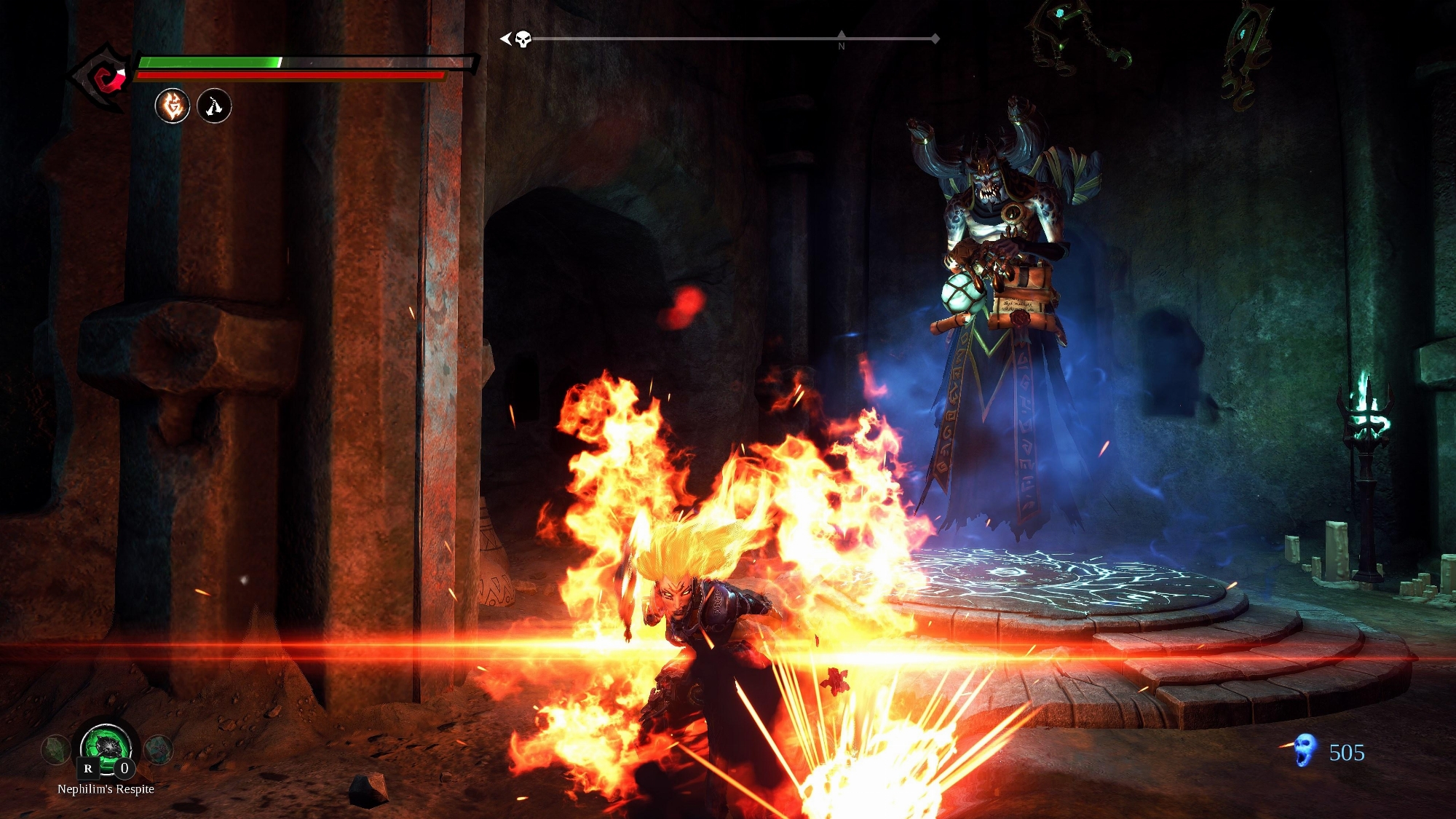
Screenshot of darksiders 3 with normal play settings I timed. It was tricky to get the timing on it.

====================
====================
Another screenshot I timed here. You'd need an oled with same osd settings to see it like I do when I'm playing but I still thought the screenshots looked good on the 4k va tv next to my LG CX. That is with in game "performance" settings I use with only a few things not maxed (shadows on medium ,etc). Nothing amped up differently than I play the game with just for screenshot's sake that is.
Settings currently:
====================
====================
Another screenshot I timed here. You'd need an oled with same osd settings to see it like I do when I'm playing but I still thought the screenshots looked good on the 4k va tv next to my LG CX. That is with in game "performance" settings I use with only a few things not maxed (shadows on medium ,etc). Nothing amped up differently than I play the game with just for screenshot's sake that is.
Settings currently:
LG CX TV OSD
-----------------------
hdmi input set to PC name and icon
Game Picture Mode (User)
OLED Light: 100
Contrast:100
Brightness: 50
Sharpness:10
Color: 75
Advanced Controls: off (color gamut:auto)
Picture Options: all off (black level: auto)
Additional Settings: HDMI Ultra HD Deep Color=On, Instant Game Response = On
=======================================
Reshade Filters
----------------------
Lightroom [qUINT_lightroom.fx]
Curves......
Global Exposure: 1.30 (subtle.. lights up without crushing white)
Global Gamma: 0.130
Global Shadows Curve: 0.225 (shows more detail in darks)
Color & Saturation..............
Global Saturation: -0.159 (minus b/c I have the OSD color of the TV relatively high at 75 to start with)
Global Vibrance: 0.150
HDR [fakeHDR.fx]
Power: 1.900
Radius1: 0.793
Radius2: 0.870
LumaSharpen [LumaSharpen.fx]... at defaults for now
Sharpening Strength: 0.650
Sharpening Limit: 0.035
Sample Pattern: normal
Offset bias: 1.00
causticspill
Limp Gawd
- Joined
- Mar 28, 2010
- Messages
- 376
Picked a CX up from Costco, scheduled to be delivered today- hopefully not too beat up (please be kind, UPS). I had the option and considered a microcenter refurb, but knowing my luck I'd get a dud with 2000 hours on it already and have to drive it back; time is money. Much easier to test drive with Costco's 90 day return window.
Very excited, but not sure if it is going to work with my setup of a motorized desk with only a depth of 27.5". Looking through the thread though, some people have made similar desks work. Might take some experimentation with stands/arms to fine tune the viewing distance. Or I guess installing a sliding keyboard tray could be an option too. Going to be the only monitor so it needs to work for productivity and gaming (PC and Series X). Definitely appreciate all the information hiding in this thread- getting the CX48 set up and dialed in sounds very daunting, but nice to know others have done the heavy lifting already.
Very excited, but not sure if it is going to work with my setup of a motorized desk with only a depth of 27.5". Looking through the thread though, some people have made similar desks work. Might take some experimentation with stands/arms to fine tune the viewing distance. Or I guess installing a sliding keyboard tray could be an option too. Going to be the only monitor so it needs to work for productivity and gaming (PC and Series X). Definitely appreciate all the information hiding in this thread- getting the CX48 set up and dialed in sounds very daunting, but nice to know others have done the heavy lifting already.
Version 03.21.21 is out for the CX series boxes.
Released a few days ago (dated 24-May-21) and available on the US site and perhaps beyond (CA, UK, etc). KR site still stuck on old Feb/Mar dark ages build - guess they moved on to focus on CXI aka C1 series.
Change-log shows the generic cross-industry release note: [03.21.21] Software update contains minor bug fixes
Released a few days ago (dated 24-May-21) and available on the US site and perhaps beyond (CA, UK, etc). KR site still stuck on old Feb/Mar dark ages build - guess they moved on to focus on CXI aka C1 series.
Change-log shows the generic cross-industry release note: [03.21.21] Software update contains minor bug fixes
- Joined
- May 5, 2006
- Messages
- 5,781
I redid all of my settings after adjusting back to HDR on in windows all of the time so none of those values I posted are applicable to my HDR mode. When I first started playing SDR games again I had turned it off. I have desktop HDR always on again now and the desktop HDR slider in windows is set to 17.
I was able to match the look I was getting before but with different values.
The point I was getting at is that since you can't use multiple named picture modes in the TV OSD you can instead make one or multiple named loadouts/edits on reshade profiles per game instead. FakeHDR level, global exposure, global gamma, global shadows curve, global saturation, global vibrance and anything else you feel like tweaking +/-. I keep the TV's own OSD color slider in game picture mode higher than I'd use in a game because it seems easier to subtract saturation than to add it in reshade.
I was able to match the look I was getting before but with different values.
The point I was getting at is that since you can't use multiple named picture modes in the TV OSD you can instead make one or multiple named loadouts/edits on reshade profiles per game instead. FakeHDR level, global exposure, global gamma, global shadows curve, global saturation, global vibrance and anything else you feel like tweaking +/-. I keep the TV's own OSD color slider in game picture mode higher than I'd use in a game because it seems easier to subtract saturation than to add it in reshade.
Last edited:
MelonSplitter
[H]ard|Gawd
- Joined
- Aug 6, 2006
- Messages
- 1,133
On the Home page I can't view videos or photos from my phone . I get a pop-up saying Please approve content access on your mobile device. Am I missing something
- Joined
- May 5, 2006
- Messages
- 5,781
I haven't tried that one yet. You are saying that you get that pop-up on your tv it sounds like. Maybe your mobile device (android I'm assuming) has security built into it or have to go into settings somewhere to allow it (or enable dev mode, etc). Did you try linking your phone directly to the TV? I did have mine hooked up so I could use it as a remote at one point but I never tried sending pictures.
My main gripe is that with my setup running pc in to the tv and then e-ARC out to my receiver - switching to the LG WebOS Youtube app won't play sound unless I hold the gog wheel down on the remote and go into the sound settings and switch it to PCM. Then every time I go back to PC I switch it back to "pass through". Annoying and less streamlined switching but doable. At least I can get sound.
My main gripe is that with my setup running pc in to the tv and then e-ARC out to my receiver - switching to the LG WebOS Youtube app won't play sound unless I hold the gog wheel down on the remote and go into the sound settings and switch it to PCM. Then every time I go back to PC I switch it back to "pass through". Annoying and less streamlined switching but doable. At least I can get sound.
Last edited:
MelonSplitter
[H]ard|Gawd
- Joined
- Aug 6, 2006
- Messages
- 1,133
My Note 10 is paired in the app and on the TV. All permissions are granted on my phone. I gotta be missing something. It's frustrating not allowing me to do this. I know I can use Smarview from my phone but it's a little wonky.
HiCZoK
Gawd
- Joined
- Sep 18, 2006
- Messages
- 860
Anyone treid god of war ? Highlights in the clouds for example are super overblown even at default 50/50 in game settings.
That's with lg c1 on hgig or dtm. no matter.
3rd image is with brightness ingame set to 25
That's with lg c1 on hgig or dtm. no matter.
3rd image is with brightness ingame set to 25
TwistedMetalGear
2[H]4U
- Joined
- Jun 19, 2005
- Messages
- 2,442
Anyone know the odds of a CX/C1 box fitting in a small 2 door coupe? It looks like a pretty small box. I guess my concern is whether or not the front seat will tilt forward enough to get it back there.
Also is this easy for one person to carry?
Also is this easy for one person to carry?
Last edited:

sharknice
Supreme [H]ardness
- Joined
- Nov 12, 2012
- Messages
- 4,883
Pretty easy to carry for one person. It will probably fit, it might be hard to maneuver it to fit as one person.
D
Deleted member 312202
Guest
The 48" version box is decent size but should fit in a coupe with little issues. I didn't have a problem carrying the box out myself, but I'm 6'3" and have pretty long arms so the ability to carry the box alone will differ from person to person of course.Anyone know the odds of a CX/C1 box fitting in a small 2 door coupe? It looks like a pretty small box. I guess my concern is whether or not the front seat will tilt forward enough to get it back there.
Also is this easy for one person to carry?
- Joined
- Jun 9, 2003
- Messages
- 7,022
Just got lucky enough (I think) to grab one of the last refurb $999 models for the 48" CX! For whatever reason it seems that the 48" is almost never available at a local Microcenter (or elsewhere for that matter) refurbished w/ full warranty and like new quality for the sale price of $999, while the 55" model often has quite a few refurbs available for that price. Guess its all of you fine folks waiting to jump on the deal for the 48" given its legendary monitor usage! If I use it as a monitor, it will be compared to a 27" Samsung FreeSync2 1440p setup (though in decades past I used to have massive 37-42" Westinghouse and Philips respectively 1080p TVs... both of which were probably physically larger than the 48" CX given bezel sizes back in the day!)
I'm trying to decide if I'll be using it as a monitor or as a replacement for an old TV, but does anyone have suggestions for VESA wall mounts? I'm pretty sure its a 300x200 mount style and I'm looking at getting something that both folds very close/flat as possible to the wall and is capable of full motion. Ideas?
I'm trying to decide if I'll be using it as a monitor or as a replacement for an old TV, but does anyone have suggestions for VESA wall mounts? I'm pretty sure its a 300x200 mount style and I'm looking at getting something that both folds very close/flat as possible to the wall and is capable of full motion. Ideas?

Porter_
[H]F Junkie
- Joined
- Sep 10, 2007
- Messages
- 8,467
Anyone treid god of war ? Highlights in the clouds for example are super overblown even at default 50/50 in game settings.
That's with lg c1 on hgig or dtm. no matter.
3rd image is with brightness ingame set to 25
I’ve probably put about 10 hours into the game, on a CX with default brightness 50/50, and I don’t recall noticing overblown specular highlights. But honestly the game didn’t grab me so I stopped playing. I’ll take another look sometime this week.

- Joined
- Aug 7, 2004
- Messages
- 19,611
Enjoy, brother! It's seriously the most impressive display I've ever used while we wait on MicroLED. The obvious answer is to buy another one and use one as a monitor and the other as a TV.Just got lucky enough (I think) to grab one of the last refurb $999 models for the 48" CX! For whatever reason it seems that the 48" is almost never available at a local Microcenter (or elsewhere for that matter) refurbished w/ full warranty and like new quality for the sale price of $999, while the 55" model often has quite a few refurbs available for that price. Guess its all of you fine folks waiting to jump on the deal for the 48" given its legendary monitor usage! If I use it as a monitor, it will be compared to a 27" Samsung FreeSync2 1440p setup (though in decades past I used to have massive 37-42" Westinghouse and Philips respectively 1080p TVs... both of which were probably physically larger than the 48" CX given bezel sizes back in the day!)
I'm trying to decide if I'll be using it as a monitor or as a replacement for an old TV, but does anyone have suggestions for VESA wall mounts? I'm pretty sure its a 300x200 mount style and I'm looking at getting something that both folds very close/flat as possible to the wall and is capable of full motion. Ideas?
- Joined
- May 5, 2006
- Messages
- 5,781
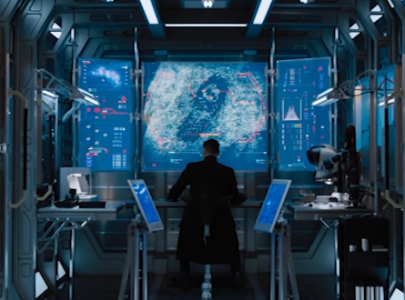
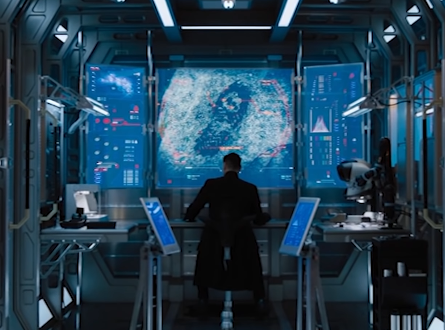
I use 43" 4k samsung VA tv's ~ $320 - $370 each in portrait on each side of my 48CX as monitors. I most commonly split them into 3 windows high or 2/3 + 1/3 window sizes on one and a 40% bottom browser/email/text editor/3rd party file manager/other app window with 3 small communications windows above it in a ribbon + some system readout widgets above it on the other screen. I have a 15key streamdeck tied into some displayfusion pro app hotkeys so I can pop windows around on the fly or easily just hit a "home button" that triggers a default saved window position profile for my most common open apps. I could get away with only using one side panel along with the CX but I like it this way. I use the cx as a media stage for games and videos, images, maps..etc.. and I do the turn off the screen trick (that just turns the emitters off without dropping the monitor out of the array) when not using it actively, even when pausing a game or just focusing on a side monitor for awhile. I can "turn of the screen" so quickly now it's a reflex comparable to minimizing whatever window/video/game is running on the CX..
Something like this on a little smaller scale and without being 4:3 in the middle
Just a reminder that the 20/20 vision threshold starts a 33.5" viewing distance so an abnormally deep desk, using a bench desk+an island desk, or using a tv stand or wall mount with the desk farther away from it are probably needed to sit far enough away. I typically sit 38" to 48" which makes the effective pixel density even higher to my eyeballs/brain.
https://hardforum.com/threads/lg-48cx.1991077/post-1045022571
Wall mounts work but are more permanent. I prefer modularity so if I was buying a whole mount I'd go with one of the floor monitor arms listed throughout this thread. If you need full articulation including big tilt and full spin there is only one that I've seen and it's a little more expensive.
Something like this on a little smaller scale and without being 4:3 in the middle
Just a reminder that the 20/20 vision threshold starts a 33.5" viewing distance so an abnormally deep desk, using a bench desk+an island desk, or using a tv stand or wall mount with the desk farther away from it are probably needed to sit far enough away. I typically sit 38" to 48" which makes the effective pixel density even higher to my eyeballs/brain.
https://hardforum.com/threads/lg-48cx.1991077/post-1045022571
Wall mounts work but are more permanent. I prefer modularity so if I was buying a whole mount I'd go with one of the floor monitor arms listed throughout this thread. If you need full articulation including big tilt and full spin there is only one that I've seen and it's a little more expensive.
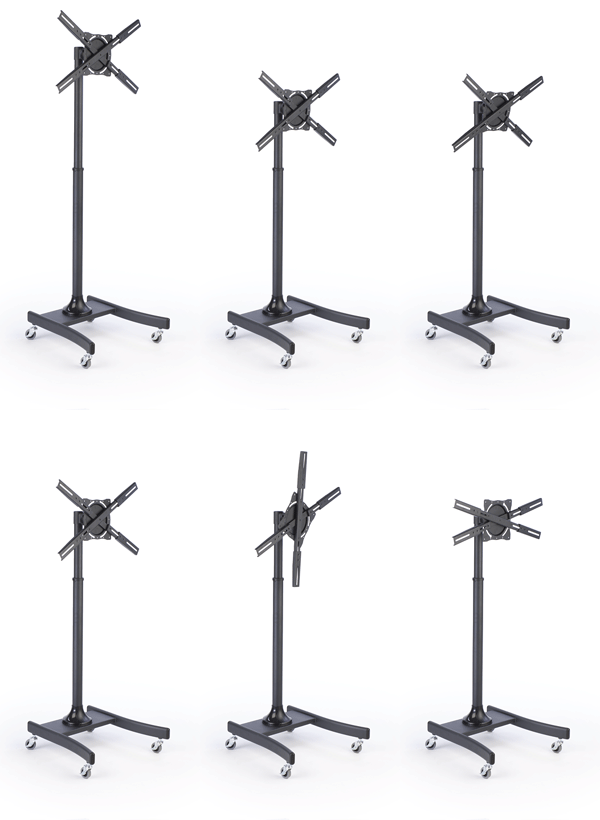
This is what I think was the best articulating floor stand I found when looking but it's pricey:
https://www.displays2go.com/P-16610/Black-Cheap-LCD-TV-Stands-Economy-Design-32-47-Monitors
https://www.amazon.com/gp/product/B00681HGB6/
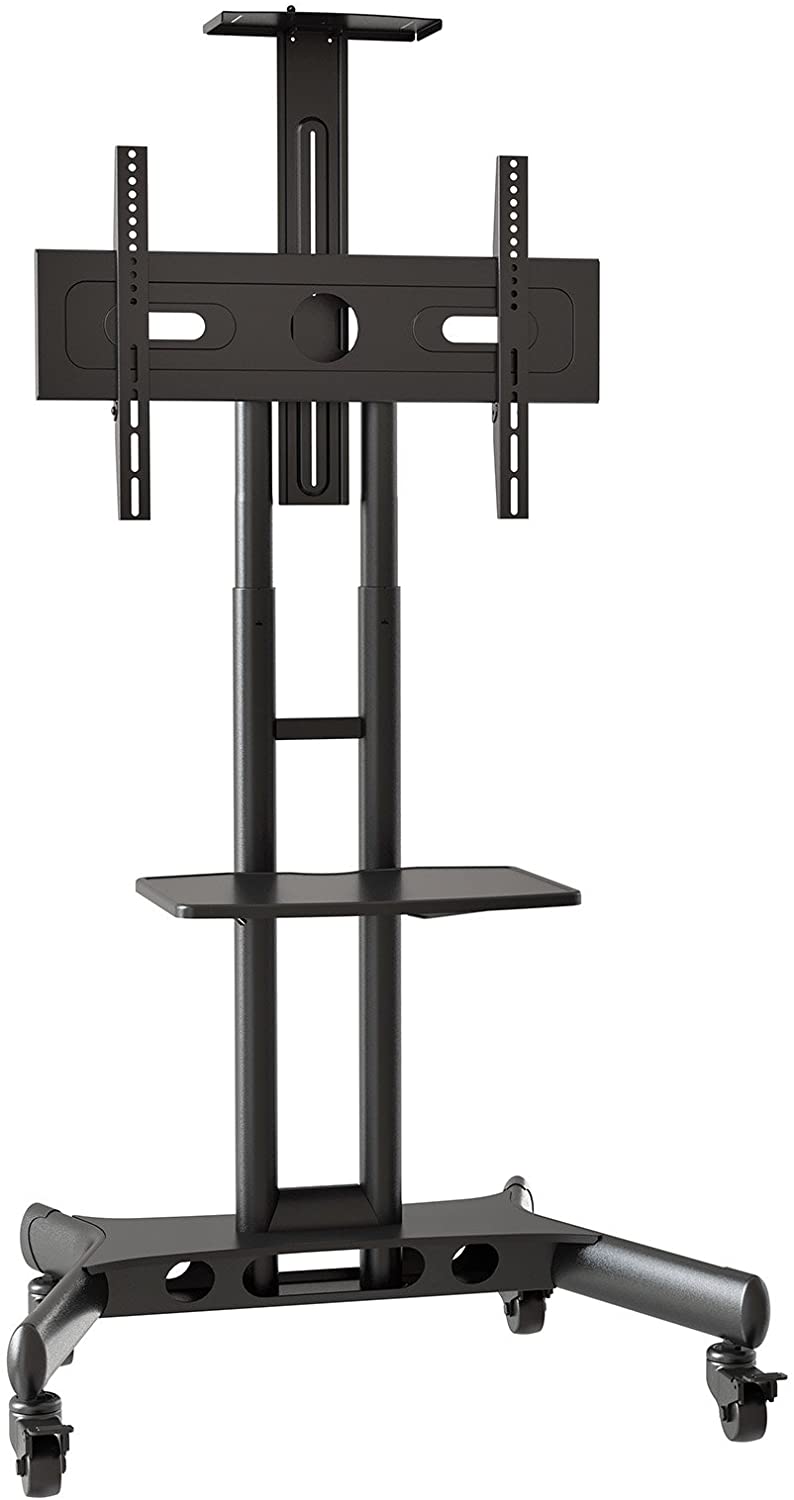
I'd probably get this one below if I was going to switch from it from being on the included stand (on another desk). That is, unless I absolutely required a lot of articulation like tilt and spin. Otherwise you could just roll it on the wheels outside of those requirements.
https://www.amazon.com/Kanto-MTM65PL-Mobile-Stand-Screens/dp/B00RPP3262
https://www.bestbuy.com/site/kanto-...el-tvs-up-to-65-black/5022900.p?skuId=5022900
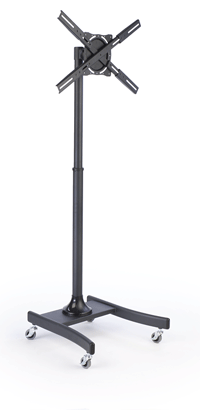
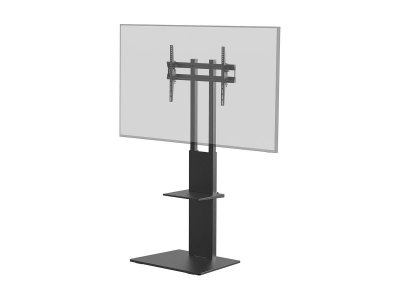
There is also what looks like a good floor foot stand model at monoprice that someone linked earlier.
Last edited:
As an Amazon Associate, HardForum may earn from qualifying purchases.
Hello lovely people.
Forgive me in advanced, I know this has probably been talked to death, and I did do a search but the search results are awkward to navigate (not possible to sort by date? o.o) Anyway, I need a displayport to HDMI adapter. I got one of the 4k60 cables which was fine right up until last night when I tried to play something in HDR and it just didn't. So I thought, well, it's going to be about a hundred years until I can upgrade to a 3090 with more HDMI ports, may as well go full on uber-adapter. The forum results show Club3d, but also mentions of other ones, so I'm just trying to work out what to go for.
I have a 2070S, ideally if I can get the whole shebang (4k@120@4:4:4 I think it is?) that would be ideal.
Any friendly links to amazon or something? I'm in the UK.
Forgive me in advanced, I know this has probably been talked to death, and I did do a search but the search results are awkward to navigate (not possible to sort by date? o.o) Anyway, I need a displayport to HDMI adapter. I got one of the 4k60 cables which was fine right up until last night when I tried to play something in HDR and it just didn't. So I thought, well, it's going to be about a hundred years until I can upgrade to a 3090 with more HDMI ports, may as well go full on uber-adapter. The forum results show Club3d, but also mentions of other ones, so I'm just trying to work out what to go for.
I have a 2070S, ideally if I can get the whole shebang (4k@120@4:4:4 I think it is?) that would be ideal.
Any friendly links to amazon or something? I'm in the UK.
- Joined
- Jun 9, 2003
- Messages
- 7,022
Hello lovely people.
Forgive me in advanced, I know this has probably been talked to death, and I did do a search but the search results are awkward to navigate (not possible to sort by date? o.o) Anyway, I need a displayport to HDMI adapter. I got one of the 4k60 cables which was fine right up until last night when I tried to play something in HDR and it just didn't. So I thought, well, it's going to be about a hundred years until I can upgrade to a 3090 with more HDMI ports, may as well go full on uber-adapter. The forum results show Club3d, but also mentions of other ones, so I'm just trying to work out what to go for.
I have a 2070S, ideally if I can get the whole shebang (4k@120@4:4:4 I think it is?) that would be ideal.
Any friendly links to amazon or something? I'm in the UK.
I too am curious about these - it has been a long time since I've had to use HDMI! I was lucky enough to come across a 3090 Strix so I have both DisplayPort and HDMI ports, but in the case of the LG OLED CX48 can I just pop it over to a HDMI cable and get the full quality, GSync HDR / FreeSync Premium VRR , 120hz capability, etc... ? I remember there was a time awhile ago when VRR forms on HDMI were cumbersome to say the least and you had to use DisplayPort for decent FreeSync / GSync compatible usage. I also recall reading something that the LG OLED CX could only use 40 of the 48gbps HDMI spec, but that may have been a firmware glitch or otherwise is incorrect/fixed?
Is it better for me to find a converter similar to what sdfg is mentioning and get a good DisplayPort 1.4 cable, or just grab a high quality HDMI cable and that will be suitable?
Porter_
[H]F Junkie
- Joined
- Sep 10, 2007
- Messages
- 8,467
With your 3090, which has HDMI 2.1, all you need is a ‘high-speed’ HDMI cable (sometimes labeled ‘8K’). Regardless of how it’s branded you need one with 48 gbps bandwidth. Here is what I bought and it works perfectly with my 3080:I too am curious about these - it has been a long time since I've had to use HDMI! I was lucky enough to come across a 3090 Strix so I have both DisplayPort and HDMI ports, but in the case of the LG OLED CX48 can I just pop it over to a HDMI cable and get the full quality, GSync HDR / FreeSync Premium VRR , 120hz capability, etc... ? I remember there was a time awhile ago when VRR forms on HDMI were cumbersome to say the least and you had to use DisplayPort for decent FreeSync / GSync compatible usage. I also recall reading something that the LG OLED CX could only use 40 of the 48gbps HDMI spec, but that may have been a firmware glitch or otherwise is incorrect/fixed?
Is it better for me to find a converter similar to what sdfg is mentioning and get a good DisplayPort 1.4 cable, or just grab a high quality HDMI cable and that will be suitable?
Monoprice Ultra 8K High Speed HDMI Cable - 6 Feet - Black, 48Gbps, 8K, Dynamic HDR, eARC - DynamicView Series https://www.amazon.com/dp/B07WNM2NJ5/ref=cm_sw_r_cp_apip_5ukpLNd6qw8iE
As an Amazon Associate, HardForum may earn from qualifying purchases.
Just played some Overwatch with Nvidia Reflex enabled on my CX 55. It was amazing, even with me artificially limiting the framerate to 115 to keep it within GSYNC range.
I'm serious when I say my ONLY regret on the CX 55 is that I only got the 2 year Best Buy warranty. This display is so freakin good, I have a hard time believing we are going to see something substantially better in the next several years.
I'm serious when I say my ONLY regret on the CX 55 is that I only got the 2 year Best Buy warranty. This display is so freakin good, I have a hard time believing we are going to see something substantially better in the next several years.
- Joined
- Jun 9, 2003
- Messages
- 7,022
F
All right, thanks. Grabbed one just to be sure - and its functionality with HDMI is no different than other monitors connecting to via a comparable DisplayPort?
Also does anyone have any suggestions on a wall mount? There are quite a few on Amazon and it seems that a 48" display (which has a VESA 400x300 mount requirement, right?) seems split between 2 different wall mount "styles' - either those that have an X-shaped bracket (which seem to range from 30-something to 50-something inch displays and max out around 400x400 VESA) or those that have 2 vertical bar style brackets (which seem to be for larger, 40-something to 70-something displays and have VESA that be like 600x400 or larger). I'm slightly leaning toward the 2-bar brackets because they seem to support the TV mount with 2 arms, whereas the X bracket its all on a single articulated arm. Especially for use with my desk (but also if I decide to use it as a bedroom TV or something) it will be collapsed back as far against the wall as possible most likely ; almost all of these mounts seem to have about a 2.5-3" minimum gap and that seems fine, considering cables and the like. Apparently the totally flat non articulated mounts go back to about 1.5" but that is loss of a lot of configuration and not a huge benefit .
On Amazon there are quite a few of these (2 arm, fully articulated etc) mounts that would seem to work - they all have the expected " Aliexpress style hundreds of names for essentially the same thing" so I'm guessing the quality is all about comparable? Thanks
With your 3090, which has HDMI 2.1, all you need is a ‘high-speed’ HDMI cable (sometimes labeled ‘8K’). Regardless of how it’s branded you need one with 48 gbps bandwidth. Here is what I bought and it works perfectly with my 3080:
Monoprice Ultra 8K High Speed HDMI Cable - 6 Feet - Black, 48Gbps, 8K, Dynamic HDR, eARC - DynamicView Series https://www.amazon.com/dp/B07WNM2NJ5/ref=cm_sw_r_cp_apip_5ukpLNd6qw8iE
All right, thanks. Grabbed one just to be sure - and its functionality with HDMI is no different than other monitors connecting to via a comparable DisplayPort?
Also does anyone have any suggestions on a wall mount? There are quite a few on Amazon and it seems that a 48" display (which has a VESA 400x300 mount requirement, right?) seems split between 2 different wall mount "styles' - either those that have an X-shaped bracket (which seem to range from 30-something to 50-something inch displays and max out around 400x400 VESA) or those that have 2 vertical bar style brackets (which seem to be for larger, 40-something to 70-something displays and have VESA that be like 600x400 or larger). I'm slightly leaning toward the 2-bar brackets because they seem to support the TV mount with 2 arms, whereas the X bracket its all on a single articulated arm. Especially for use with my desk (but also if I decide to use it as a bedroom TV or something) it will be collapsed back as far against the wall as possible most likely ; almost all of these mounts seem to have about a 2.5-3" minimum gap and that seems fine, considering cables and the like. Apparently the totally flat non articulated mounts go back to about 1.5" but that is loss of a lot of configuration and not a huge benefit .
On Amazon there are quite a few of these (2 arm, fully articulated etc) mounts that would seem to work - they all have the expected " Aliexpress style hundreds of names for essentially the same thing" so I'm guessing the quality is all about comparable? Thanks
As an Amazon Associate, HardForum may earn from qualifying purchases.
- Joined
- May 5, 2006
- Messages
- 5,781
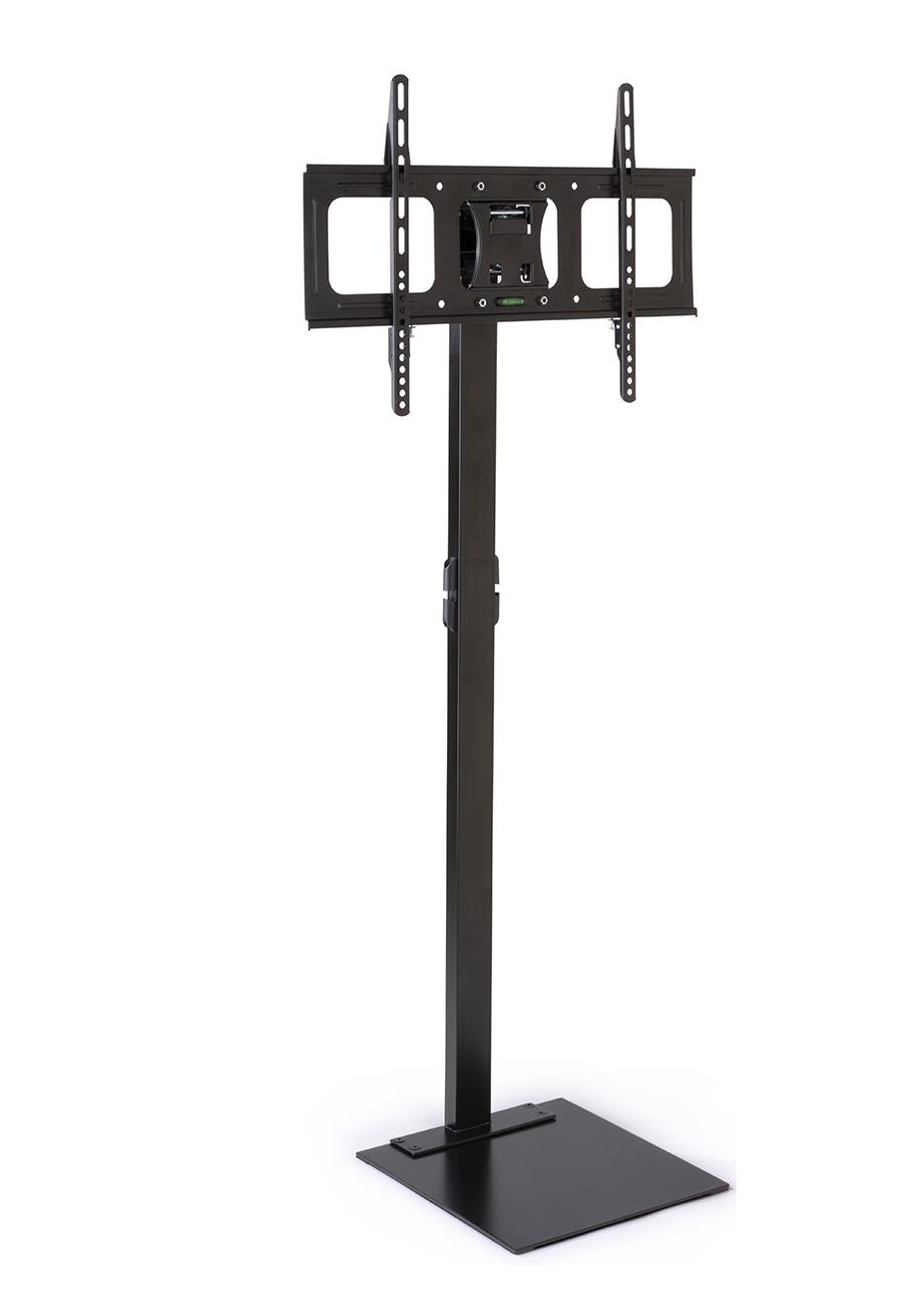
I'm more of a fan of the thin spine floor stands with the "wall mount" style tv brackets on them so that I can move them when needed. I listed some of those a few posts back in a quote.
Simple flat-footed thin spine ones like this:

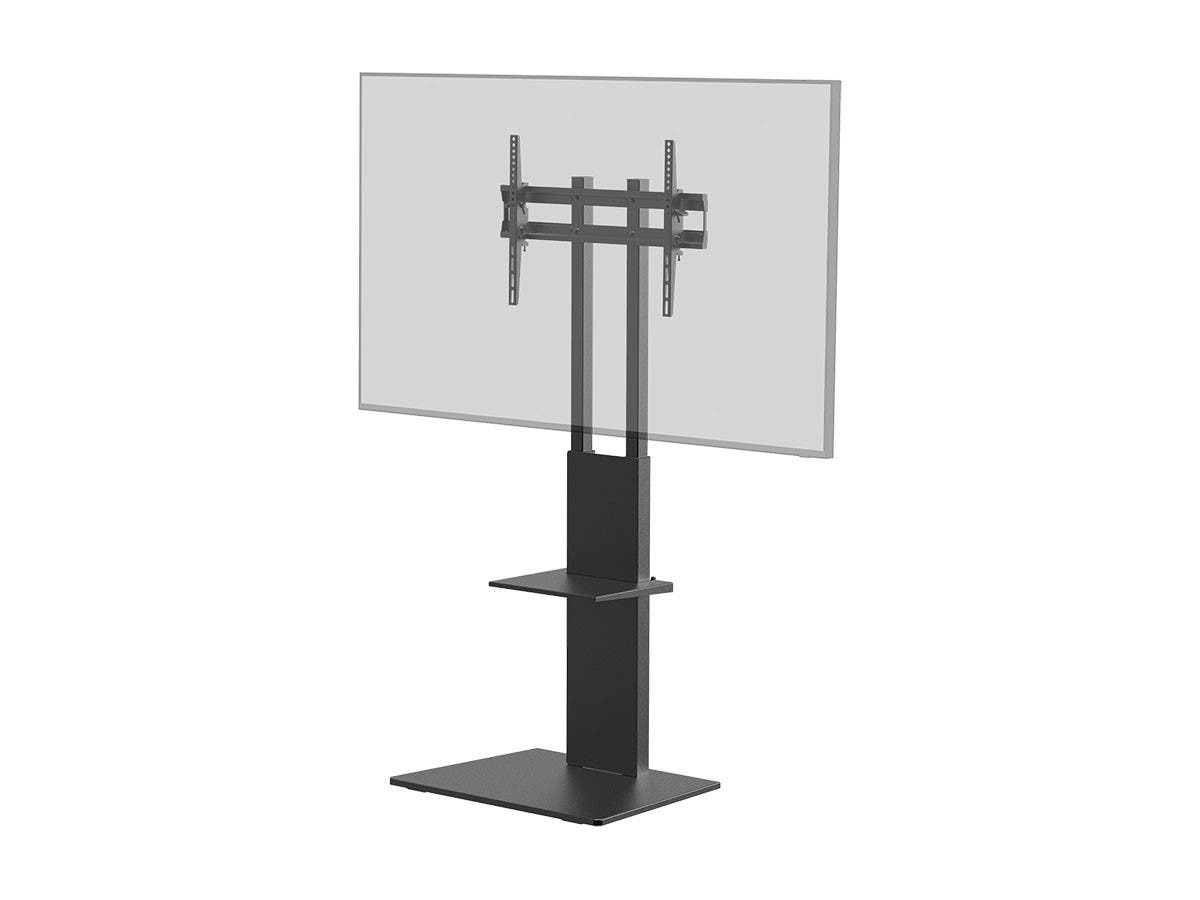
or the similar one on monoprice:
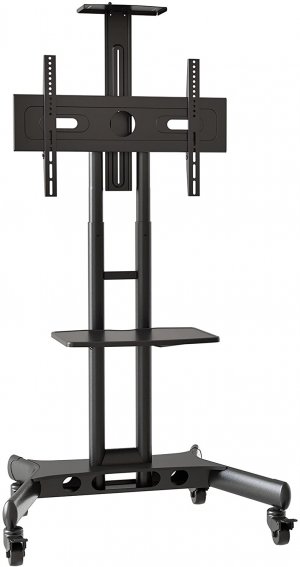
Or these on wheels:
You can buy adapter plates to adapt between a lot of vesa sizes. They are a metal plate drilled with holes in various locations and come with thumb screws.
The LG CX has 300x200 VESA mounting holes.
These adapters go from 50 x 50 up to 400 x 300.
https://www.amazon.com/gp/product/B07MCMTCP3/
..
I used these plates on my 43" TVs (200mm x 200mm) so they'd fit on giant ergotron LX HD arms that were designed for monitor vesa holes. So I was adapting the TV holes down to the ergotron arm's built in mounting plate.
https://www.amazon.com/gp/product/B079SF6XG9/
So you might be able to adapt up to a tv stand/bracket you had your heart set on. They are mainly just a plate with an array of holes. As long as the mounting screws will fit the tv mount once the plate is attached to the back of the tv housing with spacers you should be good.
B&H has ones that go up to at least 800x400
https://www.bhphotovideo.com/c/search?Ntt=vesa plate&N=0&InitialSearch=yes&sts=ma
Some TV stands and monitor arms come with types of extenders but they don't always scale up/down much and sometimes are weaker wing slat extenders compared to a full plate adapter.
Simple flat-footed thin spine ones like this:
or the similar one on monoprice:
Or these on wheels:
This is what I think was the best articulating floor stand I found when looking but it's pricey:
https://www.displays2go.com/P-16610/Black-Cheap-LCD-TV-Stands-Economy-Design-32-47-Monitors
https://www.amazon.com/gp/product/B00681HGB6/
I'd probably get this one below if I was going to switch from it from being on the included stand (on another desk). That is, unless I absolutely required a lot of articulation like tilt and spin. Otherwise you could just roll it on the wheels outside of those requirements.
https://www.amazon.com/Kanto-MTM65PL-Mobile-Stand-Screens/dp/B00RPP3262
https://www.bestbuy.com/site/kanto-...el-tvs-up-to-65-black/5022900.p?skuId=5022900
There is also what looks like a good floor foot stand model at monoprice that someone linked earlier.
You can buy adapter plates to adapt between a lot of vesa sizes. They are a metal plate drilled with holes in various locations and come with thumb screws.
The LG CX has 300x200 VESA mounting holes.
These adapters go from 50 x 50 up to 400 x 300.
https://www.amazon.com/gp/product/B07MCMTCP3/
..
--------------------------------This VESA Adapter Plate allows 32” to 55” flat panel TV’s with large VESA patterns to fit standard mounts.
Adapter Function - Makes it possible for 50x50mm, 75x75mm, and 100x100mm VESA mounts to fit 200x100mm, 200x200mm, 200x300mm, 200x400mm, 300x200mm, and 400x200mm VESA hole patterns.
Solid Steel Construction - A durable steel design ensures long-lasting quality and enables this sturdy bracket plate to support weights up to 66 lbs.
I used these plates on my 43" TVs (200mm x 200mm) so they'd fit on giant ergotron LX HD arms that were designed for monitor vesa holes. So I was adapting the TV holes down to the ergotron arm's built in mounting plate.
https://www.amazon.com/gp/product/B079SF6XG9/
..This adapter plate allows you to convert a VESA pattern to one of the following VESA patterns – 50 x 50 mm, 75 x 75 mm, 100 x 100 mm, and 200 x 200 mm (other VESA conversion kits available)
..HARDWARE INCLUDED: This VESA conversion kit comes with adapter plate screws, nuts, M6 screws, M8 screws, washers, and plastic spacers
So you might be able to adapt up to a tv stand/bracket you had your heart set on. They are mainly just a plate with an array of holes. As long as the mounting screws will fit the tv mount once the plate is attached to the back of the tv housing with spacers you should be good.
B&H has ones that go up to at least 800x400
https://www.bhphotovideo.com/c/search?Ntt=vesa plate&N=0&InitialSearch=yes&sts=ma
Some TV stands and monitor arms come with types of extenders but they don't always scale up/down much and sometimes are weaker wing slat extenders compared to a full plate adapter.
As an Amazon Associate, HardForum may earn from qualifying purchases.

Armenius
Extremely [H]
- Joined
- Jan 28, 2014
- Messages
- 53,287
I brought home a 49" TV in my newer Mustang before, but I had to take it out of the box to fit in the trunk. The depth of the box was a little too big to fit at the angle it needed to go through the trunk's opening. Clearance over the backseats with them down was not an issue. It was too long to just sit in the trunk, but not nearly long enough to hit the front seats.Anyone know the odds of a CX/C1 box fitting in a small 2 door coupe? It looks like a pretty small box. I guess my concern is whether or not the front seat will tilt forward enough to get it back there.
Also is this easy for one person to carry?
- Joined
- May 5, 2006
- Messages
- 5,781
You could always invest in a blanket + ton of bungies and spider web hashtag that sucker around the box and then tightly through the open windows around the roof.
*I take no responsibility for any failures based on this suggestion lol. Don't let a blanket or the tv rip away and blind another driver or anything. Keep it tight
If you can't fit it inside of course --
I'd go around the box first like a hashtag (unlike the schematic) so it can't slide out forward or back which is where your momentum would send it most of the time accelerating and breaking. I'd also loop around across the interior of the roof of the car through the windows, not just hooking on the window frames just to be clear if you weren't getting that from the picture. Attach to the hashtag grid of bungies you already made so it can't slide fwd/back... and if you want to be extra cautious throw a few more bungies all the way around across the top like belts. Putting something between the objects and the car helps to prevent scratching but a box probably wouldn't be bad. You could wrap the box in a blanket and then hashtag bungie it cross-ways. If not going to use a blanket, you can tape over the staples with painter's tape if you are worried about it and try not to have any bungie hooks on the bottom pressing against the car (plastic hook bungie cables are safer in that regard). Keep the strands tight but don't over tighten extremely to the point of damaging your window frames or molding. I wouldn't bother going under the body of the car like in that picture either. Through the windows (and optionally to the tailgate/bumper on the back as well though prob not necessary) should be good. Try not to drive too crazy but if you tie down something like that with a liberal amount of bungies it should be fine, even in high winds.
I have a mid-size/sport sized truck. I put a headache rack on it that I can attach to along with side bungie mount eyelets in the short bed so I don't have trouble with most things personally but I can remember resorting to doing things like what I have described above when I was younger with small cars starting out. I was able to fit the 48CX box into my truck's full extended cab's back seat though just barely. It's not a huge full sized truck.
*I take no responsibility for any failures based on this suggestion lol. Don't let a blanket or the tv rip away and blind another driver or anything. Keep it tight
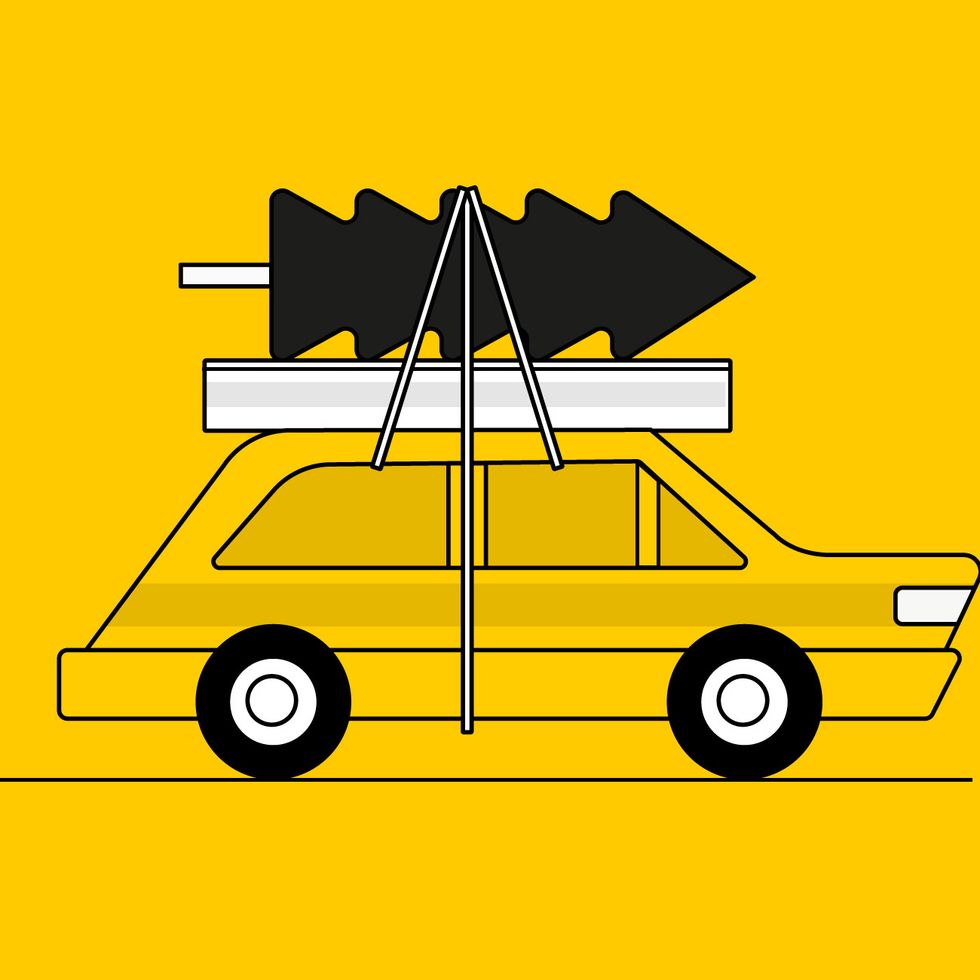
If you can't fit it inside of course --
I'd go around the box first like a hashtag (unlike the schematic) so it can't slide out forward or back which is where your momentum would send it most of the time accelerating and breaking. I'd also loop around across the interior of the roof of the car through the windows, not just hooking on the window frames just to be clear if you weren't getting that from the picture. Attach to the hashtag grid of bungies you already made so it can't slide fwd/back... and if you want to be extra cautious throw a few more bungies all the way around across the top like belts. Putting something between the objects and the car helps to prevent scratching but a box probably wouldn't be bad. You could wrap the box in a blanket and then hashtag bungie it cross-ways. If not going to use a blanket, you can tape over the staples with painter's tape if you are worried about it and try not to have any bungie hooks on the bottom pressing against the car (plastic hook bungie cables are safer in that regard). Keep the strands tight but don't over tighten extremely to the point of damaging your window frames or molding. I wouldn't bother going under the body of the car like in that picture either. Through the windows (and optionally to the tailgate/bumper on the back as well though prob not necessary) should be good. Try not to drive too crazy but if you tie down something like that with a liberal amount of bungies it should be fine, even in high winds.
I have a mid-size/sport sized truck. I put a headache rack on it that I can attach to along with side bungie mount eyelets in the short bed so I don't have trouble with most things personally but I can remember resorting to doing things like what I have described above when I was younger with small cars starting out. I was able to fit the 48CX box into my truck's full extended cab's back seat though just barely. It's not a huge full sized truck.
Last edited:
Definitely measure first. You should be able to find the box dimensions. It can be carried by one person but for setting it up I would recommend two people. Because the panel is so thin from everywhere but the bottom it's kind of awkward to move around. If you plan to mount it (and you should, the stock stand is a pile of crap!) then having two people will help a lot.Anyone know the odds of a CX/C1 box fitting in a small 2 door coupe? It looks like a pretty small box. I guess my concern is whether or not the front seat will tilt forward enough to get it back there.
Also is this easy for one person to carry?
I brought home a 55" CX in my 2018 Ford Fusion. It was a tight fit but I got it in there.Anyone know the odds of a CX/C1 box fitting in a small 2 door coupe? It looks like a pretty small box. I guess my concern is whether or not the front seat will tilt forward enough to get it back there.
Also is this easy for one person to carry?
- Joined
- May 5, 2006
- Messages
- 5,781
Definitely measure first. You should be able to find the box dimensions. It can be carried by one person but for setting it up I would recommend two people. Because the panel is so thin from everywhere but the bottom it's kind of awkward to move around. If you plan to mount it (and you should, the stock stand is a pile of crap!) then having two people will help a lot.
LG CXP Specs
| Package Weight | 52.1 lb |
|---|---|
| Box Dimensions (LxWxH) | 50.38 x 30.25 x 8" |
From a bestbuy Q&A answer it might be even a bit smaller idk:
The W x H x D dimensions that the LG CX 48 inch Class 4K Smart OLED TV w/ AI ThinQ® (48.2'' Diag), Model # OLED48CXBPUA is shipped in are 48.2" x 29.5" x 8.1" with a weight of 49.4"...
==============================
I did it myself but it was definitely a risk. It's very thin like a pane of glass so I could see the possibility of torque snapping/damaging or accidentally bumping,tapping, pressing it into something damaging it just when carrying it if you fumble or tip it. I unboxed mine right next to my desk and carried it from the bottom as much as I could but I can see where it could go bad. Mounting it to a stand by yourself could be harder even though it would be lighter without the stock foot, unless you mounted it face down and lifted the whole stand perhaps. (I did both of my 43" screens using the face down method, then lifting the screen+articulating arm and sticking it on a pre-mounted monitor arm pole).
I agree that a floor stand is a great way to go ultimately but I don't think the stock stand is that bad if you have a desk deep enough or are using a separate desk/bench/table to mount the screen on. The "foot" stand for the LG CX is long, very low profile (raising the tv only 1+3/8 inches) and is solid cold metal faced unlike some tv stands that look like metal or plastic firewood sticks or bows you prop the tv up on (and higher from the surface). That LG CX TV low profile "foot" is very dark in color too. The top of my desks are black so it blends in. The larger part on the back is never seen since there is a screen in portrait on each side and they all have their backs to a wall. All I see is that little metal low slope skirt and it blends in with the black desk surface it's on pretty much.
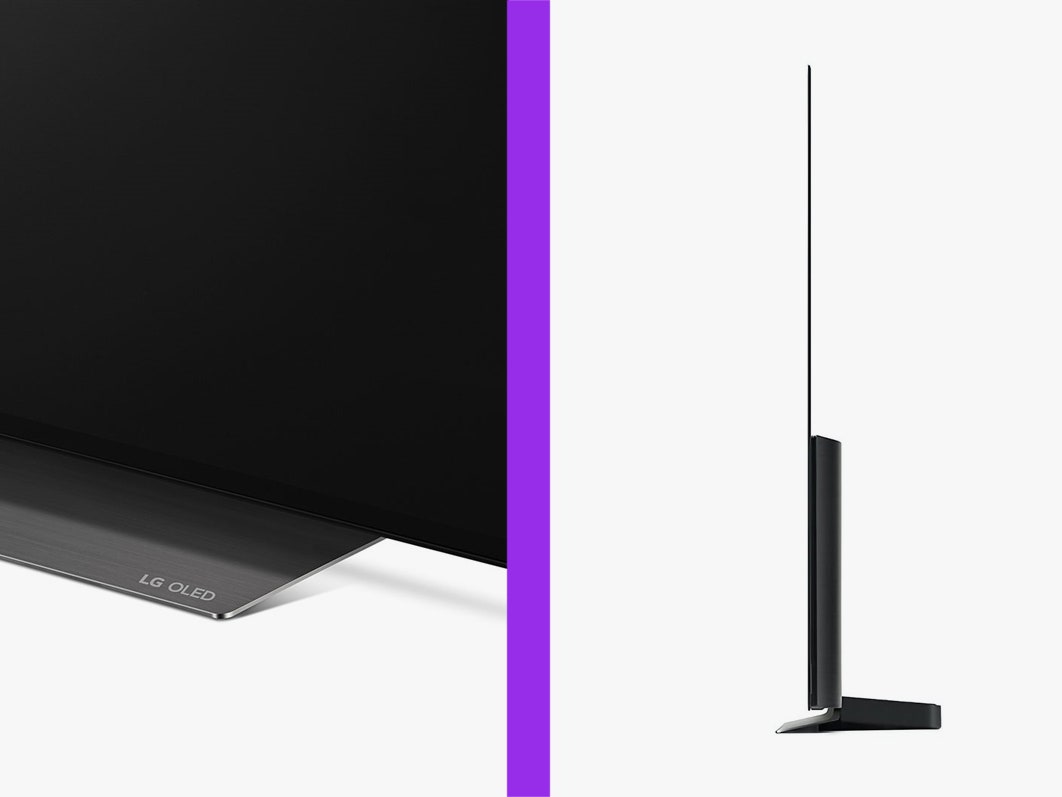
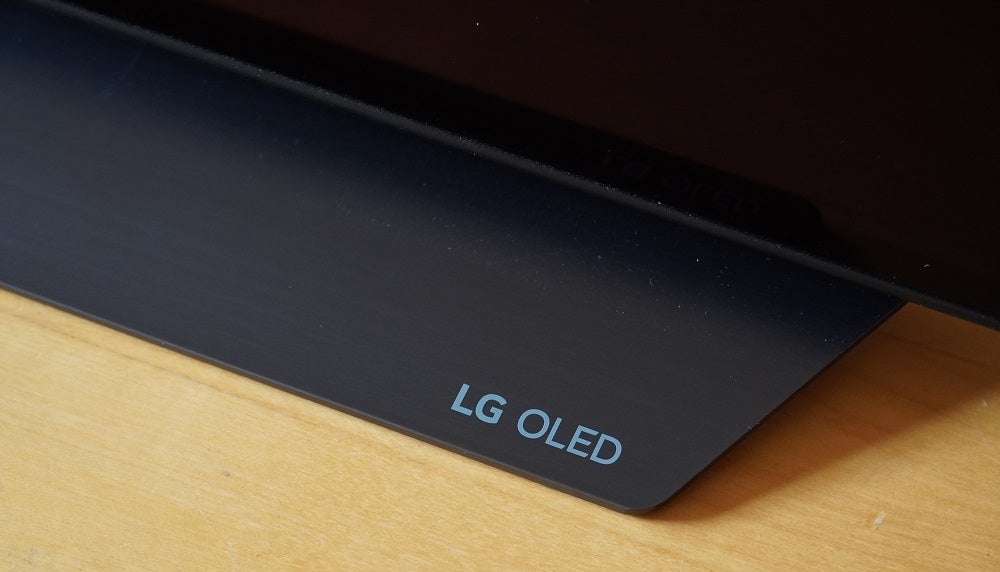
someday I'll get a floor mount stand but I'd probably do that after remodeling the room and floor so it would be awhile yet. I might have to end up get a stand for all three screens to make it work too so this will do for now.