Oof! That stinks. We used to live near a grain elevator. I would lose a nic if I didn’t unplug my cable during thunderstorms.Hehe, it was an old recycled UPS I was using off the test bench. I would move those off critical testing stuff every two or three years and put those on something else that could use it. We get weird power and lighting all the time out here. Lighting ate a big UPS and a 1200W Seasonic PSU last month.
![[H]ard|Forum](/styles/hardforum/xenforo/logo_dark.png)
Navigation
Install the app
How to install the app on iOS
Follow along with the video below to see how to install our site as a web app on your home screen.
Note: This feature may not be available in some browsers.
More options
You are using an out of date browser. It may not display this or other websites correctly.
You should upgrade or use an alternative browser.
You should upgrade or use an alternative browser.
LG 48CX
- Thread starter gan7114
- Start date

- Joined
- May 5, 2006
- Messages
- 5,956
Hehe, it was an old recycled UPS I was using off the test bench. I would move those off critical testing stuff every two or three years and put those on something else that could use it. We get weird power and lighting all the time out here. Lighting ate a big UPS and a 1200W Seasonic PSU last month.
You might want to consider looking into springing for a line conditioner at least at your pc at some point. I know some ups have line conditioning but a separate unit seems more robust (and they supposedly warranty your gear up to ~ $25k but I've never had to use that). I use one ahead of a ups on my pc and one on my home theater for the more fragile electronics and things I run off generator power in an outage. Plus a few other things just plugged into the line conditioners and not the uninterruptable power supplies. That doesn't help access wise if the fios line goes down though of course.
https://www.tripplite.com/2400w-120...tion-avr-ac-surge-protection-6-outlets~LC2400
https://www.amazon.com/Tripp-Lite-LC2400-Conditioner-Outlet/dp/B0000514OG
https://www.newegg.com/apc-h15blk-power-conditioner-surge-protector/p/N82E16882303008
There are also these:
https://musiccritic.com/equipment/studio/power-conditioner/
I don't use these but they exist:
7 of the Best Ethernet Surge Protectors Reviewed for 2021
https://gagthesurge.com/ethernet-surge-protectors/
----------------
There are whole house line conditioners too but I've never gone that far. That would help protect boards in appliances along with everything else. My parents lost a fridge once due to a storm's outtages while using their generator. The fridge is on a mini conditioner of some kind now behind the fridge.
Even if your electronics don't outright die, browns and surges can decrease the lifespan of things. Running a generator is worse - fluctuating briefly any time the load changes considerably unless you have a line conditioner built into your house or at least at your devices.
Last edited:
As an Amazon Associate, HardForum may earn from qualifying purchases.
Ordered a shield off of amazon warehouse, and just got it today. Apart from a busted ethernet cable making me think it was broken, so far so good. The AI upscaling is really great actually. It is very similar to https://github.com/haasn/FSRCNN-TensorFlow, which I was using with mpv before I moved everything to Plex. Instead of the slightly blurred upscale in the default TV plex app, things look nice and sharp similar to if it was native 1080p. For all I know they are using the same underlying algorithm. I haven't had luck getting my DV files to play yet though.
- Joined
- May 5, 2006
- Messages
- 5,956
Glad you like it. I just used the upscaling on a 1080p fantasy movie that isn't available in 4k yet if ever and it looked great.
I'm using dolby vision on the shield after the shield update prompted me to turn it on in the shield settings. I did have to turn that Dolby vision slider off and back on once to get it to stick though. The dolby vision caption will pop up in the upper right corner after that. You can also hit the three dots "..." on the LG remote and move the cursor to the lower right of the menu overlay under TV functions where it says "information" and the dolby vision logo will be there with the other info if it's working.
I'm using Emby currently but plex updated to work with dolby vision in mkv containers some time ago so it should work. Maybe you just have to turn it off and on again in the shield settings. When I first started using HDR mode all of the time on the LG in windows 10 I had to turn it off an on a few times but that hasn't been the case in a long time now.
I'm using dolby vision on the shield after the shield update prompted me to turn it on in the shield settings. I did have to turn that Dolby vision slider off and back on once to get it to stick though. The dolby vision caption will pop up in the upper right corner after that. You can also hit the three dots "..." on the LG remote and move the cursor to the lower right of the menu overlay under TV functions where it says "information" and the dolby vision logo will be there with the other info if it's working.
I'm using Emby currently but plex updated to work with dolby vision in mkv containers some time ago so it should work. Maybe you just have to turn it off and on again in the shield settings. When I first started using HDR mode all of the time on the LG in windows 10 I had to turn it off an on a few times but that hasn't been the case in a long time now.

HiCZoK
Gawd
- Joined
- Sep 18, 2006
- Messages
- 860
Thanks. So I can do full rgb 120hz on ps5 for games running 60fps? Use input lag boos then or now?On PC you would set the refresh rate to 120 Hz and let VRR or G-SYNC do its thing. On PS5 you would set to 120 Hz and let the console do its thing.
If RE8 or any game looks washed out then you need to change the HDR calibration in the game. For RE8 follow the instructions to make the inner box disappear and make the red and blue marks equal length. If you have HDR enabled then it shouldn't be possible to change the color space in the options for the game.
On PC make sure you enabled HDR in the Windows Display Settings and that you have color settings in the NVIDIA control panel set to Use default color settings.
On PS5 make sure to run the console's built in HDR calibration tool and follow the instructions. Except on the last step (3/3) you want to set it as dark as it will go no matter what is shown on screen.
On the TV make sure you have Deep Color enabled for all the HDMI inputs being used.
So on C1/C1 the gamma is only correct for 120hz (let's say without vrr so fixed 120hz). If I set pc res or ps5 to 4k60hz, it will have wrong gamme or does the TV have few internal voltage modes for fixed refresh rates? I understand vrr starts from 120hz down but maybe fixed modes are all correct?
And the way input lag booster 120hz "cheat" works with all of this is double confusing

Maybe on ps5, if most games are 60hz, it is good to use some frame insertion?

vick1000
2[H]4U
- Joined
- Sep 15, 2007
- Messages
- 2,443
Is it just batteries, they are usually easy and cheaper to replace.Anyone know the power usage for the LGCX 48? The UPS that mine is hooked up to, gave up the ghost and it was an older 900w unit and I don't think I need to go that big since this is the only thing plugged in now.
Just stop overthinking it. I run my CX at 4K 120 Hz pretty much at all times on PC. PS5 will change to 4K 60 Hz or 4K 120 Hz depending if the game supports 120 Hz.Thanks. So I can do full rgb 120hz on ps5 for games running 60fps? Use input lag boos then or now?
So on C1/C1 the gamma is only correct for 120hz (let's say without vrr so fixed 120hz). If I set pc res or ps5 to 4k60hz, it will have wrong gamme or does the TV have few internal voltage modes for fixed refresh rates? I understand vrr starts from 120hz down but maybe fixed modes are all correct?
And the way input lag booster 120hz "cheat" works with all of this is double confusing
Maybe on ps5, if most games are 60hz, it is good to use some frame insertion?
BFI is only viable to use for SDR games as it reduces HDR highlights way too much.
To save me from digging through 180+ pages how has the CX been working after all this time for PC display purposes and gaming with Gync? I know there used to be a bunch of quirks when these first came out. Has anyone experienced burn in problems yet with heavy browser usage? Currently I have the Sammy curved 43" 4K for my game rig (the one that was touted quite a bit here on the forums several years ago) and I was using a LG 32" 4K monitor for my daily computer. I then got the Asus XG43VQ to replace the LG but it seems it was too close or my eyes just have too much of an issue with the 1200p res and text.
I currently have the Asus sitting in front of my Sammy to get a feel for a SUW display in this location and to have it further away from me to see if it helps with the eyestrain which has improved quite a bit but isn't perfect yet. If my Sammy wasn't still on the desk the Asus would be another foot away and is currently 3'. I will say I do like the feel for the SUW and can probably easily go for an even wider display but at a higher resolution.
I'm looking at the CX 48 as a possibility if others using it for a pc monitor confirm if the font is crisp or not. My Sammy has meh font and I couldn't see looking at the same quality of font on a daily basis if I switch to a single display for usage with my daily.
I'm leaning more toward with the G9 certified refurbished with a 2 year general warranty or the AOC AGON AG493UCX that is new and has a 4 year pixel/panel warranty. If I went with the CX it's new and has a 4 year burn in warranty but is $400 more then the other two which are $1,000ea.
Excuse the mess a bomb went off with trying to test the Asus on the other section of desk and running usb cables to a switch for one K/M for 2 computers without making it a permanent solution yet.
I currently have the Asus sitting in front of my Sammy to get a feel for a SUW display in this location and to have it further away from me to see if it helps with the eyestrain which has improved quite a bit but isn't perfect yet. If my Sammy wasn't still on the desk the Asus would be another foot away and is currently 3'. I will say I do like the feel for the SUW and can probably easily go for an even wider display but at a higher resolution.
I'm looking at the CX 48 as a possibility if others using it for a pc monitor confirm if the font is crisp or not. My Sammy has meh font and I couldn't see looking at the same quality of font on a daily basis if I switch to a single display for usage with my daily.
I'm leaning more toward with the G9 certified refurbished with a 2 year general warranty or the AOC AGON AG493UCX that is new and has a 4 year pixel/panel warranty. If I went with the CX it's new and has a 4 year burn in warranty but is $400 more then the other two which are $1,000ea.
Excuse the mess a bomb went off with trying to test the Asus on the other section of desk and running usb cables to a switch for one K/M for 2 computers without making it a permanent solution yet.
Attachments

I have the 48" CX with a factory clocked RTX 3070 (soon to be 3080). In short, the display is fantastic: text is crisp, HDR gaming is the real deal. It was easy to set up and has been solid ever since.To save me from digging through 180+ pages... [snip]
I have no burn-in issues and I don't expect any. Hide your desktop and choose dark colors for your toolbar. Set a screen saver (just in case) but practice turning off your unit when you leave for periods over 15 minutes.
It really is the best monitor I have ever used (over the last 25 years).
I normally have browser windows open especially with trying to cop both of those cards for each system (1080FTW on daily and 2080TI on game rig currently) but I do have the display set to turn off in windows after 5 minutes. Is there a need to actually power off the display during the day if it's set to power off signal in windows? I also have a dark theme so the top bars of all windows and the taskbar are black/gray.I have the 48" CX with a factory clocked RTX 3070 (soon to be 3080). In short, the display is fantastic: text is crisp, HDR gaming is the real deal. It was easy to set up and has been solid ever since.
I have no burn-in issues and I don't expect any. Hide your desktop and choose dark colors for your toolbar. Set a screen saver (just in case) but practice turning off your unit when you leave for periods over 15 minutes.
It really is the best monitor I have ever used (over the last 25 years).
- Joined
- Jul 5, 2012
- Messages
- 4,743
To save me from digging through 180+ pages how has the CX been working after all this time for PC display purposes and gaming with Gync? I know there used to be a bunch of quirks when these first came out. Has anyone experienced burn in problems yet with heavy browser usage? Currently I have the Sammy curved 43" 4K for my game rig (the one that was touted quite a bit here on the forums several years ago) and I was using a LG 32" 4K monitor for my daily computer. I then got the Asus XG43VQ to replace the LG but it seems it was too close or my eyes just have too much of an issue with the 1200p res and text.
I currently have the Asus sitting in front of my Sammy to get a feel for a SUW display in this location and to have it further away from me to see if it helps with the eyestrain which has improved quite a bit but isn't perfect yet. If my Sammy wasn't still on the desk the Asus would be another foot away and is currently 3'. I will say I do like the feel for the SUW and can probably easily go for an even wider display but at a higher resolution.
I'm looking at the CX 48 as a possibility if others using it for a pc monitor confirm if the font is crisp or not. My Sammy has meh font and I couldn't see looking at the same quality of font on a daily basis if I switch to a single display for usage with my daily.
I'm leaning more toward with the G9 certified refurbished with a 2 year general warranty or the AOC AGON AG493UCX that is new and has a 4 year pixel/panel warranty. If I went with the CX it's new and has a 4 year burn in warranty but is $400 more then the other two which are $1,000ea.
Excuse the mess a bomb went off with trying to test the Asus on the other section of desk and running usb cables to a switch for one K/M for 2 computers without making it a permanent solution yet.
The topic of text crispness is so subjective that it's kinda hard to give an answer. Best I can do is give you some points of comparison. The text on the CX is obviously worst than my Acer X27 4k IPS panel, but it is actually better than an old 32" 1440p VA panel I had a few years ago despite the PPI of the two displays being nearly identical (LG CX and old VA panel that is). I would say as long as you have PC mode on the TV enabled and Cleartype tuned to your taste in Windows then the text is useable even for long work sessions. It's not the greatest, but it is also not the worst.

Porter_
[H]F Junkie
- Joined
- Sep 10, 2007
- Messages
- 8,467
I have the 48" CX with a factory clocked RTX 3070 (soon to be 3080). In short, the display is fantastic: text is crisp, HDR gaming is the real deal. It was easy to set up and has been solid ever since.
I have no burn-in issues and I don't expect any. Hide your desktop and choose dark colors for your toolbar. Set a screen saver (just in case) but practice turning off your unit when you leave for periods over 15 minutes.
It really is the best monitor I have ever used (over the last 25 years).
Ditto on all this. Particularly the parts about HDR and this being the best display I’ve ever used. It’s not perfect but it’s damn good at so many things.
- Joined
- May 5, 2006
- Messages
- 5,956
To save me from digging through 180+ pages
Here I dug up a few replies of mine that give my take on a few things. I waited to buy until most of the issues (all the major ones really) were fixed with firmware patches. This is by far the best multimedia and gaming oriented screen I've owned I'm extremely happy with it.
-----------There are a lot of repeat Q & A's in this thread as more people interested in buying are making inquiries. Which is fine but if you do a search on this thread for things like text, viewing distance, screensaver, burn in , burn-in etc you'd find most of the answers you are looking for.and people's opinions in the surrounding replies.
I wouldn't trust operating system screen savers.
From about one page back in this thread::
screen savers / avoiding static content where possible
https://hardforum.com/threads/lg-48cx.1991077/post-1044971422
...Taskbar hider set to a hotkey to lock the taskbar away (show/hide toggle). Translucent taskbar app to make it and it's edge see-through.
...Dark themes in windows and browsers/browser add-ons ("color changer", "turn off the lights") to make the backgrounds dark on a per site basis..
...True black (empty of art) desktop wallpaper.
...Low (relatively low to SDR levels) HDR brightness on desktop using the HDR color control menu slider.
...Keep all the burn-in reduction tech on (like Derangel said), including ABL, ASBL, logo dimming, etc.
...Activate the remote's voice functions so that you can hold down the mic button and tell it to "turn off the screen" (which leaves everything running and just turns off the emitters after a 5 second countdown). I do that any time I walk away from my pc (afk) even if just for a minute because I can get sidetracked and/or forget that I left a game running in a static/paused state on the tv.
...Don't rely on pc/android etc system screensavers because systems/apps/video device itself can crash/freeze rarely. Crashed app notifaction windows can take top layer above a screen saver. Stuck on bios screen (or even just the log on screen) on a spontaneous reboot can happen too. You might want to change your logon screen too for this reason. A lot of 3rd party apps let you customize the logon screen.
...I think the best thing you can do besides that (other than buying at bestbuy and adding the bestbuy warranty that reportedly covers burn-in for ~ $66/yr over 5 yrs) is to use a 2nd monitor for static desktop/apps and keep the OLED usage scenario as a gaming/video/multimedia "stage".
Screen dimming will turn on by default if you leave a static screen on for too long though and it's pretty dim so that would will definitely help already aside from doing all of the above. That doesn't happen the same when people turn off dimming when trying to use the OLED as a static app/desktop monitor. If you keep a set of settings just for desktop that is well below the ABL level then you will avoid ABL but you won't avoid ASBL unless you go into the service menu and disable it.
---------------------------------------------------------------
I'm pretty sure this info from Rtings.com 's C9 OLED review would still work:
The C9 has a new Peak Brightness setting, which adjusts how the ABL performs. Setting this to 'Off' results in most scenes being displayed at around 303 cd/m², unless the entire screen is bright, in which case the luminosity drops to around 139 cd/m². Increasing this setting to 'Low', 'Med', or 'High' increases the peak brightness of small highlights. If ABL bothers you, setting the contrast to '80' and setting Peak Brightness to 'Off' essentially disables ABL, but the peak brightness is quite a bit lower (246-258 cd/m² in all scenes).
Otherwise just keeping HDR on all of the time on the desktop and turning the HDR Color slider down low enough should do similar and wouldn't affect the color brightness scaling for HDR content/metadata - so that is what most people do I think. I keep the HDR slider down to where SDR images still pop, so more like a SDR image level of color brightness/nits but some people set this brightness slider very low because they use a lot of static text based stuff on their screen since it is usually their only screen in that case.
-----------
View distance vs. text quality and AA
https://hardforum.com/threads/lg-48cx.1991077/post-1044972495
20/20 vision threshold is 60 PPD which starts at (meaning no closer than)
33.5" viewing distance and 64 degree viewing angle for a 48" 16:9 4k screen (and starts at ~1.5' on a 27" 4k)
Sitting any closer will be much poorer text and aliasing. You can try to compensate with aggressive AA and try to tweak subpixel sampling on text but it's still not optimal.
While
33.5" - 60 PPD - 64deg is the nearest you can sit while still within the 20/20 vision threshold, personally I think what's best for this screen is:
38" -- 41" - 44.4" - 48" view distance
66.6 - 72 -- 76 - -- 81.5 PPD
58 - - 54 -- 50 --- 47 degree horizontal viewing angle
--------
WOLED contributes to text issues like others have said but if you are sitting closer than the 20/20 vision threshold your text/subsampling and graphics aliasing are going to be bad regardless to start with - requiring more aggressive attempts at cleartype work arounds and more aggressive AA in games just attempting to get back to what you'd be seeing at 33.5" to 48" away .
Last edited:

l88bastard
2[H]4U
- Joined
- Oct 25, 2009
- Messages
- 3,929
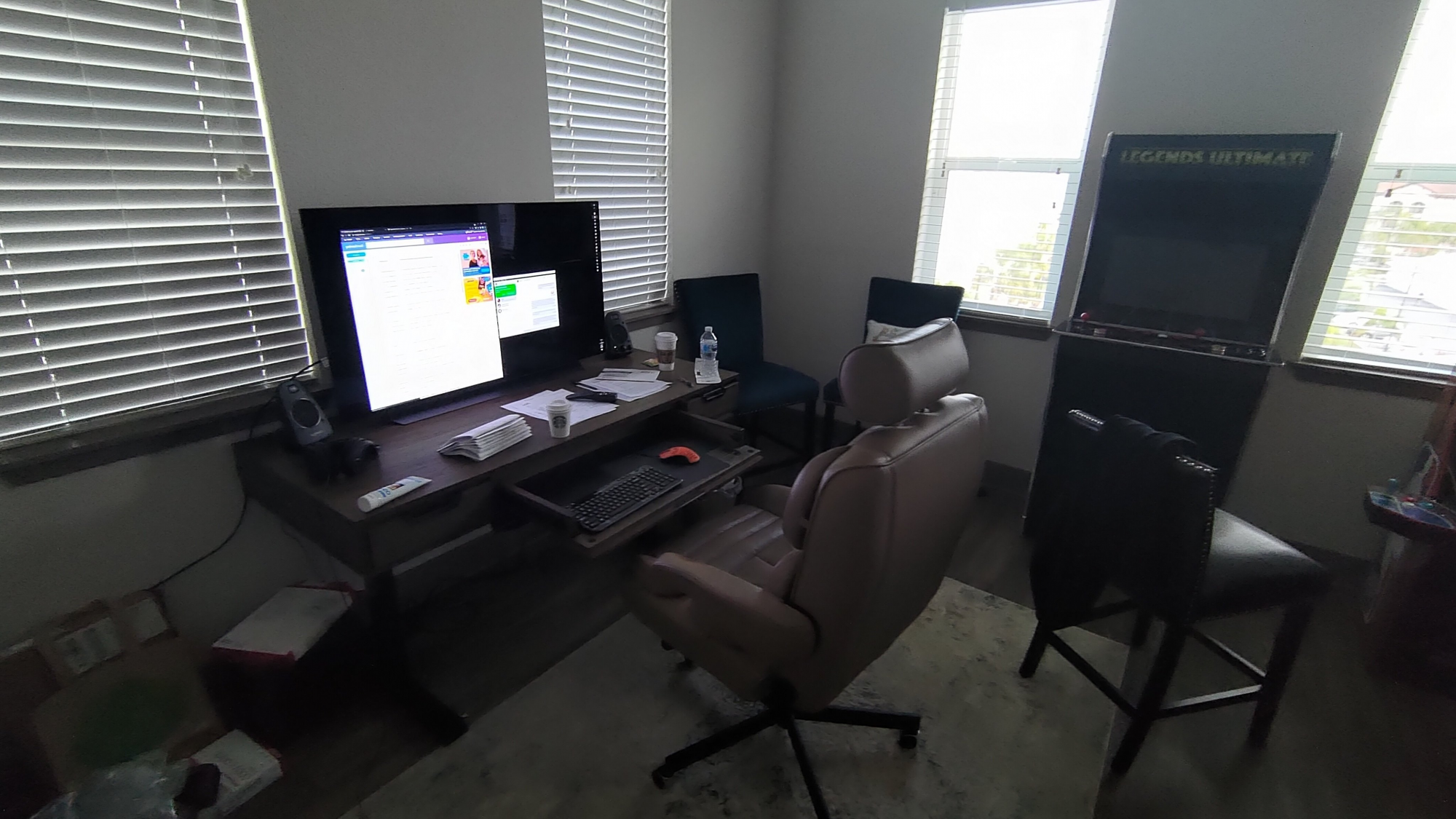
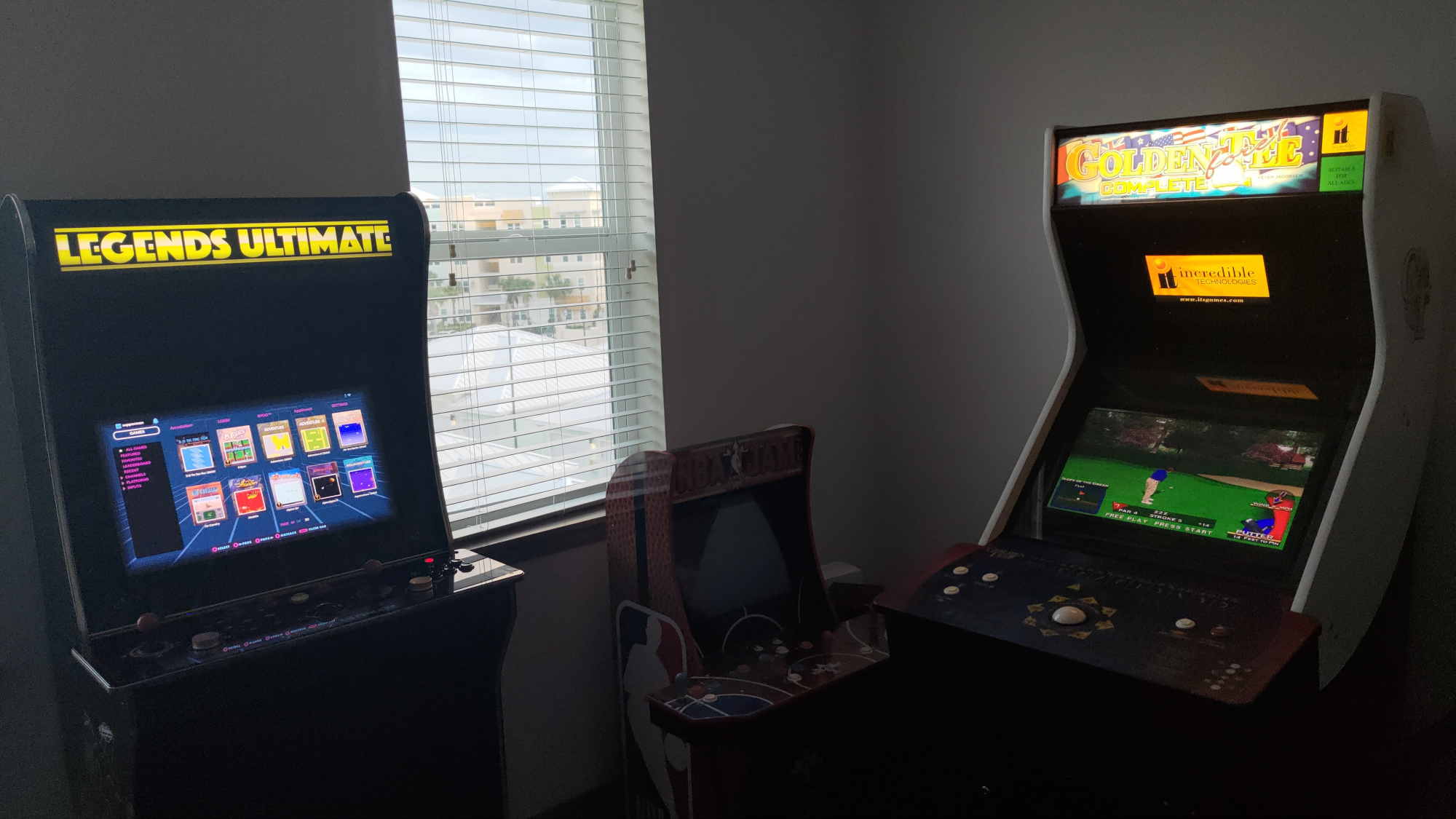
New desk really helps keep that 48" manageable! And CoinopsX on the ATgames Legends ultimate is amazing with nearly 2000 arcade titles....its like childhood in a cabinet! And GoldenTee fore doesn't help my at home work productivity either
Last edited:
What is that desk? Got a link?New desk really helps keep that 48" manageable! And CoinopsX on the ATgames Legends ultimate is amazing with nearly 2000 arcade titles....its like childhood in a cabinet! And GoldenTee fore doesn't help my at home work productivity either
View attachment 355135
View attachment 355139
l88bastard
2[H]4U
- Joined
- Oct 25, 2009
- Messages
- 3,929
What is that desk? Got a link?
I got the 60" adjustable Harper Point from Aspenhome. It is the most comfortable, ergonomic, bestest desk evar!
https://www.aspenhome.net/search?Lvl=3&vLook=Category&sbCat=Office&Id=Desks - Lift Top
Bought from Kane's furniture with 20% discount
https://www.kanesfurniture.com/products/harper-point-adjustable-desk
HiCZoK
Gawd
- Joined
- Sep 18, 2006
- Messages
- 860
That's good advice and I know it.Just stop overthinking it. I run my CX at 4K 120 Hz pretty much at all times on PC. PS5 will change to 4K 60 Hz or 4K 120 Hz depending if the game supports 120 Hz.
BFI is only viable to use for SDR games as it reduces HDR highlights way too much.
If ps5 sets itself to 4k60 (for 60fps game), then maybe if I enable lag booster, screen will run 60fps with 120hz but good gamma ;P

- Joined
- Feb 15, 2011
- Messages
- 2,887
Anyone else having gamma issues running Metro: Exodus EE on the CX? I have the in-game gamma slider at 0, and still the only way I can avoid grey banding/ come close to inky blacks is by setting the TV's brightness to 40. No issues with other dark games using the recommended setting of 50.
Try spamming the green button and see what it says for the picture mode etc. Or check the HDMI diagnostics screen (111111 on remote with Connections -> Programmes and tuning highlighted).Anyone else having gamma issues running Metro: Exodus EE on the CX? I have the in-game gamma slider at 0, and still the only way I can avoid grey banding/ come close to inky blacks is by setting the TV's brightness to 40. No issues with other dark games using the recommended setting of 50.
It might go to a wrong black level and sometimes in HDR I've had the display output at the wrong color space. Usually this happens just on the desktop rather than in games though.

Armenius
Extremely [H]
- Joined
- Jan 28, 2014
- Messages
- 54,738
Are you running the TV in PC mode with black level at full range? Does the color space in the NVIDIA control panel show RGB or YCbCr444 when HDR is enabled? Is the dynamic range set to full?Anyone else having gamma issues running Metro: Exodus EE on the CX? I have the in-game gamma slider at 0, and still the only way I can avoid grey banding/ come close to inky blacks is by setting the TV's brightness to 40. No issues with other dark games using the recommended setting of 50.
Also I spent some more time with the nvidia shield pro's AI upscaling, and it isn't as good as I thought it was initially. It oversharpens things way too much. Even on the Low setting. I ended up disabling it in favor of just using "enhanced" upscaling. The mpv ML based upscalers are much better. I'm surprised nvidia doesn't adopt those, since they are simply shaders.
Armenius
Extremely [H]
- Joined
- Jan 28, 2014
- Messages
- 54,738
You can just not connect your TV to your network.
- Joined
- May 5, 2006
- Messages
- 5,956
Also I spent some more time with the nvidia shield pro's AI upscaling, and it isn't as good as I thought it was initially. It oversharpens things way too much. Even on the Low setting. I ended up disabling it in favor of just using "enhanced" upscaling. The mpv ML based upscalers are much better. I'm surprised nvidia doesn't adopt those, since they are simply shaders.
I like it so far but I only use it for 1080p content so I'm not using it that often. Compared to the original 1080p it's way better. Some people prefer a more softened look though. You might be able to make a named set of settings on the tv itself that are less sharp for when you are using ai upscaling. I've never tried doing that myself, at least not yet.
Indeed I’ll probably do that now that I have a shield.You can just not connect your TV to your network.
Maybe. I was comparing scenes and just feel it oversharpens a bit much. With subtitles on it creates fringes around the letters too. Disappointing since I know ai/ml based up scaling can be much better. Maybe the shield isn’t powerful enough for the better shaders.I like it so far but I only use it for 1080p content so I'm not using it that often. Compared to the original 1080p it's way better. Some people prefer a more softened look though. You might be able to make a named set of settings on the tv itself that are less sharp for when you are using ai upscaling. I've never tried doing that myself, at least not yet.
- Joined
- May 5, 2006
- Messages
- 5,956
TIL the Live+ feature on the LG CX is a glorified screen logger. It captures images from your TV and sends them to remote servers to be matched for ad tracking purposes. Can't believe such a feature exists, wtf. Anyways, make sure you turn it off.
You can turn it off under:
General -> Live Plus -> go in and turn all sliders off, click "delete all information"
-> Who.Where.What (slider off)
-> Content Recommendations (slider off)
..Delete all information
Next time you go there the main slider will be off under
General -> Live Plus
Then under general again...
General ->
-> Additional settings -> Do not sell my information
====================================================
I wouldn't disconnect from the network because the youtube HDR app works nicely on the LG. My shield doesn't have the chip for the youtube VP9 codec HDR method.
https://en.wikipedia.org/wiki/VP9#Hardware_implementations
I also use the voice assistant. It's very handy and requires network connection to be used fully.
In my case I'm using the Lg CX in a multi monitor array where it's being used as a media/gaming stage so it's not displaying any desktop windows that would be captured normally either. Just videos, games (and maybe some art slideshows once in awhile).
If you aren't using script blockers on your pc, phone, tablet, etc (and if you are using voice assistants like alexa, google assistant, samsung) you all getting data aggregation already but I can see where you would be even more concerned with screenshots of a pc that could have sensitive financial information etc. Consider how many images are stored in the cache of a single pc at times then imagine a full network of LG and other TV's with even an intermittent screenshot repository. I'm pretty sure it's just AI skimming for themes so they can pump you with advertising and suggested next videos/links and to fill in wildcard frames of sites with targeted advertising rather than someone actually going through all of those screenshots with human eyes. (Not that they couldn't AI skim for financial/personal info if they wanted to code for it). Still I turn all that stuff off and I use script blockers to block facebook, google, twitter etc scripts that are in the background on a lot of web sites wherever possible.
Last edited:
- Joined
- May 5, 2006
- Messages
- 5,956
Indeed I’ll probably do that now that I have a shield.
Maybe. I was comparing scenes and just feel it oversharpens a bit much. With subtitles on it creates fringes around the letters too. Disappointing since I know ai/ml based up scaling can be much better. Maybe the shield isn’t powerful enough for the better shaders.
I'll mess with it eventually. I'm pretty sure I could take a named setting on the TV and unsharpen it to a slight anti-aliasing effect for a slightly less aggressive sharpening look as an end result. I wouldn't want to go too far to where it would muddy anything else to where it was obvious though.
....I'd just tell the LG remote to switch to that unsharpened named setting on the tv whenever I was running 1080p content on the shield then tell it to go back to the regular setting for the shield when I launch 4k. So two settings for shield. When I tell it to go back to PC it would go back to the original PC settings and pc hdmi input automatically.
Last edited:
- Joined
- May 5, 2006
- Messages
- 5,956
For me it looks great but I can see how your personal taste could prefer it less sharp. When I get a chance I'll mess with the named TV setting sometime like I said and I'll report back but I think you doing it yourself would probably be a better test since it is your personal taste regarding the sharpening amount.
Another contributing factor to things like text subsampling and graphics/video aliasing is how far you sit from the screen. The 20/20 vision threshold for 4k 48" starts at
33.5" viewing distance and 64 degree viewing angle for a 48" 16:9 4k screen.
(from my other replies):
Sitting any closer will be much poorer text and aliasing. You can try to compensate with aggressive AA and try to tweak subpixel sampling on text but it's still not optimal.
https://www.talkandroid.com/guides/android-tv-guides/nvidia-shield-tv-ai-upscaling/
Worth it?
Another contributing factor to things like text subsampling and graphics/video aliasing is how far you sit from the screen. The 20/20 vision threshold for 4k 48" starts at
33.5" viewing distance and 64 degree viewing angle for a 48" 16:9 4k screen.
(from my other replies):
Sitting any closer will be much poorer text and aliasing. You can try to compensate with aggressive AA and try to tweak subpixel sampling on text but it's still not optimal.
While
33.5" - 60 PPD - 64deg is the nearest you can sit while still within the 20/20 vision threshold, personally I think what's best for this screen is:
38" -- 41" - 44.4" - 48" view distance
66.6 - 72 -- 76 - -- 81.5 PPD
58 - - 54 -- 50 --- 47 degree horizontal viewing angle
https://www.talkandroid.com/guides/android-tv-guides/nvidia-shield-tv-ai-upscaling/
Worth it?
The short answer? Usually, yes, NVIDIA’s AI-upscaling does a pretty good job of taking old or lower resolution content and sharpening it to look better on modern TVs. I’ve tested everything on a Sony Bravia X900F, which is a pretty nice TV that can do its own upscaling reasonably well. NVIDIA still does it better.
But most importantly, it also does it without ruining the image. Sometimes upscaling just oversharpens everything and makes it pretty gross looking, but this machine learning methodology behind the AI upscaling seems like it keeps things looking a little more natural.
I don't have those options on my CX 48 at all. No Live Plus option. Perhaps they are not legal under Finnish laws.You can turn it off under:
General -> Live Plus -> go in and turn all sliders off, click "delete all information"
-> Who.Where.What (slider off)
-> Content Recommendations (slider off)
..Delete all information
Next time you go there the main slider will be off under
General -> Live Plus
Then under general again...
General ->
-> Additional settings -> Do not sell my information
- Joined
- May 5, 2006
- Messages
- 5,956
I don't have those options on my CX 48 at all. No Live Plus option. Perhaps they are not legal under Finnish laws.
some of those are under "general/ AI Service / AI Recommendation"
..Who.Where.What (on/off slider)
..content recommendations (on/off slider)
..Network-Based Personalization Recommendations (on/off slider)
..[Delete Usage Data]... (button)
Also under "General-->AI Service ---> Voice Recognition settings --> Voice Response (Voice search results and TV responses are spoken aloud) ---> on/off toggle slider
... that is if you don't want the TV to reply to you audibly (it's loud on my system)
-------------------------------------
General --> Additional Settings --> Live Plus (on/off toggle slider)
.... that turns off the screen capturing, "spying"
Scroll down farther from
General--> additional settings,,, to get to ----> " Do Not Sell My Personal Information"
There is an "Advertisement" setting if you scroll down under "Additional settings" past the bottom of the menu list .. (on the usa one at least).. "Activating this option will stop tracking of ad-related personal data from this smart TV. Turning on the toggle may impact the types of ads you see going forward, but it will not stop you from receiving ads"
and "Link to Google Account" if you want it tied to your google (e.g. you have another google assistant at home for example) and youtube but I think you can log in to youtube separately on the app anyway.
--------------------------------
So you can turn all of the more invasive stuff off. You do have to be connected online in order to use the google assistant/voice commands though I think and any time you are using an assistant you are getting data aggregation from your commands/searches. You can delete that history though (you can also delete it on amazon alexa/echo accounts/devices). The benefit of using the mic and having an assistant on the tv is very good so I am all about using that. I turned all of the other stuff off though.
Also, like I said before, I only use the LG CX as a media and gaming screen so I don't have web browsers and apps with financial/personal information on the LG to start with.
https://support.google.com/assistant/answer/7108295?co=GENIE.Platform=Android&hl=en
..Delete your Google Assistant activity
Your Google Assistant stores your past activity to do things like remember your interests and give more personalized responses. You can find or delete your past activity at any time.
Learn more about how we secure and protect your data in the Google Safety Center.
In your Google AccountDelete activity with your voice
You can ask your Google Assistant to delete activity from your account.
For example, you can say:
Learn more about how your activity is deleted.
- “Hey Google, delete my last conversation.”
- “Hey Google, delete today’s activity.”
- “Hey Google, delete this week’s activity.”
- "Hey Google, that wasn't for you" to delete the last thing you said.
Android iPhone & iPad
Delete a specific activity
You can delete an individual item, like something you asked your Google Assistant to remember.
In your conversation (phone only)
Delete all Assistant activity at once
Important: When you delete all activity, it can take a day before the activity is deleted from your other devices.
- Go to your Google Account's Assistant activity page. If you haven't already, sign in to your Google Account.
- At the top right, on the "Google Assistant" banner, tap More Delete activity by.
- Under "Delete activity by," choose All time.
- Tap Delete.
- To confirm, tap Delete.
Last edited:
- Joined
- May 5, 2006
- Messages
- 5,956
This is from last december but it's still relevant. Some of the menu locations might be a little different now or with slightly different names on some models. Most TVs have some type of "spying" data aggregation for advertising by default:
https://www.komando.com/tech-tips/stop-smart-tv-tracking/544540/
https://www.komando.com/tech-tips/stop-smart-tv-tracking/544540/
- Joined
- Feb 15, 2011
- Messages
- 2,887
I never use HDR because it always looks like crap to me. I tried it with this game and no different. No matter what color settings I use, the game has super saturated blues and reds and it looks awful. I don't know if it's a Windows HDR thing or what.Are you running the TV in PC mode with black level at full range? Does the color space in the NVIDIA control panel show RGB or YCbCr444 when HDR is enabled? Is the dynamic range set to full?
So far setting Black Level in the TV settings to "Low" seems to be the best fix.
I have never accepted the terms for voice so maybe that's why I don't have some of these things. I only have a "Content recommendations" toggle "based on your app usage". Live plus does not exist and advertisement section just lets me reset the ID and toggle a "do not track" setting.some of those are under "general/ AI Service / AI Recommendation"
..Who.Where.What (on/off slider)
..content recommendations (on/off slider)
..Network-Based Personalization Recommendations (on/off slider)
..[Delete Usage Data]... (button)
Also under "General-->AI Service ---> Voice Recognition settings --> Voice Response (Voice search results and TV responses are spoken aloud) ---> on/off toggle slider
... that is if you don't want the TV to reply to you audibly (it's loud on my system)
-------------------------------------
General --> Additional Settings --> Live Plus (on/off toggle slider)
.... that turns off the screen capturing, "spying"
Scroll down farther from
General--> additional settings,,, to get to ----> " Do Not Sell My Personal Information"
There is an "Advertisement" setting if you scroll down under "Additional settings" past the bottom of the menu list .. (on the usa one at least).. "Activating this option will stop tracking of ad-related personal data from this smart TV. Turning on the toggle may impact the types of ads you see going forward, but it will not stop you from receiving ads"
I'm guessing this might be some regional difference.
If it looks super saturated then something might be going wrong and it's not correctly activating HDR. I've had this sort of thing happen in RDR2 a few times.I never use HDR because it always looks like crap to me. I tried it with this game and no different. No matter what color settings I use, the game has super saturated blues and reds and it looks awful. I don't know if it's a Windows HDR thing or what.
So far setting Black Level in the TV settings to "Low" seems to be the best fix.
Armenius
Extremely [H]
- Joined
- Jan 28, 2014
- Messages
- 54,738
Agree with kasakka that you should not be seeing this kind of saturation. Note that you have to calibrate the color for the TV separately with HDR turned on.I never use HDR because it always looks like crap to me. I tried it with this game and no different. No matter what color settings I use, the game has super saturated blues and reds and it looks awful. I don't know if it's a Windows HDR thing or what.
So far setting Black Level in the TV settings to "Low" seems to be the best fix.
- Joined
- Feb 15, 2011
- Messages
- 2,887
Agree with kasakka that you should not be seeing this kind of saturation. Note that you have to calibrate the color for the TV separately with HDR turned on.
If it looks super saturated then something might be going wrong and it's not correctly activating HDR. I've had this sort of thing happen in RDR2 a few times.
Yep, I have not properly calibrated the TV. Everything SDR looks so great to me that I haven't bothered. Perhaps an investment into a good calibrator is in order, if proper HDR will look that much better. Thanks for the help fellas.
It should not require anything more than using the Warm 2 color preset really. The oversaturation mainly happens if the GPU is sending the TV a signal and the TV thinks it's receiving a different color space, black level etc. First thing I would try is toggling the black level. Usually the easiest way to see that it's doing something weird is if white seem to blow out or blacks are not blending to the bezel.Yep, I have not properly calibrated the TV. Everything SDR looks so great to me that I haven't bothered. Perhaps an investment into a good calibrator is in order, if proper HDR will look that much better. Thanks for the help fellas.
Spam the green button or go to HDMI diagnostics to see what it's receiving.
I've had my LG CX for roughly a year, so hopefully I am well qualified to post my thoughts on it at this point.
I've done numerous comparisons between it and my old Dell 27" 1440P 144hz GSYNC monitor. The conclusion is... there is no comparison. The LG CX blows it away in all areas. Motion handling, brightness, contrast, color... the list goes on. The LG CX wipes the floor with my old GSYNC monitor.
The more interesting comparison happens when you compare the LG CX to an LCD-based tech. In this case, I am comparing the LG CX vs Samsung Q90R, the 2019 Samsung competitor to the LG C9. I will cover the high points on each.
LG CX:
Samsung Q90R:
The LG CX does really good at being a computer monitor, but I dare say that the Q90R does a better job at being a TV. It stings a little to admit that because the LG CX has a wow factor about it that is lacking in the Q90R.... but the Q90R still sits in my living room and I have absolutely no plans to replace it with an OLED. It's a gorgeous display, one that is most definitely a Samsung flagship QLED TV.
I've done numerous comparisons between it and my old Dell 27" 1440P 144hz GSYNC monitor. The conclusion is... there is no comparison. The LG CX blows it away in all areas. Motion handling, brightness, contrast, color... the list goes on. The LG CX wipes the floor with my old GSYNC monitor.
The more interesting comparison happens when you compare the LG CX to an LCD-based tech. In this case, I am comparing the LG CX vs Samsung Q90R, the 2019 Samsung competitor to the LG C9. I will cover the high points on each.
LG CX:
- PC Gaming - This thing is a gaming BEAST! Input lag is minimal, GSYNC is incredible, Pixel response is nearly instantaneous, etc. For gaming, the LG CX goes head-to-head with some of the best gaming monitors out there.
- HDR - For HDR content, this thing pops. Absolute brightness is not the highest of any TV out there, but what makes it so incredible is its contrast; you can have one pixel at 0 and another pixel right next to it all full brightness. When you see it, it's painfully beautiful.
- Tech Support - LG should be given an award for post-purchase support. This TV had major issues with HDMI 2.1, and they corrected all of them, and did so fairly quickly. That's what I want in a SmartTV, and as long as LG continues that level of support, I will GLADLY buy their products.
Samsung Q90R:
- Console Gaming - I don't know why, but all consoles I've tried on the Q90R just look better, even in game mode, compared to the CX. It's obvious that Samsung designed the Q90R with console gaming in mind; it all works really well.
- SDR - NOW HOLD ON A SECOND!!! How is this possible?!?!?! The LG CX only gets up to 750-nits, while the Q90R gets up to an eye-watering 1500-nits peak brightness. That makes no sense!!! Actually, it does because, IMO, nits are a useless measurement when comparing a TV's ability to output HDR content. What you should be looking for is contrast between the darkest and brightest points, and the fact is that an FALD LCD display will never be able to match the contrast of an OLED panel. Because of this, HDR pops harder in high contrast areas on the LG CX. But we're talking about SDR, and in this case, the Samsung Q90R has more natural looking color. It's not as punchy as the LG CX, but it is much more pleasing and, dare I say, realistic on the Q90R.
- Upscaling - This goes back to console gaming. The built-in resolution upscaler on the Q90R is really good. It gets very close to making a 1080P image look like Native 4K with some AA on top of it. My stock PS4 looks like a blurry mess on my LG CX, but the picture is clean and beautiful on the Q90R. The Q90R also handles macro-blocking far better in super dark scenes (although in absolute black, the LG CX is the champ by far).
The LG CX does really good at being a computer monitor, but I dare say that the Q90R does a better job at being a TV. It stings a little to admit that because the LG CX has a wow factor about it that is lacking in the Q90R.... but the Q90R still sits in my living room and I have absolutely no plans to replace it with an OLED. It's a gorgeous display, one that is most definitely a Samsung flagship QLED TV.
Last edited:
What about off-angle viewing?I've had my LG CX for roughly a year,...