Windows 10 & RX580 display order issue. Possible to rectify?

kittmaster

Limp Gawd
2FA
Joined
Dec 27, 2004
Messages
326
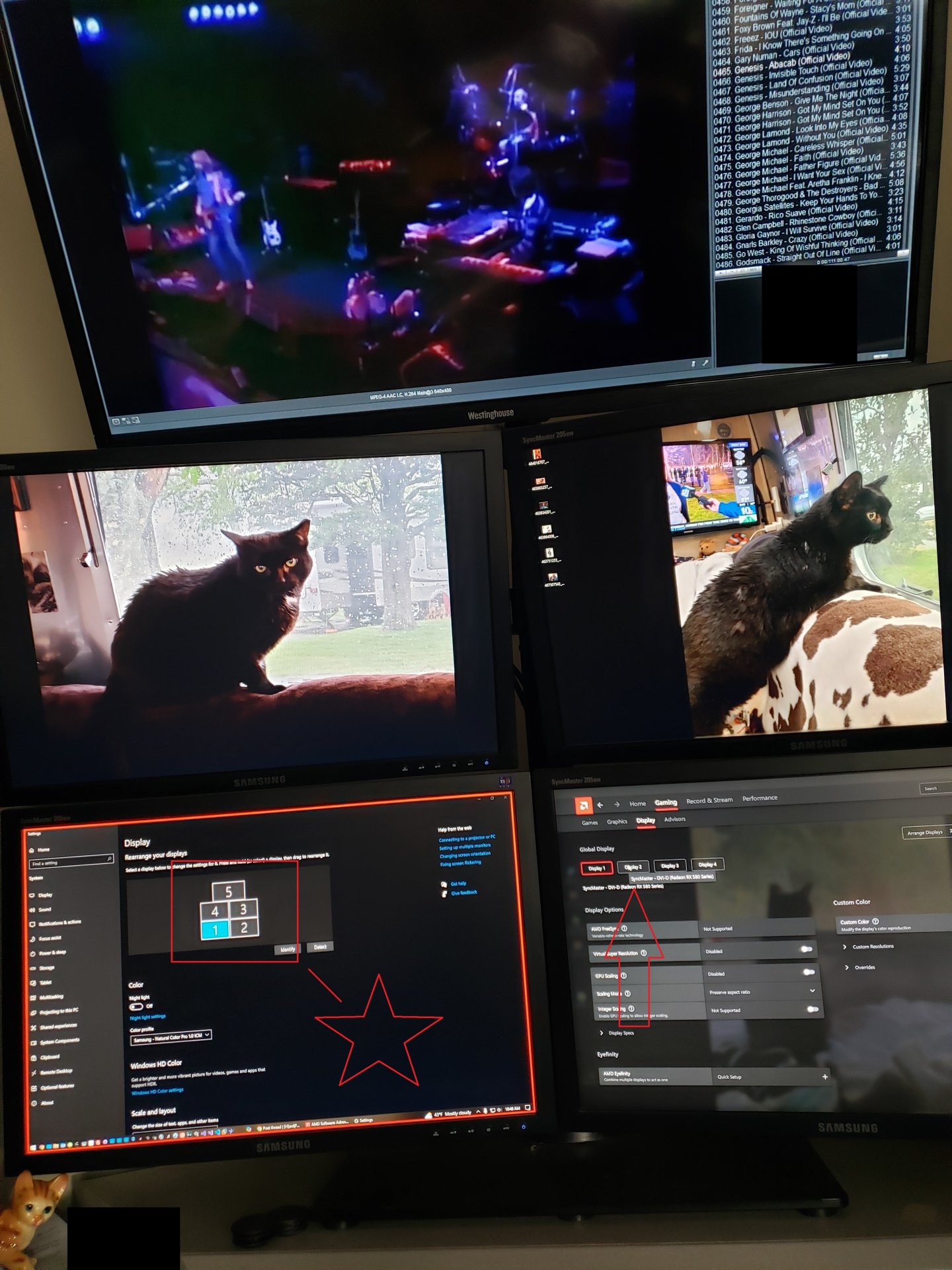
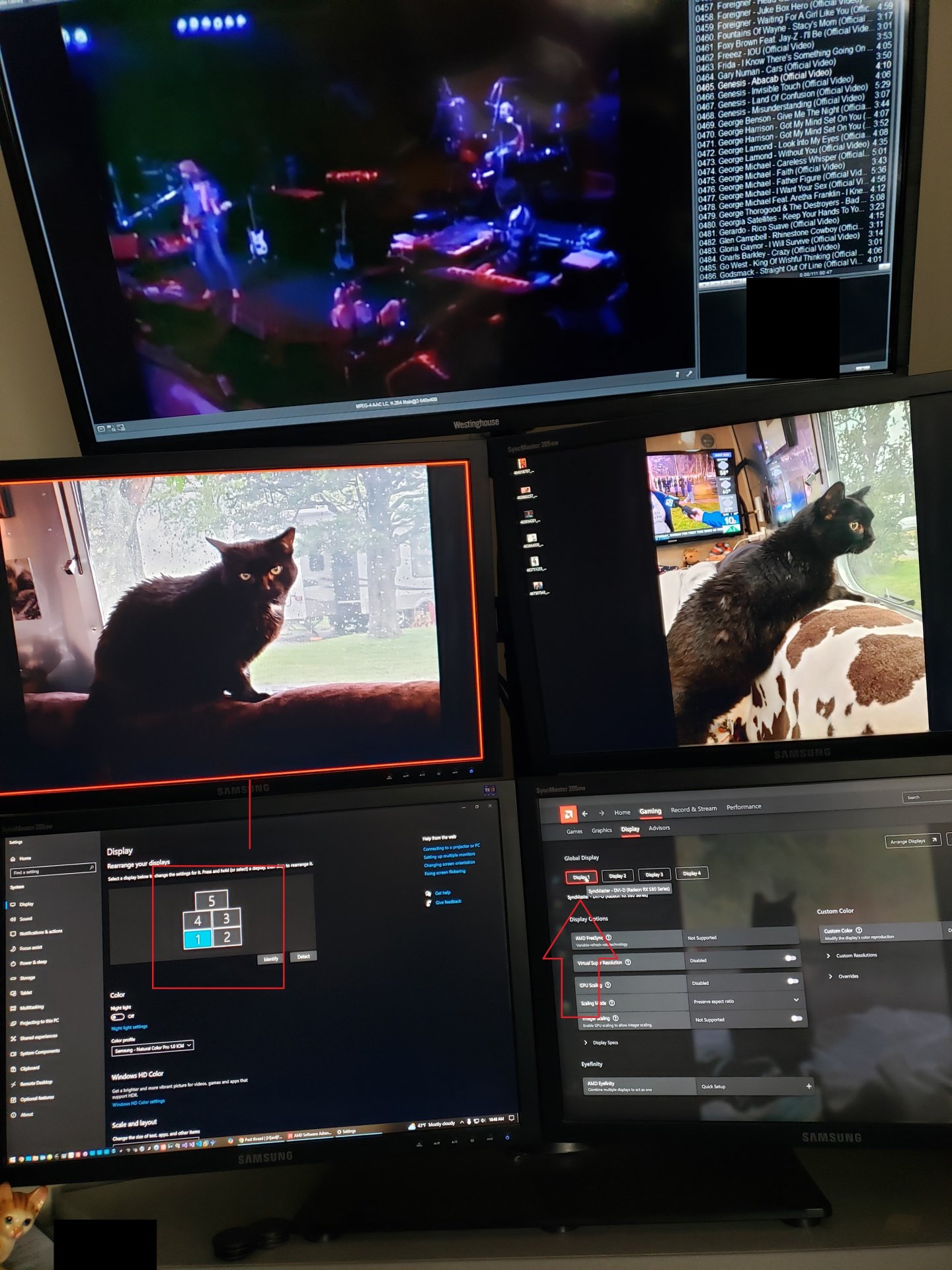
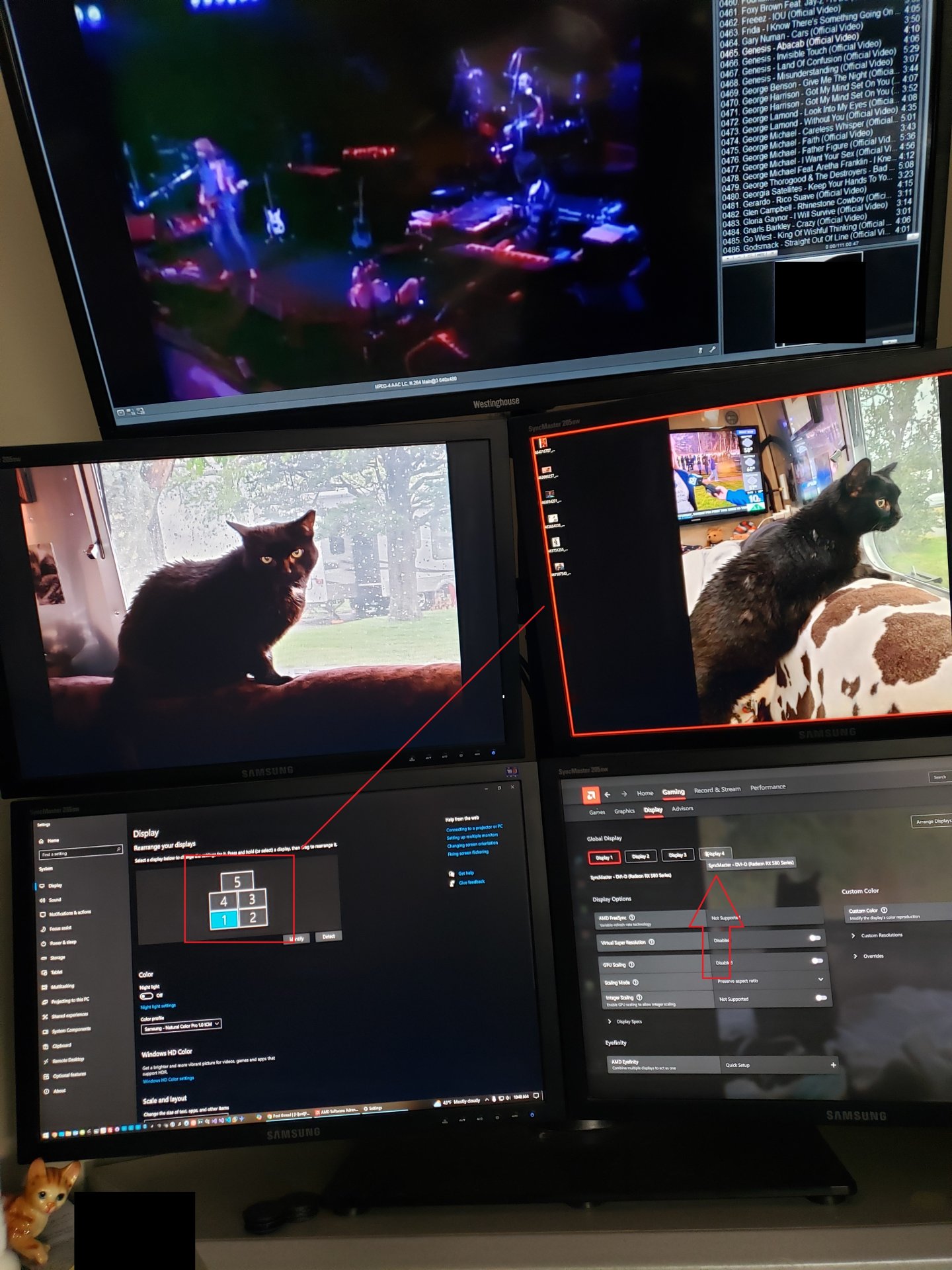
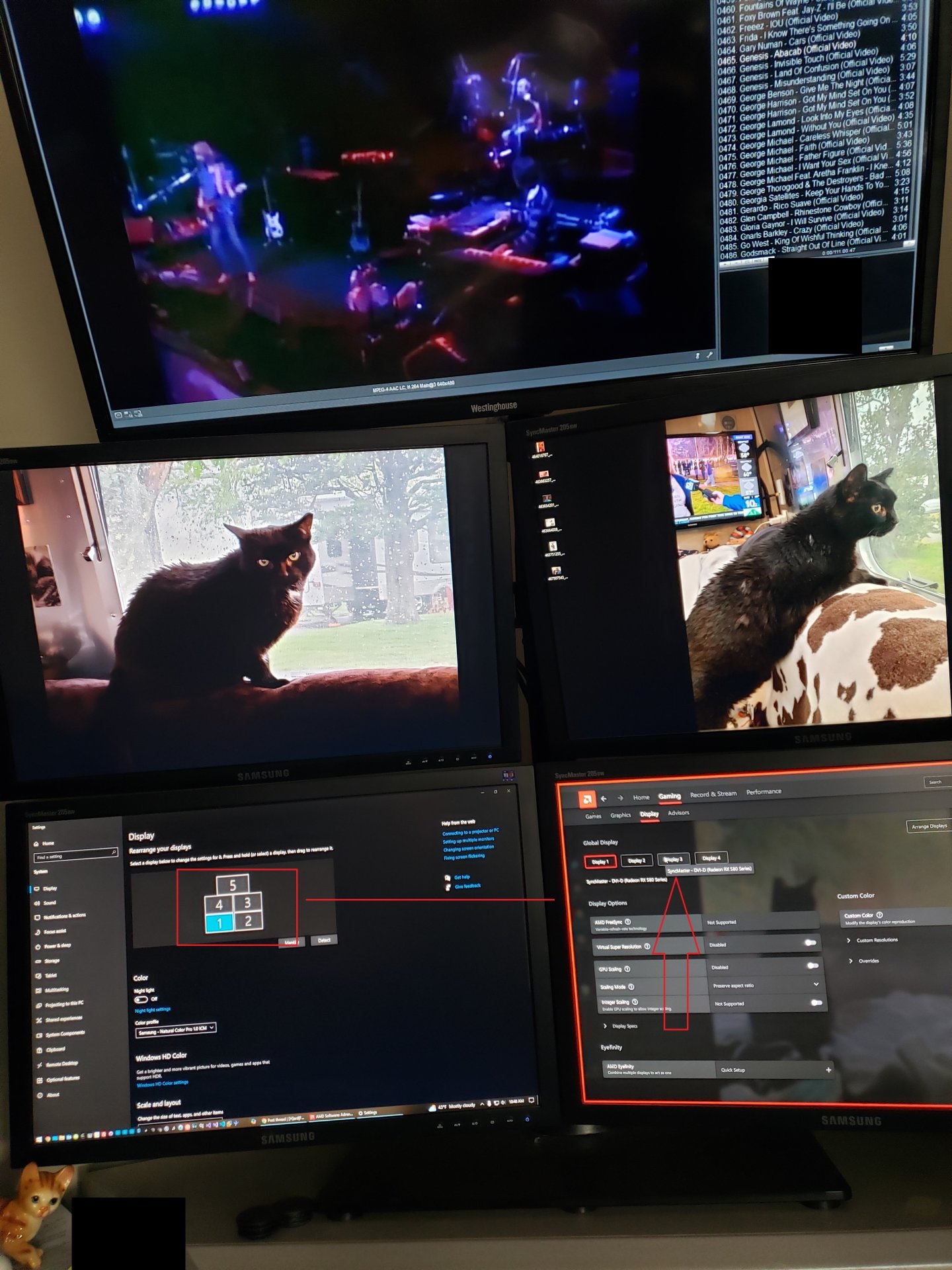
I took some images (large for clarity and less explanation of environment) and what I'm seeing is Windows 10 has assigned 1-5 for each monitor. 1-4 are all on the Radeon RX580 and the 5th on the internal video card (TV usage). I'm usually a NVIDIA guy, but this card was nearly donated to me in a time of need and I am finding that the driver and the windows numerical values are not aligned. I can't figure out how to resolve it. The main hook is that randomly, all my icons are shifting from the bottom left monitor (primary) to the upper left monitor. It stands to reason that the AMD software thinks THAT is monitor 1 when windows thinks it something else. I am surmising that because of the mismatch, the icons are shifted to what the AMD software is calling display 1 and ignoring Windows "make this my primary monitor" option. I can't seem to find much on how to either fix the windows assignment or the AMD software. I've already moved the cables physically to see if I could hard code the positions based on the video cards locations, but there is still a physical mismatch between AMD and windows as to which display is which. Any ideas on how I can solve this riddle?
20241129_104821.jpg


20241129_104819.jpg


20241129_104816.jpg


20241129_104813.jpg
 
But then my mouse doesn't move through the "square" of all 4 and left right right is left..... LOL. Or am I missing something?
 
click the display setting identify button and then shuffle them around, you may been to move cables too. setup can be a pita but once you have them straightened out theyll stay put.
 
I just tried shuffling the windows side, did exactly as expected, mouse all crazy directions... I never found a "primer" on this card as to what it marks as 1-4 in display order, how do I do this when the AMD keeps crossing the values? It seems the windows identify trumps the AMD interpretation....
 
I just tried shuffling the windows side, did exactly as expected, mouse all crazy directions... I never found a "primer" on this card as to what it marks as 1-4 in display order, how do I do this when the AMD keeps crossing the values? It seems the windows identify trumps the AMD interpretation....
no idea, but yes, use windows' settings/indentifiers.
 
Ok, so call me stupid... never had this issue with NVIDIA, so I apologize if I'm being daft... If you look at the image(s), screen one is bottom left... so that is what windows is telling me. But when I hover "display 2" in adrenaline, AMD says highlights screen 1 thinking it's screen 2... 1 (is not) 2. So AMD is getting it "wrong". I don't see anything in their settings that lets me "assign" a monitor to a number.. so if Windows is the master and my screens are in the position I need them to be in using the display adjuster in control panel (they are and it works exactly like I want) AMD is my issue... hence the thread.

Thanks for bearing with me, just a screwy issue.
 
Ok, so call me stupid... never had this issue with NVIDIA, so I apologize if I'm being daft... If you look at the image(s), screen one is bottom left... so that is what windows is telling me. But when I hover "display 2" in adrenaline, AMD says highlights screen 1 thinking it's screen 2... 1 (is not) 2. So AMD is getting it "wrong". I don't see anything in their settings that lets me "assign" a monitor to a number.. so if Windows is the master and my screens are in the position I need them to be in using the display adjuster in control panel (they are and it works exactly like I want) AMD is my issue... hence the thread.

Thanks for bearing with me, just a screwy issue.
dont listen to the amd stuff, it doesnt handle it, windows does. what the amd stuff is probably showin is what port its on.
it is, i have to fix my secretary's machines all the time(dual or triple mon), regardless if its amd, intel or nvidia.
 
Have you messed with "arrange displays" in the AMD settings?

Edit: I don't think the numbers really matter. Their only purpose afaik is to identify which display is which, not the order or position. You might be able to select the primary display, but the number assigned to that display doesn't matter, and could be 1 or 9 or anything else.
 
Well the main issue at hand, besides the mismatch, is randomly Windows keeps dumping all the desktop icons to what AMD "thinks" is monitor 1 from 4 (which is the primary). My supposition is that if I can get the two aligned, my stupid icons won't move... it is very irritating!
 
I think I know what is going on... 4 ports, 3 display port and one DVI-D. If I connect to DP1 - 3, windows and adrenaline track. As soon as I connect the 4th monitor to the DVI-D, it goes off the rails. I think the DVI-D is shared with DP3? So I think that is screwing up somehow. As soon as I disconnect the DVI-D, it's back to 1-3 track as expected.

Guess I'll need another vid card to deal with the 4th monitor.

Does that track?
 
Just a question, is Eyefinity still around for Radeon as I used it for iRacing Sims to get my three displays worked out and a lined in the past, worked on my HD 7950 and later my R9 290x, only thing I ever tested with RX 580 was Crossfire on x58 chipset without the ribbon, very capable in CX.

I remember the HD 7970 with all the display ports out the back to run 6 displays, good old days.
 
I think I know what is going on... 4 ports, 3 display port and one DVI-D. If I connect to DP1 - 3, windows and adrenaline track. As soon as I connect the 4th monitor to the DVI-D, it goes off the rails. I think the DVI-D is shared with DP3? So I think that is screwing up somehow. As soon as I disconnect the DVI-D, it's back to 1-3 track as expected.

Guess I'll need another vid card to deal with the 4th monitor.

Does that track?

Most modern cards should be able to handle up to 4 monitors using any mix of the available ports. None of the ports should be "shared" with each other. But as someone who uses 6 monitors, I've definitely noticed a lot of odd unintuitive quirks over the years.

Displayport is both a blessing and a curse due to it's more advanced features. One example is the behavior when you turn a monitor off. If a monitor is hooked up via Displayport, and you turn it off (or sometimes even just switch to another input), it will often treat that as if you just disconnected the monitor and Windows will reconfigure itself automatically. That can include dumping any windows and icons that you had on that screen onto another screen. On the other-hand, if a monitor is connected via HDMI or DVI, which are somewhat more passive interfaces compared to Displayport, and you turn that monitor off, Windows will usually continue to act like that monitor is still connected and turned on.

For this reason, when possible, I like to keep my more-important always-used main monitors connected via Displayport and connect my less important side displays using HDMI/DVI. That way I can turn off those HDMI/DVI side monitors when they aren't really needed without windows automatically re-configuring the monitor arrangement every time.

I wonder if by chance this has anything to do with the problems that you are having? Do you always keep all 5 displays turned on, or are you turning some of them off periodically to save power or whatever? Do you let your monitors time-out on their own when you aren't at your computer, or are you one of those people who habitually turns off their screen(s) manually whenever they aren't using their computer? If you're doing anything like that and those monitors are connected via Displayport, it could easily explain why it's moving the icons off of those displays. If that is in-fact the case, then you should either try to switch those displays over to HDMI/DVI or simply stop turning them off manually.

Finally, a few other suggestions. You should be able to hook up at least two monitors to your integrated video in most cases, which might give you more options to work with in terms of choosing specific types of display interfaces for each monitor. Also, you might consider upgrading to Windows 11 at some point. Although it still re-configures the monitor arrangement automatically when a Displayport monitor is turned off or disconnected, it's much better about returning things to their original display once that display is turned back on or reconnected.

Edit: Also, just noticed, are your 4 bottom monitors all Samsung 205BW monitors? Aren't those monitors coming up on nearly 20 years old at this point? I had a bunch of them, but the CCFL backlight died on every one of them over time. So it's kind of impressive that you have 4 that still work. But those monitors only have DVI and VGA as available inputs. You said 3 are connected to Displayport? So on those monitors are you using a Displayport to DVI adapter cable? Or a Displayport to HDMI adapter cable with a HDMI to DVI passive adapter?
 
Last edited:
Most modern cards should be able to handle up to 4 monitors using any mix of the available ports. None of the ports should be "shared" with each other. But as someone who uses 6 monitors, I've definitely noticed a lot of odd unintuitive quirks over the years.

Displayport is both a blessing and a curse due to it's more advanced features. One example is the behavior when you turn a monitor off. If a monitor is hooked up via Displayport, and you turn it off (or sometimes even just switch to another input), it will often treat that as if you just disconnected the monitor and Windows will reconfigure itself automatically. That can include dumping any windows and icons that you had on that screen onto another screen. On the other-hand, if a monitor is connected via HDMI or DVI, which are somewhat more passive interfaces compared to Displayport, and you turn that monitor off, Windows will usually continue to act like that monitor is still connected and turned on.

For this reason, when possible, I like to keep my more-important always-used main monitors connected via Displayport and connect my less important side displays using HDMI/DVI. That way I can turn off those HDMI/DVI side monitors when they aren't really needed without windows automatically re-configuring the monitor arrangement every time.

I wonder if by chance this has anything to do with the problems that you are having? Do you always keep all 5 displays turned on, or are you turning some of them off periodically to save power or whatever? Do you let your monitors time-out on their own when you aren't at your computer, or are you one of those people who habitually turns off their screen(s) manually whenever they aren't using their computer? If you're doing anything like that and those monitors are connected via Displayport, it could easily explain why it's moving the icons off of those displays. If that is in-fact the case, then you should either try to switch those displays over to HDMI/DVI or simply stop turning them off manually.

Finally, a few other suggestions. You should be able to hook up at least two monitors to your integrated video in most cases, which might give you more options to work with in terms of choosing specific types of display interfaces for each monitor. Also, you might consider upgrading to Windows 11 at some point. Although it still re-configures the monitor arrangement automatically when a Displayport monitor is turned off or disconnected, it's much better about returning things to their original display once that display is turned back on or reconnected.

Edit: Also, just noticed, are your 4 bottom monitors all Samsung 205BW monitors? Aren't those monitors coming up on nearly 20 years old at this point? I had a bunch of them, but the CCFL backlight died on every one of them over time. So it's kind of impressive that you have 4 that still work. But those monitors only have DVI and VGA as available inputs. You said 3 are connected to Displayport? So on those monitors are you using a Displayport to DVI adapter cable? Or a Displayport to HDMI adapter cable with a HDMI to DVI passive adapter?

I leave the monitors "on" all the time, when the computer shuts down, the monitors go into a power save mode until the next power up, basically, I never touch the power button. The monitor on the bottom right is switched between my work laptop and my computer as I work from home. The icons however, on that monitor are never affected, it is only monitors 4 and 1, bottom left and top left is where the switch is occuring, the two on the right top/bottom never have icon switching issues.... so that is what I find really strange about the whole mess. My NVIDIA cards GTX550ti's (2 of them in normal modes, not SLI) NEVER had this issue with all 4 monitors... it doesn't seem to affect the 5th monitor (very top) either.

I've hardware swapped twice to track and trace, yesterday was the first time I got AMD and windows display control panel to be in sync right up until I plugged monitor 4 into the remaining DVI-D port... and then it goes off the rails like the images.

So my final thought is to get another RX580 and then split them. I am looking into that now and see if the owner still has the twin when I bought 1 of 2 I think back at the beginning of the year... so we'll see.

Yes, those are 205BW monitors, bought 2 when they were first released (very low usage over an 8 year period), bought 2 of them used, repaired one over time, and they just run. I have the requisite backlight modules and since I'm a senior EE, I can repair just about anything, mostly they require recapping more than anything else since that is the primary failure points on the digitizer and the HV backlight pcbs. I admit, they run a little warm and heat up the room, but in winter, very nice, in summer, central air keeps it all at bay... otherwise, I'd a dumped them long ago for something LED backlit to reduce the thermal loads in the room.

The point of the RX580 was because I needed the AVX command sets to run a program for image restoration, the 550s didn't support it, so I changed out the card. The integrated video doesn't support it either, but I guess it could run the RX580 as a secondary video card like in a laptop and assign it in the program as needed for the hardware requirement and it would live on the monitors that are attached to it...I think.
 
Ok, so call me stupid... never had this issue with NVIDIA, so I apologize if I'm being daft... If you look at the image(s), screen one is bottom left... so that is what windows is telling me. But when I hover "display 2" in adrenaline, AMD says highlights screen 1 thinking it's screen 2... 1 (is not) 2. So AMD is getting it "wrong". I don't see anything in their settings that lets me "assign" a monitor to a number.. so if Windows is the master and my screens are in the position I need them to be in using the display adjuster in control panel (they are and it works exactly like I want) AMD is my issue... hence the thread.

Thanks for bearing with me, just a screwy issue.
It can happen with nvida too, cause it is a windows problem , the timing of when the monitors identify themselves.
 
You could set the bios switch to initialize onboard graphics first for the primary display if nothing else works and arrange the other monitors after boot up.
 
I had an RX 580 that I gave away for practically nothing because it was always having qwerky issues like this.

I know this is zero help, I hate to be biased but things like this dont help in that dept.

"Stereotypes while not "nice" typically evolve as such for a reason"
 
I have a Power Color Red Dragon RX 580 8GB full die card in my little workshop setting in an early AM4 computer from 2018, still works.
 
Back
Top