SSD Advice

baco80

Weaksauce
Joined
Jan 22, 2010
Messages
111
Im looking for a SSD as main desktop drive for OS/applications. 60-80GB enough, budget $250-350.

I've took a look at this ones, I think all support TRIM.

- Intel X25-M 80GB (G2)
- OCZ Vertex Turbo 60GB
- Corsair Extreme 64GB

Which is actually the brand/model that rocks for that price range?
 
For an OS/Boot drive, the Intel is a great choice. The sequential writes may be lower than others, but the random I/O performance advantage outweighs any other considerations.

If you're looking for a Vertex drive, don't get the Turbo. It offers no real benefits compared to the normal one, since the only real difference is the speed of the cache. It will show up better on benchmarks, but that's it.
 
I love my Intel X25-M 80GB. Gonna get a 160Gb one in the next week or so for the rebuilding of my now dead PC. Wicked fast.
 
Will I appreciate the jump from standard Barracuda HDD running W7 on the general daily use? Is W7 optimized for SDDs and TRIM feature?
 
What do you mean? I thought new G2 models support TRIM in their native firmware.

Intel supports TRIM(for a good while now), but the Kingston(which uses the same hardware) is just getting around to adding support. All the drives you listed do support TRIM as long as you use AHCI mode and the built in Microsoft AHCI driver.
 
Intel supports TRIM(for a good while now), but the Kingston(which uses the same hardware) is just getting around to adding support. All the drives you listed do support TRIM as long as you use AHCI mode and the built in Microsoft AHCI driver.

How do I check if I have it? What device are you referring to for the firmware to be installed, motherboard SATA controller? OS?
 
When you purchase a SSD, the first thing you should do is use the drive as a secondary in your current system and find out what firmware revision it has. If it's not the newest, you should update it before doing anything else. Once that's done, and you're ready to install Windows, go to your BIOS and put the HDD transfer mode to AHCI and not IDE/RAID. Then once you get everything installed, do not install drivers for the storage controller. The manufacture's drivers do not support TRIM, only the default Microsoft does.

If you get the Intel drive(which I would recommend) and follow the steps I outlined above, then you'll have TRIM.
 
Will I appreciate the jump from standard Barracuda HDD running W7 on the general daily use? Is W7 optimized for SDDs and TRIM feature?

It's a night and day difference for anything that has to access the OS files, or a program installed to the SSD.

On mine I can launch Photoshop and be up and working within 5-6 seconds even with an assload of filters to load.

Things like games will tend to see less benefit, but your overall OS experience will be like a breath of fresh air.

As was already stated, to get TRIM you need the OS, the drive, and the drivers to all support it. The method posted above should be fine if you go with an Intel drive (which would be my suggestion as well).
 
What do you mean? I thought new G2 models support TRIM in their native firmware.

Intel supports TRIM(for a good while now), but the Kingston(which uses the same hardware) is just getting around to adding support. All the drives you listed do support TRIM as long as you use AHCI mode and the built in Microsoft AHCI driver.

Indeed.

Sorry baco80, I could have been more clear. I just wanted to make note not all drives support it, but as mentioned in the above quote, all the ones you chose do have TRIM support.
 
just ordered the intel x-25m g2 for $242 shipped from provantage. i cant friggin wait. its going to be paired with a new i5 build.
 
Nice. Have fun and enjoy the new sense of speed. My one bit of advice is to NOT follow all the "SSD Optimization" tips out there since they tend to either hamper the way Windows work, or even degrade performance. I would say that you should move the My Document/Music/etc.. off the SSD and onto a mechanical disk and to keep the pagefile on the SSD. You can also turn off Hibernation if you don't use it. Other than than, Windows 7 will set itself up automatically on the disk. I tried the guides out there when I first got my SSD, and all I got for it was wasted time. I did a reformat after a firmware update, and decided to let Windows take care of everything and the performance was better since the pagefile excels on a SSD. Also, don't go hog-wild with benchmarking. After the initial testing, it serves no purpose other than wasting time and write cycles.
 
was it possible for the previous G1 models to update it with new firmware for trim support?
 
Nice. Have fun and enjoy the new sense of speed. My one bit of advice is to NOT follow all the "SSD Optimization" tips out there since they tend to either hamper the way Windows work, or even degrade performance. I would say that you should move the My Document/Music/etc.. off the SSD and onto a mechanical disk and to keep the pagefile on the SSD. You can also turn off Hibernation if you don't use it. Other than than, Windows 7 will set itself up automatically on the disk. I tried the guides out there when I first got my SSD, and all I got for it was wasted time. I did a reformat after a firmware update, and decided to let Windows take care of everything and the performance was better since the pagefile excels on a SSD. Also, don't go hog-wild with benchmarking. After the initial testing, it serves no purpose other than wasting time and write cycles.

Agreed for the same reasons. I wasted my time the first install but did not bother this time. (I did move the My Docs stuff as the music would take a large chuck of my drive.)
 
i dont plan on using the drive for more than os, applications and maybe a few choice games. ive seen plenty of benchmarks on the net, so as long as its fast in my new machine i dont care about benchmarks. :D

i have already moved all the documents/libriaries over to a platter drive.

will windows 7 have any issues from switching over from a mechanical drive to an ssd without a reinstall, such as all the features being utilized on the ssd?
 
I'm not sure which SSD optimization guides you guys are referring to but remember that most of these guides were written for the 1st generation drives to limit the writes...

1.) because of the slow substandard controllers
2.) and because of the life span of flash modules themselves


You can be paranoid and still use #2 as an excuse but I treat mine as regular mechanical drives and only optimize what I would regularly do and that includes removing prefetch, restore, shadow copy, and a few other things that are included for the convience/safety of novices.
 
will windows 7 have any issues from switching over from a mechanical drive to an ssd without a reinstall, such as all the features being utilized on the ssd?

The majority of folks don't seem to recommend cloning a platter HD to an SSD due to possible issues with proper alignment of the drive (something Win7 does on a clean install), even when using software that claims to properly do it.

If the alignment isn't set properly, you could end up with a lot slower speed than you'd get with a properly aligned drive, though how much is really unknown due to lack of real information.

I always vote clean install to a new SSD.
 
I always vote clean install to a new SSD.

Agreed. I just like the feel of a squeaky clean install also.

I'm not one of these people that has issue with reinstalling every couple months. (Though I don't set out to, I just break my OS "playing" sometimes, or other things pop/build up.)
 
I will be receiving my OCZ Agility 60gb from the NewEgg sale. To weigh in my vote is for the Intel drive.


On the other topic, I will be doing a squeaky clean install on my new SSD after updating the firmware. Let's see.. change the BIOS settings to AHCI, move "My Documents" to the secondary drive...
Is there anything else I or Baco80 should do during installation?
- Turn off Hibernation
- Use something like Vlite to remove extra features?
 
The majority of folks don't seem to recommend cloning a platter HD to an SSD due to possible issues with proper alignment of the drive (something Win7 does on a clean install), even when using software that claims to properly do it.

If the alignment isn't set properly, you could end up with a lot slower speed than you'd get with a properly aligned drive, though how much is really unknown due to lack of real information.

Ghost 14+ will actually do it flawlessly I've found, so long as you're cloning an existing Vista/Win7 install which was already properly aligned... It tends to maintain the existing alignment, at both ends of the partition, even if you tell it to resize the partition I might add.

As far as the OP, for his budget I would've recommended either the 80GB X25-M or the 120GB OCZ Agility ($250 and $300 AR respectively). The Intel drive is a lil' better at random read/writes (good for an OS drive), the OCZ drive has better sequential writes (nice if you're often gonna transfer large files to it to work on), but in reality you'd be unlikely to notice the difference under normal usage.

I agree w/the comments above, just move your Docs, Pics, etc folders to a HDD and let the drive be. If you wanna gain a few extra GB on it and you have lots of RAM then disabling Hibernation is the easiest way to reclaim a couple GB (since hiberfil.sys will be as large as the total amount of RAM you've got), other than that just leave it be. If you wanna make extra sure that TRIM is working then download CrystalMark's CrystalDiskInfo, it'll tell you under 'attributes'.
 
I agree w/the comments above, just move your Docs, Pics, etc folders to a HDD and let the drive be. If you wanna gain a few extra GB on it and you have lots of RAM then disabling Hibernation is the easiest way to reclaim a couple GB (since hiberfil.sys will be as large as the total amount of RAM you've got), other than that just leave it be. If you wanna make extra sure that TRIM is working then download CrystalMark's CrystalDiskInfo, it'll tell you under 'attributes'.

I have 8GB of RAM so it seems disabling hibernation is quite beneficial.
 
I have 38.2/59.6 GB on my Windows 7 Professional Install.

My folders total 11GB, where is the rest of my space?
 
I turned off my page file(8GB = RAM size) and I had to restart for that to take effect.
 
I turned off my page file(8GB = RAM size) and I had to restart for that to take effect.

Your page file size is not in any way related to the amount of RAM you have unless you've tweaked it manually... Windows will usually manage it pretty well by itself and with 8GB of RAM I don't see any reason it would have ever grown to 8GB itself unless you really needed it. It's likely the Hibernate file wasn't deleted after you turned it off 'till you actually restarted tho, and that's where you really gained 8GB back.
 
Ghost 14+ will actually do it flawlessly I've found, so long as you're cloning an existing Vista/Win7 install which was already properly aligned... It tends to maintain the existing alignment, at both ends of the partition, even if you tell it to resize the partition I might add..

I stopped using Ghost when it stopped coming on a floppy disc. I've got the original version 6 here back before they sold out to Norton and the program size exploded. :D

I think we'll see better SSD support by the end of the year from most drive image programs. Right now SSD's are still too new and have quirks we need to learn how to handle.

I usually still recommend a clean install to a new SSD just to avoid the off chance someone will run into issues. With a clean install, there are no doubts it's all set right.
 
Yeah for the average user it's obviously better to just do a clean install... I'm just putting that out there because I know people have asked for imaging apps that can do this in the past, and I know for a fact that Ghost will actually do it just fine... Like I said it'll even resize partitions and preserve alignment, etc. I've been using it since version 8 or 9 (not sure I ever used it before Symantec bought it actually) and I've never really had any big issues with it.

It's still pretty simple for a neophyte to use (but full featured), only takes about 300MB of space (probably way more than it should but w/e), and I think the latest version even lets you do backups w/o installing it... A feature they had killed back around version 9 or 10 IIRC, I know a lot of people missed that. One thing I do dislike is the convoluted file backup feature, I've never used that part of the app...I stick to full drive/partition image backups with it and I use other stuff for simple file backups (MS Synctoy, BrightSparks SyncBackSE, etc.).

DriveImage XML is a good free alternative that you can coax into preserving partition alignment (I think you have to manually create the partition first), and I'm pretty sure the built-in imaging tool within Windows 7 will work as well tho I haven't tried it.
 
got mine. paired it with a new i5 build...windows 7 installed so friggin fast it was unbelievable.

windows responsiveness is unbelievable...
 
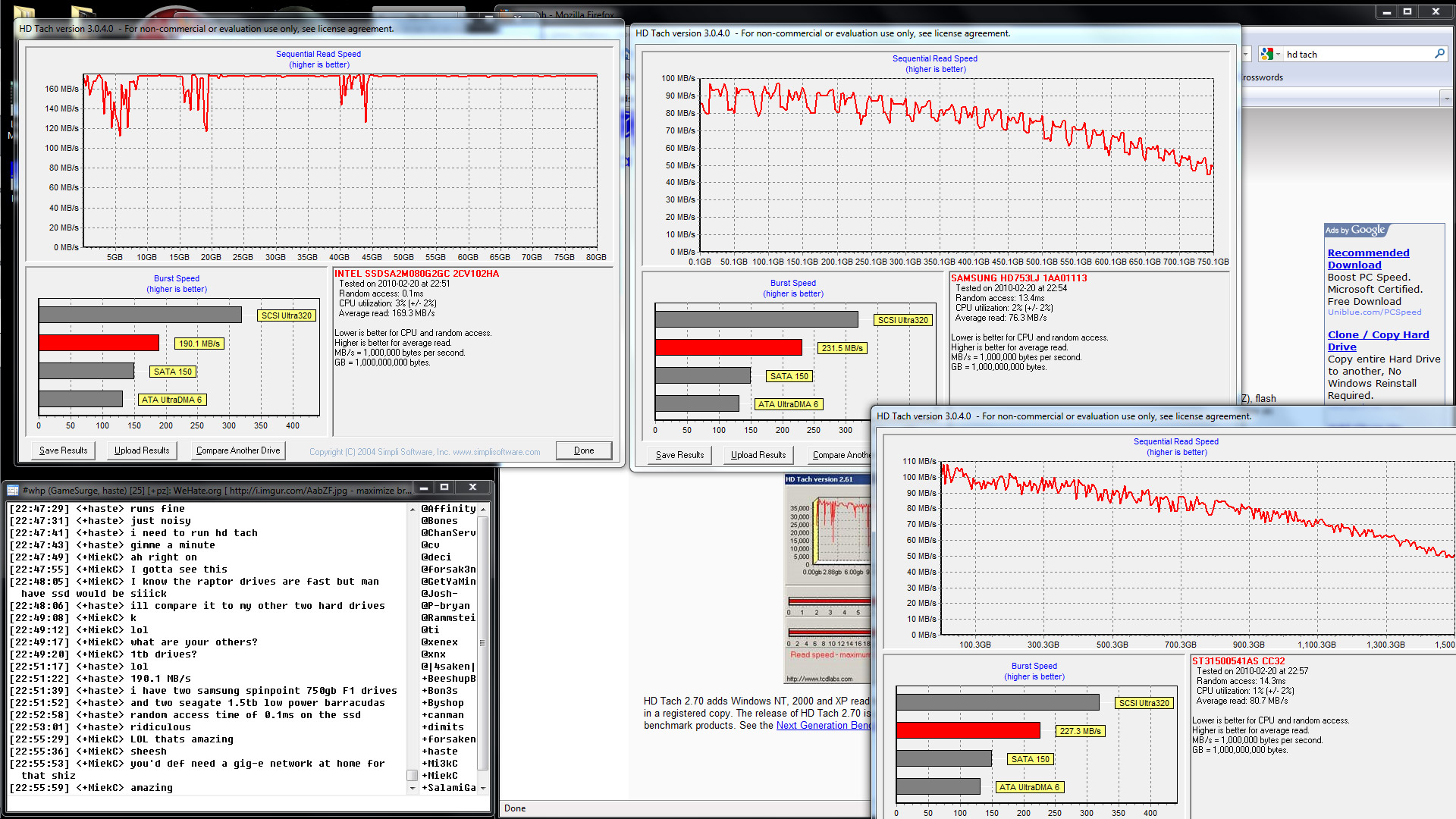
here is a HD tach benchmark comparison of the drives I own. 32mb long benchmark was run. mechanical drives listed in sig. ssd is intel x-25m 80gb.

ssd_benchmark.jpg
 
Too bad sequential I/O is not very relevant on your system drive. Try random read 4K multiqueue and you got a good comparison of why SSDs are so much faster than HDDs.
 
Back
Top