SSDs & Space Optimization

the.ronin

Limp Gawd
Joined
Mar 25, 2008
Messages
508
I came across an article in Maximum PC that suggested relocating user files and games to a separate HDD leaving only the core OS and other programs on the SSD of which I had a few questions.

For reference, I’m running on a 60GB OCZ Vertex (approx 20GB free), 2x 500GB WD Caviars (1 for files and 1 for backup), and a 150GB Raptor for games.

Relocating User Files

The approach to moving the user files was based on regedit’ing the locations to the HDD. I’ve been using this approach and it has worked well not just in terms of keeping docs and such off the SSD but also by allowing me to fresh install the OS and other programs without having to copy over user docs.

But does this at least partially defeat the purpose of SSDs? Sure, the OS and programs load blazingly fast, but most programs including the OS need to access user profiles and/or files, don’t they? At that point, it’s back to good ol’ 7,200 RPMs, right?

Relocating Games

The approach to moving games involved linking a partition or drive to a “Games” directory in the Programs(X86) folder on the SSD. I just install all my games to that folder and everything gets installed to the designated HDD or partition.

But is all this really necessary? Why I can’t I just point the installation to that HDD or partition to begin with? Is it because some games default to C: in saving profiles or such? Wouldn’t most modern games be smart enough to know where it was initially installed?
 
You can relocate My Documents without regedit (right click --> Properties I think). Desktop you might have to do a regedit for.

The more harddisks you spread stuff out on, the better overall performance you will get -- whether or not you are using SSDs or HDDs. Having more than one harddisk is like having another brain or another physical CPU or core (except that you can do things simultaneously on multiple harddisks).
 
Yes, to pretty much everything you said.

Moving the user profiles off the SSD will remove a lot of small writes, which is SSD's strongest area. You're saving space and some write cycles, but you are hurting performance.

Yes, you could simply point the installer elsewhere. However, quite a few games have shortcuts and registry entries and stuff which point at the installation location, or are forced into a certain directory (Steam). If you want to move it between HDD and SSD because you find yourself playing that game more than anything else, or you want to move a Steam game or something, it may not work to simply move the files.

How to install your system to SSD and seamlessly move apps to HDD to save space is a quick guide I wrote up on how to easily move games back and forth between HDD and SSD with links. This will give you a single C: drive and the links make it pretty easy to move apps back and forth as you install them or quit using them as much. You don't have to worry about remembering to install something in the right location or try to hack it into working if you do move it. Six of one, half dozen of the other.
 
Don't start doing all this until you fill your SSD. Everything's better on the SSD. Well, except there are a few cases where things run better on my 6 disk raid 5 array (500 mb/s read/write) :p

My experience is you can go down to about 6-8gb free space and performance remains excellent on TRIM supported drives, 20gb for non-TRIM drives. This is speaking of an X-25M G2.

I've booted windows with 200mb free space and it's still pretty darn snappy.
 
I bumped all of my user folders over to D: (a 500GB drive)

I mean, most of the user folder stuff is Firefox downloads or torrents or whatever. And some game saves and stuff. Who cares how fast it takes to open a word doc or whatever?

Makes more room for games and stuff on the SSD.
 
I keep my user folder on my SSD, so any user profiles or config files still load off it... I keep the games I'm playing the most on the SSD as well, and the rest on the HDD. I do keep all my data on the HDD (docs, music, photos, etc.). As a poster above noted, no regedit necessary to relocate the Documents folder itself. I would agree that relocating your entire user folder off the SSD kinda defeats the purpose of having it to an extent... I would say it's pointless unless you're either trying to milk every last MB of space for other app files or you're really paranoid about write cycles.

I do keep image backups of my SSD tho; one created after a fresh install of the OS & basic apps then successive ones every couple of weeks, w/the oldest of three deleted as a new one's created... So if something ever goes terribly awry w/my OS install it really won't take me long to restore a working version of it.

As far as using symbolic links, it's a great way to shift certain games to the HDD or the SSD as your playing habits change, and there's really no wrong way of doing it. Some people prefer linking their entire Programs folder away... Other people just create individual links for games as they decide to move them (in one direction or the other), just do whatever's most logical to you.

Most games, if not all, don't have any issues running on a drive other than C:\ either; so if you'd rather install them on the HDD then move the directory to the SSD (using a symbolic link to keep the install intact) then you can do that too... That's actually what I've done w/the last few games I bought off Steam (since I keep the main Steam folder on my HDD). What you don't wanna do is shift the game directories around post-install w/o the aid of symbolic links, 'cuz that will screw up a lot of games (namely Steam).

The difference between InvisBill's process, Maximum PC's process, and anyone else's is just in the logic they use for their own personal organization and which drive they originally install the game to (with or w/o the use of the symbolic links, since you can use 'em beforehand or afterwards), but performance-wise it really doesn't make any difference how you go about it.
 
InvisiBill, that’s a great writeup. Very clever method.

I appreciate everyone’s feedback which confirmed what I had suspected about moving user profiles to an HDD. I think what I’m going to end up doing is keeping all the user profiles including docs on the SSD.

As Impulse suggested wouldn’t be a problem with most games, I think I’ll also just install games directly to HDD rather than mount the HDD to a C:\Programs(x86)\Games\ directory.

So basically my setup will be:

30GB OCZ Vertex SSD – OS, user profiles, user docs
500GB WD Caviar – archived files (user docs, photos, programs, videos, movies)
500GB WD Caviar – backup of archived files
150GB WD Raptor – games

Thanks again everyone for the feedback.
 
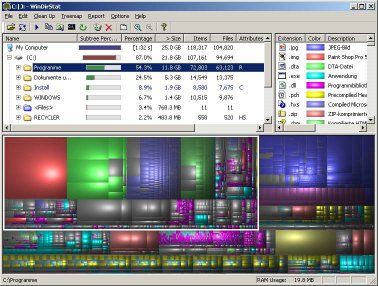
I've posted this up on [H] before but it seems a good fit for this thread, check it out:
http://windirstat.info/

windirstat.jpg
 
Sounds like a good plan the.ronin. 30GB is probably too tight to keep more than one or two games on the drive but if you ever wanted to shift one off the Raptor and unto the SSD (even if it's just to test how it'll perform on the SSD) you can just move the game directory manually then use a symbolic link to tie it to the original directory (as explained on Maximum PC or in this thread)... If you wanna reclaim the space it's a simple matter of deleting the link and moving the directory back to the HDD, the install remains unaffected.
 
I'm using Ghost 14.0, works fine as long as you tell it not to resize the partition or 'restore original disk signature' when you restore an image t(by unchecking those two boxes). I've heard Ghost 12.0 works as well... The only other catch is the 100MB SRP (System Restore Partition), it might complicate matters for you if you didn't install Win7 to an already partitioned drive and it actually created that SRP. Ghost 12/14 can't read it but you should be able to just ignore it and backup/restore C:\ (at worst you end up having to run a Startup Repair after restoring an image by using the Win7 disc).

Ghost 15.0 will actually read, backup, and restore the SRP if you want... But it's a lot easier to just delete it. You can even do it safely after having installed Win7, again, just run Startup Repair twice off the OS disc once you've deleted the partition (using BartPE or something like that, can't delete it from within Windows)... The contents of the partition are then moved to a Restore folder within C:\, the main reason it seems to exist is Bitlocker anyway which most of us don't use, see here. (5th post down)

I've heard Windows' own backup tool can create/restore OS images w/o the existing screwing w/partition alignment, just like Ghost, and that DriveImageXML can do it as well... I've heard conflicting reports on Arconis True Image. Ghost works great for me, tho the individual file backup tool is garbage imo, I just use it for entire system/OS images. I use SyncBackSE for file backups (or MS' own SyncToy).
 
Back
Top