• Some users have recently had their accounts hijacked. It seems that the now defunct EVGA forums might have compromised your password there and seems many are using the same PW here. We would suggest you UPDATE YOUR PASSWORD and TURN ON 2FA for your account here to further secure it. None of the compromised accounts had 2FA turned on.
    Once you have enabled 2FA, your account will be updated soon to show a badge, letting other members know that you use 2FA to protect your account. This should be beneficial for everyone that uses FSFT.

Crysis FPS restricted to 60FPS

maverick786us

2[H]4U
2FA
Joined
Aug 24, 2006
Messages
2,416
I bought this gaming rig last satuday.

1. CPU: AMD Ryzen 9600X
2. Mobo: Gigabyte B850 Gaming
3. GPU: Asus AMD Radeon 9060 XT 16GB
4. PSU: Corsair TX 750
5. RAM: DDR 5 Crucial 32 GB
6. SSD: 1TB WD BLue
7. Display: 27 inch Dell Alienware with 2K resolution and 180FPS refresh rate though in my system I cannot increase it beyond 166hz
8: Heat Sink: Deepcool AG 400 CPU
9. CPU Case: Corsair 3500

I wanted to see how Crysis goes with this configuration, compared to my 15 year old gaming rig. The first thing I noticed was there was a restriction of 60Hz, So changed the game settings in AMD software, and launched the game from it. But the game frequently crashes while launching from AMD software. After a while it doesn't launch from that application. I have to remove Crysis and add again for it to work.

Any solution?
 
Last edited:
Yes its set to 180Hz. Its when I open the game and check monitor frequency it shows 60
The game automatically picks the first refresh rate for your display when DirectX enumerates it. For some reason developers decided this was a good idea back then to just take away the option from users. On NVIDIA setting "prefer maximum refresh rate" in the control panel used to work, but it doesn't anymore. There is an " improved" executable that brings the option back.

https://github.com/ccomrade/c1-launcher
 
1756166393304.png

https://steamcommunity.com/app/108800/discussions/0/591772904427897403/

next time, just type your question into google first....
 
Back when the game was new, it would always launch in 24Hz mode because of the damned video at the beginning. Warhead did the same thing. Oh the struggles I went through to fix that back then. I basically had to kill off all of my Nvidia monitor settings and create a separate set any time I wanted to revisit that game.
 
Back when the game was new, it would always launch in 24Hz mode because of the damned video at the beginning. Warhead did the same thing. Oh the struggles I went through to fix that back then. I basically had to kill off all of my Nvidia monitor settings and create a separate set any time I wanted to revisit that game.
Yeah there were definitely some weird quirks with the game. They also did a weird thing with input where they would bypass Windows keyboard settings... but not in the settings where you map keys.
 
That was the first thing I did. Based on search result, I used AMD software to configure the game settings, and launched the game from that application, which I mentioned in my original post.
"i noticed so i changed something", no mention of googling so assumptions were made.
either use the work around in the post i provided or the patched exe armenius posted.
 
"i noticed so i changed something", no mention of googling so assumptions were made.
either use the work around in the post i provided or the patched exe armenius posted.

Thank you.

The first time when i played this game (way back in in 2008) and now, I didn't see smoothness with my latest hardware requirement.
A quick comparison of the deciding factors between my Old PC and new PC hardware.

1. CPU: AMD Ryzen 9600X vs old Intel C2D E8400
2. GPU: AMD Radeon 9060XT with 16GB VRAM vs old ATI Radeon 4850 and later nVidia GTX 460
3. Storage: Western Digital WD Blue SN570 NVMe 1TB having 6400 MBPS vs Old WD Cavier Blue mechanical HDD
4. Motherboard: Gigabyte B850 Gaming vs Old ASUS P5Q Pro.
5. RAM: Crucial DDR5 32GB vs GSkill DDR2 8GB

In my old rig I was playing @1680 X 1050 resolution, with settings medium and AA 2X. In my new PC I am playing at 2K resolution, with settings high and AA 4X. Game play is smooth but sometimes while riding the vehicle and tank when i use mouse to look at change the directional view it becomes its very slow and laggy. Most of the cut scene videos involving aliens scout in the sky are slow and feel heavy. When ice shows up the game is slow.

I was expecting that my new Gaming PC will blow my 17 year old PC out of water while playing Crysis?
 
Last edited:
This is why tech support starts with "is it plugged in". Actually filters a lot of problems out.
I completed that game and I didn't realise that I was playing using the integrated GPU. I was like WTF the cut scene videos were wobbling, the game get super slow after ice showed up and the final mission of defeating the space ship the game literally froze. Not bad for Integrated GPU. After plugging the cable on the GPU I maxmized the settings and set AA to 8X. Now I have to play the game again from the starting. It looks smooth till now on those settings
 
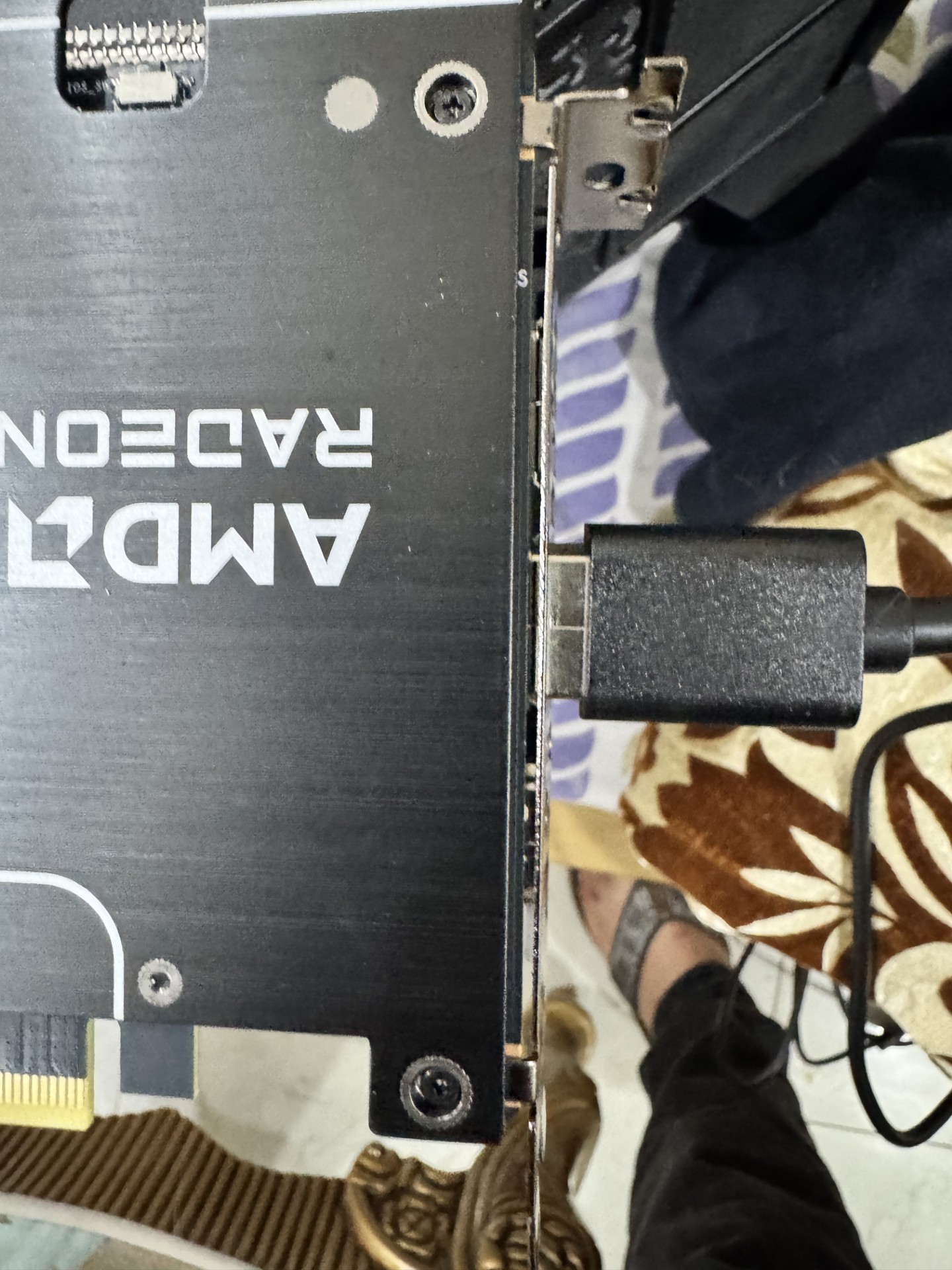
But there is a problem. None of the input cables (display cable and HDMI Cable) fully inserts into the ports of the GPU. Now I don't want to apply excessive force and damage the circuit.

thumbnail_IMG_9470 (1).jpg
 
Is there a way I can manually attach an I/O shield
What I mean is where is the rest of your PC case? There is some tolerance built into it because sometimes parts of the opening for the video card bracket can prevent the plug from going in all the way. The clips on the plug should still engage with the port at that distance. Unless it's a nonstandard DisplayPort cable that doesn't have the locking mechanism.

See how far forward the clips are on the housing?

1000003880.jpg


If there is no issue with the signal on your display, then it's far enough in for the pins to make good contact.
 
What I mean is where is the rest of your PC case? There is some tolerance built into it because sometimes parts of the opening for the video card bracket can prevent the plug from going in all the way. The clips on the plug should still engage with the port at that distance. Unless it's a nonstandard DisplayPort cable that doesn't have the locking mechanism.

See how far forward the clips are on the housing?

View attachment 750583

If there is no issue with the signal on your display, then it's far enough in for the pins to make good contact.
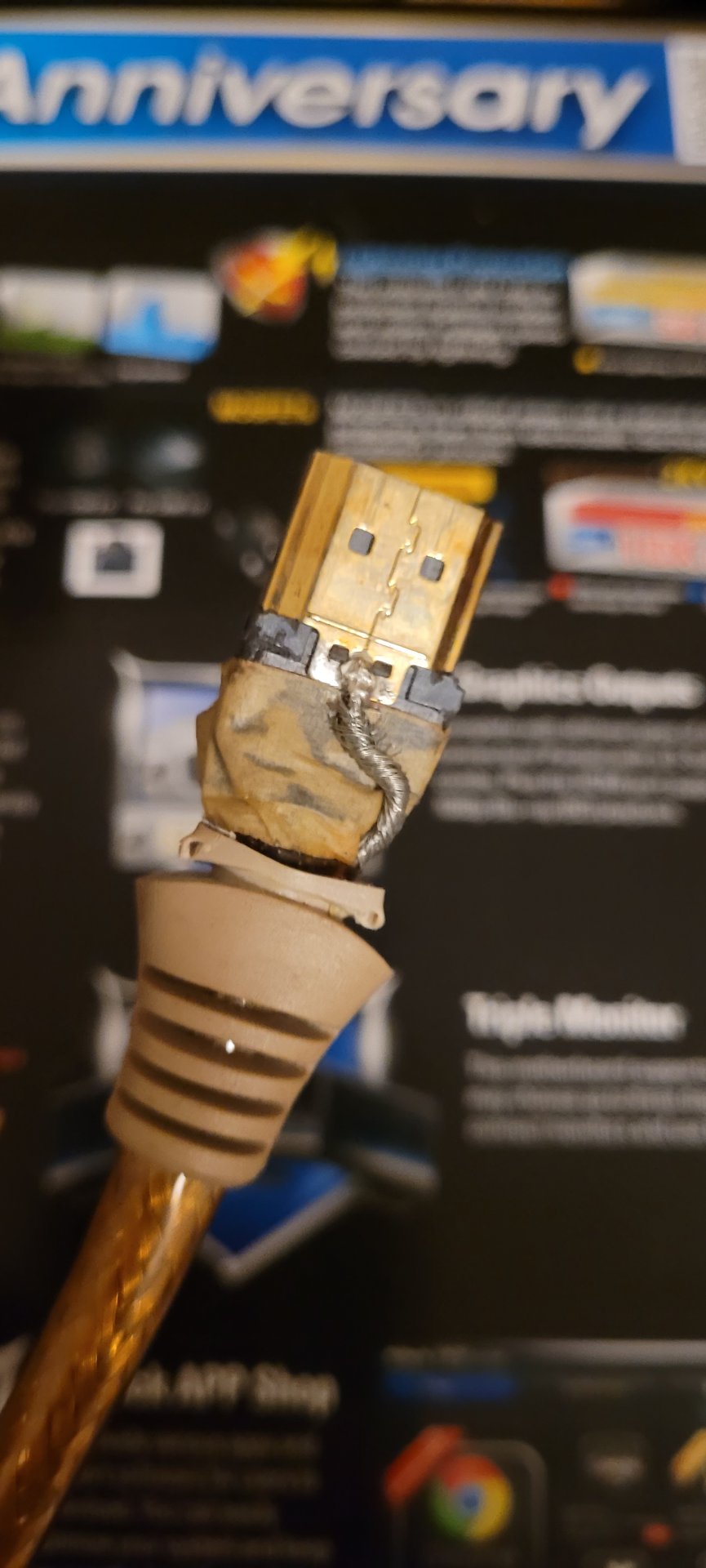
Yeah I've had that issue before, this was the end result.
20250828_211644.jpg
 
What I mean is where is the rest of your PC case? There is some tolerance built into it because sometimes parts of the opening for the video card bracket can prevent the plug from going in all the way. The clips on the plug should still engage with the port at that distance. Unless it's a nonstandard DisplayPort cable that doesn't have the locking mechanism.

See how far forward the clips are on the housing?

View attachment 750583

If there is no issue with the signal on your display, then it's far enough in for the pins to make good contact.
My DP cable doesn't have that lock, but the good thing is connection is firm and the display is smooth. So I don't have to worry. I thought the card was mounted on top of the casing slots, so i thought the wall must be preventing the thick cable from fully getting inside. So i took the card out and but that didn't help with cable. I took the picture when the card was out
 
Last edited:
Back
Top