CRT Monitors Connected to Modern Computers

museion

n00b
Joined
Dec 15, 2024
Messages
8
First thanks to the moderators for approving access, this is my first post. Excited to be here on these forums.

So I've been trying to sift through all of the information here, but just trying to confirm what I've read or check if things have changed (since some of the post are from a few years ago).

I've got a 40 series Nvidia card and have come across a nice CRT Monitor that I like that has a high refresh rate. Of course it only has VGA for it's connection though. My graphics card has DisplayPort and a Single HDMI port, so I'm just trying to figure out the best way to get this connected to it.

Currently I'm using a Monoprice DisplayPort to VGA Adapter (#5135), and while it looks nice, it's only doing 85" Hz at some lower resolutions. I've seen that there is an older Delock Adapter DisplayPort to VGA adapter people are recommending (Item No. 62967 / Chipset: Analogix ANX9847), but those are a bit tough to come by searching around and not made by them anymore. I see they have others, but the specs are not the same.

With that said, it seems like the better way to go might be HDMI to VGA as it seems DisplayPort doesn't support interlacing. But again the ones recommended in previous post don't seem to be readily available anymore, and the ones that are available again don't meet the specs I'd want for higher refresh rates.

So I guess my questions are, first what is really the best recommended / available product people are using nowadays for connecting newer graphic cards to CRT displays with VGA only? Should I be using (or should I see a big difference) when using a proper HDMI to VGA adapter? I see another option is that people have been throwing in another older video card in their system to output the analog signal but then configuring the system to use the newer one for all of the processing. Not sure if I fully understand it completely and what is and isn't support, but is that the better way to go over an adapter, or does that add any overhead / latency to this?

I'm all ears for learning the right way to go with current info or pointing me in the right direction. Thanks for your time and it's much appreciated!
 
You can try GPU passthrough if you want, it only adds 3ms latency:
View: https://www.youtube.com/watch?v=puu-iyTsZtg ... though there may be issues with some graphics APIs (Vulkan, OpenGL, older DX's)

As for interlaced resolutions, I don't believe they're super important. I wouldn't worry about that for now (4090 doesn't allow it anyway, would need passthrough). They don't look as good as progressive for most situations. And your 4090 has DSR and DLDSR for quality downsampling, try that first.

For HDMI/DP converters, whether you go HDMI or DP is irrelevant, because the chipset of the DAC is what matters, not the cable it's connected to.

Up until a few weeks ago this was probably the best buy on the internet: https://www.ebay.com/itm/387244466712 but it seems those are sold out forever now, unless somebody in the know finds a stash.

So your best bet is to either find something from this list or just roll the dice on some random adapters (maybe read up on their chipset beforehand) and test their max pixel clock

So, to begin with, since a used analog card on AMD's GCN architecture (best compatibility with Win 11) is so cheap, I'd try GPU passthrough first. Would also be the highest theoretical pixel clock available
 
As an eBay Associate, HardForum may earn from qualifying purchases.
Thanks for your reply, I greatly appreciate it.

Yeah that HDMI to VGA adapter (LK7112) was the one I found quite a bit of referenced and couldn't find it anywhere along with that Delock adapter. I've already started buying more random adapters from Amazon and have already done some returns on the ones that could only max out at 60Hz. I've got a Startech DP2VGA2 on the way to test that out as well a few other random branded ones.

That's interesting on the Pass-through option with the secondary video card. Thanks for that video, that is very interesting and good to know about the minor ms input latency it adds.

With that said, one of the things in that list link you sent, mentioned people using an USB-C to VGA adapter. How does that work if the video card doesn't have a USB-C port? Do you just use one of the USB 3.2 ports off the motherboard? Does it work the same way like doing a pass-through with a second lower end video card? Does it add latency? Didn't even know that was a thing people were doing.

I do have another question. I've seen pictures of people using an app to test custom resolutions / refresh rates. Do you happen to know how that is done to see if I can customize the refresh rate to something higher to test with?
 
Last edited:
I use Delock 62967 and while it doesn't do full 400MHz and only ~340 I can really recommend it because it is well enough for resolutions like 1920x1200@97Hz with some bandwidth to spare. Image quality is very good.
I also have Startech DP2VGAHD20 but it has poor image quality and especially at higher bandwidth levels there are some small artifacts between some levels and the higher bandwidth the more this issue is visible. On a good side adapter supports highed bandwidth of ~380MHz (if I remember correctly). Not very usable though due to mentioned issue.

I would not recommend using GPU passthrough. It adds lag, increases GPU load (you do need to copy image from one GPU to another so both will be taxed quite a lot) and is finnicky with various applications.
 
Thank you for that additional info. Yeah I've seen a ton of recommendations for the Delock 62967, but like LK7112 adapter, haven't been able to find shops that have it in stock anymore.
 
and have already done some returns on the ones that could only max out at 60Hz.
You didn't try custom resolutions on them first?

The only way to actually test adapters is to make custom resolutions for them, see which resolutions work and which ones don't (I use CRU). Like at what pixel clock you start seeing artifacts or black screens

As for USB-C, it's kind of a rabbit hole you probably shouldn't concern yourself with, because it's no better than HDMI or DP, and the converters are generally made with the same chipsets as other DP adapters

But if you did want to try a USB-C adapter, you'd need a USB-C port that supports "DP-alt" mode. Usually these are found on laptops. However there is a PCIe card from Sunix/Dell that you can use to turn a DP connection from your video card into a DP-alt USB-C connection. But really, only fuck with that if you read the specs for a promising chipset or something and you can only find that chipset in a USB-C adapter
 
Hey there Enhanced Interrogator. On some of the ultra cheap ones, yes I have been trying to do custom resolutions, BUT I've discovered a few things recently, and I'm not sure if this is common with all cards or something unique going on with my setup or what. I also have a DisplayPort / VGA adapter update I think I may have found but gonna need the communities help to identify.

FIRST, I retested a bunch of adapters I had previously. My Nvidia 40 series card has One HDMI Port and Three DisplayPorts on them. My first DisplayPort to VGA adapter I had tested with, happened to be connected to the DisplayPort next to the HDMI port on the Nvidia card. Out of laziness to turn my computer to the side, I was testing the rest of the adapters on the DisplayPort furthest from the HDMI port, because it happen to be easier for me to connect to without having to swing it all the way around and could just easily feel the port and connect adapters.

So today when I went back to the original adapter I had liked a bunch (and had been plugged into the DisplayPort closest to the HDMI), and plugged it into the DisplayPort furthest from the HDMI, I was no longer able to get high refresh rates, even on lower resolutions. And I sat there confused for a bit, switching adapters back again to see what the heck was going on. And then I put it back into the original DisplayPort closest to the HDMI adapter and then I was able to configure and get higher refresh rates!

Is that a common thing? That multiple DisplayPorts on Nvidia cards (and maybe even the AMD ones), have different capabilities depending on which port you use? Because I had no idea! So I went back and restested every DisplayPort adapter and got some new results. Not the perfect ones I was looking for on most of them, but much better than my first go around.

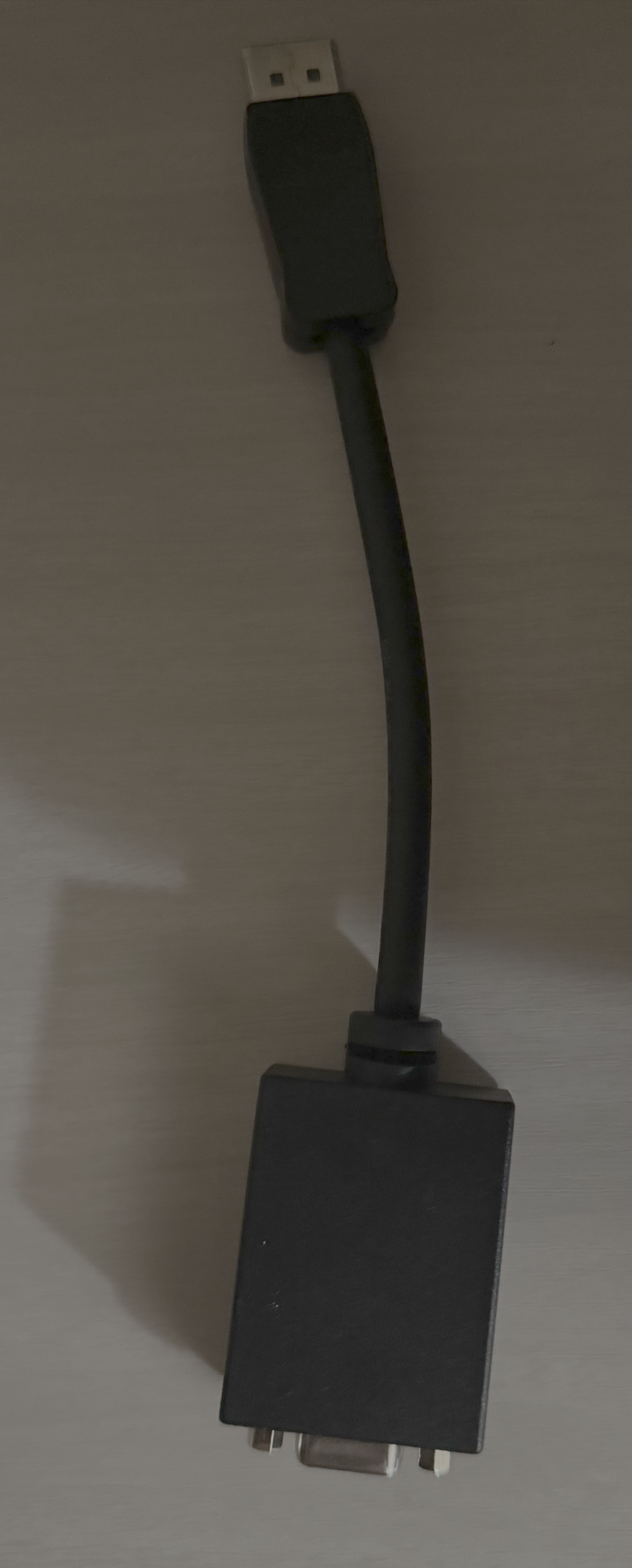
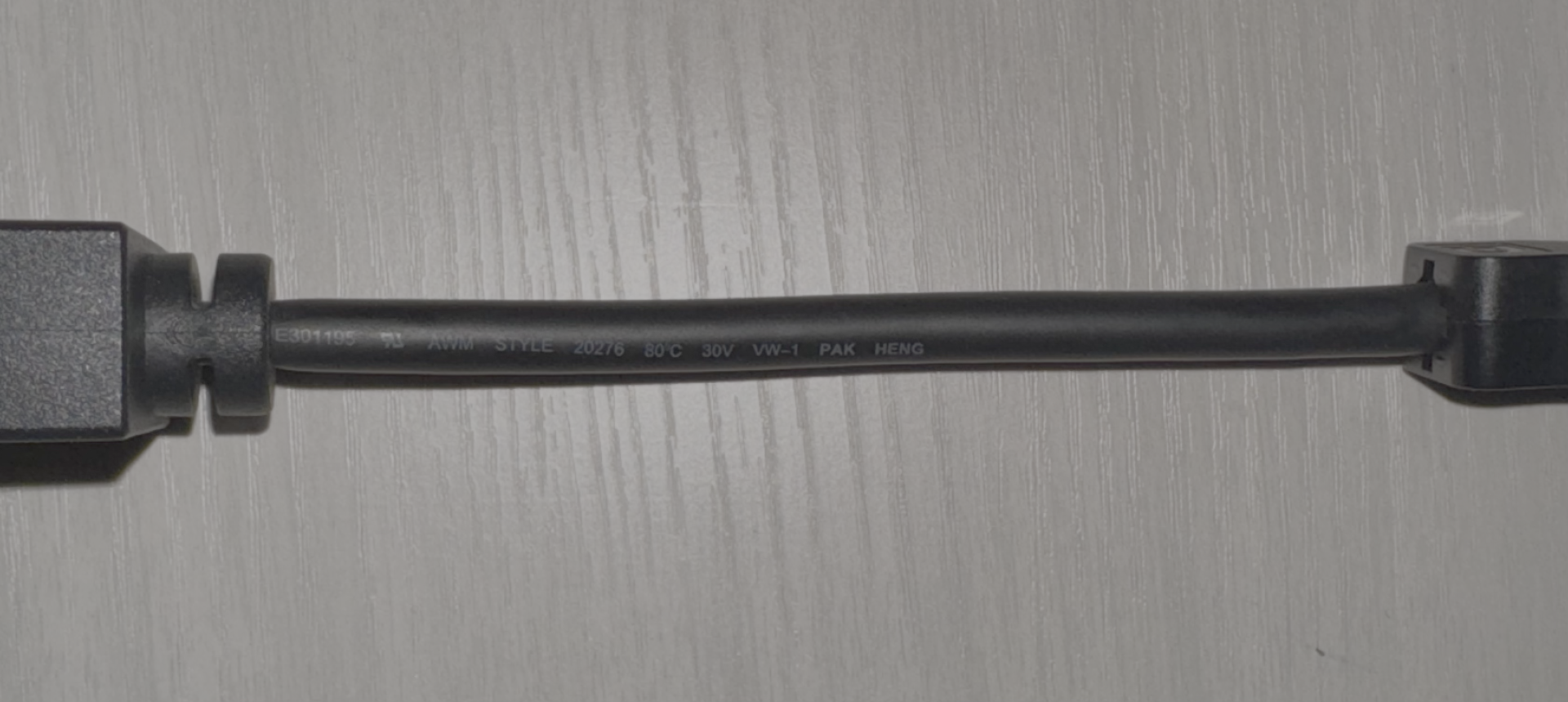
So with that said, I found an unmakred DisplayPort to VGA adapter after a friends recommendation to just check on this GoodWill that is near me on my way home. Crazily enough there is a tiny computer section of stuff and I found a very thick adapter. It's got some chunk / bulk to it on the VGA side. Love it. After retesting it, this adapter let me get the highest refresh rates at the highest resolutions, and I think this is going to be my go to adapter. I was able to get 2560x2048 at 90Hz and it looked awesome. I've even done some other resolutions like 2800x2100 and while looked a bit fuzzy, I could also get 85Hz on this. At lower resolutions I've been able to get super high refresh rates.

I've taken pictures of this adapter. There are no markings on this thing other than on the side with just some basic info. It's the thickest adapter I've got right now. But it's working great. I still have other adapters being shipped by Amazon and Aliexpress and I may check them out when they get here, but this seems to be my go to one.

Attached are pictures down below. Let me know if you happen to know the brand? If you need more pictures let me know and I can take some more if you'd like.
 

Attachments

  • IMG_0205.png
    IMG_0205.png
    1.3 MB · Views: 0
  • IMG_0206.png
    IMG_0206.png
    1.4 MB · Views: 0
  • IMG_0207.png
    IMG_0207.png
    1.3 MB · Views: 0
Last edited:
Thank you for that additional info. Yeah I've seen a ton of recommendations for the Delock 62967, but like LK7112 adapter, haven't been able to find shops that have it in stock anymore.
Too bad.
There are some other adapters than these two mentioned in FW900 topic https://hardforum.com/threads/24-widescreen-crt-fw900-from-ebay-arrived-comments.952788/

I don't remember anything perfect though.
Heck, I forgot to add that some people had HDMI cable with this Delock adapter with some GPUs. I didn't on any GPU including some from AMD and Nvidia or even Intel iGPU.

Perfect would be at least 400MHz at 10bit and comparable image quality to VGA output on latter GPUs which still had VGA output like GTX 980Ti.
Delock if you find one I didn't notice much difference between it and 980Ti. Main issue after changing to RTX 2070 was lack of dithering - or more specifically if you use CRT and change gamma it causes slight banding. Dithering helps with that without visible artifact - only in practice unnoticeable noise.
 
Attached are pictures down below. Let me know if you happen to know the brand? If you need more pictures let me know and I can take some more if you'd like.

Never seen it before but this is potentially a major discovery! As long as your monitor is showing you it's actually outputting roughly 140kHz, meaning it's not being downscaled to a easier resolution.

First what I would try is to take more pictures of it and see what a reverse google image search gets you (maybe nothing). Ultimately you may need to open it to read the label off the chip.
 
Well that's another thing I didn't know. Not at home to check, but how do I know if my monitor is doing downscaling when I have it at a higher resolution? I mean I can see it has more real estate on the screen once I set it to a higher resolution. Is there something on the Windows 11 side where it will show the true resolution other than going to the Display Properties or into the Nvidia Control Panel?

I'll take some more pictures of the adapter and see if that helps.
 
Well that's another thing I didn't know. Not at home to check, but how do I know if my monitor is doing downscaling when I have it at a higher resolution? I mean I can see it has more real estate on the screen once I set it to a higher resolution. Is there something on the Windows 11 side where it will show the true resolution other than going to the Display Properties or into the Nvidia Control Panel?
I was talking about bringing up your monitor's OSD to see what H-frequency it is showing.

But you can also look at "active signal mode" in Windows display settings to see if it's what it's supposed to be.
 
Do you mind showing me an example of what you me with the OSD H-Frequency on the monitor? Like what I should expect to see?

I will say everything looks sharp at the higher resolution except for those incredibly high ones where it starts to look a bit less sharp in the 2000's. What does it mean exactly though if it is downscaling at a higher resolution? How badly does that affect game play if it is?
 
More Images...
 

Attachments

  • IMG_0223.png
    IMG_0223.png
    1.7 MB · Views: 0
  • IMG_0224.png
    IMG_0224.png
    2 MB · Views: 0
  • IMG_0225.png
    IMG_0225.png
    1.7 MB · Views: 0
  • IMG_0226.png
    IMG_0226.png
    2.2 MB · Views: 0
  • IMG_0227.png
    IMG_0227.png
    1.4 MB · Views: 0
  • IMG_0228.png
    IMG_0228.png
    1.7 MB · Views: 0
  • IMG_0229.png
    IMG_0229.png
    2 MB · Views: 0
  • IMG_0230.png
    IMG_0230.png
    2 MB · Views: 0
Do you mind showing me an example of what you me with the OSD H-Frequency on the monitor? Like what I should expect to see?
The H-frequency is the number in "kHz". V-frequency is the one in "Hz"

That adapter is so generic looking that google reverse image search probably won't bring up anything. But I'd still try.

We might need you to do us a solid and take a knife and carefully cut her open so we can see what chip is in there.
 
If you have the money, it looks like there is a vendor with Delock 62967.

EDIT-- DO NOT ORDER THIS, PRODUCT SENT WAS NOT SAME AS ADVERTISED.
 
Last edited:
As an Amazon Associate, HardForum may earn from qualifying purchases.
  • Like
Reactions: XoR_
like this
Back
Top