Intel X-25 SSD Feeling slower now...?

Eocene

Limp Gawd
Joined
Nov 21, 2004
Messages
446
So I got my SSD drive about two week ago and it has about 5.26GB left out of 74.4GB. I am pretty sure I enabled the TRIM stuff via my motherboard (AHCI something?). I didn't change any settings on Windows 7 though....

Opening larger applications feels a lot slower now. I remember running that speed test before on the drive and it seemed to match the specs of other people's SSD drives, maybe I should do that again, but for now I was wondering what you guys think. Perhaps I should free up space.
 
From what I've read, SSDs perform their best with 25%+ free space. I don't have any games installed on mine so I still have 60.2GB free on my 80GB drive. Haven't installed my 160GB yet, need to get done with exams first but I shouldn't have a problem keeping plenty of space free on it.
 
You should never allow your SSD to become that full. Remove over half the drive to let TRIM do its work, or you Intel SSD will be (and likely already is) affected by erase block fragmentation.

SSDs need free space, filling them up with data generally is not a good idea. Ideally SSDs should be no more than 50% full, with a maximum of 80%. That is assuming TRIM works.

Could you download AS SSD and post a screenshot of its results? This should tell us which driver you use (important for TRIM), whether your partition is properly aligned (1024K - OK) and what the current sequential and random speeds are.
 
Okay... I moved some stuff over.. I'm at ~70% full now. Is there a way to ensure TRIM is working? Is it just set to work in windows 7
 
No drive should be used to that % capacity, that is not a new SSD thing...
 
I appreciate it:


- <ASSSDBenchmark XmlFormatVersion="1">
- <Information>
<Name>INTEL SSDSA2M080G2GC ATA Device</Name>
<Firmware>2CV102HD</Firmware>
<Controller>msahci</Controller>
<Size>74.53 GB</Size>
<DateTime>5/12/2010 10:58:42 PM</DateTime>
<BenchmarkVersion>1.5.3784.37609</BenchmarkVersion>
<Mode>MB/s</Mode>
<Note />
<Signature />
</Information>
- <SeqTest>
<Read>252.96 MB/s</Read>
<Write>39.46 MB/s</Write>
</SeqTest>
- <Random4K1TTest>
<Read>20.21 MB/s</Read>
<Write>24.81 MB/s</Write>
</Random4K1TTest>
- <Random4K64TTest>
<Read>130.53 MB/s</Read>
<Write>32.42 MB/s</Write>
</Random4K64TTest>
- <AccTimeTest>
<Read>0.197 ms</Read>
<Write>0.130 ms</Write>
</AccTimeTest>
- <Score>
<Read>176</Read>
<Write>61</Write>
<Total>325</Total>
</Score>
</ASSSDBenchmark>
 
To check if Trim is enabled -

Open a command prompt as admin -
fsutil behavior query DisableDeleteNotify

If it returns 0 then trim is enabled.
 
You speeds are less than half than what they should be; especially the write speeds and 4K-64 is much too low as well.

This is probably due to having the SSD very full. I recommend you completely start over:

1. Backup everything
2. secure erase the SSD
3. install windows 7; create one partition that is 60GB large; the other 20GB should NOT be used anyone; EVER.
4. check with AS SSD if the benchmarks are proper again:

Random 4K read: 20MB/s
Random 4K write: 75MB/s
Random 4K-64 read: 200MB/s
Random 4K-64 write: 75MB/s

5. Never allow your NTFS filesystem to become very full; and leave the 20GB unallocated and never use/write to it.

That would solve your lower performance issues.
 
What's the preferred method for secure erasing a SSD?

Secure Erase 3.3 is the preferred method.

You can find a bootable ISO here.

Your MB must be in IDE compatability mode and sometimes you may have to reboot to fool a "lock" on your drive. The program will instruct you on the procedure if it's needed.

Good Luck!
 
Last edited:
To check if Trim is enabled -

Open a command prompt as admin -
fsutil behavior query DisableDeleteNotify

If it returns 0 then trim is enabled.

That only means W7 is set to use it, not that it's working.

Download and run Crystaldiskinfo and look under "supported features" section right on the front page when it opens and look to see if TRIM is highlighted/bold (Working) or greyed out. (Not working)
 
Secure Erase 3.3 is the preferred method.

You can find a bootable ISO here.

Your MB must be in IDE compatability mode and sometimes you may have to reboot to fool a "lock" on your drive. The program will instruct you on the procedure if it's needed.

Good Luck!

Thanks! No trim on my x25-e, so now is as good a time as any to do a secure erase and refresh it :)
 
Thanks! No trim on my x25-e, so now is as good a time as any to do a secure erase and refresh it :)

I ran two G1 80GB Intel drives in RAID0 for about a year and used HDDErase a few times. ;)
 
You don't need to leave any amount of free space on your drive for Trim, etc to function properly, that is what the spare area is for...
 
You don't need to leave any amount of free space on your drive for Trim, etc to function properly, that is what the spare area is for...
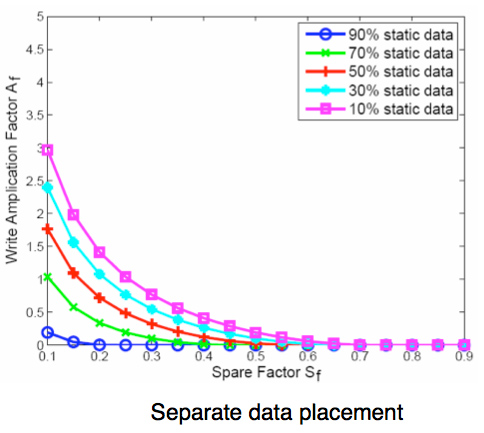
The default spare area is way too small to prevent erase block fragmentation.

This nice graph plots the write amplification against spare factor. The default 7% spare space would be spare factor 0.07:

separatedataplacement.jpg


If the spare area was enough, you wouldn't need TRIM at all since TRIM cannot work on space that is not visible to Windows. TRIM means the free space on your filesystem is free space for the SSD; so you can limit the REAL spare area to 7%. Enterprise drives will have up to 50% capacity reserved and do not need TRIM at all.
 
I wouldn't go so far as secure erase and reformat without first trying the Intel Toolbox/toolkit.

It has an option to optimize the drive and what I've inferred from various reading indicates that it will make the device appear to the OS to be nearly fully allocated, but in the background it will work to cycle stale and fragmented cells to restore performance.

After freeing some disk space, as you've already done, I'd run the optimize from the intel toolkit and see what that does for you (if anything) and post the results.
 
Back
Top