• Some users have recently had their accounts hijacked. It seems that the now defunct EVGA forums might have compromised your password there and seems many are using the same PW here. We would suggest you UPDATE YOUR PASSWORD and TURN ON 2FA for your account here to further secure it. None of the compromised accounts had 2FA turned on.
    Once you have enabled 2FA, your account will be updated soon to show a badge, letting other members know that you use 2FA to protect your account. This should be beneficial for everyone that uses FSFT.

RAID Degraded...what now?

jnick

2[H]4U
Joined
Sep 25, 2004
Messages
2,888
I built a Sandy Bridge PC when they were initially released back in 2011. For this build, I decided to run two 1TB drives in a RAID Mirror array. On Thursday, my PC was fine. Fast forward to today, and it's reporting "Degraded".

I'm using the ASUS P8P67 Pro motherboard, using the Intel RAID and RST. While it's reporting degraded, it will not tell me which drive. As a matter of a fact, RST isn't showing any information all of a sudden on my C: or my RAID array. Now, I have no idea which drive could potentially be bad.

The only thing that I did on Thursday was Windows Updates. However, since the "Degraded" message is also showing on POST, I'd have to assume that the Windows Updates are not causing the issue.

Any suggestions? I really can't afford to lose any data, which is exactly why I'm running RAID :p. I'm going to perform a full backup to my external tonight and start looking for a replacement drive tomorrow. I guess the main question is, how can I identify the bad drive if the Intel RST is not telling me any information in Windows?

Thanks!
 
So I ran CrystalDiskInfo and it showed both drives in my array were fine. All checked "GOOD". So in the OPROM I decided to do a rebuild on Disk 5 (port 5) which was the drive that's been there the whole time. It began the rebuild and all of a sudden, it disconnected the drive and IntelRST is showing port 5 as empty...

Any ideas? Could the mobo SATA port be bad?
 
Did you build it before or after the fix for the bad controller chips was released?
 
I bought the B3 Rev, which was supposed to be after the bad chip. I wasn't ready to buy the mobo until they pulled all the bad controllers off the shelves for two months.
 
Could still be a bad drive. I have several 2TB drives that meanwhile will post fine and act/perform fine until it hits a certain point, throws MANY ATA connection errors then completely vanishes.
 
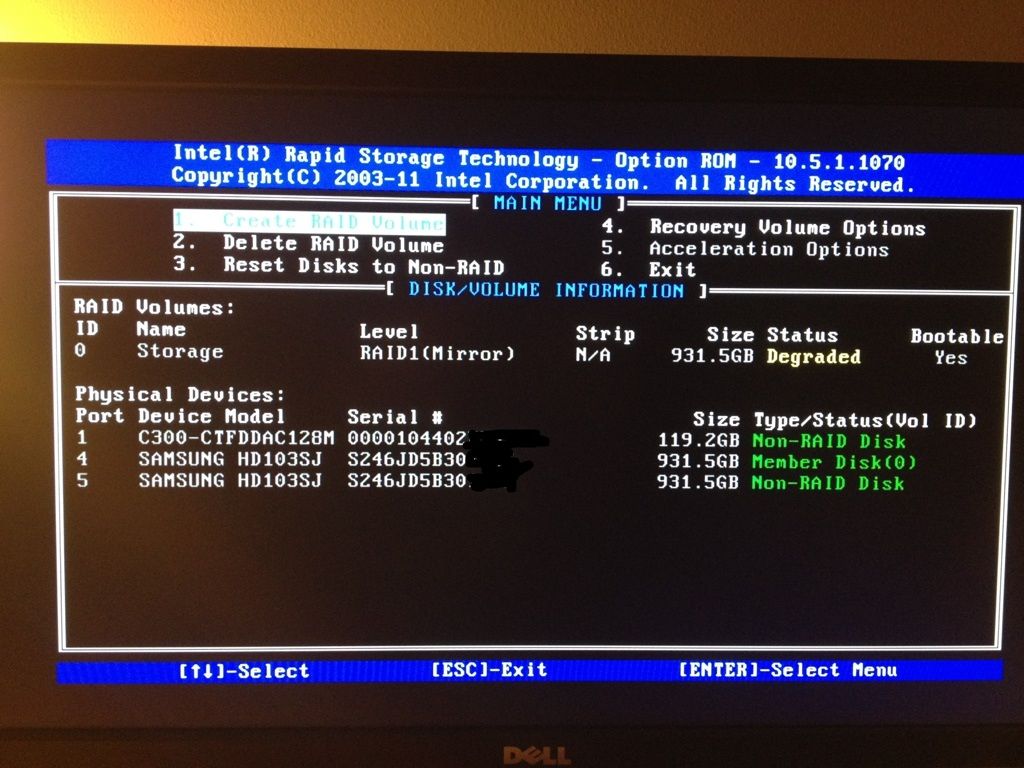
This is what I was getting:

raid2.jpg


Now, I'm getting FAILED under Status:

raid4.jpg


raid.jpg


A few questions:

1. If I was to buy a new drive, do I simply plug it in and have it rebuild the array? Or would I have to start fresh with a new RAID volume.

2. Crystaldisk info is showing that the drive is "GOOD". Could this be wrong or is something else up? I don't want to buy another HDD if it turns out to be an issue with my Mobo instead. Any other troubleshooting steps I can try?


[EDIT] Just ran SeaTools:

RAID3.jpg


I'm pretty sure this is a good indication that the hard drive is fine, right?
 
Last edited:
So in the OPROM I decided to do a rebuild on Disk 5 (port 5) which was the drive that's been there the whole time. It began the rebuild and all of a sudden, it disconnected the drive and IntelRST is showing port 5 as empty...

why are you rebuilding with the bad disk in? why are the disks on different ports in the second screenshot? why are you moving disks when you don't know which is bad?

and why does one mirror disk say "non-raid disk"?

this is why raid is trouble. it is complicated and people can break their own stuff.

also, you need to stop looking at "GOOD" and look at the controller logs or detailed smart values to identify which disk is showing signs of failure. it is possible that both are far from failure and one just dropped due to a slow recovery of an error. but either way you need to find out what is going on and deal with that disk. get to reading, not to tinkering!
 
I had the same thing start happening to me on my ASUS P6X58D-E and my RAID-0 500GB drives when it started to die.

All I had to do to make it work again was go into the RST software and reset the status to normal.

Now that I hve my 2011 setup, I put the drives in there, and the board picked up the array just fine. Haven't had a single problem with the array since.

And yeah, I had run tests on the drives and nothing showed up as wrong when I was on the x58 setup.

There is a good chance that the board is dying.
 
why are you rebuilding with the bad disk in? why are the disks on different ports in the second screenshot? why are you moving disks when you don't know which is bad?

Who said the disk was bad? Neither has failed any diagnostic I put them through. Also, one of the first things you read in regards to troubleshooting this issue on an ASUS board is to move both members to sequential ports. If they were already on these ports, try a different set to ensure the ports weren't bad. Hence, the movement of port #s.


and why does one mirror disk say "non-raid disk"?

Because the RAID broke! Once I booted the computer, and it showed 'Degraded', one of the disks was no longer a RAID member.

this is why raid is trouble. it is complicated and people can break their own stuff.

Again, I didn't break it. It told me on boot that it was broken. I then troubleshot to figure out WTF happened.

also, you need to stop looking at "GOOD" and look at the controller logs or detailed smart values to identify which disk is showing signs of failure. it is possible that both are far from failure and one just dropped due to a slow recovery of an error. but either way you need to find out what is going on and deal with that disk. get to reading, not to tinkering!

One would think that the broken one is the non-member disk, as well...it's no longer a member.

I had the same thing start happening to me on my ASUS P6X58D-E and my RAID-0 500GB drives when it started to die.

All I had to do to make it work again was go into the RST software and reset the status to normal.

Now that I hve my 2011 setup, I put the drives in there, and the board picked up the array just fine. Haven't had a single problem with the array since.

And yeah, I had run tests on the drives and nothing showed up as wrong when I was on the x58 setup.

There is a good chance that the board is dying.

Where can I manually set the status to 'Normal'? I'm not seeing that. In RST I see the status, but nothing that will let me change it. Again, I'm running 10.5.0.1026 (In windows)

Interestingly enough, I still see the array 'Storage' in Explorer and can access data on it. When I first saw this yesterday, I dumped the entire drive onto my external as another backup. Therefore, the data and array must still be working...I just cant seem to get the other drive back into the array, which is why I'm thinking a mobo problem.
 
Assuming that these are consumer-grades HDD's (without TLER), it could be that one of the drives tried to recover a bad sector and stopped responding, causing the RAID controller to drop the drive from the array.

Can you post the SMART data for both of the drives (not just the test results, but the entire list of values)? If one of the drives has an increasing reallocated sector count, this very well could be it. See if your HDD's support one of the vendor tools that let you set the TLER (Time-Limited Error Recovery - I'd look, but it's late and I have to work in the morning).

If that's not it, the SMART data will let us rule out a couple other scenarios, but my gut feeling is that the drive stopped responding and the RAID controller dropped it from the array (causing it to show as a non-member disk).

Cheers,

-Greg

EDIT: I'd be wary of resetting the array and/or trying to override the error - in my experience, if a drive drops from an array, it will most likely give you trouble in the future. At my job, when a drive shows any signs of being fussy, it gets replaced. It's not worth the support time to diagnose it, possibly repair it in the future, and certainly not worth the risk of data loss when a new drive is only $250 (and that's for enterprise-class 2TB SATA drives - yours would be much less). But everyone values their time differently. You could try running a full scan on the drives, updating all drivers/BIOS/firmware, but that may not fix your problems. Just my two cents.
 
Last edited:
recently had a 1TB WD Green drive start showing problems and dropping out of my GRaid5 N4F server.. so I ran WD diags on it and it passed.. WTF?! Well I ran MHDD on it and what do you know, found about 7 UNC blocks on it.. so I did an entire erase on the drive and several scan passes on it.. fixed it right up.
 
so I ran WD diags on it and it passed.. WTF?! Well I ran MHDD on it and what do you know, found about 7 UNC blocks on it.. so I did an entire erase on the drive and several scan passes on it.. fixed it right up.

Years ago I have seen this a few times with WDC and Seagate diagnostics at work. As a result I always look at the SMART raw data directly and thoroughly test a drive that I suspect to be faulty with badblocks (on linux) although for those who do not have badblocks a few full formats on windows will put similar stress on the drive. Follow that up by looking at the SMART raw data (not the pass fail which is in my opinion useless). The reason why I think pass fail to be useless is only 1 time have I ever had a drive report FAIL over the years at work even though I have sent back 10 to 20 drives annually for years that have malfunctioned after testing them.
 
Where can I manually set the status to 'Normal'? I'm not seeing that. In RST I see the status, but nothing that will let me change it. Again, I'm running 10.5.0.1026 (In windows)

You should be able to just right click on the array and bring it up.

You are running a fairly old version of RST.

The newest one that should definitely work on your board is 11.2.0.1006

http://downloadcenter.intel.com/Detail_Desc.aspx?agr=Y&DwnldID=21407&ProdId=3334&lang=eng&OSVersion=%0A&DownloadType=Drivers
 
Thanks for all of the help guys. I will post up the SMART values (I'll use CrystalDisk Info, unless you'd prefer something else) of both Samsung F3 drives when I get home. I will also upgrade to the 11.2 RST. I wasn't sure if that would work with my board which is why I stopped at 10.5 (tried to match it as close as I could with the OPROM.

On a side note, ASUS reps on here are telling me that they can't really give me any other suggestion than turning on Hot Swap for SATA as I have a C300 with 0002 firmware (which is what it came with). They believe the problem could be the C300 therefore they cannot offer any more support until I at least upgrade the firmware to the latest. I'm having a hard time believing the C300 is causing my RAID array of the Samsung F3's to fail. However, I was looking for insight on this. Does this sound right? I never upgraded an SSD firmware and don't know how risky it may be. Therefore if there is no relation between the two, I'd rather not touch it!

Opinions welcome!

Thanks!
 
Last edited:
Who said the disk was bad?

if it dropped from the array, it is bad. it may not break imminently, but something went wrong which makes it bad.

you said in the first post that the array didn't tell you which drive was bad. if you know now which drive is bad, all you need to do is replace it.

if you put the bad drive back into the array and keep chugging along, you are taking a big risk. when the second disk fails, the first failure will come back to haunt you.
 
Hot Swap is not the issue. I don't think this is a Mobo problem, but rather a HDD problem. Without TLER, drives will drop when they try to recover a bad sector and stop responding. Personally, I never use built-in RAID as I have nothing but problems with them. I'd say either use software RAID in Linux (mdadm), ZFS on FreeBSD/Solaris, or hardware RAID on a decent-quality RAID card.

Also, the c300 should not be causing a problem since it is not in the array. I would recommend updating the firmware on it (be sure to backup first!) for a variety of other reasons, but I highly doubt it would cause a different drive in a different array to drop.
 
Thanks guys. I'll update you more when I get home. TheyDroppedMe; is CrystalDisk SMART info enough? Or is there another program I should use?


bAMtan2; Sorry...I'm getting confused. In my messages with an ASUS rep, he stated that a Windows OS instability could cause issues with the RAID Array. If the array was being accessed and Windows locked up/crashed, it could cause a RAID issue. This is why I was saying I'm not sure if the drives are bad. Could that truly be the case, or is that wrong information?

My PC has had a tendency to simply lock up when idle. I have attributed this to a nVidia driver as there were other reports stating this. However, now I'm not so sure...
 
Yeah, crystaldisk should be fine - it gives all the raw SMART data IIRC.

It is always a possibility that the drivers are causing the problem, but if you haven't updated the drivers recently and the problem just appeared, then I would guess that it isn't the drivers. But, if the SMART data says it isn't a problem with the HDD's, then I would recommend installing the latest RAID drivers and updating your BIOS to the latest version as well.

I know how frustrating HDD issues can be, but hopefully we can help you get everything back up and running for you.
 
Just saw the bit about locking up when idle - I assume you have your system partition and Windows installed on the c300? If so, idle lockups are something I have seen a lot with SSD's (unfortunately), but a firmware update or reflash usually fixes that. I'd say downloading the latest firmware for your SSD and flashing it is worth a shot (just be sure to make an image of the SSD first in case the update is data destructive - some SSD firmware updates cause a loss of data due to changing algorithms or something similar in the way the SSD stores data).

If your OS is installed on your RAID array, then the lockups might be due to a drive not responding. I might try going into Windows Power Options and setting the "turn HDD's off after:" to never, as sometimes this helps (especially with SSD's, as they like to stay on so they can do garbage collection).

Also know that a drive may work fine when used alone, but cause problems when in a RAID array due to error recovery and other things that a RAID controller doesn't like - one reason why a pass/fail SMART test might show good for a drive that is causing trouble in a RAID array.
 
Thanks again for all the help, TheyDroppedMe!

Yes, the C300 is holding my OS and such. The RAID array was strictly used for storage. No symbolic links or anything like that, just flat out storage. Also, when you say drivers are you referring to the IntelRST drivers?

I'm going to post up the RAW SMART data for you tonight. At the same time I will also upgrade the SSD firmware to the latest, which will require two flashes.

Someone at work suggested that I take out the bad drive, do a low-level format and once that completes, plug it back into the array and do a rebuild. Their thought is that the drive will be seen as a 'new' drive. They feel this will work, providing the drive truly is not bad. Any thoughts on that strategy?
 
Basically it involves writing/read from every sector forcing it to re-allocate bad sectors or ones that are already bad and need to be moved when offline. You can accomplish this in linux very easily. Also known as 'writing zeros'.

Meanwhile I feel that any disk that shows a bad sector or starts dropping I consider a dead drive - I zeroed a Seagate 250gb drive and got another 1.5 years out of it, it finally just crapped entirely today actually. It had 7 reallocated sectors a y ear and a half ago - now today it fell out of the array (raid0) and windows was all sorts of corrupt - 29 bad sectors - can't even do a read test on the drive.
 
Here are the CrystalDisk Reports:

This is the drive that I'm going to assume fell out of the array (no letter up top):

disk12.jpg


This is the other drive of the array:

diskf2.jpg
 
Last edited:
jnick, there is nothing out of range in your SMART stats. The only real difference is a very few additional UDMA CRC errors & write errors. It is very possible the drive just dropped out (for whatever reason). Since this is not a boot drive and you already moves all the data off I would just recreate the RAID and copy the data back over. Just for the hell of it, change the SATA cable on the drive that dropped out and if it happens again, RMA the drive if it is still under warranty. Intel PCH motherboard RAID is generally pretty rock solid, but it can hiccup if the drive goes to la-la land (can happen while it tried to recover from an error) for long enough.
 
Well, that's good news! Should I do a format of the drive first?

If you are unsure of the reliability of the drive(s) and want to do a good long test of each of the drives, you can run DBAN in DOD Wipe mode. This will completely overwrite every single available sector of each of the drives 3 times. If it passes that, the drives are likely ok for now. Once you do that, you can create the RAID with the ctrl-i menu after the POST.
 
Yep, nothing looks out of range. I'm going to go with the drive stopped responding while recovering an error. Update the drivers and BIOS, new firmware on the SSD, and wipe the drives and rebuild the array.

If it were me, I'd RMA the drive if it's still in warranty because why not. Might even end up with a better drive if it's relatively old.

If you are still having the freezing while idle problem, well that could be related to this problem. There's always the possibility that the SSD caused a freeze, which interrupted an operation with the RAID array, making the RAID controller see an error or drop a drive. No idea if that's even possible, but it seems like a plausible scenario in my mind.

If you don't want to RMA it, I'd follow mwroobel's advice and run DBAN. Then, if you have any more trouble, then you'll know you need to replace the drive.

Edit: Spelling.
 
Last edited:
a different (better) SMART program would warn about those crc and write errors. 1 is one thing, but on the bad drive it is numerous. it could just be a bad cable, but it could also be a bad drive, port, or something else on the motherboard.

whatever is causing those errors is enough to drop the drive from the raid array. you don't need to update any drivers or firmware because those things are not part of this problem. if you start changing new things now before you have the current situation resolved, you risk introducing new problems.

since you have this stuff backed up, I'd put the bad/suspect drive back in the array and replace your sata cables asap.

ps: detective work: I would go back to using the original two ports, but swap the drives on them. if the good drive crc/write error increases while the other stays the same, then you can blame the port and rma your motherboard. but I think other outcomes are more likely. it is more likely that the bad/suspect drive crc/write error values will keep getting worse, so keep an eye on them.
 
Yep, nothing looks out of range. I'm going to go with the drive stopped responding while recovering an error. Update the drivers and BIOS, new firmware on the SSD, and wipe the drives and rebuild the array.

If it were me, I'd RMA the drive if it's still in warranty because why not. Might even end up with a better drive if it's relatively old.

If you are still having the freezing while idle problem, well that could be related to this problem. There's always the possibility that the SSD caused a freeze, which interrupted an operation with the RAID array, making the RAID controller see an error or drop a drive. No idea if that's even possible, but it seems like a plausible scenario in my mind.

If you don't want to RMA it, I'd follow mwroobel's advice and run DBAN. Then, if you have any more trouble, then you'll know you need to replace the drive.

Edit: Spelling.

The drive just fell from Warranty on 6/14/2012 :(.

I'm gonna queue up DBAN and give it a go while I'm sleeping tonight to see what it shows. I'm sure it's gonna take a LONG time on a 1TB!

@bAMtan2; In the process of buying new SATA cables now. Don't have any more on hand. I'm going to run DBAN to check the drives then re-create the array. From there I'll see how it goes!
 
Ran DBAN last night. Woke up this morning to this:

1677DC91-96D3-475E-8CB2-D890AC06506A-248-000000A512552BDD_zpsfc1f2405.jpg


Any thoughts on what this means? Hard drive? Cable? Mobo? I see a "bus error"...not to sure what to think about that...
 
For the hell of it, please post the latest SMART status page from crystal after this failure. then swap a new SATA cable to the drive and connect ti to a different SATA port and run DBAN again the same way. If it fails again, it is 99.9% the drive. Also, those blue highlights are weird where they are.
 
For the hell of it, please post the latest SMART status page from crystal after this failure. then swap a new SATA cable to the drive and connect ti to a different SATA port and run DBAN again the same way. If it fails again, it is 99.9% the drive. Also, those blue highlights are weird where they are.

The blue highlights are where DBAN has updated stats like percent complete and writing rate after the black background with errors has appeared.
 
The blue highlights are where DBAN has updated stats like percent complete and writing rate after the black background with errors has appeared.

The box we run our tests on has a matte mono lcd display in the rack (better than a color lcd for reflections from the LED lighting, and has an ultra-high resolution to boot (liberated from a digital X-Ray system), never bothered to look at DBAN in color :)
 
Last edited:
One drive is essentially unchanged. The other is showing big increases in CRC UDMA (IF) and Write Error rates from the pair of screens you posted previously. If you changed the cables/ports as I suggested, ditch the drive.
 
the drive with the most errors before hasn't changed, and now the one with the fewest errors has a huge number of them? is that right?

it looks like you're still using a bad cable or port which you've since attached to the good hard drive
 
So I formatted both drives and reconfigured the array. All checked out fine for a couple of days. Today, I'm getting the good ol' 'Degraded' message on boot. In the OPROM the one drives status is 'Error Occurred (0)'. In the Intel RST, this is what I'm seeing:

raid-1.png


raid1.png


I shut down the PC, swapped the SATA cable, rebooted and there is no change. There is also no change on the SMART data.

Still looking like a bad drive or bad port? Or do you think I need to run another diagnostic program on the drive?
 
can I be really cheeky and cut in ask a quick question: I just done a RAID 5 recovery, the Intel Matrix Console took 40 hr. to re-build the new drive. And that's done by the machine. After the matrix is restored, I need to copy all the data files to a new hard drive. So

http://www.dataretrieval.com/services.html

how can these people get it done in 48 hr.? Or the "Around the clock" service?
 
can I be really cheeky and cut in ask a quick question: I just done a RAID 5 recovery, the Intel Matrix Console took 40 hr. to re-build the new drive. And that's done by the machine. After the matrix is restored, I need to copy all the data files to a new hard drive. So

http://www.dataretrieval.com/services.html

how can these people get it done in 48 hr.? Or the "Around the clock" service?

It says all times are estimates. Similar to the phenomenon of the weight loss programs you see on TV "Results shown here are not common and actually vary on a case by case basis". I am sure some fixes are 10 minutes, and some are 10 days.
Personally I have never heard of them, and their site looks like a boilerplate for a number of companies, they are possibly just reselling some other companies work.
 
I shut down the PC, swapped the SATA cable, rebooted and there is no change. There is also no change on the SMART data.

Still looking like a bad drive or bad port? Or do you think I need to run another diagnostic program on the drive?

your drive are clearly dying, at least intermittently. Print out that page from DBAN and get the RMA if you have warranty, get rid of the drive and buy new 1 if you don't

If you paid those drive by credit card, almost all cr. card gives 1 yr. ext. warranty.

To do an intense scan, use SpeedFan and click the right tab, where it says intensive scan or deep scan (I can't remember the tab label)
 
Back
Top