![[H]ard|Forum](/styles/hardforum/xenforo/logo_dark.png)
statikregimen
Limp Gawd
- Joined
- Aug 25, 2011
- Messages
- 170
Hi,
This was originally going to be a help request, but I've resolved the problem.
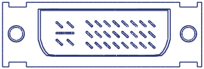
If you have an older monitor (for example HP 2025) that supports both Digital and Analog DVI, and your computer refuses to use it in digital mode, look at your cable - if there's a flat blade with 4 pins around it, this means it's a DVI-I cable. Simply rip those four pins out with a pair of needle-nose pliers. This effectively makes it a digital-only cable. Most people will probably never even notice that their monitor isn't running in digital mode, and I only know how to tell in Nvidia Control Panel - it's under Display -> Change Resolution -> click the monitor in question. You'll see the "Connector" in use. It should say "DVI-PC Display".
Before the mod, the cable should look like one of these:
Signle Link DVI-I

or
Dual Link DVI-I
After the mod:
Single Link DVI-D
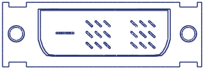
or
Dual Link DVI-D
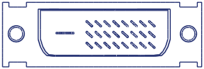
Note: As far as I know, the blade on DVI-I cables is wider than on DVI-D, so a modified cable may or may not work with a DVI-D only monitor. I know this to be the case with one of my monitors. MAKE SURE YOUR MONITOR ACTUALLY SUPPORTS DVI-D!! There may be a reason it shipped with a DVI-I cable
You can also try this first: http://obscure-tech-tips.blogspot.com/2010/01/forcing-your-nvidia-card-to-send.html but it did not do anything for me.
The best solution is to just buy the correct cable from the start...
I hope this helps some poor chap in the future, because I just spent half a day trying to figure out why last night my monitor was in digital mode and this morning it was analog. It wouldn't normally be a big deal, but A) Digital is sharper and B) this monitor has a problem in analog mode...
Source:
http://www.datapro.net/techinfo/dvi_info.html
This was originally going to be a help request, but I've resolved the problem.
If you have an older monitor (for example HP 2025) that supports both Digital and Analog DVI, and your computer refuses to use it in digital mode, look at your cable - if there's a flat blade with 4 pins around it, this means it's a DVI-I cable. Simply rip those four pins out with a pair of needle-nose pliers. This effectively makes it a digital-only cable. Most people will probably never even notice that their monitor isn't running in digital mode, and I only know how to tell in Nvidia Control Panel - it's under Display -> Change Resolution -> click the monitor in question. You'll see the "Connector" in use. It should say "DVI-PC Display".
Before the mod, the cable should look like one of these:
Signle Link DVI-I
or
Dual Link DVI-I
After the mod:
Single Link DVI-D
or
Dual Link DVI-D
Note: As far as I know, the blade on DVI-I cables is wider than on DVI-D, so a modified cable may or may not work with a DVI-D only monitor. I know this to be the case with one of my monitors. MAKE SURE YOUR MONITOR ACTUALLY SUPPORTS DVI-D!! There may be a reason it shipped with a DVI-I cable
You can also try this first: http://obscure-tech-tips.blogspot.com/2010/01/forcing-your-nvidia-card-to-send.html but it did not do anything for me.
The best solution is to just buy the correct cable from the start...
I hope this helps some poor chap in the future, because I just spent half a day trying to figure out why last night my monitor was in digital mode and this morning it was analog. It wouldn't normally be a big deal, but A) Digital is sharper and B) this monitor has a problem in analog mode...
Source:
http://www.datapro.net/techinfo/dvi_info.html