![[H]ard|Forum](/styles/hardforum/xenforo/logo_dark.png)
Sorry about the large pics.
This is my overclocking guide off of OCN. Link
This guide is liable to change at any time. If you see any problems with it, please contact me or post what you thing should be changed. Thank you!
FEEL FREE TO TELL ME IF I NEED TO ADD OR FIX SOMETHING!
MAKE SURE YOU KEEP YOUR MOBO'S MANUAL! READ IT SO YOU KNOW WHAT EACH MENU OPTION IS FOR AND WHERE THINGS ARE!
CORE i7 OC COMING SOON!
Please note, this guide can be modified to help with overclocking of an AMD based processor.
What is overclocking?
Overclocking is a process of making various components in a computer to go faster than their stock speeds. So if you buy a processor (lets say an e7300 2.5GHz) and make it go faster (lets say 3.6GHz), that can be deemed as an overclocking.
HALT! Do not proceed any further until you have read this:
Dell, Gateway, eMachine, etc... do not overclock very well, so proceed at your own risk. You break, it is your fault.
A little bit more of some explanation:
This guide is intended to explain how to overclock and its uses. It was made for those who have computers (moreover, motherboards and other components) that support overclocking. If you bought a brand of computer like Dell, Sony, Gateway, HP, eMachine, or any other crappy PC (not saying all of them are) that comes for a store like Walmart, Best Buy, or Circuit City, then this guide does not pertains to you. Even though it is possible to overclock these systems with software, it is not recommended nor advised. This guide is meant for anyone who has a motherboard made by ASUS, GIGABYTE, Abit, DFI, (sometimes Intel), or any other well known brand know for their boards and overclocking abilities. But be forewarned, not all boards made by these companies are made to overclock. Check and see if yours does for going any farther than this final line.
Note: There are ways to bypass hardware overclocking via software, but it is not recommended and can make your PC unstable, even rending it unable to stay stable to till the system is returned to normal. Overclocking software is made for boards that supports overclocking so that changes can be made without having to restart.
Further notes:
-Motherboards not designed for overclocking will not go as far in overclocking, become unstable sooner, and heat far quicker.
-Computers with boards that do not support overclocking do not have adequate cooling.
-If your computer uses a Celeron, Sempron, or equivalent processor, then no matter how much you overclock, there is no way around the sheer junky design. They are great for learning how to overclock, but there is not much of a yield in performance that you may be looking for in gaming or benchmark (or measuring how well your computer performs).
Why would you want to overclock if it could be damaging?
Simple, to get more out of what you payed for. Overclocking is similar to going and upgrade a car's engine by boring out its piston chambers and adding better fuel injection, air intake, transmission, etc..., but there is always a risk in doing so. But it all boils down to one thing: performance. It is hard to fry your system if you are careful and know what you are getting yourself into. If you are careful about what you do, then it is rather hard to do any kind of permanent damage to your system by pushing it to its sheer limits.
As with any kind of performance enhancement, there is a level of risk involved. The first and foremost danger is heat. Heat will degrade and damage your components beyond repair if left unchecked and will most definitely lower your system's life span. When you overclock, you are making your computer do more work than it is used to, thus it is going to generate more heat, so having a good cooling system is essential. If you do not have sufficient cooling, then your system could and will overheat. Overheat by itself cannot kill your computer though, the only way for that to happen is to repeatedly overheat it time and time again past the recommended temperatures. YOU SHOULD ALWAYS TRY TO STAY AT OR BELOW YOU CPU's MAX RATED TEMPERATURE! If you go above this, you can risk harming your CPU. Do so at your own risk. I have overclocked an e7300 to 3.8 (which has a max temp of 74.1C) but had temps of 71C! So running it like that for long term was out of the question. Run your CPU at 5-10C above its max temp for short periods only and ONLY for benchmarking purposes only. DO NOT DO IT FOR LONG TERM!
And as luck would have it, you do not have to be overly worried about your system overheat as there will be signs before you system becomes a fried potato. Random crashes are probably the most common sign. Overheat is easily prevented by the use of thermal sensors which can tell you how hot your system is getting. If you see temperatures that you think is too high, then either run at a lower speed, or get better cooling, which I will cover later on.
The other danger of overclocking is voltage. Too much, and you can significantly shorten your components' lifespan. A small boost will not do much, but if you plan on a rather hefty overclock, you may want to be aware that it will decrease the lifespan of your computer's components. But this is usually not an issue since most people who will overclock do not use their components for more than 4-5 years and there is a good chance your components will not fail before 4-5 years regardless of the voltages running through it. Most processors are designed to last in upwards of ten years. So most of of the time, loosing a few of those years is worth the performance gained for overclocking.
Disclaimer for my own protection:
WARNING!!! READ THIS DAMN WARNING!!! I DO NOT WANT TO HERE YOU WHINE YOU BROKE YOUR COMPUTER SO READ THIS WARNING!!!!!!
Overclocking can really mess things up, and it wares down your hardware and its life-expectancy. In other words, the more you overclock, the shorter your computer will live (like how an F1 car's engine must be replaced after each race). If you attempt to overclock, then I, Lord Xeb, of this forum and its inhabitants are not responsible for any damage or destroyed hardware when using this guide. Follow at your own risk.
Please note, much of this first part of this guide is based off (but not plagiarized) of this other guide, thus credit should go to it:
http://forums.extremeoverclocking.co...ad.php?t=79266
NOTE: Before you begin to overclock, you MUST have good cooling. PLEASE go to the cooling section for more information.
Now onto the basics:
Like all other tech out there, you must understand how things work before you can fix them. The processor is the most common component to overclock, so we will start there.
Any time you buy a processor (a.k.a., CPU or Central Processing Unit), not matter what brand it is, or where it came from, you will see and speed on it (now-a-days in GHz), this speed is its operating speed. To give you better understand of what this measurement means, I must first tell you what its speed stands for. The speed of a processor is how many clock cycles, in a certain alloted period time, in which it can carry out a given amount of instructions. So, as one can think, the more clock cycles the better. The same would go for a car, the more horsepower, the more power it has to do its job. One MHz (megahertz) is 1 million clock cycles per second. 1 GHz (gigahertz) is 1 billion clock cycles per second. So if a processor is rated at 2.66GHz, then it can go through 2,660,000,000, or 2 billion, six-hundred sixty-six clock cycles in EVERY SECOND! Mind boggling eh? The latest processor (AKA Core i7), can do more work than a Pentium 4 ever could. So speed means more than just muscle, It means bragging rights and the ability to get things down faster!
The primary goal of an overclocking is to raise this said speed of a processor so that I can do more clock cycles per second, this more instructions, and ultimately, more data. This is how your processor's speed is calculated:
FSB (Front Side Bus, in MHz) x Multiplier = speed in MHz
The FSB (AKA Front Side Bus), is the channel through which your system communicates with the your CPU, Common sense would tell you that if you make this faster, they entire system would run faster as well (which of course it will).
Since you will be dealing with the real FSB, not the actually CPU speed, it is important to keep this is in mind for both the FSB and the CPU.
The multiplier is just like it sounds. It is used to multiply the FSB to give you your processor speed. So if you have a processor running at 400Mhz FSB with a multiplier of 9, then you will have a processor speed of 3600MHz, or 3.6GHz.
So the equation is like so:
400MHz (FSB) x 9 (multiplier) = 3600MHz CPU speed, or 3.6GHz (note, most processors do not run at this speed even when at stock).
Now for a little info on the FSB:
When you set your FSB for you CPU, you are also increasing the FSB of the board as well. To find this out, multiply the FSB speed you set your CPU by 4 and that will give you your FSB speed (this is Intel only).
From here on, this guide will be about overclocking Intel processors only.
How to Overclock:
If you understand how a processor gets its speed rating, then you may proceed. If not, ask a few questions and I, or someone else will try and help you.
Where do I begin?
Hmm, that is a toughy. Lets just start by going into the most common way of overclocking, which is through your motherboard's BIOS (or Basic Input/Output System). In order to reach your BIOS, you need to push delete, F1, F2m or any other F button when your system first boots (you will see a splash screen at right as soon as you turn your PC on). Most of the time there is a screen that that will tell you what button to push to access the BIOS (sometimes also referred to as Setup).
This is what it will look like for a Gigabyte board. The MIT is for OC

Here is an ASUS P5Q-E (Intel P45 chipset) . The AI Tweaker is for OC:

- Thank you R00ST3R
Gigabyte X48 chipset board. MIT is for overclocking:

- Thank you pm1109
This is an XFX 650i bios. The 650i is a nVidia chipset. Advanced Chipset Features is for OC:
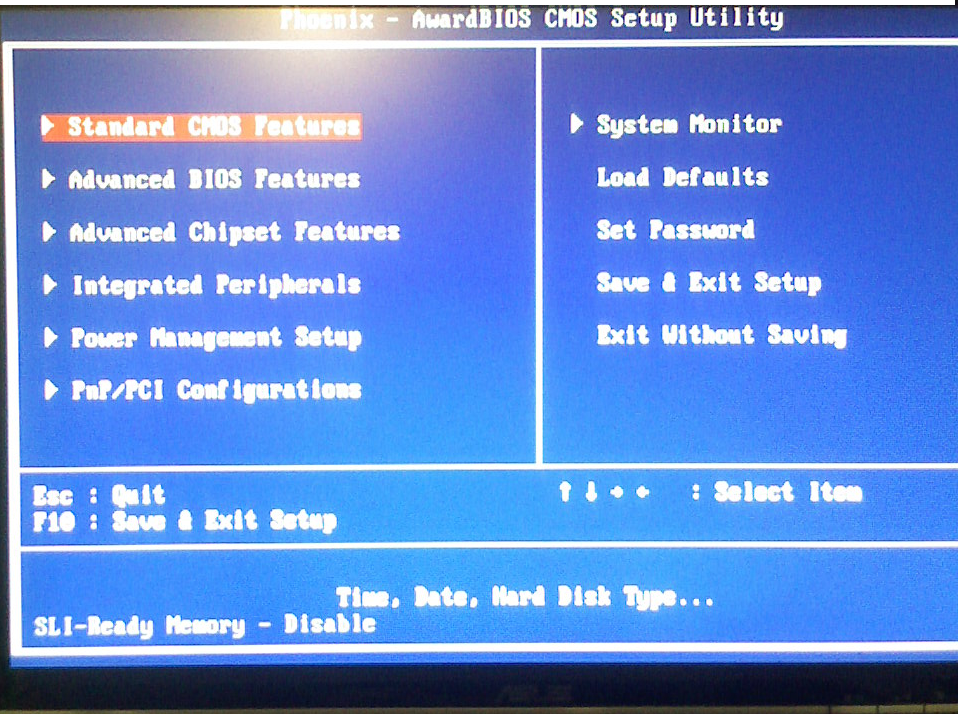
- Thank you micah_jones
This is an MSI X48 chipset. Advanced BIOS features is for OC:

- Thank you olio
Once you are in the BIOS (you will know because it will be a blue screen with white text options for you to choose and no, it will not look like the BSOD), assuming you BIOS do support overclocking, you should access to the necessary settings to overclock you system (refer to your mobo's manual). They most common settings that you will be able to adjust are as follows:
Multiplier, FSB, RAM Timings, RAM speed, and RAM Ratio.
Basically, you are trying to get the highest FSB x Multiplier formula that you can possibly achieve (within reason). By far the easiest way is the raise the multiplier (which I have stated before), but this will not work on most processors unless they are an EE (Extreme Edition, released by Intel), or a BE (Black Edition, released by AMD). It is pretty self explanatory, but there is one issue you may encounter: RAM issues. I will cover this in a bit, so be patient.
This one is for those of balls of steel (not really) and requires a little bit more tinkering sometimes. You can try to lower the Multi. and raise the FSB even higher. Just to give you an Idea. Lets say that you are OC (overclocking) your computer and you have hit a wall at 360FSB with a Multi of 10 (or 3.6GHz), you can drop your multiplier from 10 to 9 and increase your FSB to 400 (400 x 9 = 3.6GHz). Both of these combinations will give you the same result. Now you are thinking to yourself, So, both combinations give me the same speed, so that would mean I have the same performance? I am sorry to bust your bubble and ruin your cloud of glee, but WRONG!
Since the FSB is the channel at which your entire system communicates with your CPU, then you would want it as high as possible. So, if you your FSB is running at 360 instread of 400, then your CPU is running at a higher speed, but your system is running slower.
Now, ideally you would want to lower the multiplier and increase the FSB to as high of a speed that you can get, but this can cause problems in the chain of command (or so to speak) since your system depends on the FSB (and most notibly, the RAM). This concluses my lecture on this tidbit and leads me to the next, the RAM (or Random Access Memory, but don't worry, you do no need to know what every acronym means).
If you do not understand what I am talking about, read the rest of this guide and look at the Simple Guide.
*Please note: Retail computers use motherboards with rather crappy BIOS which contain no overclocking support at all. The only way to overclock these system is to softclock (use software to overclock) like http://www13.plala.or.jp/setfsb/ (SetFSB). Since I have never used this before to OC, I do not recommend using (unless you can find someone on OCN that can help overclock with software).
This is my overclocking guide off of OCN. Link
This guide is liable to change at any time. If you see any problems with it, please contact me or post what you thing should be changed. Thank you!
FEEL FREE TO TELL ME IF I NEED TO ADD OR FIX SOMETHING!
Newbie Guide to Overclocking
Intel Processors Only
Intel Processors Only
MAKE SURE YOU KEEP YOUR MOBO'S MANUAL! READ IT SO YOU KNOW WHAT EACH MENU OPTION IS FOR AND WHERE THINGS ARE!
CORE i7 OC COMING SOON!
Please note, this guide can be modified to help with overclocking of an AMD based processor.
What is overclocking?
Overclocking is a process of making various components in a computer to go faster than their stock speeds. So if you buy a processor (lets say an e7300 2.5GHz) and make it go faster (lets say 3.6GHz), that can be deemed as an overclocking.
HALT! Do not proceed any further until you have read this:
Dell, Gateway, eMachine, etc... do not overclock very well, so proceed at your own risk. You break, it is your fault.
A little bit more of some explanation:
This guide is intended to explain how to overclock and its uses. It was made for those who have computers (moreover, motherboards and other components) that support overclocking. If you bought a brand of computer like Dell, Sony, Gateway, HP, eMachine, or any other crappy PC (not saying all of them are) that comes for a store like Walmart, Best Buy, or Circuit City, then this guide does not pertains to you. Even though it is possible to overclock these systems with software, it is not recommended nor advised. This guide is meant for anyone who has a motherboard made by ASUS, GIGABYTE, Abit, DFI, (sometimes Intel), or any other well known brand know for their boards and overclocking abilities. But be forewarned, not all boards made by these companies are made to overclock. Check and see if yours does for going any farther than this final line.
Note: There are ways to bypass hardware overclocking via software, but it is not recommended and can make your PC unstable, even rending it unable to stay stable to till the system is returned to normal. Overclocking software is made for boards that supports overclocking so that changes can be made without having to restart.
Further notes:
-Motherboards not designed for overclocking will not go as far in overclocking, become unstable sooner, and heat far quicker.
-Computers with boards that do not support overclocking do not have adequate cooling.
-If your computer uses a Celeron, Sempron, or equivalent processor, then no matter how much you overclock, there is no way around the sheer junky design. They are great for learning how to overclock, but there is not much of a yield in performance that you may be looking for in gaming or benchmark (or measuring how well your computer performs).
Why would you want to overclock if it could be damaging?
Simple, to get more out of what you payed for. Overclocking is similar to going and upgrade a car's engine by boring out its piston chambers and adding better fuel injection, air intake, transmission, etc..., but there is always a risk in doing so. But it all boils down to one thing: performance. It is hard to fry your system if you are careful and know what you are getting yourself into. If you are careful about what you do, then it is rather hard to do any kind of permanent damage to your system by pushing it to its sheer limits.
As with any kind of performance enhancement, there is a level of risk involved. The first and foremost danger is heat. Heat will degrade and damage your components beyond repair if left unchecked and will most definitely lower your system's life span. When you overclock, you are making your computer do more work than it is used to, thus it is going to generate more heat, so having a good cooling system is essential. If you do not have sufficient cooling, then your system could and will overheat. Overheat by itself cannot kill your computer though, the only way for that to happen is to repeatedly overheat it time and time again past the recommended temperatures. YOU SHOULD ALWAYS TRY TO STAY AT OR BELOW YOU CPU's MAX RATED TEMPERATURE! If you go above this, you can risk harming your CPU. Do so at your own risk. I have overclocked an e7300 to 3.8 (which has a max temp of 74.1C) but had temps of 71C! So running it like that for long term was out of the question. Run your CPU at 5-10C above its max temp for short periods only and ONLY for benchmarking purposes only. DO NOT DO IT FOR LONG TERM!
And as luck would have it, you do not have to be overly worried about your system overheat as there will be signs before you system becomes a fried potato. Random crashes are probably the most common sign. Overheat is easily prevented by the use of thermal sensors which can tell you how hot your system is getting. If you see temperatures that you think is too high, then either run at a lower speed, or get better cooling, which I will cover later on.
The other danger of overclocking is voltage. Too much, and you can significantly shorten your components' lifespan. A small boost will not do much, but if you plan on a rather hefty overclock, you may want to be aware that it will decrease the lifespan of your computer's components. But this is usually not an issue since most people who will overclock do not use their components for more than 4-5 years and there is a good chance your components will not fail before 4-5 years regardless of the voltages running through it. Most processors are designed to last in upwards of ten years. So most of of the time, loosing a few of those years is worth the performance gained for overclocking.
Disclaimer for my own protection:
WARNING!!! READ THIS DAMN WARNING!!! I DO NOT WANT TO HERE YOU WHINE YOU BROKE YOUR COMPUTER SO READ THIS WARNING!!!!!!
Overclocking can really mess things up, and it wares down your hardware and its life-expectancy. In other words, the more you overclock, the shorter your computer will live (like how an F1 car's engine must be replaced after each race). If you attempt to overclock, then I, Lord Xeb, of this forum and its inhabitants are not responsible for any damage or destroyed hardware when using this guide. Follow at your own risk.
Please note, much of this first part of this guide is based off (but not plagiarized) of this other guide, thus credit should go to it:
http://forums.extremeoverclocking.co...ad.php?t=79266
NOTE: Before you begin to overclock, you MUST have good cooling. PLEASE go to the cooling section for more information.
Now onto the basics:
Like all other tech out there, you must understand how things work before you can fix them. The processor is the most common component to overclock, so we will start there.
Any time you buy a processor (a.k.a., CPU or Central Processing Unit), not matter what brand it is, or where it came from, you will see and speed on it (now-a-days in GHz), this speed is its operating speed. To give you better understand of what this measurement means, I must first tell you what its speed stands for. The speed of a processor is how many clock cycles, in a certain alloted period time, in which it can carry out a given amount of instructions. So, as one can think, the more clock cycles the better. The same would go for a car, the more horsepower, the more power it has to do its job. One MHz (megahertz) is 1 million clock cycles per second. 1 GHz (gigahertz) is 1 billion clock cycles per second. So if a processor is rated at 2.66GHz, then it can go through 2,660,000,000, or 2 billion, six-hundred sixty-six clock cycles in EVERY SECOND! Mind boggling eh? The latest processor (AKA Core i7), can do more work than a Pentium 4 ever could. So speed means more than just muscle, It means bragging rights and the ability to get things down faster!
The primary goal of an overclocking is to raise this said speed of a processor so that I can do more clock cycles per second, this more instructions, and ultimately, more data. This is how your processor's speed is calculated:
FSB (Front Side Bus, in MHz) x Multiplier = speed in MHz
The FSB (AKA Front Side Bus), is the channel through which your system communicates with the your CPU, Common sense would tell you that if you make this faster, they entire system would run faster as well (which of course it will).
Since you will be dealing with the real FSB, not the actually CPU speed, it is important to keep this is in mind for both the FSB and the CPU.
The multiplier is just like it sounds. It is used to multiply the FSB to give you your processor speed. So if you have a processor running at 400Mhz FSB with a multiplier of 9, then you will have a processor speed of 3600MHz, or 3.6GHz.
So the equation is like so:
400MHz (FSB) x 9 (multiplier) = 3600MHz CPU speed, or 3.6GHz (note, most processors do not run at this speed even when at stock).
Now for a little info on the FSB:
When you set your FSB for you CPU, you are also increasing the FSB of the board as well. To find this out, multiply the FSB speed you set your CPU by 4 and that will give you your FSB speed (this is Intel only).
From here on, this guide will be about overclocking Intel processors only.
How to Overclock:
If you understand how a processor gets its speed rating, then you may proceed. If not, ask a few questions and I, or someone else will try and help you.
Where do I begin?
Hmm, that is a toughy. Lets just start by going into the most common way of overclocking, which is through your motherboard's BIOS (or Basic Input/Output System). In order to reach your BIOS, you need to push delete, F1, F2m or any other F button when your system first boots (you will see a splash screen at right as soon as you turn your PC on). Most of the time there is a screen that that will tell you what button to push to access the BIOS (sometimes also referred to as Setup).
This is what it will look like for a Gigabyte board. The MIT is for OC
Here is an ASUS P5Q-E (Intel P45 chipset) . The AI Tweaker is for OC:
- Thank you R00ST3R
Gigabyte X48 chipset board. MIT is for overclocking:
- Thank you pm1109
This is an XFX 650i bios. The 650i is a nVidia chipset. Advanced Chipset Features is for OC:
- Thank you micah_jones
This is an MSI X48 chipset. Advanced BIOS features is for OC:
- Thank you olio
Once you are in the BIOS (you will know because it will be a blue screen with white text options for you to choose and no, it will not look like the BSOD), assuming you BIOS do support overclocking, you should access to the necessary settings to overclock you system (refer to your mobo's manual). They most common settings that you will be able to adjust are as follows:
Multiplier, FSB, RAM Timings, RAM speed, and RAM Ratio.
Basically, you are trying to get the highest FSB x Multiplier formula that you can possibly achieve (within reason). By far the easiest way is the raise the multiplier (which I have stated before), but this will not work on most processors unless they are an EE (Extreme Edition, released by Intel), or a BE (Black Edition, released by AMD). It is pretty self explanatory, but there is one issue you may encounter: RAM issues. I will cover this in a bit, so be patient.
This one is for those of balls of steel (not really) and requires a little bit more tinkering sometimes. You can try to lower the Multi. and raise the FSB even higher. Just to give you an Idea. Lets say that you are OC (overclocking) your computer and you have hit a wall at 360FSB with a Multi of 10 (or 3.6GHz), you can drop your multiplier from 10 to 9 and increase your FSB to 400 (400 x 9 = 3.6GHz). Both of these combinations will give you the same result. Now you are thinking to yourself, So, both combinations give me the same speed, so that would mean I have the same performance? I am sorry to bust your bubble and ruin your cloud of glee, but WRONG!
Since the FSB is the channel at which your entire system communicates with your CPU, then you would want it as high as possible. So, if you your FSB is running at 360 instread of 400, then your CPU is running at a higher speed, but your system is running slower.
Now, ideally you would want to lower the multiplier and increase the FSB to as high of a speed that you can get, but this can cause problems in the chain of command (or so to speak) since your system depends on the FSB (and most notibly, the RAM). This concluses my lecture on this tidbit and leads me to the next, the RAM (or Random Access Memory, but don't worry, you do no need to know what every acronym means).
If you do not understand what I am talking about, read the rest of this guide and look at the Simple Guide.
*Please note: Retail computers use motherboards with rather crappy BIOS which contain no overclocking support at all. The only way to overclock these system is to softclock (use software to overclock) like http://www13.plala.or.jp/setfsb/ (SetFSB). Since I have never used this before to OC, I do not recommend using (unless you can find someone on OCN that can help overclock with software).
Last edited: