• Some users have recently had their accounts hijacked. It seems that the now defunct EVGA forums might have compromised your password there and seems many are using the same PW here. We would suggest you UPDATE YOUR PASSWORD and TURN ON 2FA for your account here to further secure it. None of the compromised accounts had 2FA turned on.
    Once you have enabled 2FA, your account will be updated soon to show a badge, letting other members know that you use 2FA to protect your account. This should be beneficial for everyone that uses FSFT.

Monitor Won't Wake Up

xavierq

Gawd
Joined
Jul 27, 2000
Messages
562
So I've been having some weird issues that are either the vid card or the monitor, I'm not sure which or how fixable either issue is. Maybe someone else has has a similar experience.

Several months ago, maybe even a year at this point, I had an issue where if I started a game, the monitor would go into standby mode after a few minutes. Initially I got around it by setting another monitor as the main and playing on that one (both stayed on that way), but the other monitor was smaller, so eventually I found a "permanent" solution by using a different port (I've got a 560ti, so only two of the three ports will work at once).

This week, when the computer comes out of sleep mode, the same monitor as last time won't wake up. Power button also does nothing. I have to take the plug out, wait a bit, then put it back in and it comes up.

Any idea what's wrong, or how I fix it? I'm guessing my fix will stop working eventually, and it's kinda a pain. But I'm not even sure which piece to blame.
 
I have found that on certain laptops (Lenovo) that if you wake up the laptop by hitting the power button, it wakes up both the laptop and its screen just fine, but it you wake up the laptop by clicking the mouse, the laptop will wake up but the screen will stay dark. If you then push the WIndows key, the laptop screen wakes up.

I tell you this because this may possibly be a Windows bug, and may possibly be what is happening for you.
 
It's not a laptop, and it's not actually "sleep" mode, it's just turning off the monitors. I'll try hitting the windows button and see if it helps, though.
 
It's one of two things. Either there is an issue with the troublesome monitor's backlight, or there is a compatibility issue between the power saving method used by the video card, Windows and the monitor.

Do you get any indication whether the monitor is asleep or awake, such as an led turning on or off, or changing colors?
 
Neither part is new. They'd been working fine together for probably two or three years before any of this started. So an incompatibility seems odd, unless a driver update did it.

I'll check the power light next time I bring the system back up.
 
That being the case, the most likely candidate is the backlight. You could have a cap going bad on the inverter, so it is not always supplying enough voltage to fire up the lights. If your power light indicates that the monitor is awake and you have no picture, try shining a flashlight at the screen from very close. It should get enough light through for you to see whether the image is on the screen and you just can't see it because the backlight is off.

Now, if the monitor power light is off indicating that it is not awake, then it is definitely a compatibility problem. Even though the connection is directly from the video card to the monitor, the signals come from the driver and even Windows itself. So an upgrade somewhere along the line could have created an issue.
 
You mentioned DVI and now mini HDMI.

Are you using an adapter? It might be going out.
 
No adapter. Both dvi and now the hdmi are all going direct to the monitors. I'll check the backlight with a flashlight later as well.
 
Flashlight shows nothing. Power LED comes on when the other monitors come out of sleep, but it's this weak yellow color, instead of the blue it usually is.
 
If you unplug and replug the monitor to the video card does the screen come back on?
 
What's the model number of the ASUS monitor? I ask because the info for the ROG Swift PG278Q says this about the power button color:
White – normal ‘fast’ gaming (up to 144Hz)
Green –Nvidia Stereoscopic 3D hardware plugged into the PC and 3D Vision enabled
Red – G-Sync enabled
Yellow – Ultra Low Motion Blur
Orange – Standby

And I am now curious about whether the monitor is in Standby or something else.
 
I'm not sure you're going to be able to fix this. With the additional information, I can all but guarantee it's a compatibility issue. The monitor is not being fully woken up and/or not detecting a signal from the video card. That's why the led is not lit up blue. When you unplug it and plug it back in, it's defaulting to a powered on state and then it detects the signal.

The only possible fixes are going to be things like updating the bios of your video card, or the firmware of your monitor. You could also try going back to an older video driver.
 
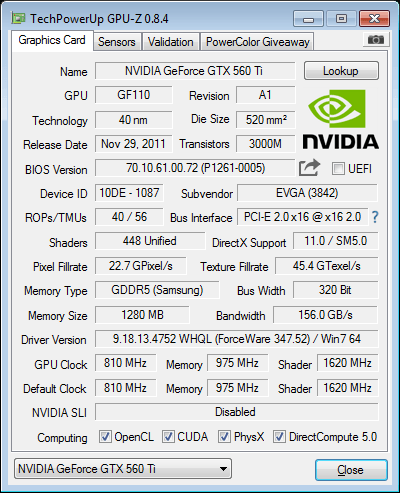
fire up GPU-Z and post a screenshot or post a link to techpowerup of the current bios its using. Im curious if your using the latest bios for your card.
 
Okay, the manual just says there's blue (on), amber (standby) and off for the power button light so you must be seeing amber. However, this amazon review notes that purple/violet is also possible if you power off the monitor before powering off the PC while it's connected with Displayport; replies to that review also noted lots of significant problems with standby mode on this monitor, so I would blame the monitor and maybe shop for a different one.

Edit: the manual had an interesting note in big all-caps: "Press (Input Select button) to display HDMI signals after you connect HDMI cable with the monitor." One of the comments to the review above mentioned that accidentally selecting Displayport is extremely bad if you don't have any Displayport devices to connect to the monitor.
 
Last edited:
As an Amazon Associate, HardForum may earn from qualifying purchases.
f3.png
 
I get the same results you do there. So mine is newer than anything they've ever heard of.
 
Back
Top