• Some users have recently had their accounts hijacked. It seems that the now defunct EVGA forums might have compromised your password there and seems many are using the same PW here. We would suggest you UPDATE YOUR PASSWORD and TURN ON 2FA for your account here to further secure it. None of the compromised accounts had 2FA turned on.
    Once you have enabled 2FA, your account will be updated soon to show a badge, letting other members know that you use 2FA to protect your account. This should be beneficial for everyone that uses FSFT.

MKV issues - troubleshooting help

scyntre

n00b
Joined
Dec 20, 2012
Messages
10
I have a fairly powerful machine as an HTPC (win7, 4 gigs ram, celeron proc), gig network and can't play just some MKVs over the network with VLC (stuttering/starting stopping video - audio continues just fine). My gaming machine (win8, 16 gigs ram, i52500K) can play these files just fine.

Physical connections to the machine are fine (tried a different drop and changed the patch to the wall as well and can play other MKVs just fine, I thought it was a file size issue but it doesn't seem like it). I haven't done a packet capture on it yet to see if it's dropping packets but everything else seems great.

I tried a pcie intel gig nic to see if the onboard might be the culprit for some reason (hw, drivers for realtek) but the same problem exists.

My next step is to connect a macbook air to the port and try it on there - isolating the htpc itself. Both my desktop and htpc are connected via the same switch to the server with the MKV files - i.e. doesn't seem to be a network/server issue at this time. I thought I'd also try an Ubuntu Live CD on the HTPC as well to see if it might be sw or hw.

Does anyone have any other troubleshooting thoughts on this issue? Is there a way to get VLC to buffer a few seconds on the machine playing the file over the network (SMB) as I don't really want to stream these if at all possible or retranscode them in any way. Why might this be happening on the htpc? Not powerful enough? Software problems?

I was wondering if some blu-rays when made into MKV or originally encoded onto the disc (regardles of file size) are done at a much higher bitrate. I did try some very large blu-rays (MKV) last night and it seemed they are ok, it's just some don't play well at all on this machine only.

I'm kind of new to storing blu-rays on the network for convenience and all has gone well until recently with certain files on one specific machine.

Any help is appreciated.
 
What format/bitrate are the files that don't play smoothly? What's your CPU usage when it happens? What GPU do you use? What CPU?
 
Last edited:
Maybe I didn't follow, but did you say that the problematic mkv file plays OK locally on the HTPC, or no?

Do these MKVs have HD/lossless audio that the HTPC is unable to decode properly where the i5 PC can? Maybe try changing the audio stream if it is trying to play HD audio for troubleshooting... I've noticed stuttering like this on some of my weaker machines and switching to the lossy track seems to work fine.
 
I'm logging in now to move one of the troublesome videos local so I can see if it's better locally, not sure why I didn't do that to begin with but other large blu-rays play fine, some don't so I didn't think about that. Duh.
 
GPU is a Geforce 275 and the cpu might be an issue considering the PCs' differences there - HTPC has a Celeron E1400 at 2.0ghz.

I'm not sure what the bitrate is (new to makemkv) because I just let it do its thing on my gaming rig (not htpc) and as I tested them there they seemed to perform and look great, files were very large also so I figured it was good to go.

I will start by moving the file and going from there, also will check the cpu while it's local vs. network as well.

I will also take a look at the audio tracks, when I encoded them I put both the largest track I could find (dolby? I can't remember) as well as dts or dd 3/2. I'll see if I can select one of those down in VLC and look at the proc as well, pretty much did it the same for all the files I dumped (mkvs) so it's just kind of strange that some play and some don't, I thought it was a size/network issue to begin with but the proc may be the culprit here, will post tomorrow with further info/troubleshooting.

Good suggestions to move forward, thanks!!!
 
Last edited:
Here is the proc: http://ark.intel.com/products/35101/Intel-Celeron-Processor-E1400-512K-Cache-2_00-GHz-800-MHz-FSB

I moved the file to the local hdd (old 150 gig raptor) and it still stuttered badly in VLC. I thought it might be the software so I pulled the 64 bit VLC 2.0.5 and put on the 32 bit version, no dice.

I did drop the audio all the way out as well, lossless and 3/2 +1 were selectable, no dice there either. I ended up installing JetVideo and the file played just fine. This leads me to believe that it's some type of codec problem with VLC and my proc/computer since I'm running the same version on my gaming machine - different processor - lots more ram (i5 2500K - although it is running win8 too but I don't see that being any factor here).

I also made sure that GPU acceleration was enabled in VLC but that didn't seem to make any difference either, which is weird because the EVGA Geforce 275 card in there should have no problems playing video of any kind. I wonder how that was implemented (badly?) or if I need to click some other boxes in there? I went ahead and updated the video card drivers as well and it didn't seem to matter either. Balls.

My co-worker suggested trying Media Player Classic so I will give that a shot next. I'd really like VLC to run correctly because I love it. I might try to move the codecs around on it when I get some time this weekend if that's possible and try a different one. I wonder if this is a known issue with the Celerons and specific codecs?

Anyway, thanks very much for all of ya'lls assistance!
 
Thanks Snowknight26.

I'm feeling the same way, funny that the other video player worked properly, need to find out what codec it was using and try it in vlc if possible.

The celeron can handle certain Blu-Rays just fine though, this has been interesting and enlightening to say the least so far (and a little frustrating).

I also wonder what proc I could throw in there to get this thing up to speed as cheaply as possible with some room for growth - I'd probably add 4 more gigs of ram as well.

If I need to do that then that's an option as well. It's what I get for trying to save older computer and build down cheaply in the first place though. :/

Gracias.
 
If MPC-HC doesn't work and you're sure DXVA is enabled then you'll need to get a faster processor.

The celeron can handle certain Blu-Rays just fine though

It depends on how the studio authored the disc/encoded the video. Some encoding settings cause decoding to take longer (decoder has takes longer to decompress the video = CPU works longer = higher CPU usage).

I had the same issue with a lower-powered machine of mine. Even with a Radeon HD 4850 (that's more than capable of playing every kind of video you throw at it), the E6600 I believe it was just couldn't handle it. Some Blu-rays worked perfectly but others (Hugo comes to mind) just couldn't play perfectly smoothly all the time.

Just because you have a fast GPU and it's doing a majority doesn't mean that the CPU doesn't get used.

I'll see if I can get a screenshot of Process Explorer showing which function (decoding audio, video, splitting the source, etc.) takes up the most CPU usage on that slower machine just to illustrate the issue.
 
I've never had much luck with Celerons handling high bitrate video. It gets much worse when it goes from a 720p video to a 1080p video. For example, my last Celeron PC running at 2GHz could not decode a high bitrate 1080p MKV files without stuttering. At 720p, it's somewhat fine. And, 10-bit encoded H264 video was unwatchable.

Lowering the bitrate of the video helps, but you lose quality in the end.

I playback a lot of 8-bit and 10-bit H264 MKV video files. For 8-bit video, a 2GHz dual core processor should suffice if it was played on the HTPC and not streamed. For 10-bit video, I wouldn't recommend anything less than a 3GHz dual core processor.

But, there are other factors to consider for streaming video over the network.

Are you using a 100Mbit or 1Gbit connection?
How fast is your hard drive that's hosting the video file?

Your CPU in the HTPC is and can also be a factor. Can it decode a high bitrate video at 1080p fast enough while it's being streamed over the network? Let's say, in a very simple example, your video file is at 1hr., 5min., 30 sec. on the host computer, but your HTPC has only decoded up to 1hr., 5min., 22sec. then your HTPC is probably not fast enough to decode everything. It's a bad example, I know, but should give a rough idea what I'm talking about. Basically the computer is playing catch up as it tries to decode a video in realtime as it plays it back.

I'd honestly recommend a faster processor if you can find a non-Celeron, LGA775 CPU. Or, upgrade the board and processor (and probably memory if the LGA775 is still using DDR2).
 
It's not the processor. It's the GPU. Different Nvidia lines support different offloading capabilities and some models are generally better at offloading video than others. It wouldn't surprise me in the least if a GT520 was better than a GTX275 at offloading video.

Here is a benchmark score of an E1200. It's actually faster than Brazos. Chances are you've seen quite a few if not tons of brazos systems (that one is a E-350) having no problem whatsoever with H264 video (@1080). This is because it's iGPU is pretty good at offloading video. Your processor is faster than both of these processors in this benchmark.

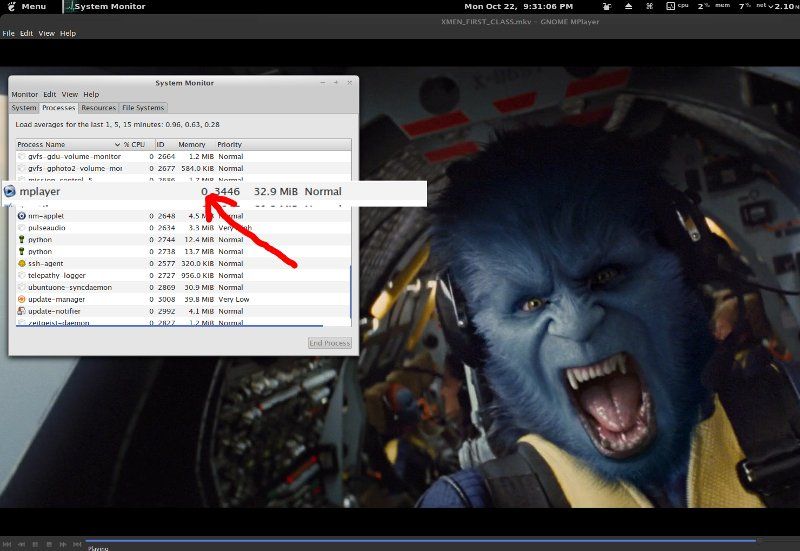
This really can't be said enough. If you have proper offloading of video your CPU will barely do anything. What I would do is update that video card with something current. You should be fine unless you come across Hi10p which to my knowledge isn't accelerated by anything yet. I would also double check your settings in VLC or whatever player you are using. If you open up your task manager this is what you should see:

xmen_zpsa54989d4.jpg


If you see your processor register anything beyond like 3-5% chances are the video isn't offloading to the GPU very well.
 
Last edited:
Good info from the last 2 posts! Thanks! I will check it again tonight as far as CPU usage goes vs. GPU. I think from what I remember last week the proc was getting hit pretty hard even with VLC "use hardware acceleration/GPU" enabled.
 
Back
Top