• Some users have recently had their accounts hijacked. It seems that the now defunct EVGA forums might have compromised your password there and seems many are using the same PW here. We would suggest you UPDATE YOUR PASSWORD and TURN ON 2FA for your account here to further secure it. None of the compromised accounts had 2FA turned on.
    Once you have enabled 2FA, your account will be updated soon to show a badge, letting other members know that you use 2FA to protect your account. This should be beneficial for everyone that uses FSFT.

Baffled by built-in Windows defrag

dderidex

Supreme [H]ardness
Joined
Oct 31, 2001
Messages
6,328
After a couple passes of defragging my drive (to try to make this go away), this is the final state. I guess it's an improvement, in that all the files are in a big, contiguous chunk...but why on that part of the disk?! This makes no sense! What is that big gap doing near the beginning (the fastest part!) of the disk?
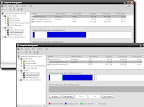


...my only guess would be due to the files at the very start of the disk being from the OS install. Is it possible that Windows built-in defrag is 'saving' that part of the disk for things added to Windows or the 'Program Files' directory? (The bulk of the disk is consumed with my 'Steam' games, which are not in the 'Program Files' structure) Or is this just some crappy disk allocation?

The 'Downloads' drive I can't even guess at - there is nothing system-related on that disk at all.
 
Last edited:
The Windows defragmenter (and other good defrag programs) optimizes your performance by putting the files into a continuous sector, but it also takes into account of the disk's rotation in the sense that putting the same file over the entirety of the disk has performance benefits rather than having the disk head to wait for the platter to do a full rotation to access the sector again.
 
The Windows defragmenter (and other good defrag programs) optimizes your performance by putting the files into a continuous sector,

As I mentioned - it has done that. Files are now nicely in a large block.

but it also takes into account of the disk's rotation in the sense that putting the same file over the entirety of the disk has performance benefits rather than having the disk head to wait for the platter to do a full rotation to access the sector again.

Got a source for that? I have never heard anything like that, and it seems to directly contradict the idea of putting files in the outer blocks. I mean, the head reads a block...then the next one...then the next one...etc. There is no limitation (other than the drive's cache, I suppose, but that will rarely come up) as to how many blocks it can read in a sequence. IE., the best performance gain would be each file as a long series of blocks in the same ring of the disk (so the head doesn't have to move to read it).
JkDefrag or MyDefrag will let you sort your disk exactly the way you want it.

Okay, that is something useful to know. So...which one of those won't break my data? :D
 
Got a source for that? I have never heard anything like that, and it seems to directly contradict the idea of putting files in the outer blocks. I mean, the head reads a block...then the next one...then the next one...etc. There is no limitation (other than the drive's cache, I suppose, but that will rarely come up) as to how many blocks it can read in a sequence. IE., the best performance gain would be each file as a long series of blocks in the same ring of the disk (so the head doesn't have to move to read it).

I think the best way to demonstrate this in action is to get defrag software the depicts the disk in a platter-basis (IIRC, O&O Defrag does this) and see how it places the contiguous file on both ends of the platter to optimize performance, so the head can have a faster sequential throughput. The file is still defragmented in the sense that the bits aren't scattered all over the place, but this way, the defragmentation software optimizes performance as much as possible for platter-based media.
 
JkDefrag or MyDefrag will let you sort your disk exactly the way you want it.

Okay, that is something useful to know. So...which one of those won't break my data? :D

They're essentially the same thing. MyDefrag is the new version with a scripting engine built-in. JkDefrag is the older, fully open source version. I would expect both of them to work pretty much the same for simple one-command defrags (i.e. "defrag C: with name-based sorting"). MyDefrag should let you script some more advanced multi-step stuff, like this, as a single action.

Both of them use the built-in Windows defrag API for actually moving the data. My/Jk says "move this data here, then move that data there" and Windows does the actual moving. This is the case with most defraggers these days. All of the decent ones are essentially totally safe now.
How safe is it?
JkDefrag is based on the standard defragmentation API by Microsoft, a system library that is included in Windows 2000, 2003, XP, Vista, and 2008. Most defragmenters are based on this API, including commercial defragmenters. Basically all JkDefrag does is send "move this file to that location" commands to the API. It does not touch the disk by itself, and is therefore extremely solid. If your disks use NTFS then you're even safe when the computer crashes in the middle of defragmenting. Nevertheless, it's still a good idea to backup before defragmenting, just like with other defragmenters, because the heavy use of the harddisk may trigger a hardware fault (disk crash), and/or overheating (disk, power supply, controller chipset, etc.).
 
I use PerfectDisk and love it. Great defrag program.
 
I've heard some good things about PerfectDisk, but it's not worth $30+ to me. Also, their website is full of marketing BS:
PerfectDisk 10 Home Edition's fast and powerful defrag speeds up everything you do, from web browsing to downloading music and editing pictures. Plus, you'll see faster computer boot times and fewer software crashes and hangs after just one defrag.

Because we all know that the biggest bottleneck in web browsing and downloading MP3s is hard drive fragmentation... If you're editing huge image files, I can see where disk fragmentation could cause some issues. For JoeBob's Kodak PictureCD, probably not. Fewer software crashes and hangs? I'm not sure how that works, as you're simply rearranging data on the drive to make it more efficient. If the program is crashing because the hard drive is a little bit slower pulling up the data, then I'd say there's an issue with the program.

I do agree that a properly defragmented drive should boot faster than a massively fragmented one.

It also doesn't appear to have as many sorting options as Jk (just looking at the site). I'm sure it's very easy to waste a bunch of time with Jk's sorting options and have it result in no gain or even slower performance, but the options do provide the ability to do some interesting rearranging if you want to get into complex stuff. Sort of like the stereotypical Linux and Windows I guess - with Jk you can make it do almost anything you want (which could have really good or bad results), whereas PD is a more generic solution that should work pretty well for most people without having to tinker with anything.
 
I am just throwing up suggestions here, and have no facts to back this up, but I think there may be a reason NOT to put all the files at the start of the disk in 1 big lump.

While it is true that the fastest part of the disk for sequential transfer is the outer sectors, corresponding to the left hand end of the defragmenter graphic, this is not really true for real-world performance. In the real world, especially when doing random reads (as when the OS or a program loads for example), the fastest part of the disk is whichever part of the disk is closest to where the read head currently is. By putting the files in the middle strip of the disk, you ensure that more of the disk is likely to be close to where the read head is likely to be at any given time.

Imagine all of your data is on the outer sectors. Now, while doing reads, the head will probably be somewhere in the middle of the used section of the disk, near the edge of the platter. If we now fill up the rest of the disk, the important files (usually the stuff that goes on the disk is the most important stuff - OS, pagefile, most used programs, etc) will all be at one end of the stroke, and everything else we be at the other end. So if we do a read that involves random OS files (at 1 end of the stroke) and data files (at the other end), the real world performance will be terrible as the head is flying full strokes between each sector read. NCQ might help a little, but performance will still suffer.

But now look at the case where the important files are in the middle of the disk. If we now fill up the disk, all the new files can fill up the space either side of the original data. So a read involving an OS file (in the middle of the plater) and a data file (either at the edge or in the centre of the platter) only requires the disk to cover a half stroke between reading each sector.

Any thoughts on this? I realise the explanation is very simplified, but it would seem to be a good idea to ensure that new data can be added to the disk on both sides of the most commonly used areas, to ensure the head has to move as little distance as possible. By making sure the head can move either inwards OR outwards to reach these files, you reduce the distance travelled and hence reduce seek time and increase real world performance.
 
You'll recall, though, that the smaller rings of the disk have less data per ring. IE., on a 640gb drive, 200gb on the outer rim might only take up the outer 1/5 of the disk, but 200gb centered on the inside may take up an area halfway to the edge of the disk (the innermost rings storing very little data, indeed).

Logically, having the data farther out also means that the same AMOUNT of data needs far less movement of the head back and forth, as it can be stored in fewer rings of the disk.
 
Drives are blazingly fast these days. Keep your drives defragged, good idea.
But, are you seriously concerned about data being stored on the outer 26.4% of the platter versus the inner 17.9%?

If so...read this. ;)
 
It's a waste of time trying to micromanage file placement; it's not as straightforward as it seems.

This may have been mentioned previously, but to reiterate: any defragger's drive map is a 2 dimensional representation- it is a map of the logical disk that the file system sees. It is *not* a map of the physical blocks in use.

The defragger or file system (NTFS) cannot specify the physical blocks to be used; that is done by the HDD's in-built controller. So the logical map (single surface) does not have a 1:1 correspondence to the actual physical drive map (multiple platters, multiple surfaces, multiple read/write heads, 3-dimensional), so all this manual file placement etc is shooting in the dark. We can assume that the drive starts using physical blocks from the periphery inwards, but for all the the platters simultaneously, so correlating the position of the files on the logical drive map (which itself is merely a crude respresentation) to the physical location of the files will not be accurate, especially if some of the blocks/sectors are remapped. Things become more complicated when the volume is partitioned.

So don't worry about file placement too much.:)

As for the defragger, I use Diskeeper 2009 Pro. It runs perfectly on my XP desktop (4 drives) and laptop (1 drive) and fragmentation is never a problem. I've set it on full auto defrag, and I don't mess with it at all; it does a fine job by itself. I've better things to do:p
 
I am just throwing up suggestions here, and have no facts to back this up, but I think there may be a reason NOT to put all the files at the start of the disk in 1 big lump.
....

This is the biggest downside with multiple partitions. The later partitions are inherently pushed away from the first ones, meaning the head has to jump back and forth between two sections of the drive.

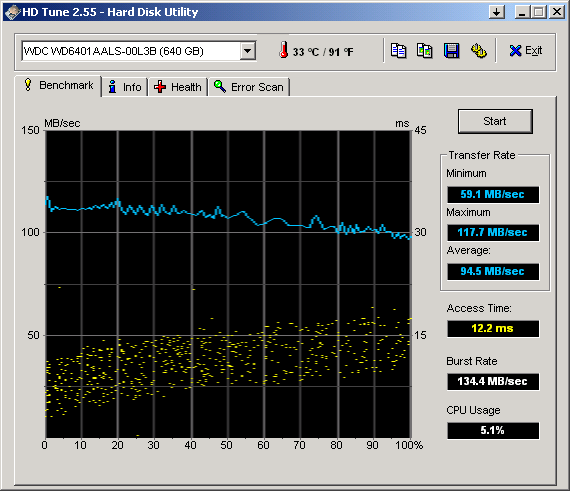
Here's the HD Tune from my 6401AALS.
HDTune_Benchmark_WDC_WD6401AALS-00L3B.png

You can see that the first 10% of the drive benchmarks at 105-115MB/s, while the last 10% is about 60-70MB/s. A 60GB partition forced to the beginning will be faster than a 60GB partition forced to the end.

However, spreading your data between different partitions all over the drive will probably end up being slower than using one big partition with all the data lumped together, just as you said. It would probably be much slower to have a 60GB at the beginning and a 60GB at the end (not sure why anyone would even try that) than to just have the drive all as one huge partition with 120GB of data stuck together in the middle wherever Defrag puts it.

The idea with short stroking is to put all the important data together on the fastest part of the drive. If you put part of the data there, but part on other partitions scattered around the disk, you're really handicapping things. You're probably better off with a ~200GB partition at the beginning for all your regular apps and the OS, and dumping all your miscellaneous "archived" data at the end, rather than having a 10GB partition at the beginning for just the OS and forcing all your apps and working data to a separate partition(s) further down the drive.

To get the most benefit out of short-stroking, you really have to understand how you're chopping up your drive and where your data will end up in relation to all the other data. The easiest way for most people to "short-stroke" is to make a partition just big enough for the OS and apps you want to use (plus a little extra headroom), then make a second storage partition for just random file storage. This will give the stuff you're actually using some priority over your bulk storage area, without too much thought or effort involved. Remember that making the "fast" partition too big will cause it to spread out of the faster areas of the disk, as well as pushing your other data further away too. Regardless of how fragmented the volume gets or how you choose to sort the files, the stuff you're using will still all be grouped in that first chunk of the drive, in front of your bulk storage area.

If you want to get more involved, you can use multiple partitions and file sorting to try to force certain files to certain parts of the drive (which may or may not have worthwhile results). If you try to get too fancy without knowing what you're doing, it's very possible you could divide everything up and actually make things slower.
 
FWIW, on my 640gb drive, I only partitioned off 320gb. The rest is empty space. Not MUCH of a 'short stroking' gain, but, then, I didn't near nearly that much disk space. My original C: drive had been topping off near 180gb, so bumping it up to 320gb and pulling off the 50gb+ downloads/updates/game trailers/etc folder off to a different drive meant that I have BUCKETS of free disk space at the moment.

So even though I am having a huge question around HOW the data is allocated on my disk, I'm still fairly happy that I'm working in the better part of the disk than not.
 
This is the biggest downside with multiple partitions. The later partitions are inherently pushed away from the first ones, meaning the head has to jump back and forth between two sections of the drive.

...

However, spreading your data between different partitions all over the drive will probably end up being slower than using one big partition with all the data lumped together, just as you said. It would probably be much slower to have a 60GB at the beginning and a 60GB at the end (not sure why anyone would even try that) than to just have the drive all as one huge partition with 120GB of data stuck together in the middle wherever Defrag puts it.

I think you missunderstood me (or I wasn't clear). I was trying to explain why the Windows defragmenter did not put all of the files in a lump right at the start of the disk, but instead in a lump slightly offset from the start (see the first post). I fully understand the reasons why it put all the files together

FWIW, on my 640gb drive, I only partitioned off 320gb. The rest is empty space. Not MUCH of a 'short stroking' gain, but, then, I didn't near nearly that much disk space. My original C: drive had been topping off near 180gb, so bumping it up to 320gb and pulling off the 50gb+ downloads/updates/game trailers/etc folder off to a different drive meant that I have BUCKETS of free disk space at the moment.

So even though I am having a huge question around HOW the data is allocated on my disk, I'm still fairly happy that I'm working in the better part of the disk than not.

To be honest, you will get almost no benefit in terms of short-stroking by cutting the disk in half. The real advantages to short-stroking lie in reducing seek time, not in making sure you are always using the 'fastest' section of the disk for sequential transfer. For most applications the sequential transfer rates from a disk are essentially identical - other than in benchmarks you won't be able to tell.

You really need to be MUCH more aggressive with you partitioning to see any kind of boost (drop to maybe 50GB or so). But for an OS you probably still won't notice the difference, as you will get maybe 1-2ms benefit at the most. You also really need to use the manufacturer tools to short stroke properly, as by just partitioning will not stop the drive itself remapping sectors away from the rest of the data & hence destroying any benfit. For the same reason you shouldn't use the extra space for anything, as this will really slow things down (although using it for archive storage or something else rarely used would probably be a reasonable compromise.
 
I think you missunderstood me (or I wasn't clear). I was trying to explain why the Windows defragmenter did not put all of the files in a lump right at the start of the disk, but instead in a lump slightly offset from the start (see the first post). I fully understand the reasons why it put all the files together.

But if all the files are lumped together, then it doesn't matter where on the disk that lump is, it's always going to be the same distance for the head from one end to the other. Not counting the difference in data density over the radius of the drive, which would actually make the beginning of the disk a slightly shorter distance for the head.

||||||||||....................
..........||||||||||..........
....................||||||||||

With any of these three disk layouts, your data is still taking up |||||||||| amount of disk radius. If you never add any more files, then having the data in the middle of the drive is needlessly slowing it down compared to having at the beginning.

If you do add more data, then it depends completely on the exact details of that additional data as to how much it will mess with your layout. Here's basically what it should look like when adding ||| more data. It puts the files in the first available space, which would be right after the first chunk, or at the beginning of the drive for the second and third layouts.
|||||||||||||.................
|||.......||||||||||..........
|||.................||||||||||

Now if you defrag/sort it again with the same method used at first, you should end up with something like this.
|||||||||||||.................
........|||||||||||||.........
.................|||||||||||||

Assuming you properly maintain the disk layout as more data is added, it should remain the same overall. If you leave some "slack" gaps, it could help or hurt depending on the exact details of the data you're adding.

For example, let's take the middle layout. You have your initial lump of important files in the middle. You add some more important files (|||), which end up at the beginning. You then add a big chunk of less important stuff (----------). Then later you add some more important stuff (|||). You could end up with something like this.
|||-------||||||||||---|||....
The offset does exactly jack squat here. Your less important stuff is fragmented by the original lump in the middle. Your important data is chopped up into three areas all over the drive. Other than the initial lump in the middle, anything you access is fragmented across the drive. In this case, the first layout with everything at the beginning would end up much better (|||||||||||||----------|||....), with basically just one chunk of important data out of place.

And defragging/sorting should clear up any data scattering due to later additions anyway. The previous chopped up example could end up like this after a little maintenance.
||||||||||||||||----------....
All your important stuff is in one lump at the beginning of the drive, then your lower-priority stuff is another contiguous chunk, then the free space. The downside is that anything else you add ends up after all the other data.

Note that if you added a big chunk of low-priority data (--------) then something important (||), it could mesh perfectly with the second layout, where any other layout would result in less than optimal placement.
--------|||||||||||||||.........


The moral of the story is that unless you know in advance exactly how data will be added to the drive, there's no way to make data additions result in a perfect drive layout every time. Any layout you choose will have benefits and drawbacks, and all your perfect planning can be completely screwed by adding more files in a certain pattern. If you want your layout to remain ideal, you simply must perform maintenance on it periodically as data is added and removed.

Then the issue becomes a matter of balancing that maintenance time against how much benefit you actually get out of it. It's pretty silly to spend 18 hours a day rearranging your hard drive so that WoW loads 2 seconds faster.
 
But if all the files are lumped together, then it doesn't matter where on the disk that lump is, it's always going to be the same distance for the head from one end to the other. Not counting the difference in data density over the radius of the drive, which would actually make the beginning of the disk a slightly shorter distance for the head.

||||||||||....................
..........||||||||||..........
....................||||||||||

I think part of the confusion comes in due to the MASSIVE difference in how much data is stored in each ring. Using your above example, if left is 'outer', and right is 'inner', than the exact same amount of data would look more like:

|||||........................
.....||||||||||||..............
...............|||||||||||||||||

...meaning that putting it on the outer rings (which can each store an ENORMOUS amount more data than the inner rings) results in less 'width' of the disk consumed, and thus much less head movement to go back and forth over the area.

This is an additional benefit, of course, to the faster rotation rate of the outer rings.

They are just a better place to put data.
 

Good points - I had neglected to account for the disk adding extra data to the start of the drive. I was expecting the following:

---||||||-----------

changing to:

--||||||||----------

on adding more data.

However, thinking about this did throw up a different reason though - surely it will be easier for a subsequent run of the defragmentor to fully defragment the drive if there is free space both before and after the main data section on the drive?

Note I am not trying to advocate micromanaging file placement, just trying to work out the rationale behind the defragmentor's file placement. The files always do seem to end up congregated just after the start of the drive, and so there must be some reason why the defrag algorythm is tuned to do this.

One more thing - I think the performance difference between the different sections of the disk is being a little over-exagerated. There is obviously a big difference between the inner and outer edges of the platter, but realistically the performance of the tracks on the outer 1/3 (or so) of the platter are identical. Even the innermost track holds around half the data of the outermost track, not the MASSIVE difference mentioned.
 
Good points - I had neglected to account for the disk adding extra data to the start of the drive. I was expecting the following:

---||||||-----------

changing to:

--||||||||----------

on adding more data.

However, thinking about this did throw up a different reason though - surely it will be easier for a subsequent run of the defragmentor to fully defragment the drive if there is free space both before and after the main data section on the drive?

Note I am not trying to advocate micromanaging file placement, just trying to work out the rationale behind the defragmentor's file placement. The files always do seem to end up congregated just after the start of the drive, and so there must be some reason why the defrag algorythm is tuned to do this.

If you're just trying to put all the data into a contiguous chunk, then I wouldn't expect there to be much difference whether there's free space before the data too. It just has to take the new data and squeeze it all together next to the existing data. Putting some before and some after the "middle lump" is probably slightly more work than putting it all after the "beginning lump" actually.

I'm willing to bet that there's a decent amount of research behind the placement. I assume the slack at the beginning allows for an "average" amount of data to be added to the disk and keep it near the initial chunk of data (the space before plus the first bit after the existing data). They've probably done a lot of calculations to figure out the lowest average degradation, under average use. Note that this is not "ideal for everyone", just the best results for the biggest chunk of the target audience. Short-stroking and file placement micromanagement is really for tweaking a little more out of your hardware (like most of the stuff here at [H]).

One more thing - I think the performance difference between the different sections of the disk is being a little over-exagerated. There is obviously a big difference between the inner and outer edges of the platter, but realistically the performance of the tracks on the outer 1/3 (or so) of the platter are identical. Even the innermost track holds around half the data of the outermost track, not the MASSIVE difference mentioned.

http://www.hardforum.com/showthread.php?t=1412585
HDTune_Benchmark_WDC_WD6401AALS-00L3B.png

You can see that the first 10% is essentially the same and 10-20% is a little bit slower. Going from 20% to 40% though, there's a bigger drop. There's a pretty big drop around 55-60% too.

Yes, the 30% point is still quite fast, but it is noticeably (in benchmarks) slower than the 10% and 20% points. It may not even be noticeable in regular usage, so short-stroking the first 1/3 of your drive will still definitely be faster than having your data further down the disk. You state that the inner ring still holds half of what the outer ring does, and that seems to match up with my HD Tune numbers - the maximum is about twice the minimum. It seems to drop off more toward the end, but at the 1/3 point, it's still around 25% of the overall slowdown (comparing beginning speed to end speed). That works out to the beginning being about 15% faster than the 1/3 point.

I'm not sure exactly how HD Tune does its access time tests, but my interpretation seems to support dderidex's claim. You can see at the beginning that the access time results are lower and denser. Toward the end of the drive, they're more varied and higher overall. If I'm interpreting that correctly, it seems to match the idea that the denser data at the beginning results in a noticeable reduction in head movement compared to the sparser end of the disk (and therefore lower access times).
 
Last edited:
http://www.hardforum.com/showthread.php?t=1412585
HDTune_Benchmark_WDC_WD6401AALS-00L3B.png

....
I'm not sure exactly how HD Tune does its access time tests, but my interpretation seems to support dderidex's claim. You can see at the beginning that the access time results are lower and denser. Toward the end of the drive, they're more varied and higher overall. If I'm interpreting that correctly, it seems to match the idea that the denser data at the beginning results in a noticeable reduction in head movement compared to the sparser end of the disk (and therefore lower access times).

That's kind of the point I was making. And 'short stroking' to even 50% of the drive - note that the 50% number is pretty darn close to twice as high as the 100% number.

That't not a small difference. Just comparing the throughput and access time on the 0-50% section of that image as one disk vs the 50%-100% section as another...you can see why someone would be happy just using the 0-50% section on its own (and, within that, why the 0-10% would be preferably to the 30-40%).
 
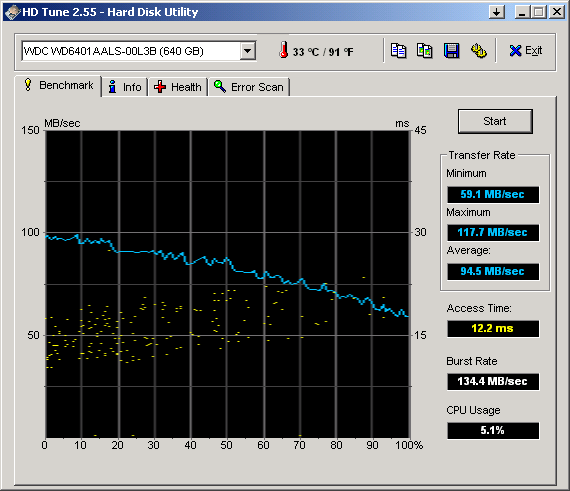
I was bored, so I photochopped the graph into two, based on the first and second halves of the drive.

HDTuneChop_WD640_part1.png
HDTuneChop_WD640_part2.png


It's still the exact same data, just with each half of the graph stretched to take up the whole window in HD Tune, but it seems to emphasize the difference more.

On the first half, you're looking at 99-118MB/s and 4-17ms. On the second half, it's 59-99MB/s and 9-22ms. The second half is still faster than my old 500GB 7200.10 (39-79MB/s and 5-21ms), but it's also noticeably slower than the first half.

I think this shows that any short-stroking will help, but it's definitely best to put your important stuff as close to the beginning as possible to get the maximum benefit.
 
I'm also not sure of the way Access Time is measured - it doesn't really make sense to measure it relative to a position on a platter though. Access Time is massively dependent on Seek Time, which is more a function of the distance that the head must travel from where it is to where it needs to be. So Access Time cannot be quoted for any given sector on the disk - it must be quoted as the time taken to go from one sector to another - ie both the start point and end point have a huge influence. Disk manufacturers only quote an Average Track-to-Track time though, so give no indication of whether or not outer track-to-track times are any different to inner track-to-track times.

My point about the performance of the different disk areas still stands - look again at the graphs (especially the enlarged versions - nice work). The numbers go from about 112MB/s at the start (ignore the tiny jump at the start) to about 105MB/s at the 66% mark (ie the first 1/3 if the scale had not been doubled). Do you really think that is a noticable change?

As for short stroking - the main benefit is still in terms of seek times, not throughput. For most uses, maximum transfer rates are largely useless, as benchmarks are pretty much the only time a drive is ever asked to churn out huge sequential transfers. Unless your applications are very specific, random or semi-random reads are far more common. These pretty much by definition require moving the disk heads between tracks. By short stroking you reduce the distance they have to move, and hence increase the useful transfer speed of the drive. This is the reason why even cheap crappy SSDs feel so snappy - the transfer rates may only be on a par with HDDs, but the low seek times make them feel faster in the real world.
 
I'm also not sure of the way Access Time is measured - it doesn't really make sense to measure it relative to a position on a platter though. Access Time is massively dependent on Seek Time, which is more a function of the distance that the head must travel from where it is to where it needs to be. So Access Time cannot be quoted for any given sector on the disk - it must be quoted as the time taken to go from one sector to another - ie both the start point and end point have a huge influence. Disk manufacturers only quote an Average Track-to-Track time though, so give no indication of whether or not outer track-to-track times are any different to inner track-to-track times.

My point about the performance of the different disk areas still stands - look again at the graphs (especially the enlarged versions - nice work). The numbers go from about 112MB/s at the start (ignore the tiny jump at the start) to about 105MB/s at the 66% mark (ie the first 1/3 if the scale had not been doubled). Do you really think that is a noticable change?

I think we're in agreement. There is some difference between the 1/5, 1/3, and 1/2 points of the drive. But even at the halfway point, it's still much better than at the end of the drive. The more you short-stroke the drive, the faster the transfers and the access times. But even just splitting it evenly in two is going to help a lot.

As for short stroking - the main benefit is still in terms of seek times, not throughput. For most uses, maximum transfer rates are largely useless, as benchmarks are pretty much the only time a drive is ever asked to churn out huge sequential transfers. Unless your applications are very specific, random or semi-random reads are far more common. These pretty much by definition require moving the disk heads between tracks. By short stroking you reduce the distance they have to move, and hence increase the useful transfer speed of the drive. This is the reason why even cheap crappy SSDs feel so snappy - the transfer rates may only be on a par with HDDs, but the low seek times make them feel faster in the real world.

Yup. This further supports the idea of pushing everything to the front of the drive rather than leaving a gap, based on what dderidex said about the amount of data stored in one "ring" at different points on the drive. If something takes up 2 rings at the beginning, it'll take up about 3 in the middle (1.5x) and 4 at the end (2x). Simply having the data further down the drive, it will increase the physical area covered by the data, and therefore the distance the head has to travel to get to the data (i.e. seek times).

I'm sure there's a lot of thought going into that gap, as it probably gives pretty good results on the existing data, while limiting the performance degradation caused by additional data. But if you want the utmost performance, you should push everything as far forward as possible and re-sort the data after adding anything else (which regular users wouldn't want to bother with).
 
Back
Top