• Some users have recently had their accounts hijacked. It seems that the now defunct EVGA forums might have compromised your password there and seems many are using the same PW here. We would suggest you UPDATE YOUR PASSWORD and TURN ON 2FA for your account here to further secure it. None of the compromised accounts had 2FA turned on.
    Once you have enabled 2FA, your account will be updated soon to show a badge, letting other members know that you use 2FA to protect your account. This should be beneficial for everyone that uses FSFT.

File size difference? Windows file system issue?

FenFox

Limp Gawd
Joined
Dec 20, 2016
Messages
310
So I transferred a folder with files in it and subfolders with more files in them from one hard drive to another.

When I right click > properties on the original folder, I see: 212 GB size.

When I right click > properties on the transferred folder, I see: 404 GB.
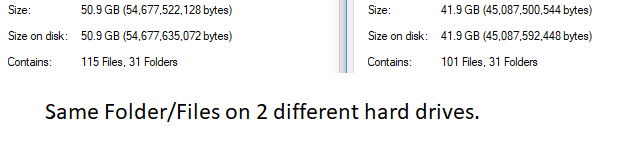
Files.png


So then I go into both hard drives and start checking the properties of each and every folder with files in them and I see a size disparity. It's only when I go into the root folder CTRL + A + Properties that I can see that they're the exact same file size.

So why is the initial hard drive reporting that these files are 192 GB less than they should be when checking properties on the main folder? And how do I get the initial hard drive to show the real size from the main folder?
 
You’re missing files, check if there are and hidden files/folders.

In file explorer options > Hidden Files and folders > Show hidden files, folders, and drives.

Doesn't change anything. When I re-transfer files from the new drive back to the old drive, still says that there are less files. So there has to be some setting with that HDD for it to be showing less capacity/files for specific folders. Again, at the root level it's fine, but not when I'm just clicking on folders checking properties.
 
How did you copy the folder over? Ctrl-C & Ctrl-V, click and drag, some app? You are obviously missing files. The reasons files don't copy from point A to point B could be many: Corrupt file(s), Different file systems not allowing long file/path names and not copying them, hidden files in the source depending on copy method, permission problems on one or both folders and more. If you just ctrl-c the source folder and ctrl-v in the destination, what happens?
 
How did you copy the folder over? Ctrl-C & Ctrl-V, click and drag, some app? You are obviously missing files. The reasons files don't copy from point A to point B could be many: Corrupt file(s), Different file systems not allowing long file/path names and not copying them, hidden files in the source depending on copy method, permission problems on one or both folders and more. If you just ctrl-c the source folder and ctrl-v in the destination, what happens?

I just dragged and dropped the folders over from one drive to another. I never received any warning about file names being too long.
How do I allow long file/path names?

Both drives are using NTFS.

How does it make sense for one drive (the initial drive) to be showing 212 GB, then the transfer to the new hard drive showing 404 GB? And when I re-transfer the 404 GB back to the initial hard drive, it still shows 212? So to me, that indicates that for some reason not all of the data on the initial drive is showing, it's there, but It's not showing what it should be - as 404 GB from the folder level.

later on, instead of dragging and dropping folders, i'll try going to the root folder ctrl-c and then ctrl-v into the root folder on the other hard drive and see what happens. But I'm telling you right now, all of the files are there on BOTH hard drives, It just seems to be a storage reporting issue.
 
Answer I received from the Microsoft forum. But if this is a bug, why doesn't it apply to both of my HDDs universally?

"The Version 1803 introduced a bug into Explorer, it is unable to read the metadata on files and as a consequence cannot report the correct size of folders with sub-folders or the spare space on drives.

Microsoft are aware and we are waiting on a fix . . .

For the moment if you need an accurate reading of folder/drive sizes, click the link below to download a small free utility called Treesize. Using that tool, you will instantly see where this space is being used

https://www.jam-software.com/treesize_free/"
 
Your initial drive probably has disk compression checked off at the volume level or folder level which would make perfect sense why it would change size

Try moving to new drive, quick format old drive with default ntfs settings and move back
 
Your initial drive probably has disk compression checked off at the volume level or folder level which would make perfect sense why it would change size

Try moving to new drive, quick format old drive with default ntfs settings and move back
File & folder compression would affect the difference between the reported size & size on disk percentage, not the actual number of files reported.
 
Back
Top